Setting Up Dynamic Context Ingestion
Last updated: September 29, 2026
If your site already knows something useful about a visitor, their name, their plan, whether they are a customer, you can pass it to the Marketing Agent before the conversation starts.
Dynamic Context Ingestion is how. You declare which fields the agent should accept, then your site sends them with a short piece of JavaScript. Each field you declare is called a variable. You can also map a variable to a Docket field, so the value is stored on the visitor or on their company and is still there the next time that person visits.
What do you need before you start?
An existing Marketing Agent.
The Docket widget script installed on the page that will send the context. See Adding the Marketing Agent Script to Your Website.
Someone who can add a few lines of JavaScript to that page.
The smallest set of fields the agent genuinely needs.
A decision about which of those values are worth keeping after the conversation ends.
Send only what changes the conversation. Every value you pass is context the agent has to weigh, and a short, well-described list works better than a long one.
How do you declare a variable in Docket?
Open Marketing Agent Configuration and select your agent.
Open the Agent tab.
Turn on the Dynamic Context Ingestion switch, then select the chevron to open the section.
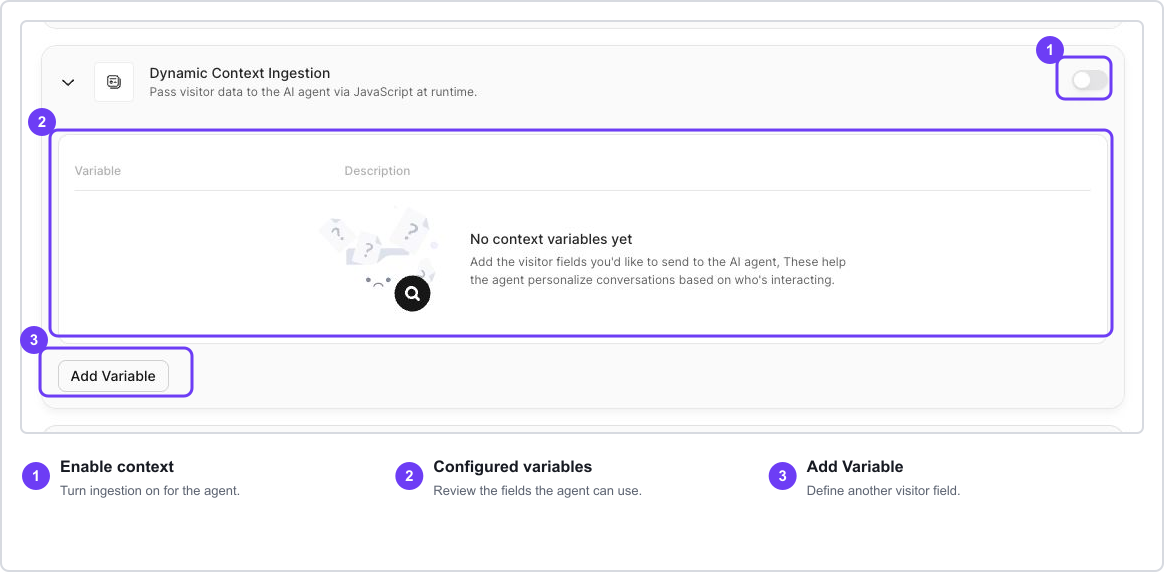
Select Add Variable. A panel opens where you name the variable, choose where its value is stored, and tell the agent what it means.
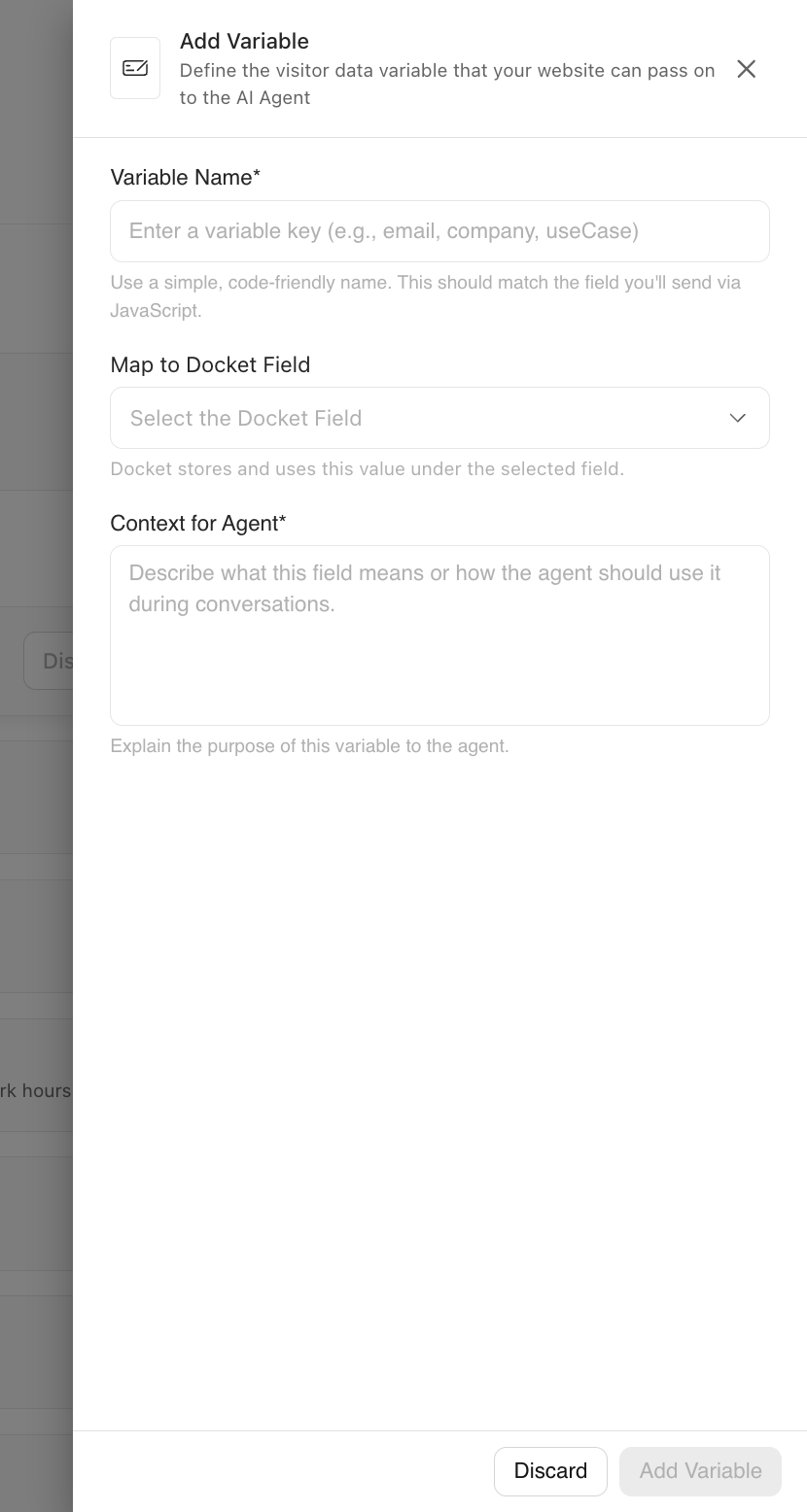
In Variable Name, enter the exact key your site will send, such as
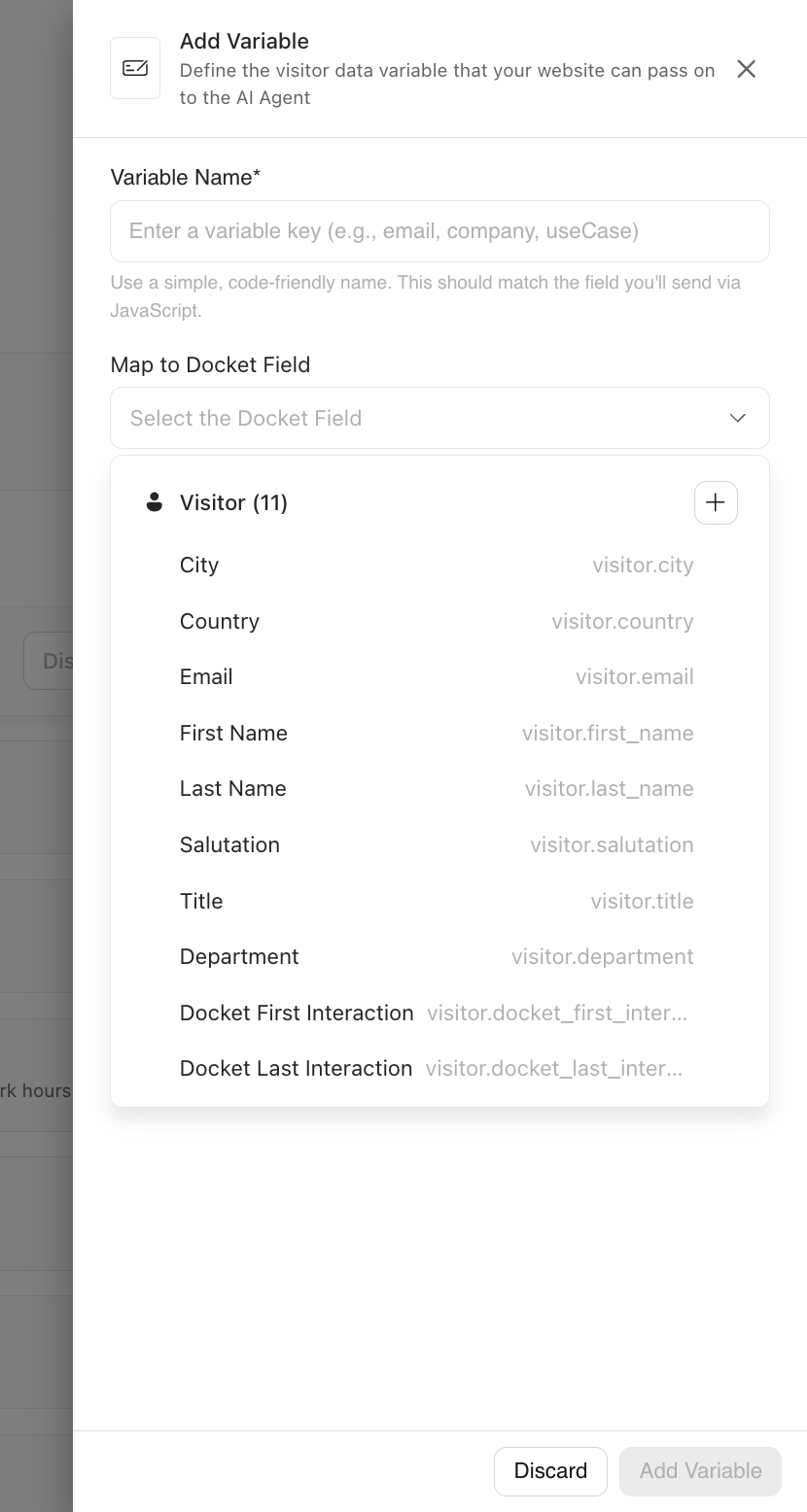
company_name.Open Map to Docket Field and choose where Docket should keep the value. Leave it empty if the value only matters inside the conversation, or if you would rather decide later.
In Context for Agent, write what the value means and how the agent should use it.
Select Add Variable at the bottom of the panel. The variable saves immediately and Docket confirms with Variable saved successfully, so there is no separate save for the section.
Context for Agent is not a label, it is an instruction. "This is the visitor's company. Use it to make examples relevant, and do not repeat it back unnecessarily" gives the agent something to act on, while "company" does not. See Dynamic Context Variable Reference for naming and description patterns.
The variables table lists each variable, with the context you wrote shown under Description. It does not show the Docket field, so open a variable to check where its value goes.
Declaring a variable only tells Docket to accept it. Nothing reaches the agent until your site sends it.
How do you send context from your website?
Call setContext() before the conversation starts, and check what it returns.
const result = await window.AISeller.setContext({
  name: "Jordan",
  company_name: "Northstar Labs",
  isCustomer: true
});

if (result.success) {
  window.AISeller.showAndConnect();
} else {
  console.warn(result.message);
}
Keys must match what you declared in Docket exactly, including capitalisation.
Which value types does setContext accept?
Strings, numbers, booleans, and null. Nested objects, arrays, files, functions, dates, and undefined are not accepted, and result.message tells you which value caused the problem.
If you have a date or a structured object, convert it to a simple string before sending it.
How do you clear context between visitors?
Call resetContext() when someone logs out, switches account, or when the stored context no longer describes who is on the page.
const result = await window.AISeller.resetContext();This prepares an empty context for the next conversation. It does not change a conversation already in progress, so call it before the next one starts.
How do you confirm the agent is receiving context?
Open the deployed page in a private browser window.
Call
setContext()with test values and confirmsuccessistrue.Start a conversation and ask something that should use one of the fields.
Confirm the agent uses the value the way you described it.
Call
resetContext()and confirm the next conversation does not reuse the old values.
What does mapping a variable to a Docket field do?
It tells Docket where to keep the value. Each variable can point at one Docket field, and Docket stores the value under that field, either on the visitor or on the company that visitor belongs to.
Two things follow from that:
The value outlives the conversation, so the next conversation with that visitor starts with it already known.
The value appears wherever that Docket field is used, including the visitor and account views in your dashboard.
An unmapped variable still reaches the agent and still shapes the conversation. Its value is just not stored anywhere afterwards. You can add a mapping to an existing variable at any time.
Which Docket fields can you map to?
The list groups fields by the record they belong to. Visitor fields describe the person, and account fields describe the company that person belongs to.
Visitor fields
Field | Key |
|---|---|
City |
|
Country |
|
| |
First Name |
|
Last Name |
|
Salutation |
|
Title |
|
Department |
|
Docket First Interaction |
|
Docket Last Interaction |
|
Docket Interaction Count |
|
Account fields
Field | Key |
|---|---|
Name |
|
Industry |
|
Annual Revenue |
|
Employee Count |
|
Location |
|
How do you create your own Docket field?
Create a field when the value you send, such as a plan tier or a seat count, has no match in the built-in list. Fields you create belong to your workspace, so every agent in that workspace can map to them.
Open Map to Docket Field.
Choose the group it belongs in, Visitor for the person or Account for their company.
Select Add New Item at the foot of that group and type a readable name, such as
Plan Tier.
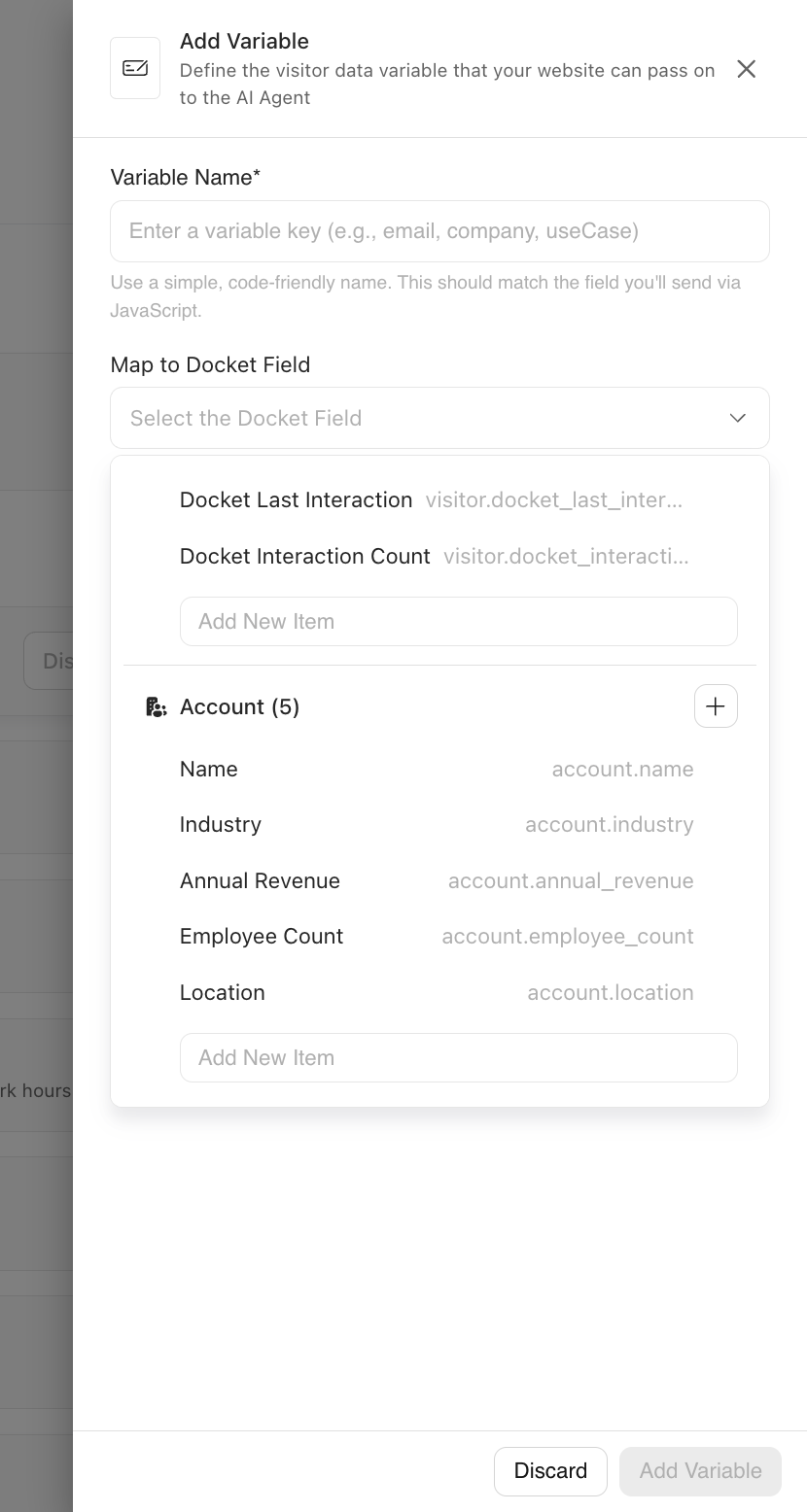
Press Enter. Docket adds the field and generates its key for you, so
Plan Tierbecomesvisitor.plan_tier. Select the new field to map your variable to it.
When does Docket store a mapped value?
Docket stores mapped values when a conversation starts, so a mapping applies to conversations that begin after you save it.
Visitor values are stored against the visitor straight away. Account values are stored against the company the visitor is linked to, and Docket works that link out from the visitor's email domain. On someone's very first conversation the link may not exist yet, so an account value can take until their next conversation to appear.
If a visitor declines the consent banner, nothing is stored. The agent still sees the values your site sent and still uses them in that conversation, but nothing is saved to the visitor or the account once it ends. See Privacy and Consent for Docket Marketing Agent.
Which source wins when two systems set the same field?
A value you map from Dynamic Context takes precedence over the same field coming from HubSpot or from Docket's own enrichment. It does not override what the visitor tells the agent during the conversation, which Docket treats as the most current answer.
How do you change a mapping or delete a variable?
In the variables table, select the variable you want to change.
Open Map to Docket Field and select a different field.
Select Save.
To remove the variable altogether, select Delete in the same panel.
Pointing a variable at a different field, or deleting the variable, stops new values reaching the old field. Values Docket has already stored stay on the visitor or account.
How do you delete a Docket field you created?
You can delete fields you created. Built-in fields have no delete control.
Open Map to Docket Field and find your field.
Select the delete icon on that field's row.
Read the confirmation. Docket removes the field and everything that references it, and this cannot be undone.
Select Remove.
If any agent still maps a variable to the field, Docket keeps the field and tells you what is still using it, naming the agent and the variable. Remove those mappings first, then delete the field.
Why isn't the context reaching the agent?
What you see | What to check |
|---|---|
A variable is ignored | The JavaScript key must match the variable in Docket exactly, capitalisation included. |
| Read |
Context arrives one conversation late |
|
Old visitor details reappear | Call |
| Your code is running before the widget script has loaded. |
The agent has details you did not send | Docket can infer some company information from other signals. Your declared variables are what you control directly. |
A field is greyed out with a tick and cannot be selected | Another variable on this agent already maps to it. Hover the tick to see Already Mapped. Each field takes one variable per agent, so pick a different field or change the other variable. |
The variables table does not show the mapping | The table only lists the variable and its description. Select the variable to see its Docket field. |
Docket will not delete a field you created | A variable still maps to it. The message names the agent and the variable. Remove that mapping, then delete the field. |
An account value is missing but the visitor value arrived | Docket links the company from the visitor's email domain. Until that link exists the account value has nowhere to go, so check again after their next conversation. |
Values reach the agent but nothing is stored | Check whether the visitor declined the consent banner. Nothing is stored for a visitor who declined. |
Frequently asked questions
Do I have to map every variable to a Docket field?
No. Mapping is optional. An unmapped variable still reaches the agent and still shapes the conversation, but its value is not stored after the conversation ends.
Where do I see which Docket field a variable maps to?
Select the variable in the table. The table itself shows only the name and description, so the mapping is only visible once you open the variable.
Can two variables on one agent map to the same Docket field?
No. A field already claimed by another variable on that agent appears greyed out with a tick and cannot be selected. Hovering the tick shows Already Mapped. The rule applies within a single agent, so two different agents can both map the same field.
Does mapping work on agents I set up earlier?
Yes. Open any existing variable and the Map to Docket Field option is there. Existing variables start unmapped.
Can I delete a built-in Docket field?
No. Only fields you created have a delete control. Built-in fields such as Email and Industry cannot be removed.
Can I pass context through the URL instead of JavaScript?
Yes, using the ctx_ prefix on query parameters. URL values always arrive as strings. See Passing Context via URL Parameters to Marketing Agents.
Can I send data from a form the visitor just filled in?
Yes. See Passing Form Data to a Marketing Agent.
Should I pass sensitive information this way?
No. Context travels through the visitor's browser, so treat it as visible to them. Mapping a value also stores it in Docket, so apply the same judgement. See Security Guidelines for Passing Visitor Context.
Does the visitor see the context I send?
Not directly, but it shapes what the agent says, so write descriptions that keep the agent from repeating details back unnecessarily.
What if I rename a variable?
Update every page that sends it at the same time. A key that no longer matches is simply ignored, with no error on the page.
Where do I look when nothing works?
See Troubleshooting Dynamic Context Not Reaching the Agent and Using the AISeller JavaScript API.