Intelligent Routing for Docket Marketing Agent Meetings
Last updated: September 4, 2026
Docket Marketing Agent does not stop at a conversation. When a visitor has said what they need, shown they fit, and agreed to a next step, the agent routes them to the right person and books the meeting inside the same conversation.
Routing decisions use what Docket already knows about the visitor: the CRM record behind their company, what they said in the conversation, and the rules you write. You set it up once per agent, in plain language, and Docket applies it on every conversation from then on. The visitor never leaves the conversation to book, and your reps never sort a queue.
Which routing path should you use?
Docket supports three ways to route a meeting. Most teams use the first, and the three can coexist on one agent.
You want | Use | Who picks the rep |
|---|---|---|
Docket to choose the rep and book on their real calendar, using your CRM and your rules | Native routing with Docket Calendar, described in this article | Docket |
To keep the Chili Piper routers you already run | Chili Piper routing, connected once and named inside the same routing instruction | Chili Piper |
To send the visitor to a booking page you already own, such as Calendly or RevenueHero | An Agent CTA that opens the scheduler URL | The scheduler |
Native routing and Chili Piper routing both book inside the conversation. An Agent CTA opens a page, so the scheduler handles everything after the click. See Connecting RevenueHero or Calendly to Your Agent for that setup.
Before you start
You need permission to edit the Marketing Agent.
Each rep who can receive meetings has connected their own Google Calendar or Outlook Calendar in Personal Settings, and set their Work Hours and time zone there. A rep who has not connected a calendar is never offered.
Your CRM is connected with Read access switched on for the objects you want to route on. Company or Account, Contact, and Deal or Opportunity are the usual set. Salesforce, HubSpot, and Microsoft Dynamics 365 are supported.
If you plan to route through Chili Piper, connect it first. See Use Chili Piper Routing for Marketing Agent Meetings.
Decide the moment the agent should offer a meeting. Routing only runs after that moment.
What happens in a routed conversation?
The visitor reaches the trigger you defined. For example, they ask for a demo, or they have answered the qualifying questions and want to talk to someone.
Docket looks up the visitor. It matches the visitor's email and company to your CRM and reads the fields you have opened, such as owner, segment, region, or deal stage.
Docket applies your routing instruction. The instruction is read top to bottom. The first matching condition determines the target: a person, a team, or a Chili Piper router.
Docket checks real availability. For a native target, it offers only times when that rep is free in their calendar and within their Work Hours, looking 14 days ahead and shown in the rep's time zone. For a Chili Piper target, the router returns the host and the times.
The visitor books in the conversation. The meeting lands on the rep's calendar with a working join link. Nothing opens in a new tab.
Your systems catch up. Docket writes the meeting and a timeline event to the CRM, and if you have alerts set up, the rep hears about it in Slack or Microsoft Teams with the conversation summary.
If a target has no availability, Docket moves to the next target in your instruction. Ending the instruction with a fallback means every visitor has somewhere to land.
How do you set up native routing?
Do this once for each agent that books meetings.
1. Open the Marketing Agent
In the left icon rail, hover to find Marketing Agent Configuration, then open the agent. The rail is a different length in every workspace, so go by the label.
2. Expand Agent CTAs
On the Agent tab, select the chevron on the left of the Agent CTAs row. The switch on the right turns the whole section on and off, so use the chevron to open it.
3. Open Meeting booking settings
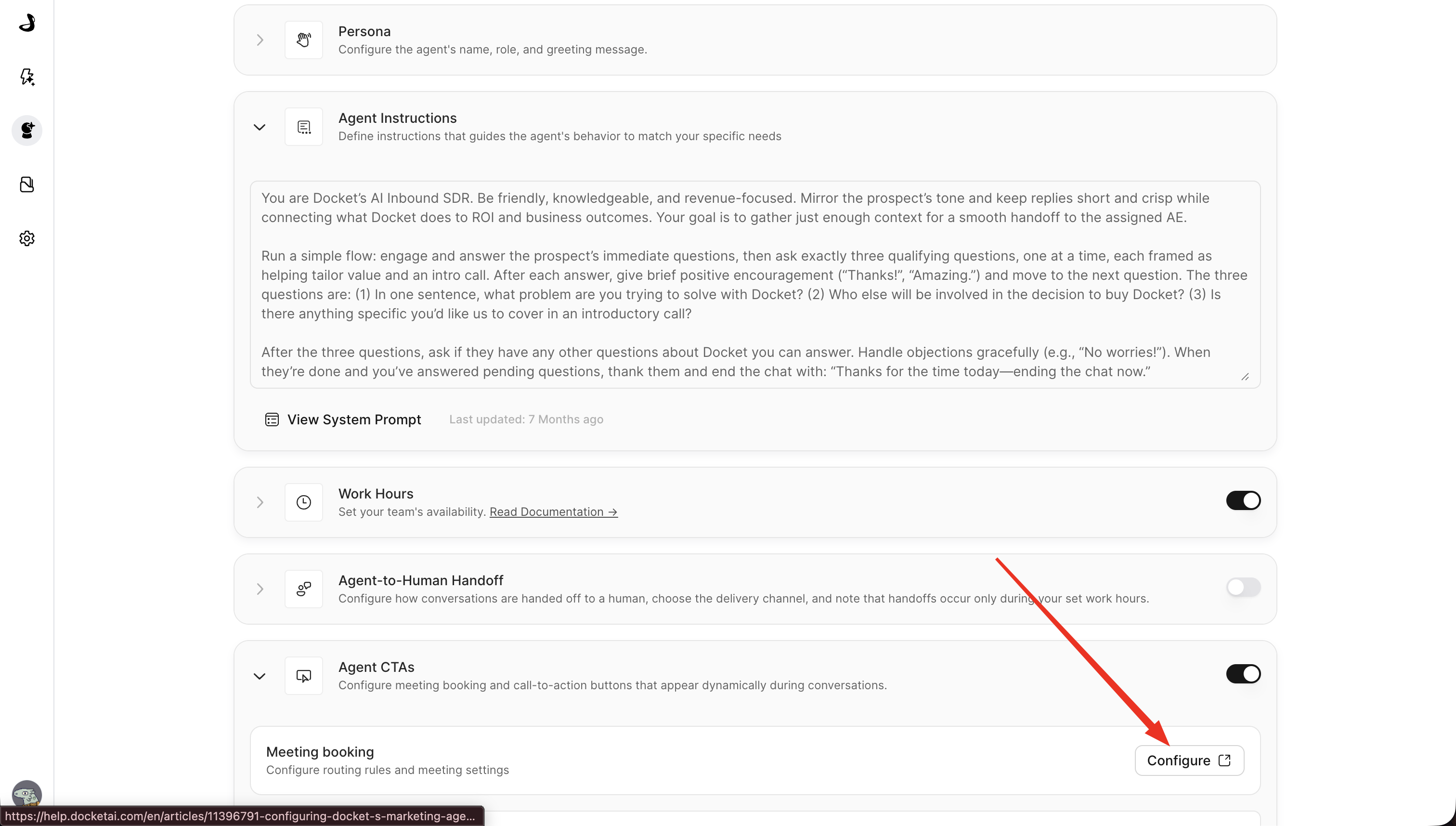
On the Meeting booking card, select Configure. A panel called Configure Meeting CTA opens on the right.
4. Set when the agent offers a meeting
Under When to trigger this CTA, describe the moment in your own words. Be specific about the signal, not just the topic.
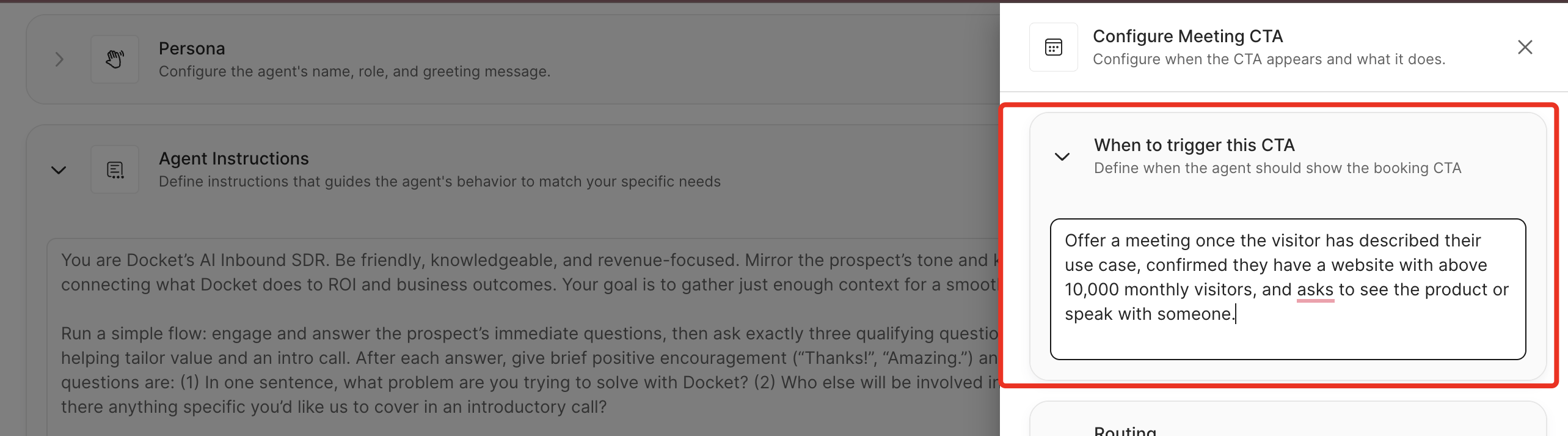
Recommended: Offer a meeting once the visitor has described their use case, confirmed they have a website with above 10,000 monthly visitors, and asks to see the product or speak with someone.
Avoid: Offer a meeting to interested visitors.
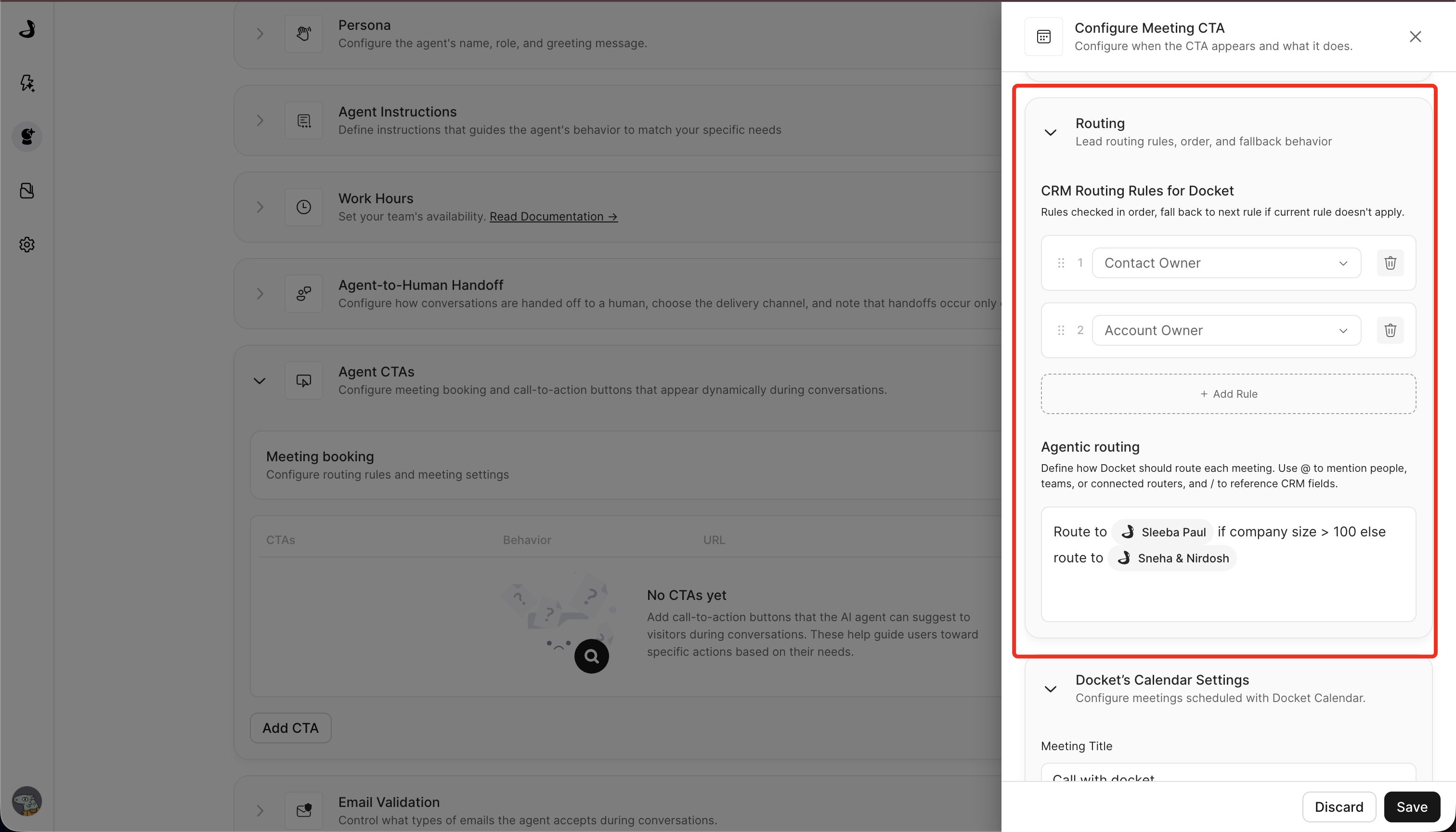
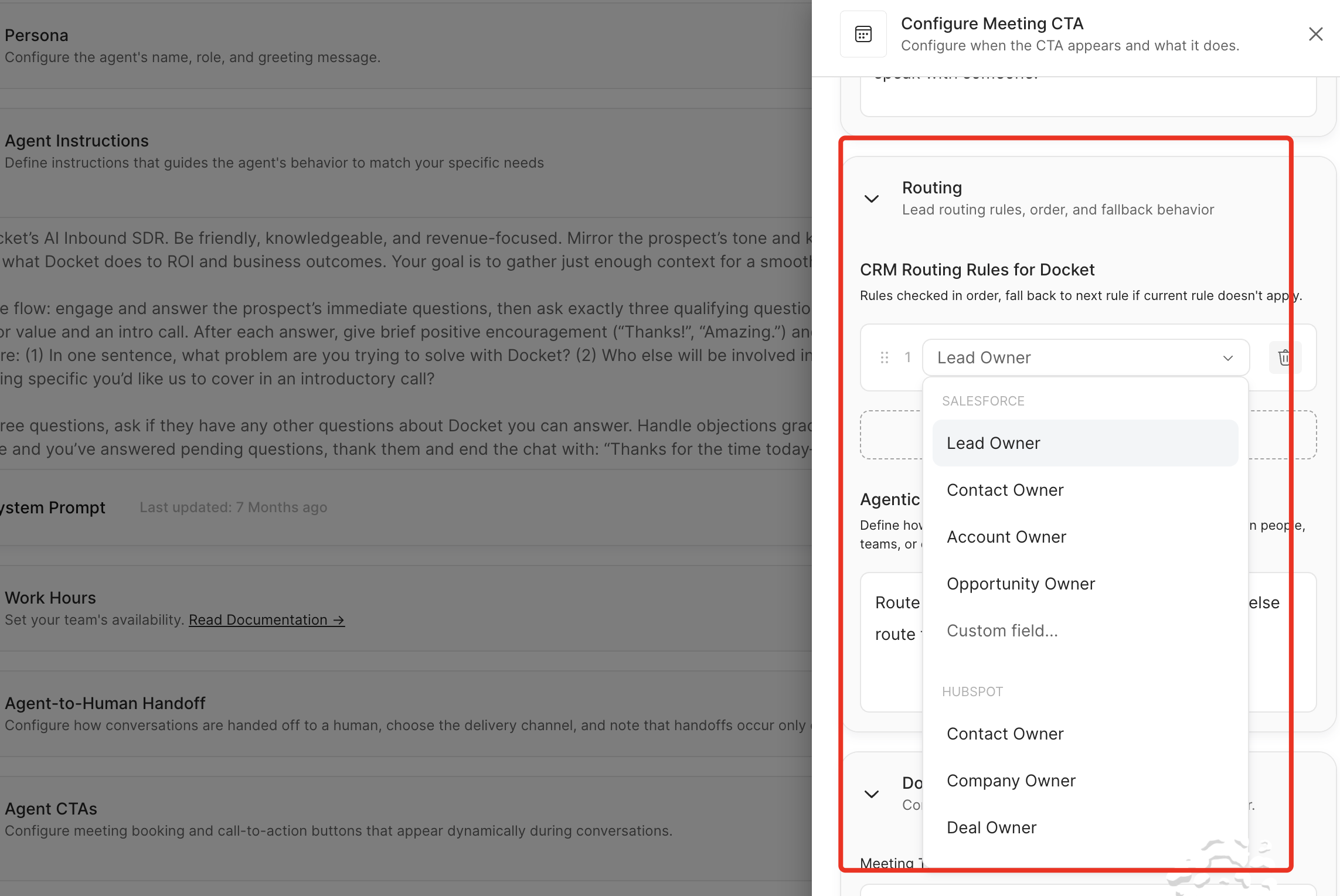
5. Set CRM Routing Rules
The first block in the Routing section is CRM Routing Rules for Docket. Use it for the routing you want applied as a fixed rule from the CRM record, such as sending a visitor from an account that already has an owner to that owner. If your routing is fully described in the next step, you can leave this block empty.
6. Write the Agentic routing instruction
The second block, Agentic routing, is where most routing lives. Write it in plain language.
Type @ to bring up your people, teams, and any connected Chili Piper routers. Routers sit at the top of the list.
Type / to bring up CRM fields, such as /salesforce/account/Owner or /hubspot/company/Annual Recurring Revenue.
Pick names from the menu rather than typing them, so Docket can link them up.
Put the specific cases first and finish with a fallback.
A simple instruction:
if /salesforce/account/Owner is set, route to that owner. for everything else use @Inbound TeamA segmented instruction:
if /hubspot/company/Annual Recurring Revenue is more than 100 mil usd, route to @Enterprise Team.
if /hubspot/company/Country is not United States, route to @International Team.
for everything else use @Inbound Team
Mixing Docket and Chili Piper on one agent:
if /hubspot/company/Annual Recurring Revenue is more than 100 mil usd, route to @Enterprise Team. for everything else use @Your Chili Piper Router
7. Set Docket's Calendar Settings
Under Docket's Calendar Settings, set Calendar to Google Calendar or Outlook Calendar. One agent books on one calendar system, so a team split across both needs separate agents. Set Platform to the conferencing tool you use. Then check Meeting Title, Meeting Description, Duration, and Email Reminders. These settings apply to Docket Calendar bookings only. A Chili Piper booking takes its title, description, and duration from the Chili Piper meeting type.
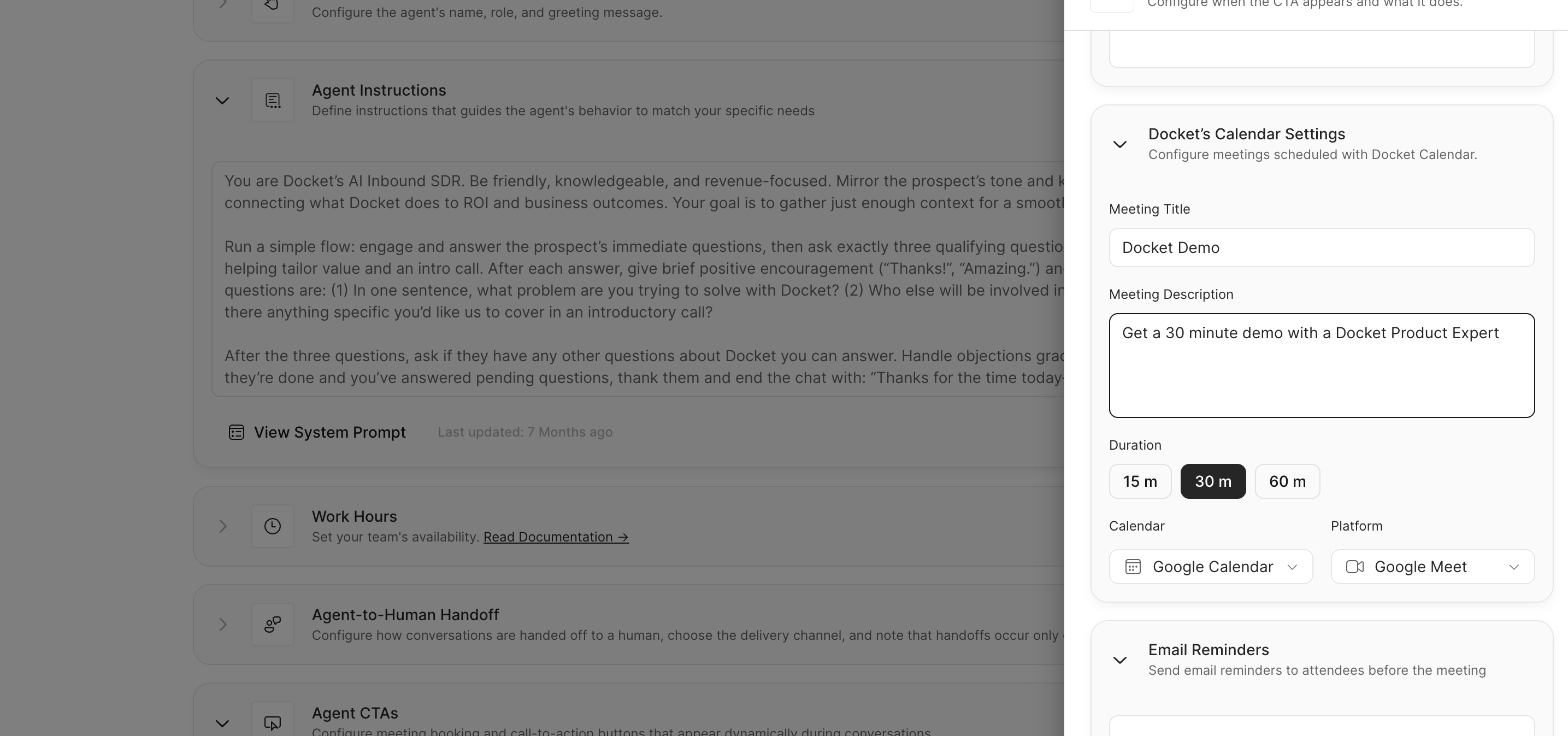
8. Save the Meeting CTA
Select Save at the bottom of the panel.
How do you write routing instructions that hold up?
Routing pattern | Example instruction | What Docket reads |
|---|---|---|
Owner first | if /salesforce/account/Owner is set, route to that owner | The Account or Company record |
Segment | if /hubspot/company/Number of Employees is more than 2000, route to @Enterprise Team | A Company field |
Territory | if /salesforce/account/Billing Country is United Kingdom, route to @EMEA Team | An Account field |
Open deal | if there is an open /salesforce/opportunity, route to its owner | The Opportunity or Deal record |
Existing customer | if /hubspot/company/Lifecycle Stage is customer, route to @Customer Success | A Company field |
Fallback | for everything else use @Inbound Team | Nothing, it always matches |
Three habits keep routing predictable:
One condition per line.
Route to teams for volume, people for exceptions. A team gives the visitor more available times because any connected rep on it can take the meeting.
Always end with a fallback. Without one, a visitor who matches nothing has no route.
How does Docket decide which times to offer?
A time is offered only when the routed rep is free in their connected calendar and the time falls inside their personal Work Hours. A rep who has not set Work Hours is treated as available around the clock, so setting them is what keeps meetings inside sensible hours. Docket looks 14 days ahead and shows times in the rep's own time zone.
Anything the rep books directly in their calendar drops out of the offered times, so the two never drift apart. If the rep moves or cancels the meeting in their calendar, the Docket booking follows within 15 minutes, reminder emails move with it, and the CRM meeting record updates to match.
Note that the agent's own Work Hours setting, under Setup and Manage, controls Agent-to-Human Handoff and when the agent appears. It does not limit meeting times. Meeting times are based on each rep's personal Work Hours.
Routing a meeting versus handing off a live conversation
Intelligent Routing books a future meeting with the right rep. Agent-to-Human Handoff brings a teammate into the conversation that is happening right now. They are separate settings and most teams use both.
Intelligent Routing | Agent-to-Human Handoff | |
|---|---|---|
What the visitor gets | A booked meeting at a chosen time | A human joining or following up now |
Where it is configured | Agent CTAs, Meeting booking | Setup and Manage, Agent-to-Human Handoff |
When it works | Whenever a routed rep has availability | Only inside the agent's Work Hours |
Where the rep is notified | Calendar invite, CRM, optional Slack or Teams alert | Slack or Teams channel |
See Configuring Agent-to-Human Handoff.
How do you test routing in Preview?
Select Preview at the top right of the agent page.
Start a conversation that matches your trigger and describe a visitor who should hit a specific rule, for example a company you know has an owner in the CRM.
Give a real test email address when the agent asks.
Check that the rep or team you expected was chosen, the times match that rep's calendar and Work Hours, and the meeting lands on the right calendar with a join link.
Repeat with a visitor who should fall through to the fallback.
Block an hour in the rep's calendar and confirm that time stops being offered.
Troubleshooting
What you see | What it means | What to do |
|---|---|---|
No rep is offered | No target in the instruction had a connected calendar with free time | Check the routed reps have connected their calendars and set Work Hours, and add a fallback team |
The wrong rep is chosen | An earlier line in the instruction matched first | Reorder the instruction so the specific case comes before the general one |
A CRM field is not in the / menu | Read access for that object is off, or the field has not synced yet | Turn on Read for the object in Settings, then Integrations. CRM reads refresh every 24 hours |
A person or team is not in the @ menu | The list needs a refresh | Close and reopen Configure. The list refreshes when the panel opens |
Times are offered at odd hours | The rep has no Work Hours set, or the wrong time zone | Have the rep set Work Hours and time zone in Personal Settings |
Meeting title or duration is not on the invite | The booking went through Chili Piper | Set those on the Chili Piper meeting type. Docket's Calendar Settings apply to Docket Calendar only |
The meeting is not in the CRM | Write access for Meetings or Events is off | Turn on Write for that object in the CRM integration settings |
FAQs
Does Docket replace our routing tool? It can, or it can sit alongside it. Native routing reads your CRM and books on your reps' calendars without another tool. If you already run Chili Piper, name your router in the same instruction and Chili Piper keeps deciding.
Can we route on what the visitor said, not just the CRM? Yes. The Agentic routing instruction is read by the agent, so a line such as if the visitor asks about the Demo Agent, route to @Product Specialists works alongside CRM conditions.
What if the visitor is not in our CRM? CRM conditions that need a record will not match, and Docket moves down the instruction. That is why the instruction should end with a fallback.
Can one agent route to Google Calendar and Outlook Calendar? No. One agent books on one calendar system. If your team is split, create one agent for each.
Can the visitor reschedule from the conversation? Not yet. Reps reschedule in their own calendar and the Docket booking follows within 15 minutes.
Do routed meetings show up in the CRM? Yes. Docket writes the meeting, a timeline event with the conversation summary, and any mapped analysis fields to Salesforce, HubSpot, or Dynamics 365, so the rep walks in knowing what the visitor said.
How often does Docket read the CRM? CRM reads refresh every 24 hours. Docket pushes updates to the CRM almost in real time.