Understanding Agent Interaction Modes: Voice & Text vs Text Only
Last updated: September 29, 2026
Interaction Mode decides whether visitors can talk to your Marketing Agent or only type to it. There are two options, and the right one depends on the page the agent sits on.
You can change it at any time, so this is a decision you can revisit once you see how visitors actually use the agent.
Where do you set Interaction Mode?
Open Marketing Agent Configuration and select your agent.
Open the Agent tab.
Interaction Mode is the first section under Setup & Manage.
Choose a mode, then select Save.
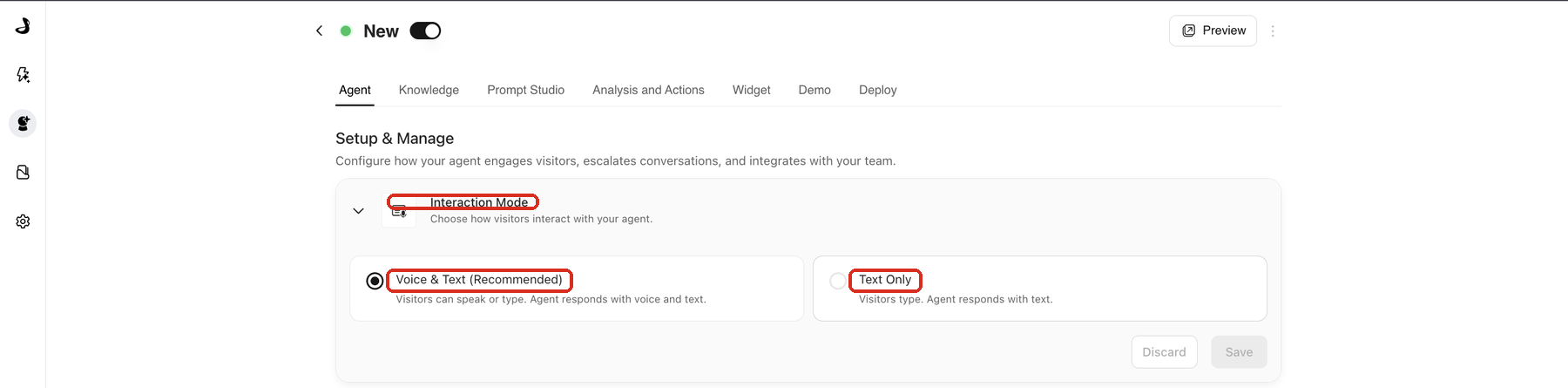
What is the difference between Voice & Text and Text Only?
Mode | What the visitor gets | Choose it when |
|---|---|---|
Voice & Text (Recommended) | Visitors speak or type, whichever they prefer. Every agent reply is both spoken and written. | The conversation does real work: discovery, qualification, a guided walkthrough, or booking. |
Text Only | Visitors type, and the agent replies with text. | The page calls for something quieter, or visitors are likely to be somewhere they cannot use audio. |
The mode applies to the whole agent, not to individual messages. If you want a voice experience on one page and a text one on another, use two agents.
When is Text Only the better choice?
Text Only suits pages where sound would be unwelcome or unusable. Visitors browsing from an open-plan office, a shared desk, or a commute will often not have headphones, and a voice that starts unprompted can send them away rather than draw them in.
It also suits short, factual pages where the visitor wants one answer rather than a conversation.
What should you check before choosing Voice & Text?
Whether your visitors are likely to be somewhere they can use audio.
How the first moment feels on mobile, since the browser asks for microphone permission there.
Whether the conversation is long enough to be worth speaking rather than typing.
Voice suits conversations with some depth, where speaking is genuinely faster than typing. For a single question, text is usually less friction.
How does Interaction Mode work for multilingual visitors?
The agent can hold conversations various languages when its knowledge and instructions support it. If your site draws visitors across several languages, keep the greeting simple and avoid phrasing that assumes one language, then preview the questions you expect in each.
For a properly tuned experience in a specific language, Docket recommends a separate agent for that language rather than one agent covering everything, so you can control the nuances.
How do you test a mode change?
Select Preview and start a conversation.
Check the opening moment suits the page, especially if voice starts on its own.
Confirm the persona, greeting, and CTAs still make sense in the chosen mode.
Test on the devices and browsers your visitors actually use.
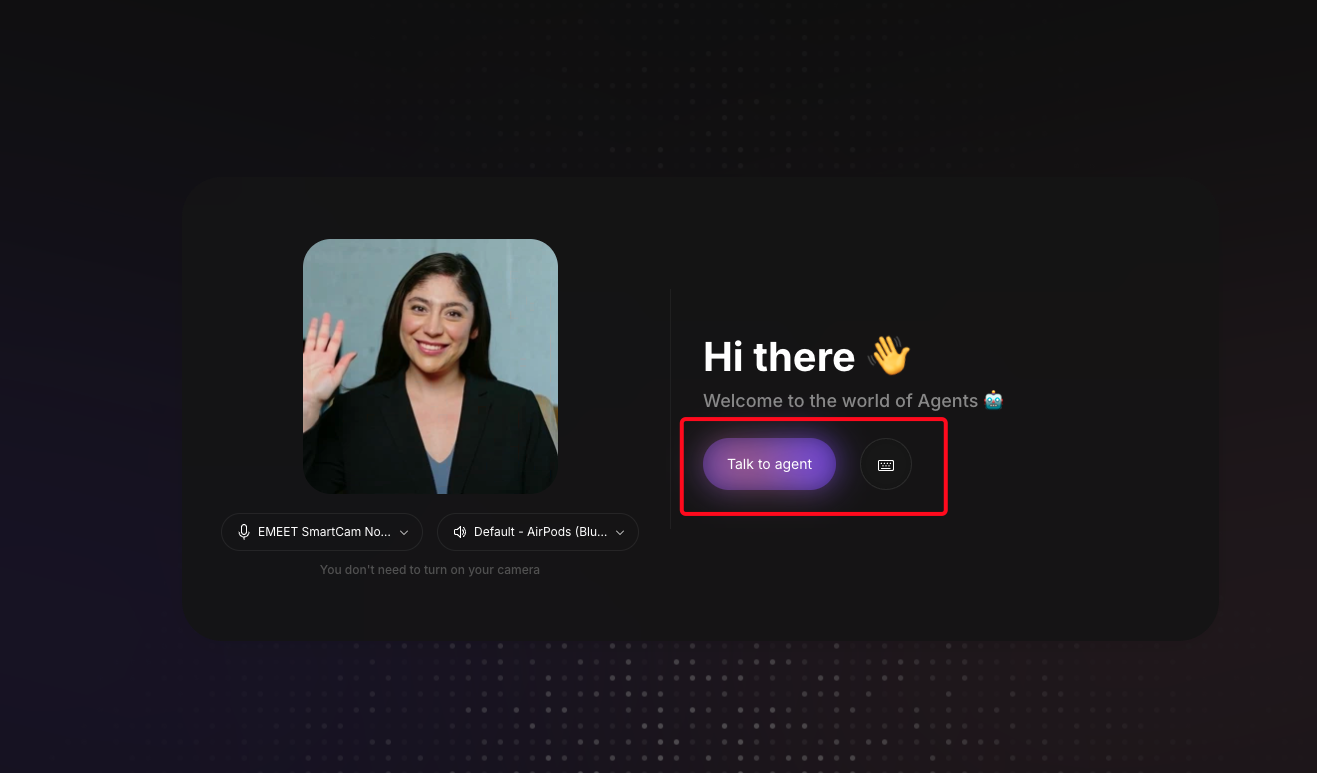
Preview is not identical to the live experience. Before launch, deploy the agent to a staging page and test it there. See Previewing an Agent Before Launch.
Why doesn't the mode feel right?
What you see | What to check |
|---|---|
You cannot find Interaction Mode | Confirm you opened an agent rather than staying on the Agents list, and that you are on the Agent tab. |
Visitors leave within seconds | Voice starting unprompted can catch people off guard. Try Text Only on that page and compare. |
Voice does not work for some visitors | The browser asks for microphone permission. If it is declined or blocked, the visitor can still type. |
The tone does not match the mode | Review the persona and the agent's instructions together with the mode. |
Frequently asked questions
Can one agent use voice on some pages and text on others?
No. Interaction Mode applies to the whole agent. Use a separate agent for the pages that need a different mode.
Can visitors still type in Voice & Text mode?
Yes. Voice & Text means both are available, so a visitor who prefers typing is never forced to speak.
Does Text Only remove the microphone prompt?
Yes. Text Only conversations do not ask for microphone access.
Which mode should we start with?
Voice & Text is the recommended default. If your page suggests visitors will be somewhere audio is awkward, start with Text Only and compare engagement.
Does the mode change what the agent knows or says?
No. Knowledge and behaviour come from the Knowledge tab and the agent's instructions. Interaction Mode only changes how the visitor and agent exchange messages. See Configuring Persona, Greeting, and Avatar.