Controlling Widget Behavior Outside Work Hours
Last updated: September 29, 2026
When your team logs off, the agent keeps working. This page covers what it should do in those hours: keep answering questions and capture the lead, without promising a person who is not there.
The schedule itself is set in Setting Up Work Hours and Availability. This page is about the behaviour you get once that schedule exists.
What are your options for after-hours behaviour?
There are three practical setups, depending on how much cover your team has.
You want | Set up | What the visitor gets |
|---|---|---|
The agent available around the clock, and a person whenever one is asked for | Leave Work Hours off | The agent answers at any hour and can bring in a person at any hour. |
The agent always available, but live handoff only when staffed | Work Hours on, with your staffed schedule | The agent answers at any hour. Outside the schedule it handles the conversation itself. |
The agent to cover only the gap your team cannot | Work Hours on, plus Enable widget post working hours only | The widget appears only outside your schedule, with no live handoff during those hours. |
How do you set up after-hours behaviour?
Open Marketing Agent Configuration and select your agent.
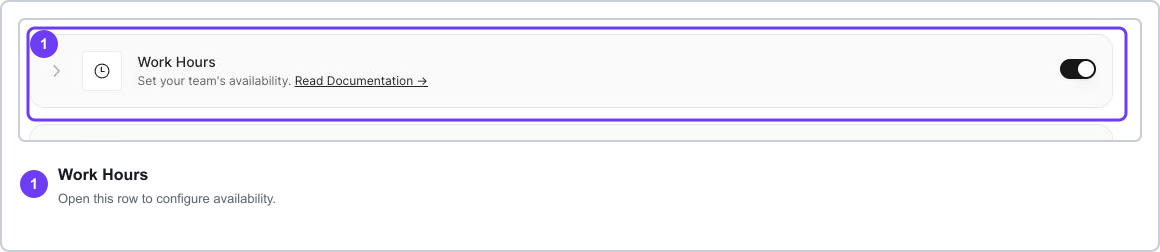
Open the Agent tab, then turn on the Work Hours switch and open the section.
Set the days, hours, and time zone that match the team who answers handoffs.
Decide whether the widget should run all the time or only outside those hours, using Enable widget post working hours only.
Select Save.
What should the agent say when nobody is available?
Set the expectation in the agent's instructions rather than leaving it to chance. An agent that says "I'll get someone for you right now" at midnight creates a worse experience than one that says a person will follow up in the morning.
Good after-hours behaviour usually means the agent keeps answering what it can, collects the visitor's email, and says plainly when someone will reply. How you write that is covered in Editing Agent Behaviour with Prompt Studio.
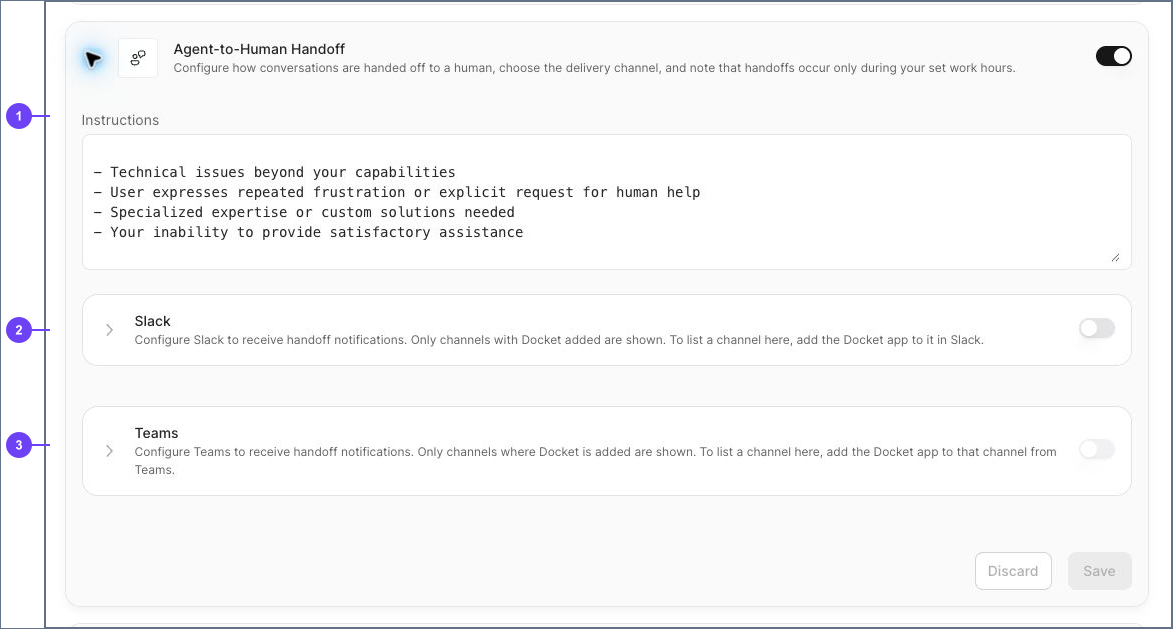
Handoff criteria and delivery channels are covered in Configuring Agent-to-Human Handoff.
How do you confirm after-hours behaviour is right?
Reload the Agent tab and confirm the schedule and time zone saved.
Test the widget once inside the schedule and once outside it.
Confirm live handoff is offered only during staffed hours.
Read the after-hours replies as a visitor would, and check nothing promises an immediate person.
Why is after-hours behaviour not matching the schedule?
What you see | What to check |
|---|---|
The widget appears at the wrong time | Test against the saved Time Zone rather than your own local time. |
Handoff is still offered after hours | Confirm the Work Hours switch is on and saved. With it off, handoff is available at all times. |
The widget does not appear after hours | Confirm Enable widget post working hours only is ticked and saved, then retest in a new session. |
The agent promises a person when nobody is on | Update the agent's instructions so the after-hours message sets a realistic follow-up time. |
Frequently asked questions
Does the agent stop working outside Work Hours?
No. The agent keeps answering. Work Hours governs whether a live handoff is offered, and, if you enable the post-hours option, when the widget is shown.
Can the agent still capture leads after hours?
Yes, and that is usually the point of running it after hours. The agent can answer questions and collect contact details for your team to pick up.
Do meeting bookings follow this schedule?
No. Booking times come from each rep's own connected calendar and personal work hours, not from the agent's Work Hours. See Intelligent Routing for Docket Marketing Agent Meetings.
Can two agents have different after-hours behaviour?
Yes. Work Hours is set per agent, so a regional or campaign agent can follow a different schedule from your main one.