WebMCP for Docket Marketing Agent
Last updated: October 21, 2026
WebMCP lets a visitor's AI assistant ask your website questions and get answers from your Docket Marketing Agent. The assistant receives an answer grounded in your approved knowledge, and it can open the Marketing Agent on your page when the visitor wants to go further. Every WebMCP conversation appears in the Marketing Agent Dashboard alongside your other visitor conversations.
What is WebMCP?
WebMCP is a proposed web standard that lets a website offer tools to an AI assistant running in the visitor's browser. With WebMCP, an assistant can use your site directly instead of reading and interpreting the page on its own.
Docket Marketing Agent offers two WebMCP tools on the pages where your agent runs:
Ask the website a question. The assistant sends the visitor's question and receives an answer from your agent's knowledge.
Open the Marketing Agent. The assistant opens your Marketing Agent on the page, in chat or voice, and can carry the visitor's question into the conversation.
Which AI assistants and browsers support WebMCP?
The major browsers and AI assistants are adopting WebMCP, and support is expanding quickly. Docket makes sure your website is ready as each one goes live, so AI assistants can work with your Marketing Agent from day one. Visitors on browsers that don’t support it yet see no change.
What does your Docket Marketing Agent share through WebMCP?
WebMCP answers come only from knowledge that is approved for visitors. Docket uses the knowledge sources selected for the agent. The assistant can point visitors to your approved slides and videos too.
When your knowledge does not cover a question, the answer directs the visitor to the Marketing Agent on your page.
How do meetings, CTAs, and email capture work with WebMCP?
Meetings, CTAs, and email capture happen in your Marketing Agent. Through WebMCP, the visitor’s AI assistant asks product questions and gets answers from your approved knowledge. When the visitor wants to book a meeting or take a next step, the assistant can open your Marketing Agent on the page and pass along their question.
How to turn on WebMCP for a Docket Marketing Agent
Docket turns WebMCP on for each agent individually. WebMCP is off by default, and nothing changes on your website until it is turned on for an agent. Your website needs no new code, because the tools run through the Docket Marketing Agent script already on your pages.
Contact your Docket team and name the Marketing Agent you want WebMCP turned on for. Docket sets the agent up to respond to AI assistants and turns WebMCP on.
Confirm the agent is published and its Docket Marketing Agent script is on the pages you want AI assistants to use. WebMCP tools are available only on pages where the agent's script runs.
Test it from the built-in browser in the ChatGPT desktop app. Open a page where your agent runs and ask ChatGPT a question about your product that uses the site. Available tools appear under Site tools in the address bar.
How to find WebMCP conversations in the Docket dashboard
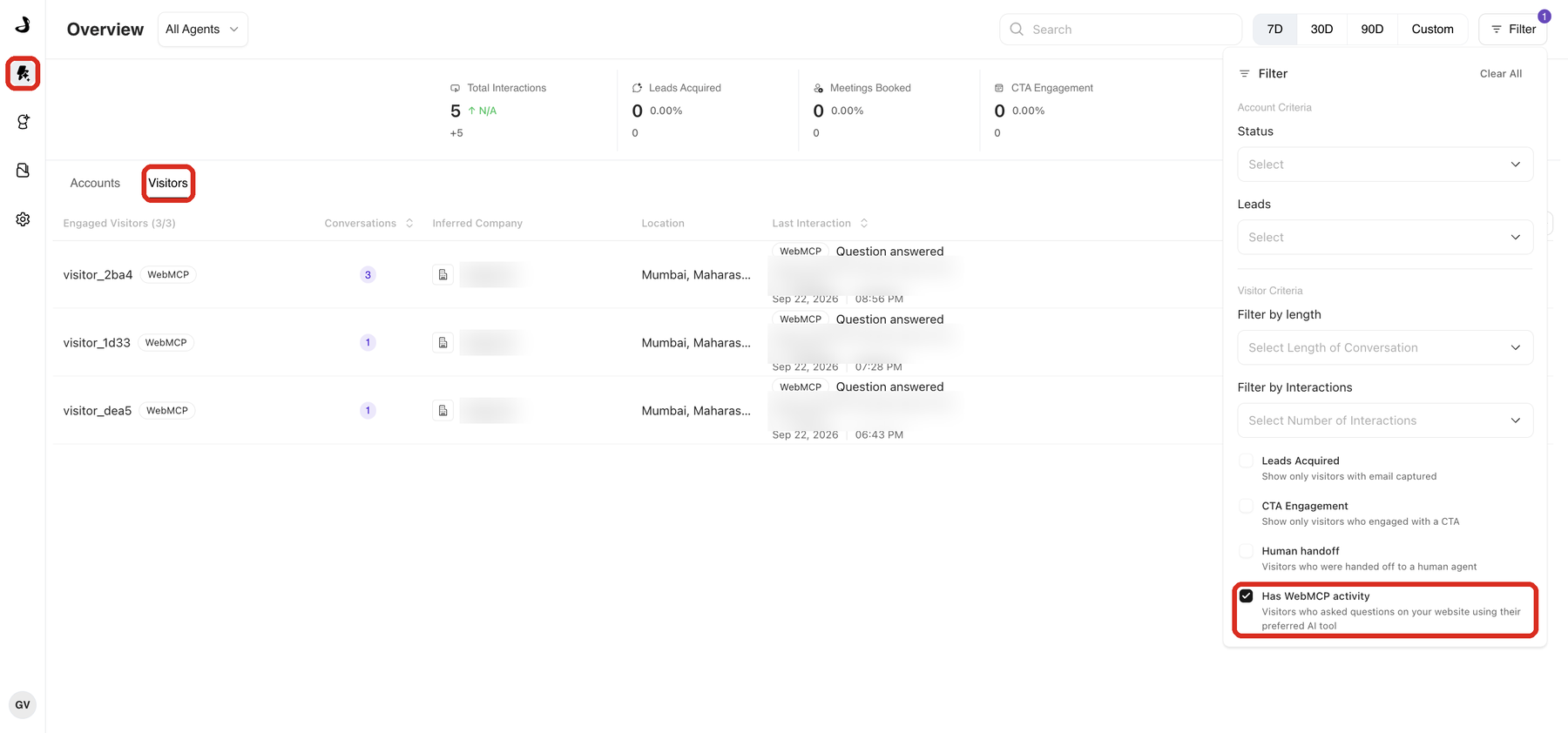
WebMCP conversations appear on the Visitors tab of the Marketing Agent Dashboard about five minutes after the visitor's last question. Each visitor who used WebMCP carries a WebMCP tag, and their Last Interaction shows WebMCP and Question answered instead of a conversation length.
Sign in to Docket at app.docketai.com and click the Marketing Agent Dashboard icon, the first icon in the left sidebar.
Click the Visitors tab.
Click Filter and tick Has WebMCP activity. The table and metric cards now show only visitors who asked questions on your website using their AI assistant.
Click a visitor to open their details, then click the Activity tab. Each conversation appears as a card tagged WebMCP or Marketing Agent. Expand a card to read the transcript of questions and answers.
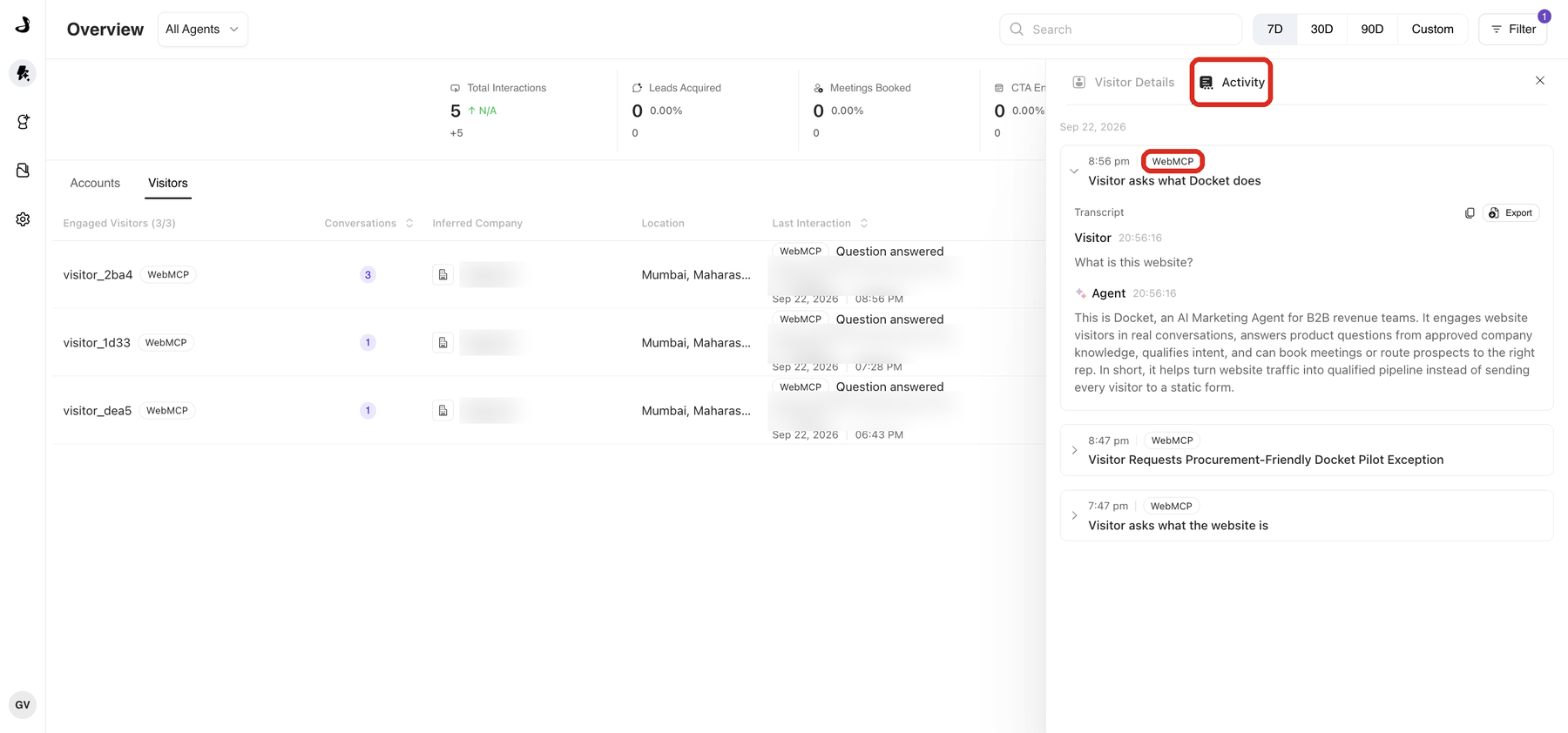
Questions asked within 30 minutes of each other belong to one conversation. A question asked later starts a new conversation card. The Visitor Details tab shows the conversation summary from post-call analysis, which runs on WebMCP conversations just as it does on Marketing Agent conversations.
How to export WebMCP activity from Docket dashboard
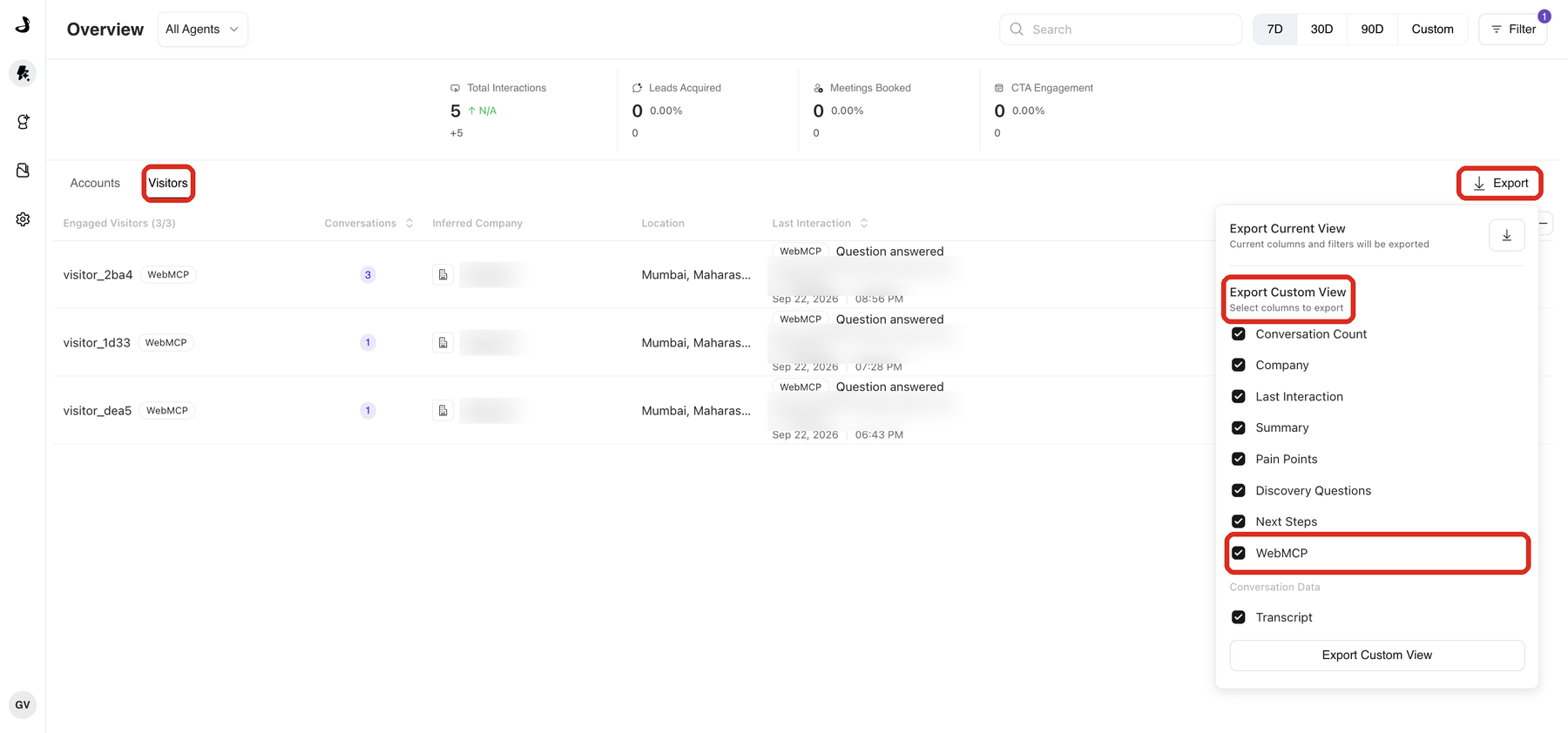
The dashboard export includes a WebMCP column, so you can separate WebMCP visitors in a spreadsheet. Both export options download exactly the rows the table is showing, including the agent, date range, and any active filters. The difference is the columns: Export Current View uses a standard set, and Export Custom View lets you choose them.
On the Visitors tab, click Export. To export only WebMCP visitors, apply the Has WebMCP activity filter before you click Export.
Under Export Custom View, keep WebMCP ticked, choose any other columns you need, and click the Export Custom View button at the bottom of the panel.
Frequently asked questions
Do I need to change my website to use WebMCP?
No. WebMCP runs through the Docket Marketing Agent script already on your pages.
Can I turn WebMCP on myself in Docket?
Not currently. Docket team turns WebMCP on for each agent for now. Contact your Docket team to turn it on or off for an agent.
Is WebMCP the same as Docket Demand MCP?
No, they work in opposite directions. WebMCP serves your website visitors: their AI assistant asks your Marketing Agent questions while they’re on your site. Docket Demand MCP serves your team: you connect ChatGPT, Claude, or another MCP client to Docket and ask about your visitors, accounts, and conversations. See Connect Docket Demand MCP to ChatGPT, Claude, and Other MCP Clients.
Can I see which AI assistant a visitor used?
No. AI assistants do not identify themselves when they use WebMCP tools, so the dashboard shows that a conversation came through WebMCP but not which assistant sent it.
Why doesn't a WebMCP conversation appear in the dashboard yet?
Docket adds a WebMCP conversation to the dashboard about five minutes after the visitor's last question. Check again after five minutes, and confirm the agent and date range selected on the dashboard include the conversation.
Why don't I see any WebMCP visitors?
WebMCP activity appears only when a visitor uses a supported AI assistant on a page where your agent runs. Confirm with your Docket team that WebMCP is on for the agent, and check that the agent's script runs on the pages visitors use.
Why didn’t my slide or video appear in the visitor’s AI assistant?
Some AI assistants, such as ChatGPT, don’t always display images or video in their chat. When that happens, the assistant can open your Marketing Agent on the page, so the visitor sees the slide or video there.
Can a visitor turn off WebMCP in their browser?
Yes. In the ChatGPT desktop app, visitors control Site tools under Settings, Browser, Permissions. When a visitor turns Site tools off, their assistant stops using WebMCP tools on every website.
Do post-call analysis and CRM sync run on WebMCP conversations?
Yes. Docket analyzes each WebMCP conversation after the visitor's last question and runs the agent's post-call actions, just as it does for Marketing Agent conversations.