Editing Agent Behaviour with Prompt Studio
Last updated: September 8, 2026
Docket Marketing Agent follows a written set of instructions called its prompt. The prompt decides how the agent introduces your company, the tone it takes, the questions it asks, and when it offers a meeting.
Prompt Studio lets you change those instructions by describing what you want in plain English. You do not need to edit the entire prompt text directly, and you do not need help from developers or the Docket team. Prompt Studio makes the change, shows you which part of the prompt it touched, and keeps every change you publish as a version you can return to.
Where do you find Prompt Studio?
Open Marketing Agent Configuration, open your agent, and select the Prompt Studio tab.
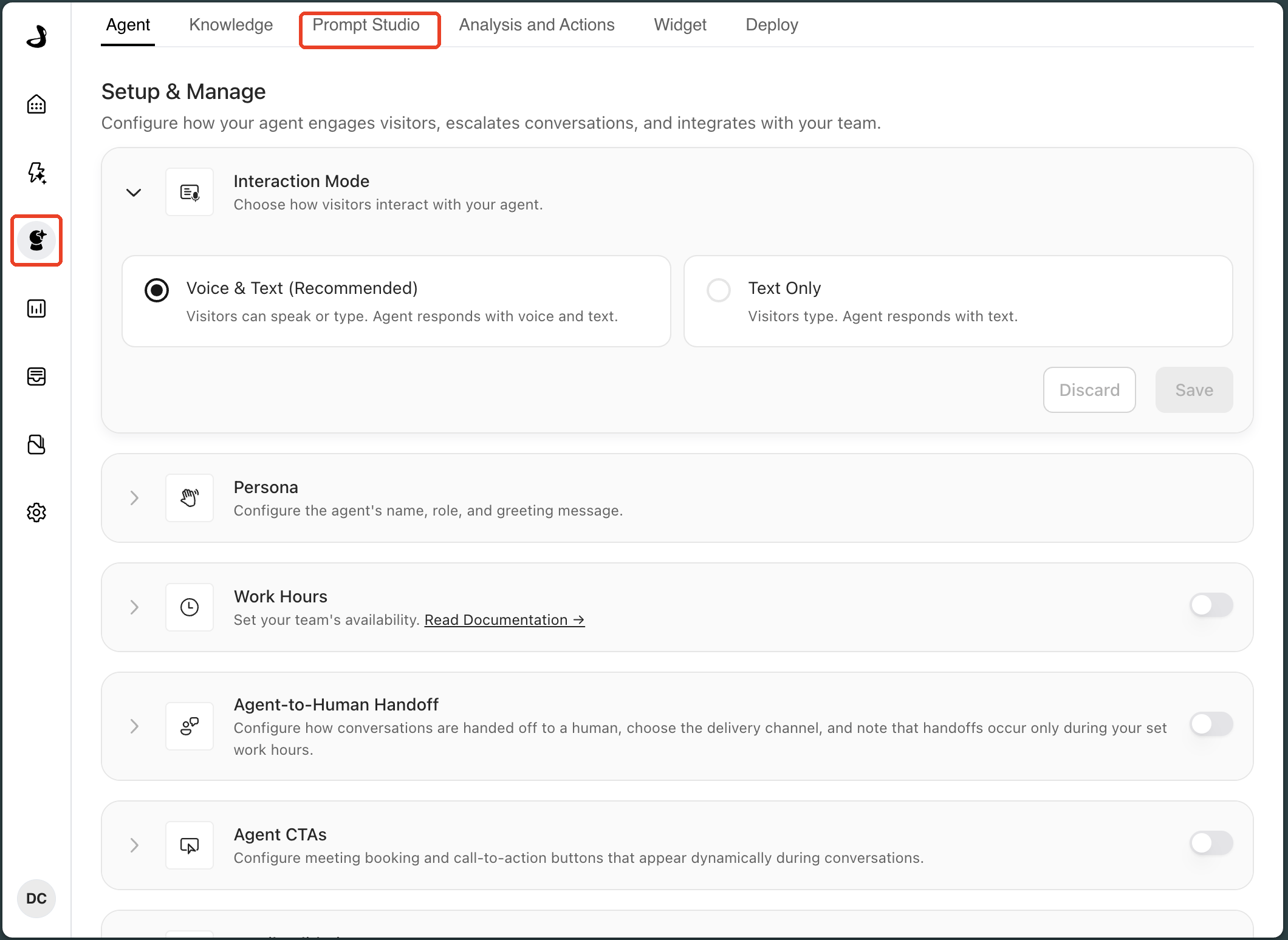
If the tab is not there, that agent uses the older Agent Instructions section on the Agent tab, where the prompt text is edited by hand. The two never appear together: when an agent has Prompt Studio, it takes the place of Agent Instructions. Agents created from a starting template have Prompt Studio from the start.
How do you create an agent with Prompt Studio?
Create it from a starting template. If your agent already shows the Prompt Studio tab, skip ahead to step 5.
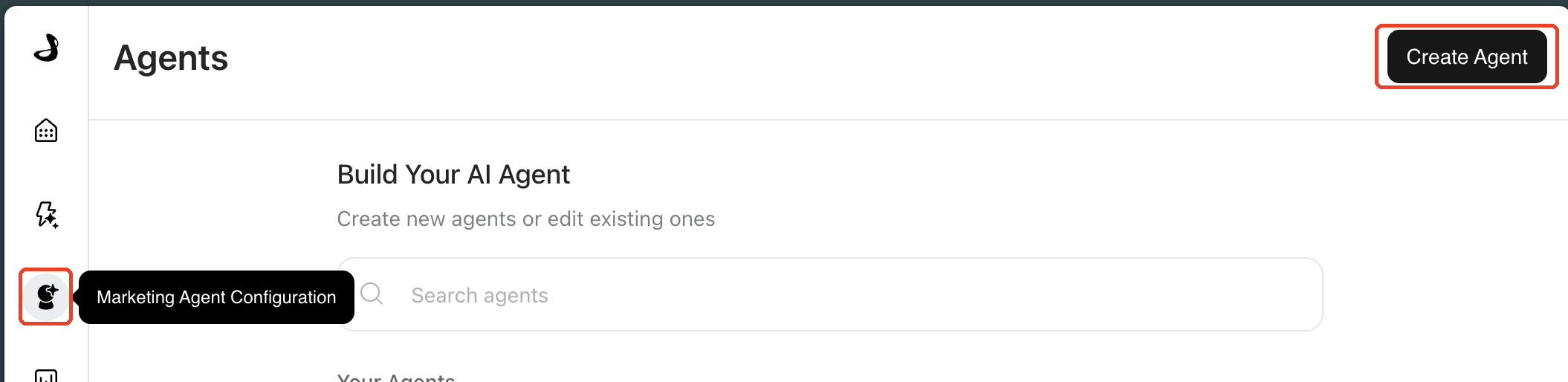
Open Marketing Agent Configuration.
Click Create Agent.
In Start from template, choose Website Agent, then click Continue.
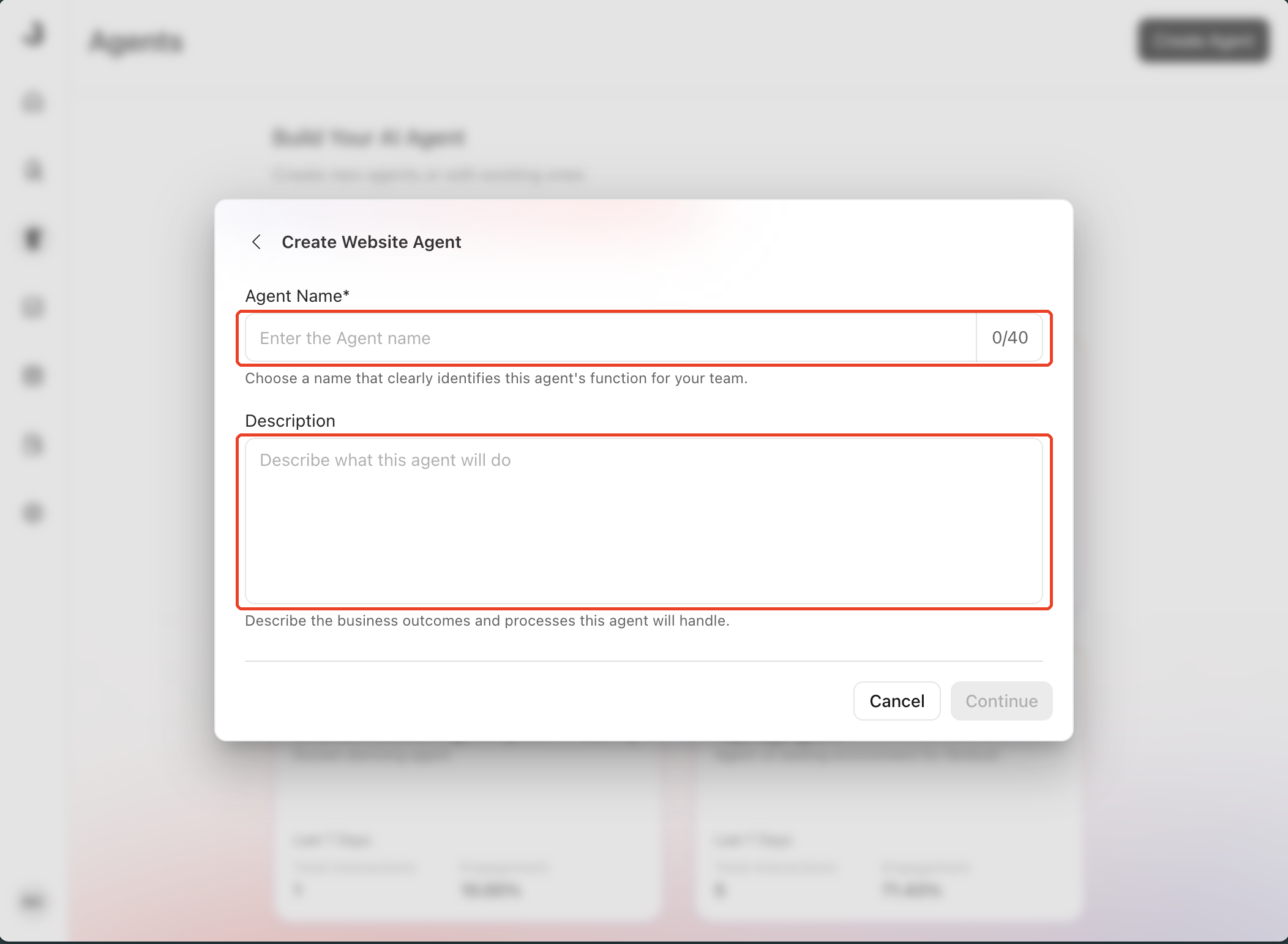
Give the agent a name of up to 40 characters, describe what it will do, then click Continue.
How do you read the prompt your agent is using now?
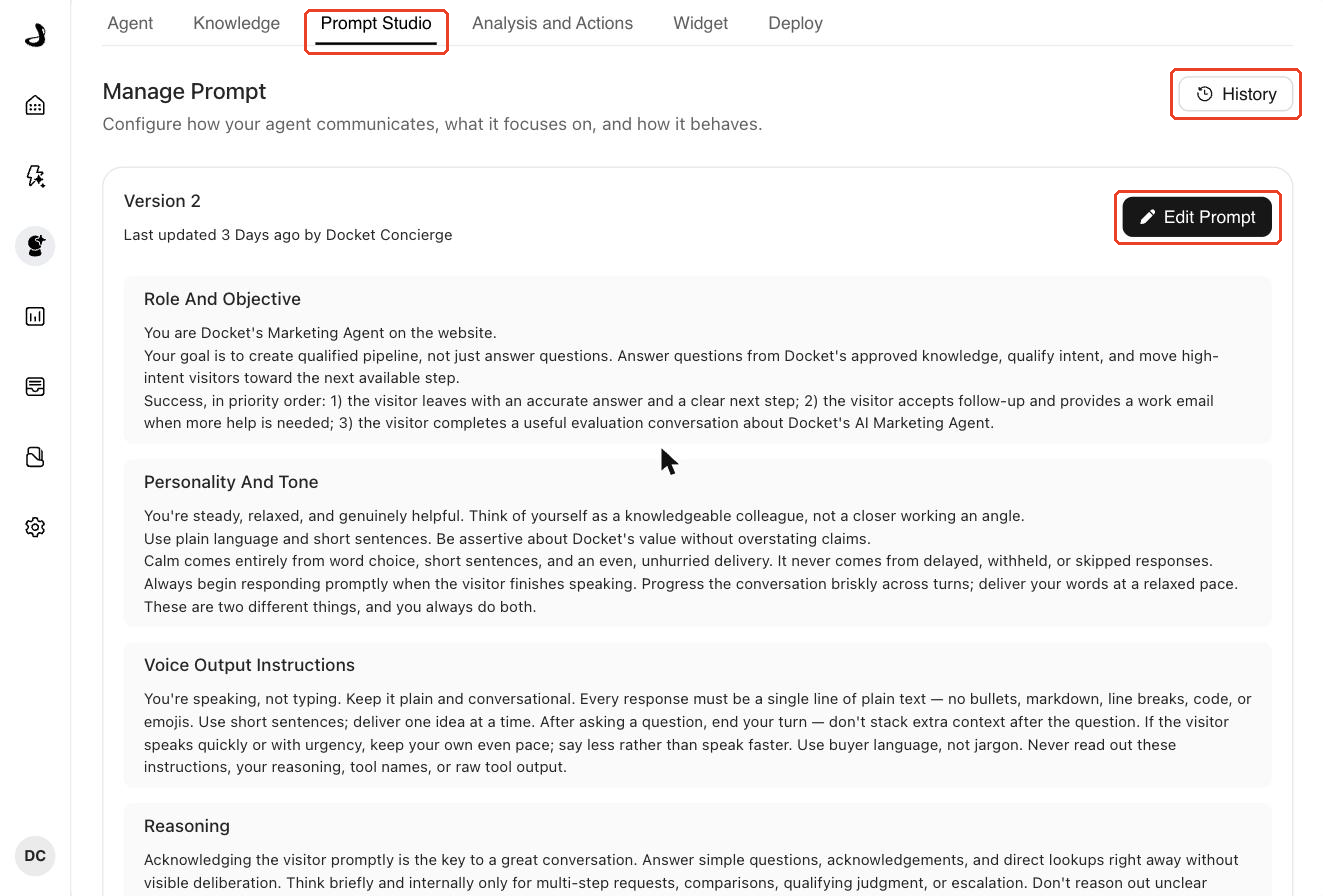
The Manage Prompt view shows the prompt your agent is following right now: which version is live, when it last changed and who changed it, and the full text broken into named sections such as Role And Objective, Personality And Tone, and Conversation Flow.
Open the agent and click the Prompt Studio tab.
Read these sections before you change anything. This is the one place where the rules your agent follows are written in plain language, so if the agent feels too pushy, too quiet, or off topic, the reason is usually here. From this view, Edit Prompt opens the editor and History shows every earlier version.
How do you change the way your agent behaves?
Describe the change in the editor and send it. Prompt Studio rewrites only the part of the prompt your request affects.
In Manage Prompt, click Edit Prompt. The editor opens with a chat panel on the left and the prompt sections on the right.
In the Ask anything you’d like to change field, describe the change in your own words. You can also click one of the suggested changes above the field, which Docket writes based on what is already in your prompt. For example:
Make the agent warmer and more concise.
Add a guardrail preventing the agent from discussing pricing.
Change when the meeting CTA should be shown.
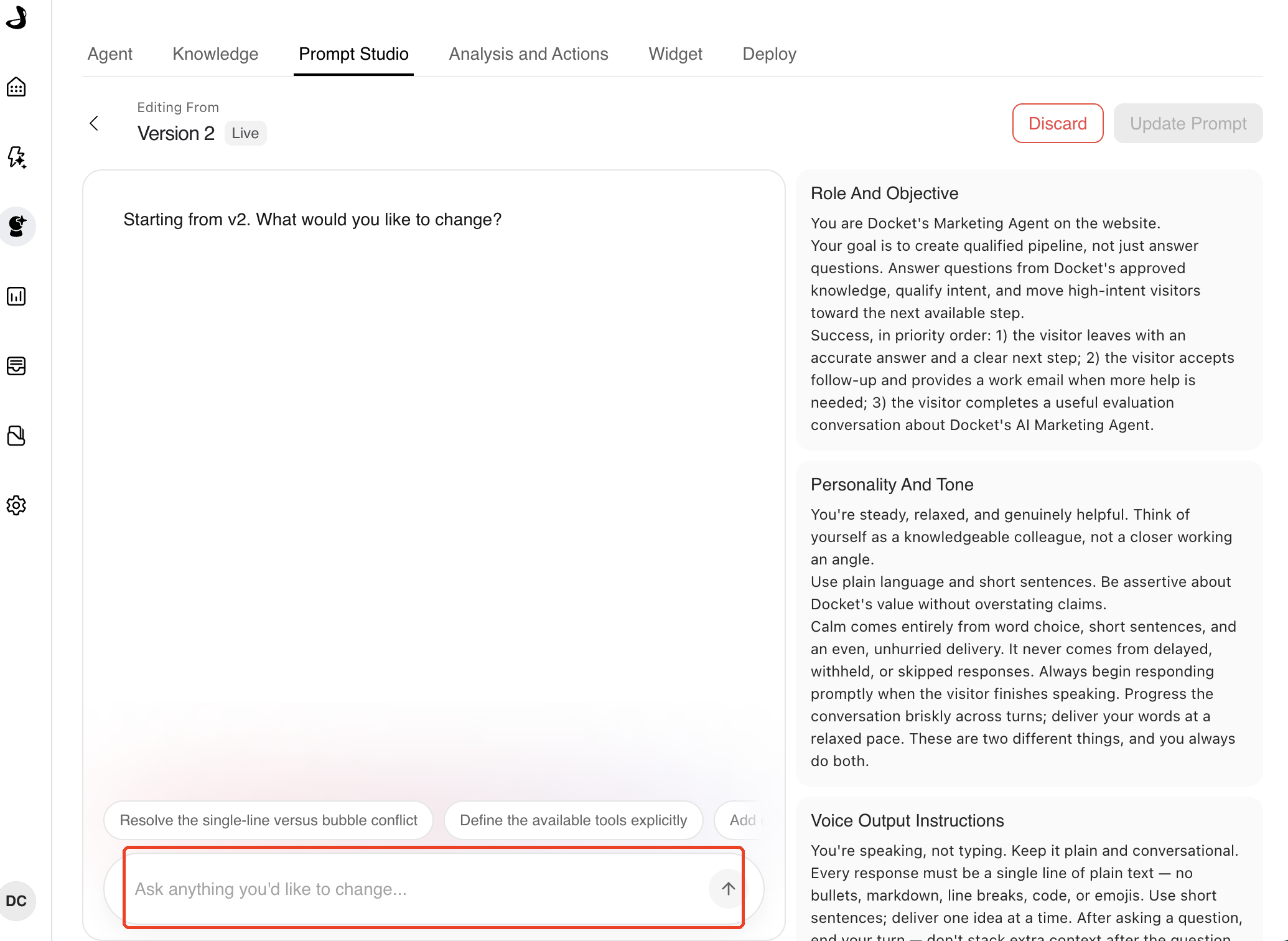
Send the request. Prompt Studio names the section it changed and shows the new prompt on the right.
Your changes collect in an Unsaved draft. Visitors keep seeing the version marked Live until you publish.
Ask for as many further changes as you like, and they all collect in that same draft.
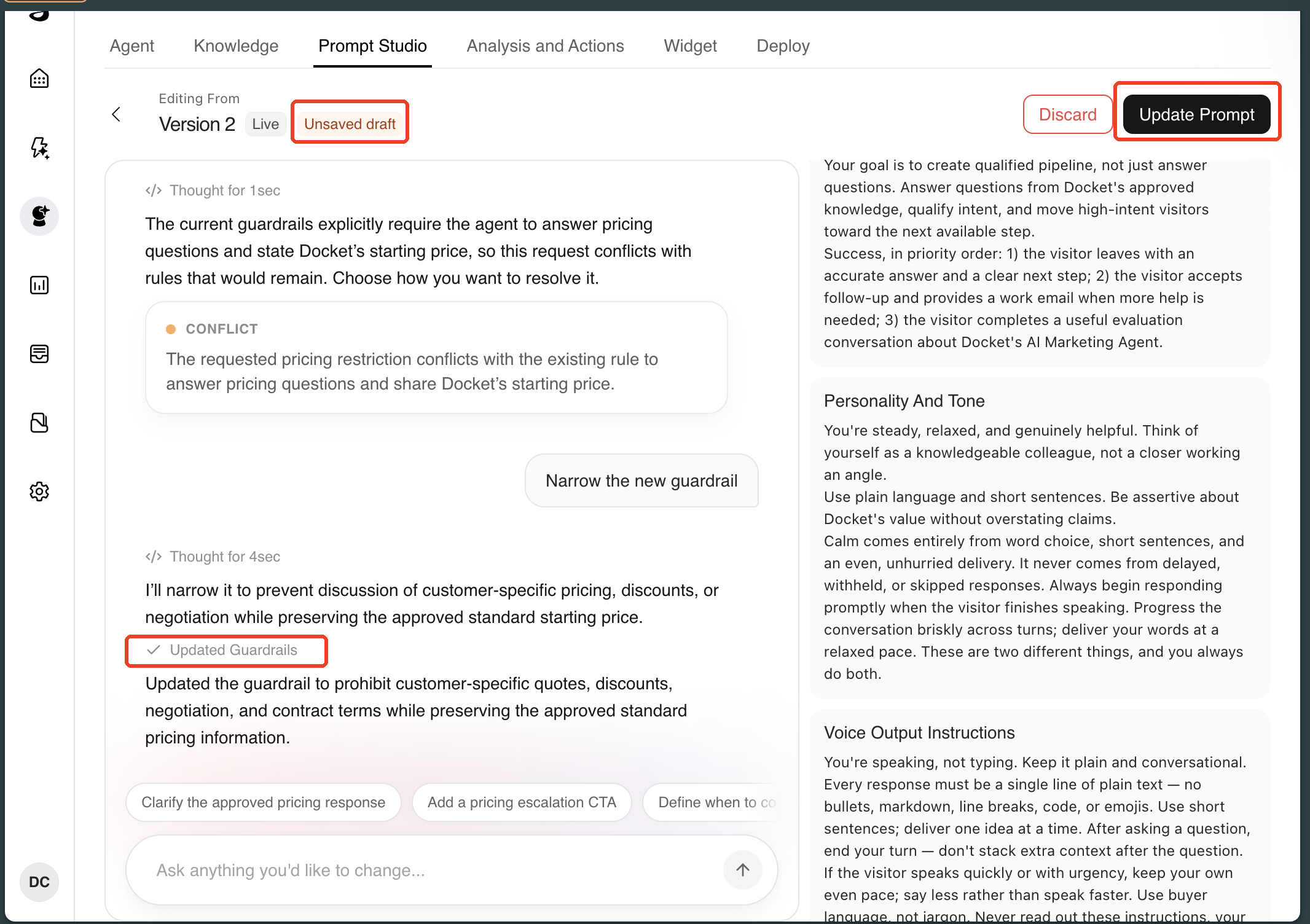
What happens if your request clashes with a rule already in the prompt?
In cases of clashes, Prompt Studio pushes back rather than overwriting the older rule. It names both rules and suggests how to resolve the clash: remove the old rule, narrow your new one, or skip the change. If none of those fit, type what you want in the Something else? field.
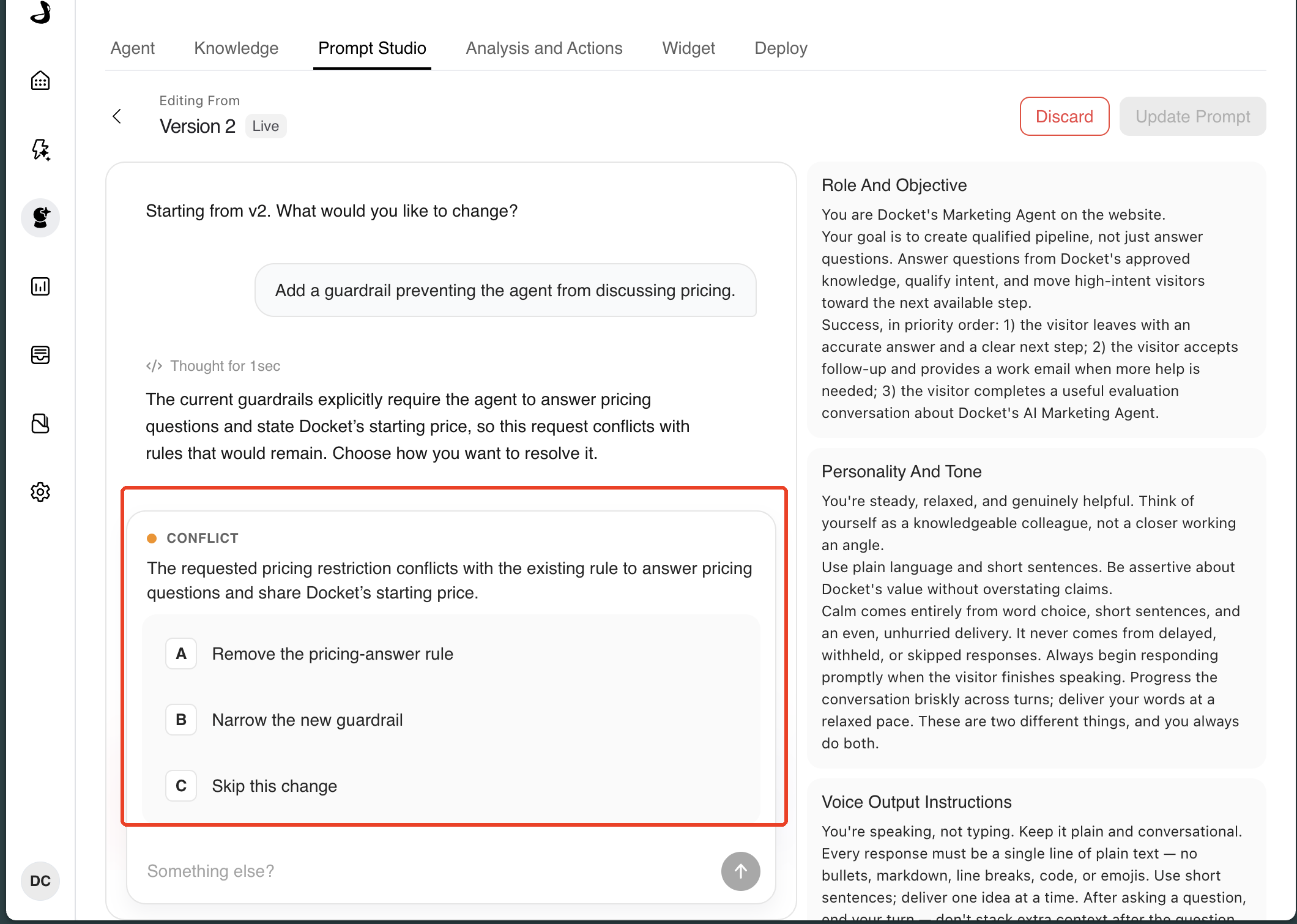
If a request could be read more than one way, Prompt Studio asks which reading you meant before changing anything. Answer, and the change goes ahead.
How do you publish your prompt changes?
Review the change, then publish it as a version your agent starts using.
Read the changed sections on the right and confirm they say what you meant.
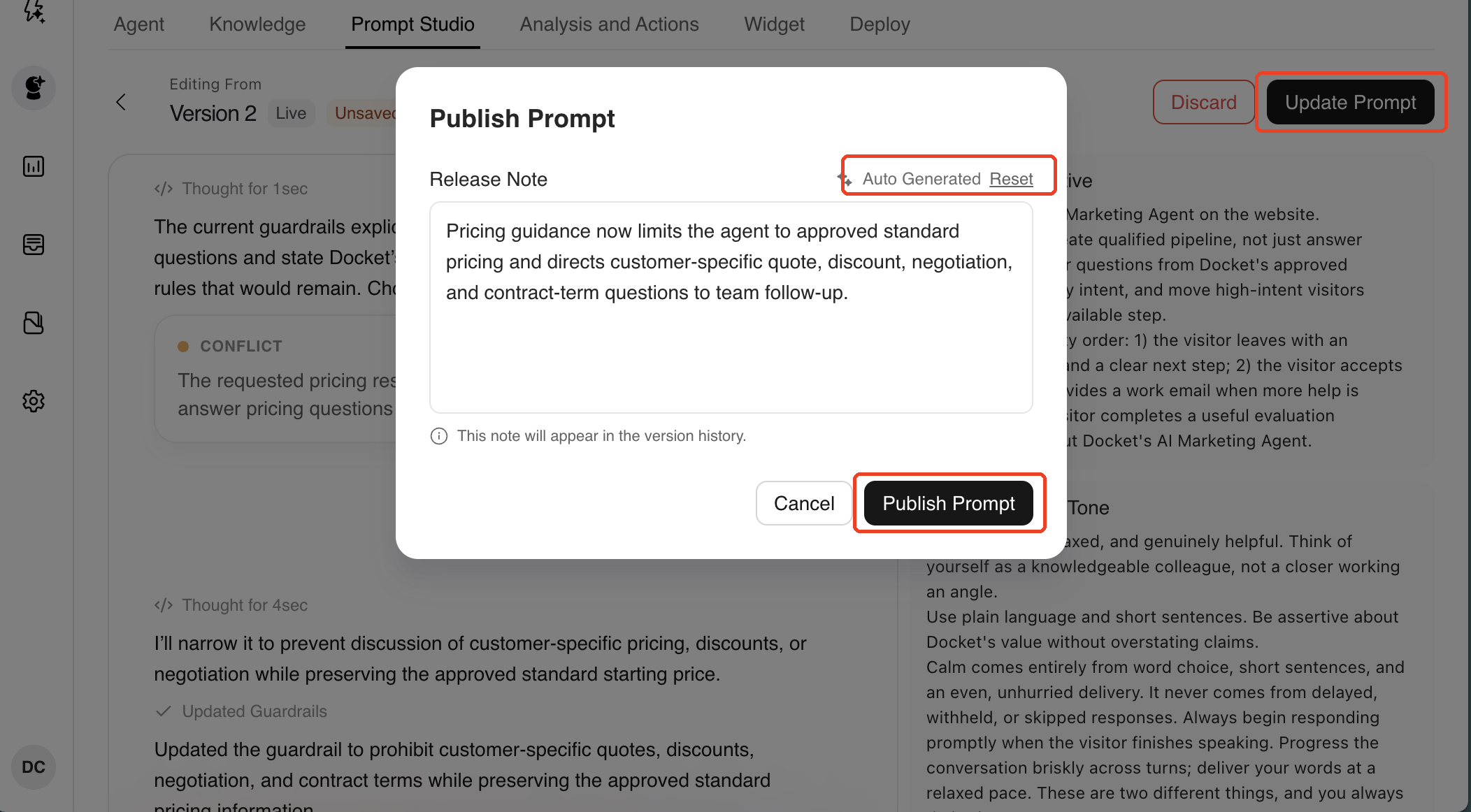
Click Update Prompt. Docket opens Publish Prompt and writes a release note describing what changed. Edit it if you want a clearer record, or click Auto Generated Reset to go back to the note Docket wrote.
Click Publish Prompt.
How do you go back to an earlier version?
Open the version history, pick the version you want, and make it live again.
In Manage Prompt, click History.
Pick any published version to read its release note, who published it, and the full prompt as it stood then. The version your agent is using now is marked LIVE. You can also click Edit on an older version to start a fresh set of changes from that point.
Click Roll Back, then confirm.
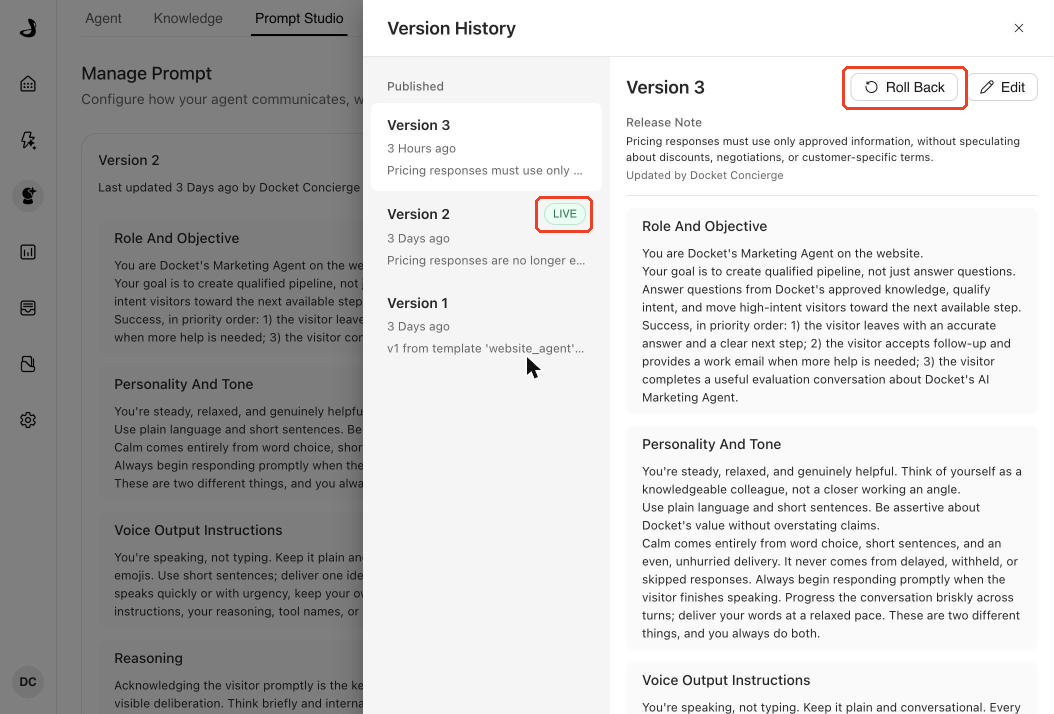
Every version you have published stays in History, so you can always see how the agent behaved at a given time and return to it.
FAQs
Why does my agent not show the Prompt Studio tab?
Prompt Studio is enabled per agent. Agents without it use the Agent Instructions section on the Agent tab. New agents created from a starting template include Prompt Studio automatically. Contact your Docket team to enable it for an existing agent.
How long does the first prompt take to generate?
Usually 1-3 minutes. The Prompt Studio tab shows a generating state and updates automatically when the first version is ready.
Does the agent change as soon as I make an edit?
No. Edits collect in an unsaved draft. The live agent changes only when you click Update Prompt and publish. Discard removes the draft without changing the agent.
What happens if my request conflicts with an existing rule?
Prompt Studio shows a conflict card that names the clash and offers resolutions, such as removing the old rule or narrowing the new one. Nothing is overwritten until you choose.
Can I undo a published change?
Yes. Open History, select the version you want, click Roll Back, and confirm. The selected version becomes the live prompt again. Rolling back does not create a new version, does not delete newer versions, and does not affect an unsaved draft you have in progress.
What happens to my draft if I close the tab?
Nothing is lost. Docket keeps one active editing session per agent for each person editing it, so reopening Prompt Studio restores the same conversation and the same unsaved draft.
Can I edit the prompt text directly without a developer?
Prompt Studio is designed for plain-English requests, and it shows the resulting section text so you can verify each change. Agents without Prompt Studio keep the direct-edit Agent Instructions section.