Connecting RevenueHero or Calendly to Your Agent
Last updated: September 29, 2026
If RevenueHero or Calendly is where your team's booking links already live, you can keep them and have the Marketing Agent offer the right one at the right moment.
Docket decides when the button appears and how it opens. Your scheduler still owns routing, availability, the invite, and any reschedule. Nothing about your existing setup has to change.
What do you need before you start?
Permission to edit the agent in Marketing Agent Configuration.
The approved RevenueHero or Calendly booking link, over HTTPS.
A decision on whether it should open inside the widget or in a new tab.
Which booking pattern fits your setup?
You want | Use |
|---|---|
A RevenueHero link after the agent qualifies a visitor | An Agent CTA with the RevenueHero booking URL |
A Calendly page after the agent qualifies a visitor | An Agent CTA with the Calendly scheduling URL |
The visitor to stay inside the widget while booking | An Agent CTA with iframe behavior, if that link embeds |
The full scheduler experience, or no embedding surprises | An Agent CTA with new tab behavior |
Docket to pick the rep and book on their calendar | Docket's own Meeting booking card instead of a URL CTA |
How do you prepare the scheduler link?
Use the final visitor-facing link. A CTA opens a URL, so an installation script or JavaScript embed code will not work in the URL field. If your scheduler needs a snippet, put it on a page you own and use that page's address instead.
For RevenueHero, use the booking link itself, or a page where the RevenueHero router is installed. The inbound router, form identifier, and scheduler script are configured in RevenueHero and are separate from Docket.
For Calendly, use the scheduling link for the relevant event type, team page, or routing form. Simple Calendly booking pages usually embed, while routing forms and the JavaScript embed generally need a new tab.
Then check it:
Open the link in a private browser window and confirm the right meeting type or router appears.
If you want iframe behavior, load the same link in a basic iframe test page and confirm it renders fully.
How do you add the CTA in Docket?
Open Marketing Agent Configuration and select your agent.
Open the Agent tab, turn on the Agent CTAs switch, then open the section.
Select Add CTA.
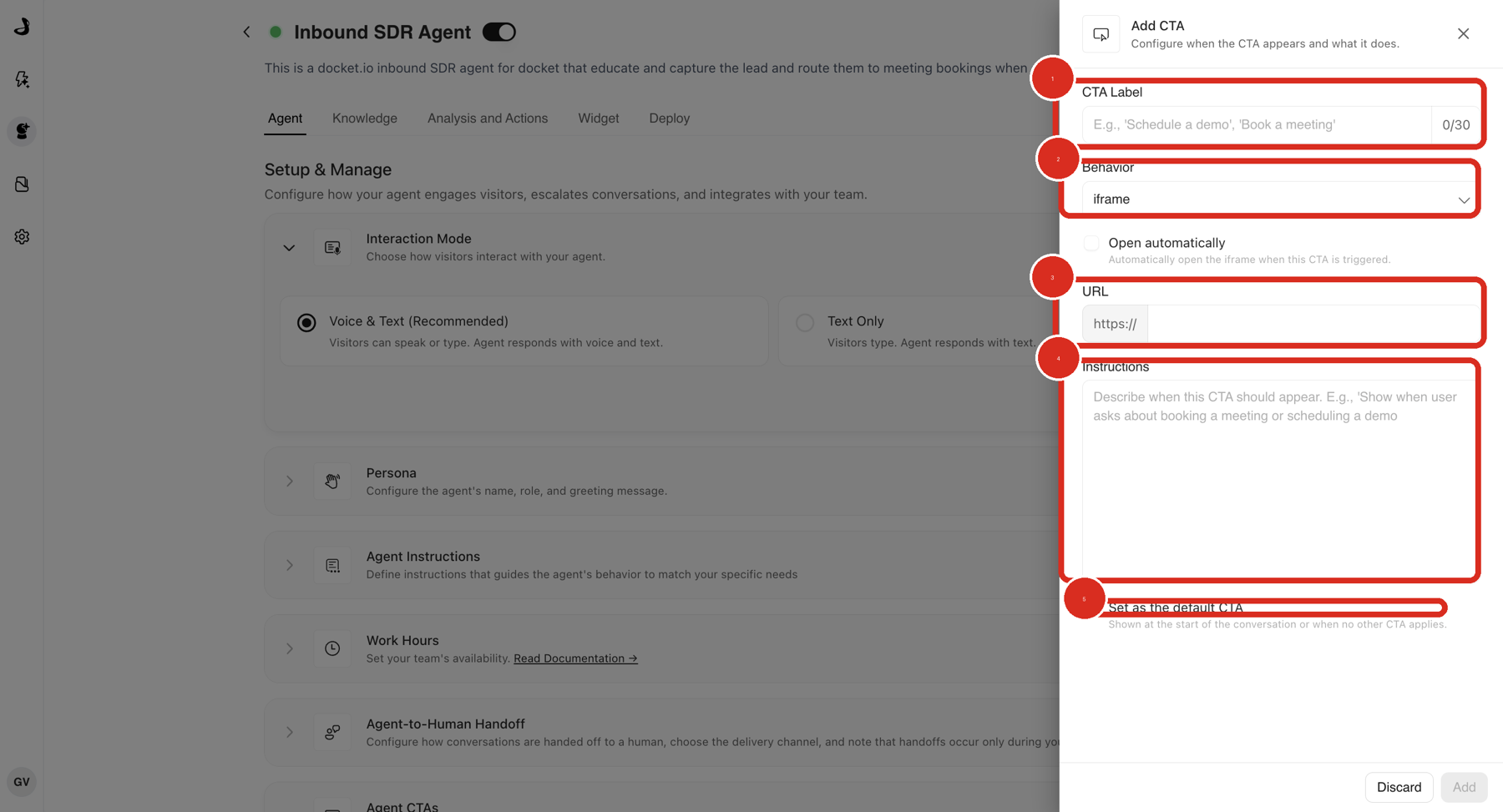
Enter a CTA Label such as Book a demo or Talk to sales, within the 30 character limit.
Set Behavior to iframe only if the link embeds cleanly, otherwise choose the new tab option.
Paste the RevenueHero or Calendly URL into URL.
In Instructions, describe the moment the agent should offer it.
Tick Set as the default CTA only if booking should be the button shown when nothing more specific applies.
Select Add, then save the agent configuration.
An agent can hold up to 20 CTAs, which is enough for several booking links if you route by region or segment. Keep each one's instructions distinct so the agent can tell them apart.
What should the CTA instructions say?
Describe the visitor signal rather than naming the tool. The agent is matching your wording against the conversation, and it has no idea what RevenueHero is.
RevenueHero example: Show this CTA after the visitor asks to book a demo or speak with sales and seems ready to pick a time.
Calendly example: Show this CTA when the visitor asks to schedule time with the team.
Avoid: Show RevenueHero when useful.
How do you confirm the booking flow works?
Select Preview and send a message that clearly matches your instructions.
Confirm the button appears at the expected point, in the widget footer.
Open it and confirm the correct RevenueHero or Calendly page loads.
If you chose iframe, confirm the page renders fully, with no blank area, clipped layout, or blocked-cookie message.
Run a conversation that should not trigger it, and confirm it stays hidden.
Test on the deployed page, on desktop and mobile, before launch.
Why isn't the scheduler loading correctly?
What you see | What to check |
|---|---|
The booking page is blank inside the widget | The scheduler blocks embedding. Switch to a new tab, or use a page you own that allows it. |
The RevenueHero router does not load | Confirm the router is installed on the destination page and works outside Docket. |
The Calendly view looks clipped | The booking view needs more height than the widget gives it. Use a taller destination page or switch to a new tab. |
The wrong meeting type opens | Recheck the exact URL saved in the CTA. |
The visitor is asked for their email again | Expected with a URL CTA. The link opens as entered and carries nothing the agent already collected. |
The CTA never appears | Confirm Agent CTAs is on and that your test matches the instructions. |
The CTA appears too early | Add a qualification signal so the agent waits for real intent. |
Frequently asked questions
Does Docket integrate with RevenueHero or Calendly directly?
Not as a built-in integration. They connect through an Agent CTA that opens your booking link, which is why no setup is needed on the scheduler side.
Can I paste my Calendly embed code into the URL field?
No. The field takes a URL. Put the embed code on a page you own and use that page's address.
Will the meeting appear in our CRM?
Through whatever CRM connection your scheduler already has. Docket records the conversation, and the booking itself belongs to RevenueHero or Calendly.
Can Docket book the meeting instead, so the visitor never leaves?
Yes, using Docket's own meeting booking with Google Calendar or Outlook Calendar. See Intelligent Routing for Docket Marketing Agent Meetings.
Can I use a booking CTA and Docket's own booking on the same agent?
Yes. They are separate, and some teams use Docket's booking for inbound demand and a scheduler link for a specific campaign or region.
Which behavior should I pick for a scheduler link?
Test the exact link in an iframe first. If it renders fully, iframe keeps the visitor in the conversation. If not, use a new tab. See CTA Behavior Reference.