Configuring Agent-to-Human Handoff
Last updated: September 29, 2026
Some questions are better answered by a person. Agent-to-Human Handoff lets your Marketing Agent bring a teammate into a live conversation, either because the visitor asked for one or because the conversation reached something the agent should not handle alone.
You decide what counts as a handoff moment, and which Slack or Microsoft Teams channel the alert lands in.
What do you need before you start?
Access to an existing Marketing Agent in Marketing Agent Configuration.
A Slack or Microsoft Teams channel your team actually watches.
The Docket app added to that channel, which is what makes it appear in the list.
You can write the handoff criteria first and connect the channel afterwards. The two are configured in the same place.
How do you turn on Agent-to-Human Handoff?
Open Marketing Agent Configuration and select your agent.
Open the Agent tab.
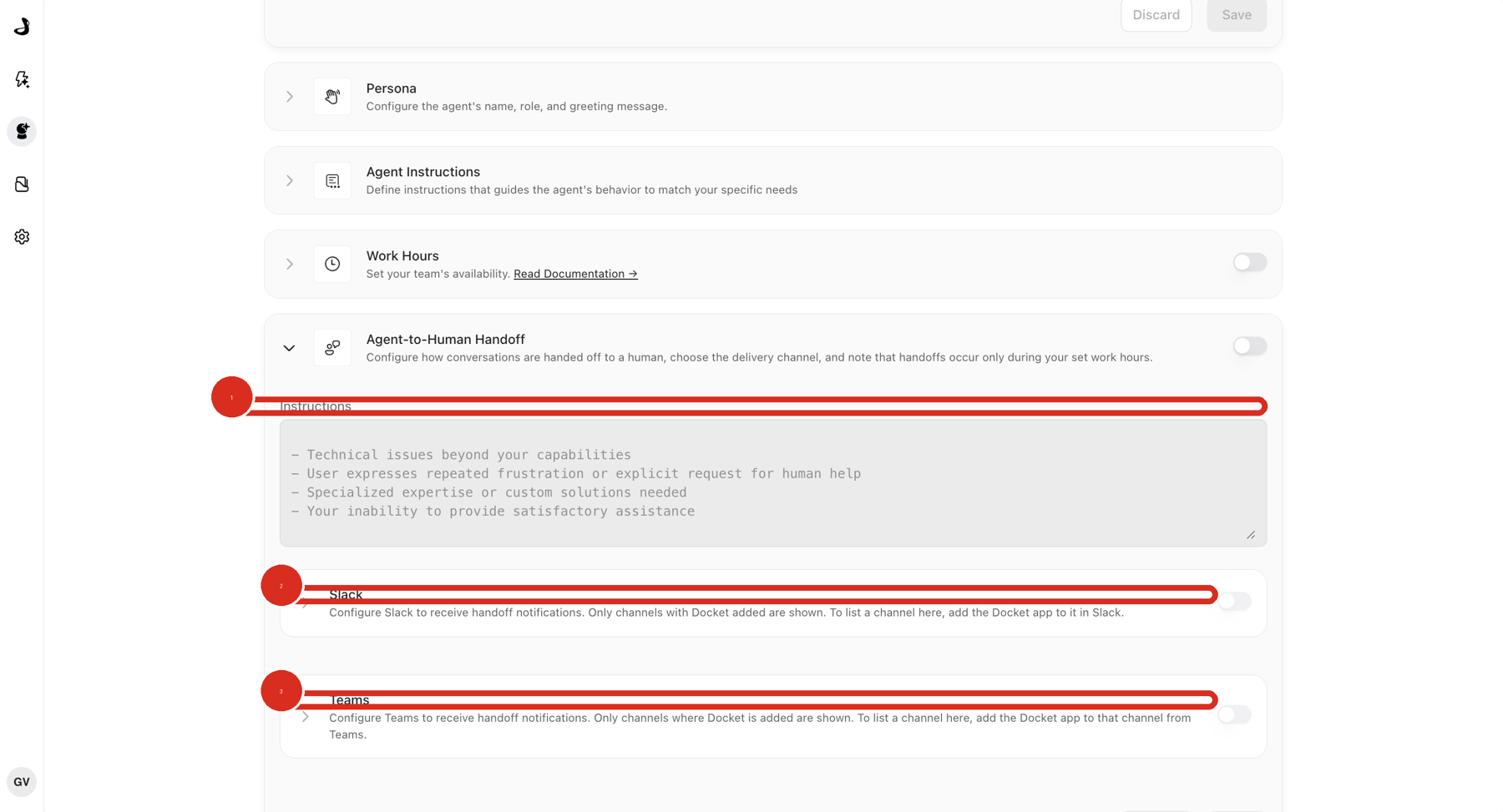
Find Agent-to-Human Handoff under Setup & Manage and turn on the switch at the right of the row. The section stays closed until the switch is on.
Select the chevron on the left of the row to open the section.
What should you write in the handoff Instructions?
Use Instructions to describe the moments when the agent should bring in a person. Docket starts you with a general set of criteria, and most teams get better results by replacing them with signals specific to their business.
Criteria that work well are concrete:
The visitor asks to speak to a person.
The visitor is qualified and wants pricing, security review, or contract help.
The visitor asks something the agent should not answer on its own.
A default line such as "your inability to provide satisfactory assistance" is broad enough that the agent may not recognise a real case, such as a pricing question it has no source for. Naming that situation directly is what makes it fire. Write the criteria the same way you would brief a new teammate, and keep each one to a single, recognisable situation.
How do you send handoff alerts to Slack or Microsoft Teams?
Expand Slack or Teams inside the handoff section, then pick the destination channel.
Expand Slack or Teams.
If the integration is not connected yet, the panel shows Go to Integrations Page. Complete the connection there and come back.
Turn on the delivery switch, then choose the channel.
Select Save.
Only channels that have the Docket app added appear in the list. If the channel you want is missing, add the Docket app to it first, then reopen the section. Step-by-step setup lives in Setting Up Slack Handoff Notifications and Setting Up Microsoft Teams Handoff Notifications.
Does handoff require Work Hours?
No. Work Hours is optional, and handoff works either way.
Work Hours setting | When handoff is available |
|---|---|
Off | At any time. The agent can bring in a person whenever the criteria match. |
On | During the schedule you set. Outside it, the agent keeps answering on its own rather than promising someone who is offline. |
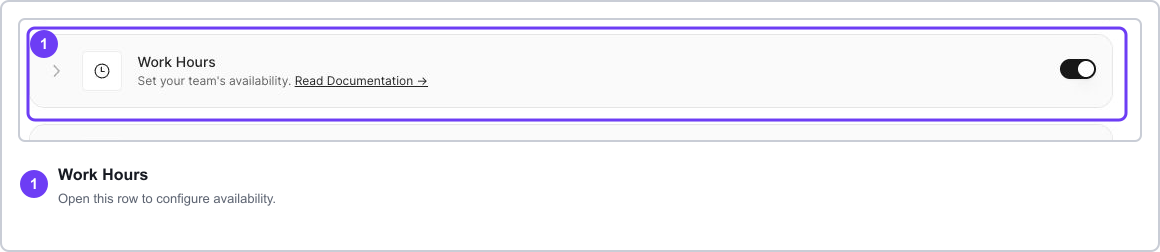
Turning Work Hours on is worth it when your team covers set hours, because it stops the agent offering a live person at 2am. Set the schedule and time zone in Setting Up Work Hours and Availability, and see Controlling Widget Behavior Outside Work Hours for what the agent should do when nobody is available.
Work Hours here is the agent's own schedule. It does not control the times offered when a visitor books a meeting, which come from each rep's personal calendar. See Intelligent Routing for Docket Marketing Agent Meetings.
How do you confirm handoff is working?
Reload the Agent tab and reopen Agent-to-Human Handoff to confirm your settings saved.
Select Preview and send a message that clearly matches one of your criteria.
Check that the alert arrives in the channel you chose.
If Work Hours is on, run the test inside that schedule. Handoff is ready when the saved settings persist and a matching test conversation reaches the right channel.
Why isn't handoff triggering?
What you see | What to check |
|---|---|
Nothing happens when a visitor asks for a person | Confirm the handoff switch is on and saved. If Work Hours is on, confirm the test falls inside the schedule. |
The agent answers instead of handing off | The criteria are probably too broad. Name the exact situation, such as a pricing question the agent has no source for. |
The Slack or Teams switch will not turn on | The integration is not connected yet. Use Go to Integrations Page in that panel. |
Your channel is not in the list | Add the Docket app to that channel, then reopen the handoff section. |
Alerts go to the wrong channel | Handoff is set per agent. Check the agent you think is sending them, and the other agents on that site. |
Handoff fires too early | Add a qualification signal to the criteria so the agent waits for stronger intent. |
Frequently asked questions
Can I use Slack and Microsoft Teams at the same time?
Yes. Slack and Teams are separate delivery options in the same section, and you can enable either or both.
Is handoff set per agent or for the whole workspace?
Per agent. Two agents on the same site can escalate to different channels, which is also why an unexpected alert usually belongs to a different agent than the one you are looking at.
What happens to the conversation after a handoff?
The conversation moves to your team in the channel you chose, with the context from the conversation so far, so the person joining does not have to ask the visitor to repeat themselves.
Can Docket hand off into a different tool, such as our CRM chat?
Live handoff is delivered through Slack or Microsoft Teams. Those are the two delivery channels available today.
Does the visitor see anything different when a handoff happens?
The agent tells the visitor it is bringing in a person, then stays in the conversation until your teammate replies, so the visitor is not left looking at silence.