Setting Up Slack Handoff Notifications
Last updated: September 29, 2026
Send Marketing Agent handoffs into Slack so the team that answers them sees a conversation the moment a visitor needs a person.
Setting this up takes two things: the Slack integration connected for your workspace, and the Docket app added to the channel you want alerts in. This page covers both.
What do you need before you start?
Permission to edit the agent in Marketing Agent Configuration.
The Slack channel your team actually watches.
Permission in Slack to add an app to that channel, or a colleague who can.
Docket only lists channels that have the Docket app in them, which is what keeps it out of channels you have not chosen.
How do you send Docket handoffs to Slack?
In Slack, add the Docket app to the channel that should receive handoffs.
Open Marketing Agent Configuration and select your agent.
Open the Agent tab, turn on the Agent-to-Human Handoff switch, then open the section.
In Instructions, describe the moments the agent should bring in a person.
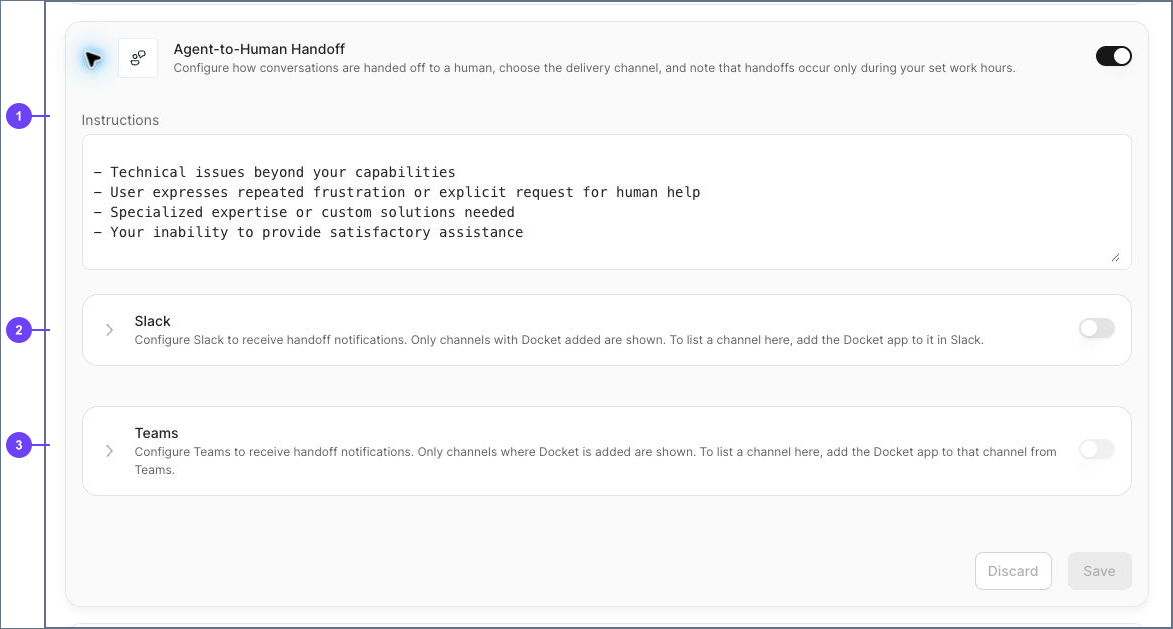
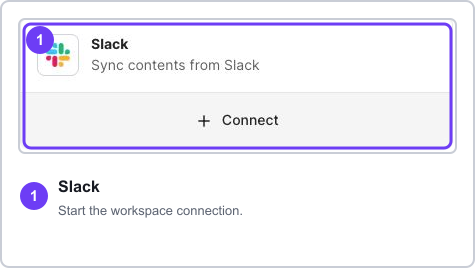
Expand Slack. If the integration is not connected yet, the panel shows Complete your Slack integration to continue with a Go to Integrations Page link. Finish the connection there and come back.
Turn on the Slack switch, then choose your channel from the list.
Select Save.
Why is my Slack channel missing from the list?
Because the Docket app has not been added to it yet. Add the app to that channel in Slack, then reopen the handoff section and the channel appears.
This is also true for private channels. The app has to be a member of the channel before Docket can post there.
What should the handoff criteria say?
Describe the situation, not the feeling. The agent matches your wording against the conversation, so concrete cases work better than general ones.
The visitor asks to talk to a person.
The visitor asks about pricing the agent has no source for.
The visitor raises security, legal, or contract questions.
Full guidance is in Configuring Agent-to-Human Handoff.
Does Slack handoff need Work Hours?
No. Work Hours is optional, and Slack handoff works without it.
With Work Hours off, alerts can arrive at any time. With it on, alerts arrive during your schedule, and outside it the agent keeps handling the conversation itself rather than posting into a channel nobody is reading. Set it in Setting Up Work Hours and Availability.
How do you confirm Slack handoff is working?
Reload the Agent tab and reopen the handoff section to confirm Slack is on and your channel is still selected.
Select Preview and send a message that clearly matches one of your criteria.
Check that the alert lands in the Slack channel you chose.
If Work Hours is on, run the test inside that schedule.
Why isn't the Slack alert arriving?
What you see | What to check |
|---|---|
The Slack switch will not turn on | The workspace integration is not connected. Use Go to Integrations Page in that panel. |
Your channel is not listed | Add the Docket app to that channel in Slack, then reopen the section. |
No alert arrives | Confirm Slack is on, the channel is selected and saved, and that your test matches a saved criterion. |
Alerts arrive in a channel you did not expect | Handoff is set per agent. Check the other agents running on your site. |
Alerts stopped after a Slack change | If the channel was archived, renamed, or made private, re-add the Docket app and reselect it. |
Frequently asked questions
Can one agent post to more than one Slack channel?
Each agent sends its handoffs to the channel you select for it. To split by topic or region, use separate agents with their own channels.
Can I use Slack and Microsoft Teams together?
Yes. They are separate delivery options in the same section. See Setting Up Microsoft Teams Handoff Notifications.
What does the Slack alert contain?
The alert carries the conversation context, so whoever picks it up can see what the visitor already asked without making them repeat it.
Can we reply to the visitor from Slack?
The handoff brings your team into the live conversation with the visitor. Slack is where your team is notified and picks it up.