Creating Post-Call Analysis Fields
Last updated: October 26, 2026
A post-call analysis field is one question you want answered about every conversation. When the conversation ends, Docket reads it and fills in the answer.
Add a field when your team will act on the answer, whether that is reviewing a lead, routing it, or sending it to your CRM.
What a post-call analysis field does
Each field runs once per conversation, after the conversation ends. Docket reads the transcript, answers the question you wrote, and stores the result against that visitor.
Fields are configured per agent. Two agents can extract completely different information, and a field you add to one agent does not appear on another.
Before you create a field
You need access to app.docketai.com.
You need an existing Marketing Agent.
Decide which field you want to add and how the result should be formatted.
If the field will sync to a CRM, confirm the destination field exists and is mapped.
How to open Post Call Analysis in Docket
Log in to app.docketai.com.
Open Marketing Agent Configuration.
Select the agent you want to configure.
Open the Analysis and Actions tab.
Find Post Call Analysis and expand it.
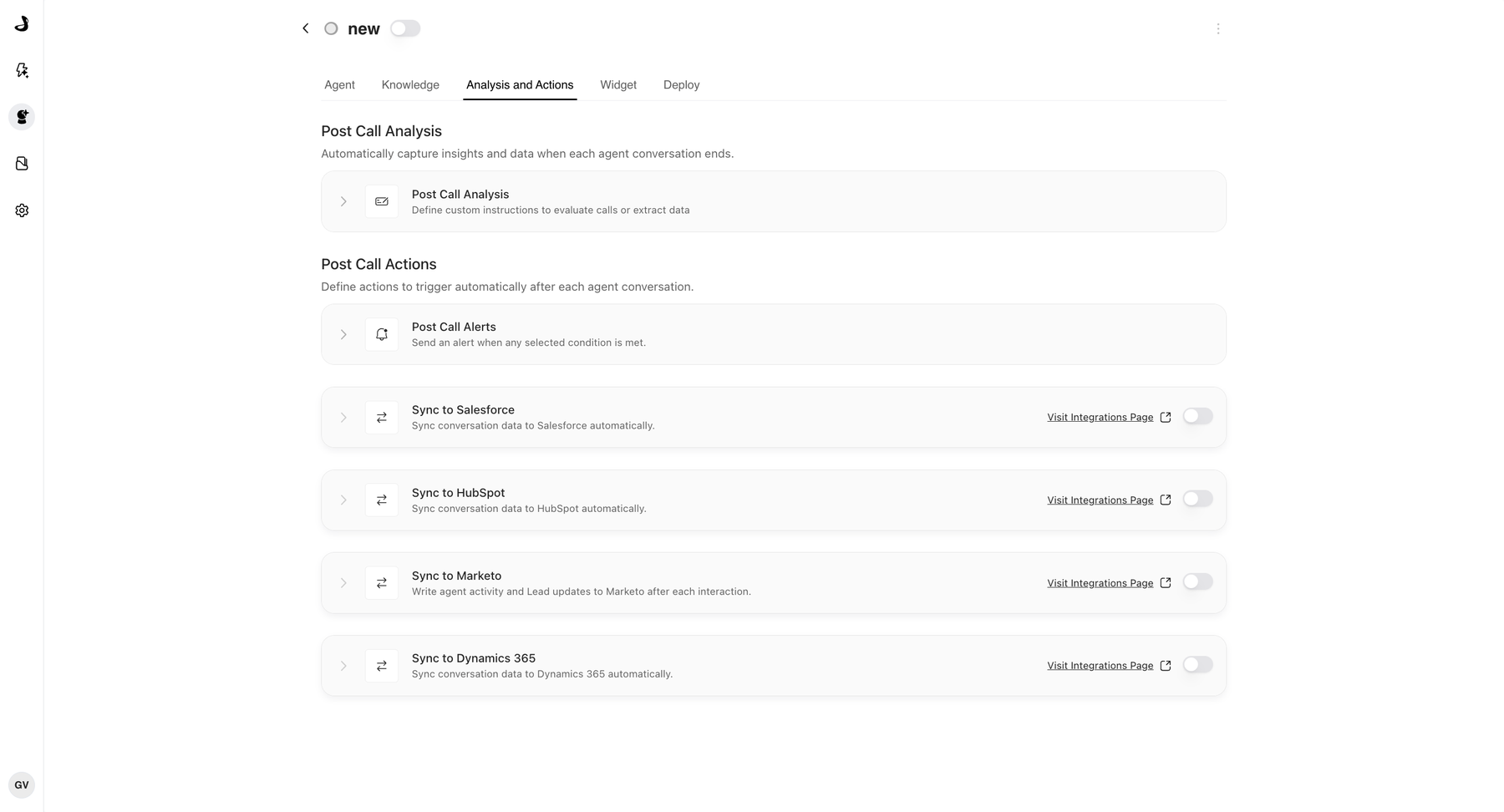
Expanding Post Call Analysis lists the fields this agent already uses, each with a switch to turn it on or off.
Review the fields the agent already has
Check the existing fields before adding a new one, because an agent may already extract what you need.
Existing fields can be switched on or off, which controls whether Docket uses them. Only keep fields that produce useful follow-up data.
Each agent can have up to 50 active fields. If Add is unavailable, the agent has reached that limit. Switch off a field you no longer need and Add becomes available again.
How to create a post-call analysis field
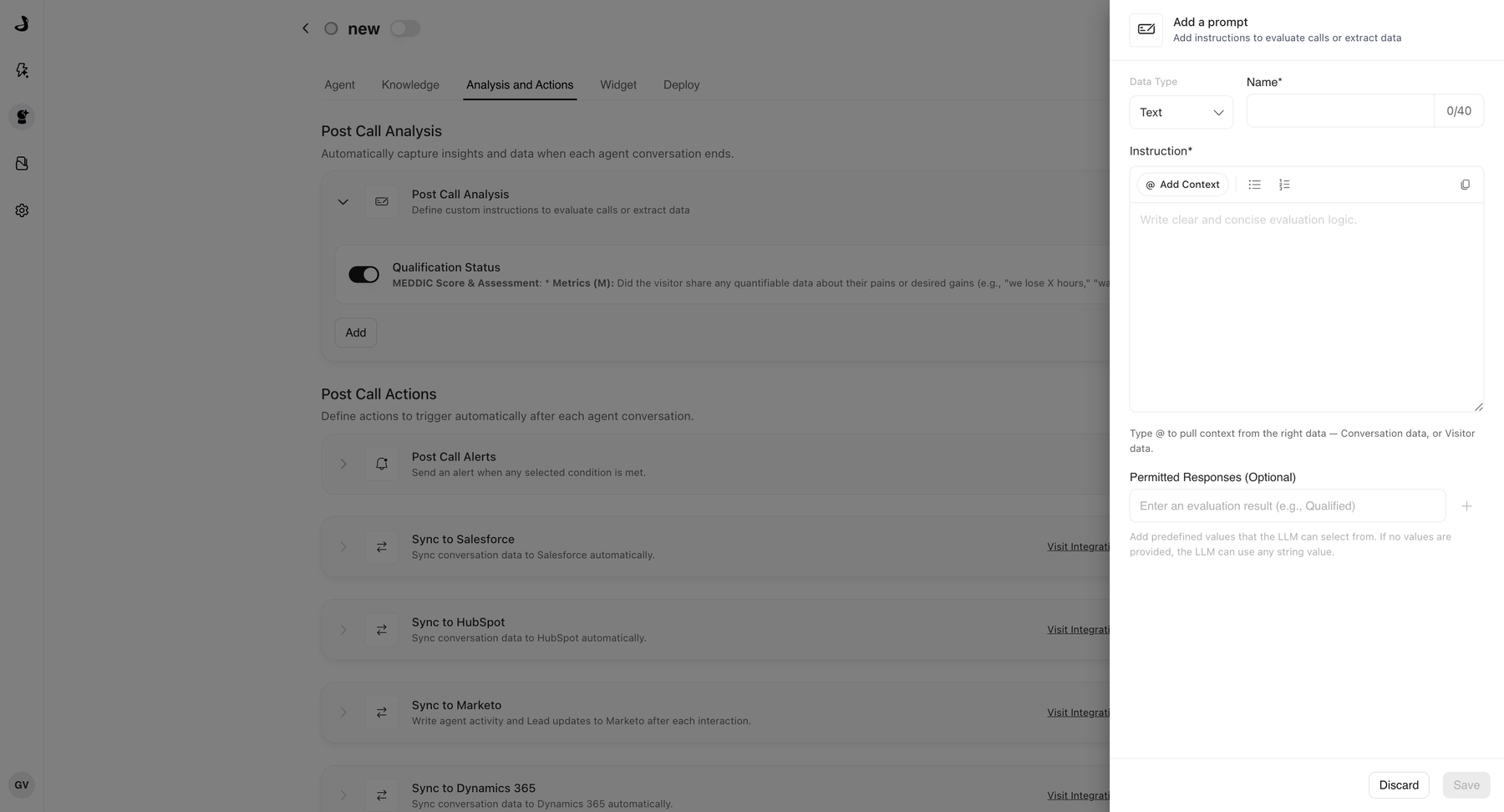
In Post Call Analysis, click Add.
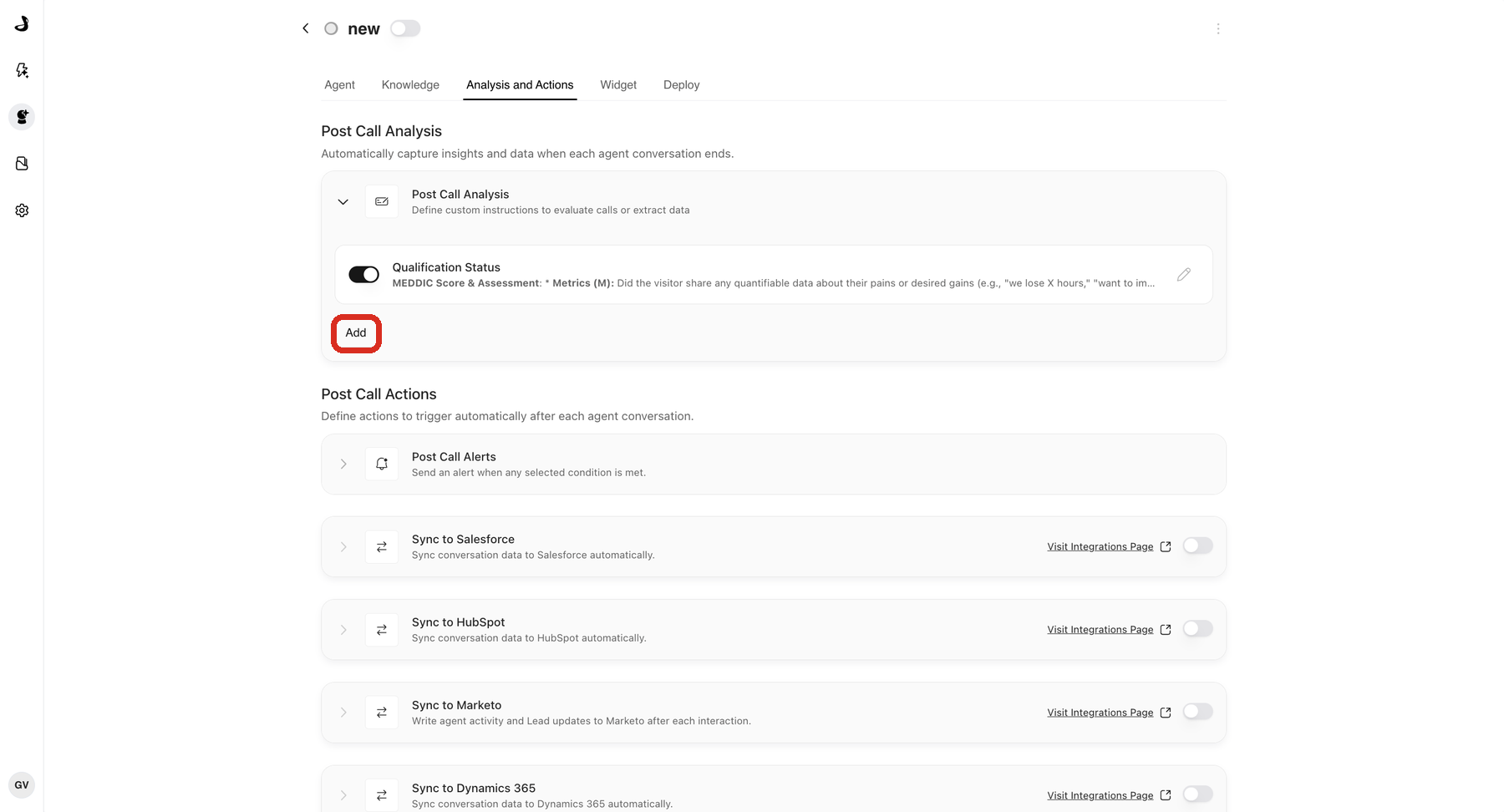
Choose the Data Type that matches the answer you want.
Give the field a clear Name. Names are limited to 40 characters and must be unique for the agent.
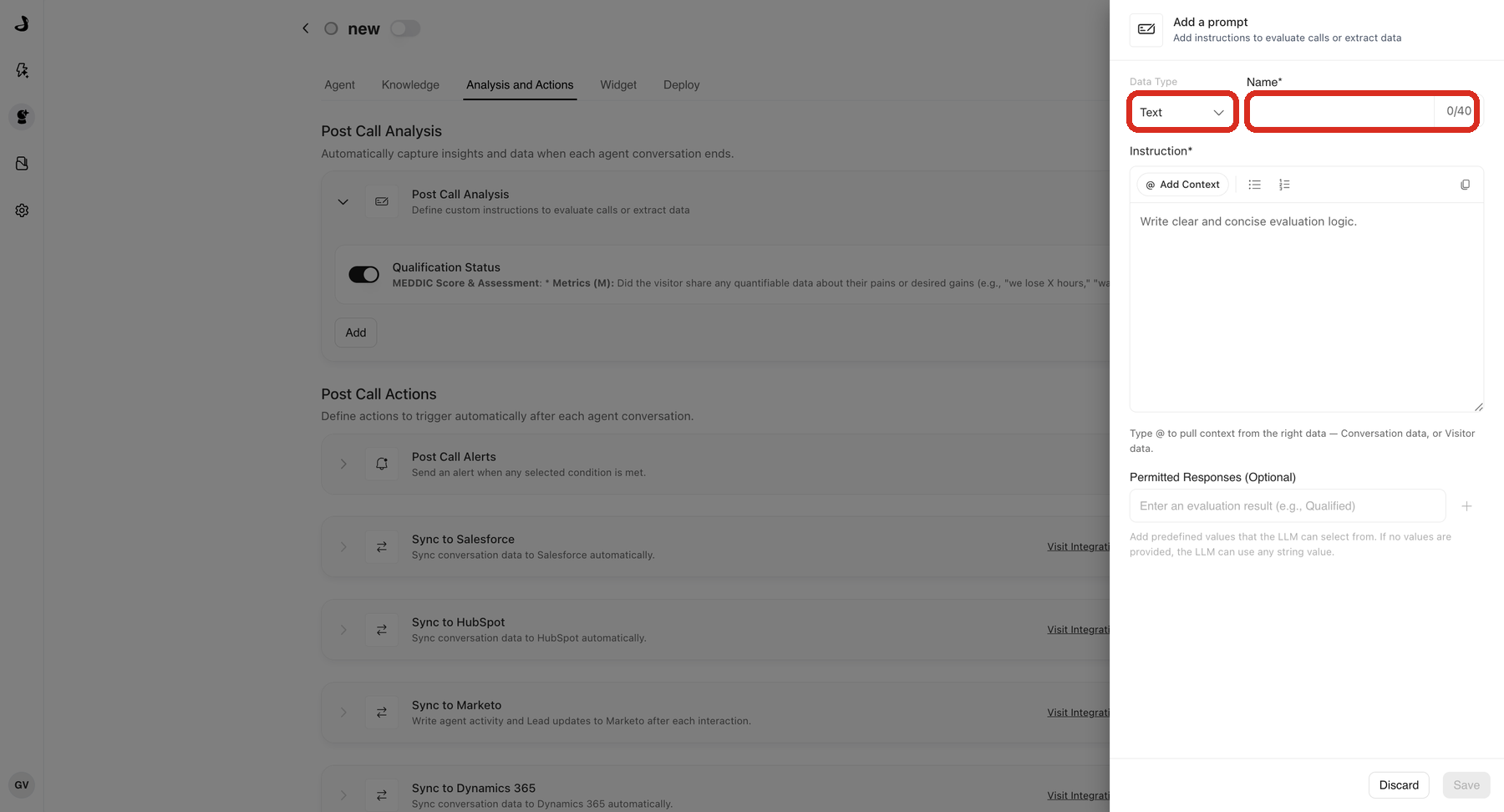
Choose the data type carefully. It is fixed once the field is created, so changing it later means creating a new field.
Write the Instruction, explaining what Docket should extract or evaluate and what to return when the information is missing.
Add Permitted Responses if the answer must come from a fixed list.
Click Save.
A new field applies from the moment you save it. Docket does not go back over conversations that already happened, so expect earlier conversations to stay blank for that field.
Which data type should you choose?
The Data Type menu controls the kind of value Docket returns for the field.
Data type | Use when | Example |
|---|---|---|
Text | The result should be a word, phrase, category, company name, summary, or other string value. |
|
Number | The result should be a numeric score, count, quantity, or amount. |
|
Boolean | The result should be a true-or-false answer. |
|
For the full rules on each type, including what happens when a value does not fit your CRM, see Post-Call Analysis Data Types and Allowed Values.
How to limit a field to a fixed set of answers
Use Permitted Responses when a Text field should only return values from a predefined list. For example, a qualification field might permit only Qualified, Not Qualified, and Unknown.
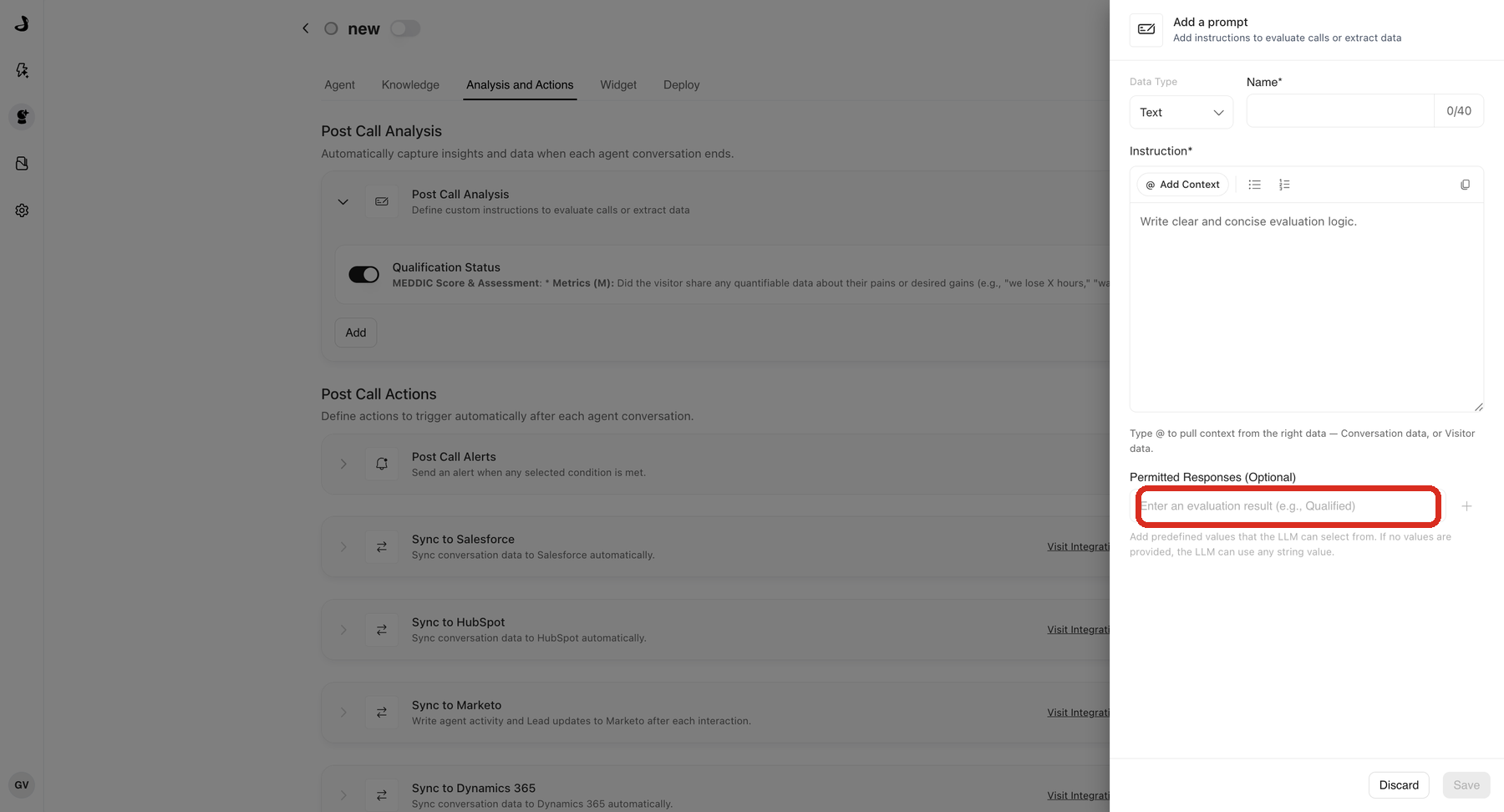
If you do not add permitted responses, Docket can return any string that matches the instruction. For Number and Boolean fields, define the expected range or true/false condition directly in the instruction.
Docket picks the closest permitted response to what the visitor said, so the stored value can differ from their exact words. A visitor who answers 1500 is recorded as 1001+ when that is the matching permitted response.
When the field maps to a CRM picklist, write each permitted response exactly as your CRM stores it, including capitalisation and punctuation. Use the internal value rather than the label shown in the CRM interface.
How to use conversation or visitor context in a field
Type @ in the instruction editor, or click Add Context, to choose which data Docket should read.
Conversation data covers only the current conversation: what the visitor asked, the products they mentioned, objections, timeline, budget, and follow-up requests.
Visitor data is wider. It includes the current conversation plus everything Docket already holds for that visitor from earlier visits.
Choose conversation data when the answer should come only from what was just said. Choose visitor data when earlier visits should count too.
How to write a clear field instruction
Good field instructions answer three questions:
Question | Example guidance |
|---|---|
What should Docket look for? | Look for whether the visitor mentioned a budget, purchasing timeline, or product interest. |
What should Docket return? | Return one of: Qualified, Partially Qualified, Not Qualified, or Unknown. |
What should happen if the information is missing? | Return Unknown if the visitor did not provide enough information. |
Avoid vague instructions such as "summarize the lead." Use one field for one decision or one extracted value.
Fields worth creating
Field | Use when |
|---|---|
Qualification Status | Sales needs a quick read on whether the visitor is a good fit. |
Product Interest | Routing depends on the product, feature, or use case discussed. |
Pain Points | Sales or support needs the visitor's main challenge summarized. |
Buying Timeline | Follow-up priority depends on urgency. |
Competitor Mentioned | Your team tracks competitive conversations. |
Follow-Up Owner | The conversation should route to a specific team or role. |
How to check a new field is working
Preview or run a conversation that includes the expected signal.
End the conversation and wait for post-call processing to finish.
Review the post-call output on the Marketing Agents dashboard.
Confirm the result follows the format you requested.
Revise the instruction if the output is too broad, too long, or inconsistent.
Results appear as columns on the Marketing Agents dashboard, but only once you select a single agent. Post-Call Analysis Setup and Configuration explains where to find them.
Best practices for post-call analysis fields
Keep each field focused on one output.
Use controlled values when results will be filtered or synced.
Include an explicit fallback such as Unknown when information is missing.
Avoid fields that require guessing from weak signals.
Review early outputs before relying on the field operationally.
Troubleshooting post-call analysis fields
Issue | What to check |
|---|---|
Field is empty | Confirm the conversation contained the information the field asks for. |
Output is too long | Tell Docket to return a short phrase, a number, or one allowed value. |
Output is inconsistent | Use controlled values and define what each value means. |
Field is not useful | Rename, rewrite, or remove the field. |
CRM sync misses the value | Confirm the post-call field is mapped to the destination field. |
Add is unavailable | The agent has 50 active fields. Switch one off to free a slot. |
Frequently asked questions
Why did my field's values disappear after I edited its instruction?
This is expected. Field results are tied to the version of the instruction that produced them, so editing and saving an instruction creates a new version and hides the results generated by the previous one. Values already written to your CRM are not changed.
How many post-call analysis fields can one agent have?
Up to 50 active fields per agent. The limit counts active fields only, so switching a field off frees a slot for a new one.
Will a new field fill in conversations that already happened?
No. A field only applies to conversations that happen after you create it. Define the fields you need before an agent goes live.
Why can't I find my field in the CRM mapping list?
A field must exist in Post Call Analysis before it appears as a mappable option. Create and save the field first, then map it. If you have created it and still cannot see it, type part of its name in the dropdown's search box rather than scrolling: the list is ordered by creation date, not alphabetically.
Why does the stored value differ from what the visitor actually said?
When a field has permitted responses, Docket records the closest one rather than the visitor's exact words. A visitor who says 1500 is stored as 1001+ if that is the matching permitted response.
How do I make sure values land in my CRM's exact options?
Write each permitted response exactly as the CRM stores it, using the internal value rather than the display label. A mismatch as small as 101-500 against 100-500 means the CRM rejects the value and the field is skipped.
If I switch a field off, does it stop writing to my CRM?
Yes. Switching a field off removes it from the CRM mapping list and stops Docket writing its values to every connected CRM.