Post-Call Analysis Data Types and Allowed Values
Last updated: October 26, 2026
Every post-call analysis prompt returns one kind of value: Text, Number, or Boolean. You choose the data type when you create the prompt, and it cannot be changed afterwards.
This page explains what each type is for, how to limit a Text prompt to a fixed set of answers, and what to check before the results reach your CRM.
Which data types can a post-call analysis prompt return?
A post-call analysis prompt returns one of three data types: Text, Number, or Boolean. You pick one when you create the prompt.
Data type | Use for | Example instruction | Example output |
|---|---|---|---|
Text | Categories, summaries, names, or extracted details | Return one qualification category. |
|
Number | Scores, counts, quantities, or amounts | Score buying intent from 1 to 10. |
|
Boolean | A strict true-or-false decision | Return true if the visitor asked for pricing. |
|
Dates and timeframes are not separate data types. Capture them as Text unless your downstream workflow explicitly expects a numeric value.
Number values can include decimals. If you map a Number prompt to a CRM field that only accepts whole numbers, ask for a whole number in the instruction. A decimal value is skipped without an error.
How to limit a Text prompt to a fixed set of values
Permitted values keep a Text prompt inside a list you control, which matters whenever the result is filtered, routed, or written to a CRM picklist.
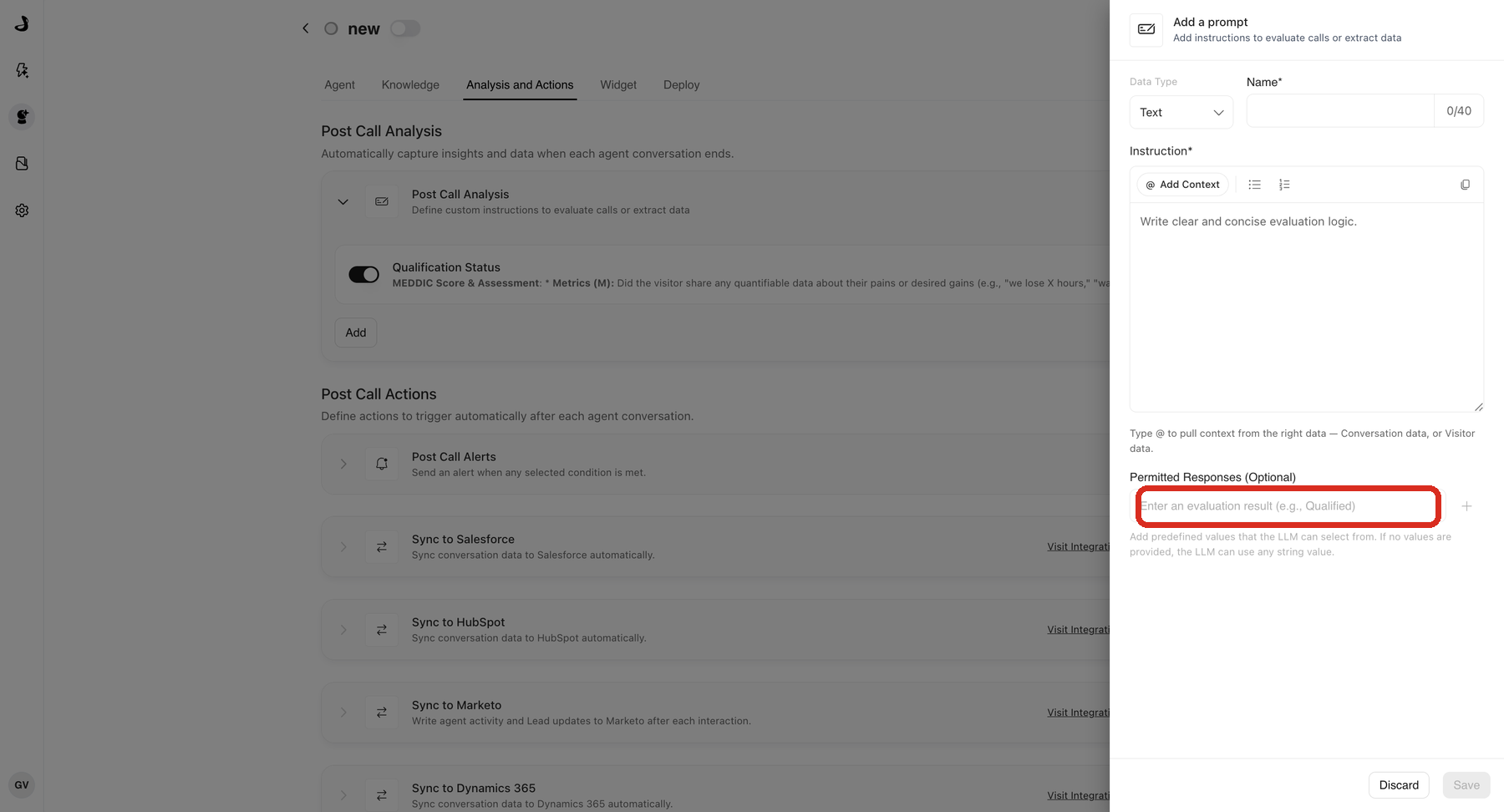
Text prompts can include permitted values. Use them when the result must come from a fixed list for filtering, routing, or CRM mapping.
Example values for Qualification Status:
QualifiedNot QualifiedUnknown
When a Text prompt maps to a CRM picklist, its permitted values must match the options in your CRM exactly, including spacing and punctuation. A value of 101-500 is not accepted by a CRM option named 100-500, and the field is skipped without an error.
Permitted values are not available for Number or Boolean prompts. For those types, define the expected numeric range or true/false condition in the instruction.
How to write an instruction for each data type
Every instruction should identify the context to evaluate, the required output, and the missing-data behavior.
Text: Return one permitted value based on
@Conversation Data. ReturnUnknownwhen evidence is insufficient.Number: Return an integer from 1 to 10 based on buying-intent signals in
@Conversation Data. Return0when no signal is present.Boolean: Return
trueonly when the visitor explicitly asks to schedule a meeting; otherwise returnfalse.
Docket writes your fallback exactly as you ask for it. A prompt that returns Unknown sends the word Unknown to your CRM instead of leaving the field empty, so pick a fallback your reports can filter out.
Use Add Context or type @ to reference the available Conversation or Visitor data scopes.
Rules for creating a post-call analysis prompt
You choose the data type when you create the prompt. It is shown but cannot be edited afterwards, so a prompt that needs a different type has to be recreated.
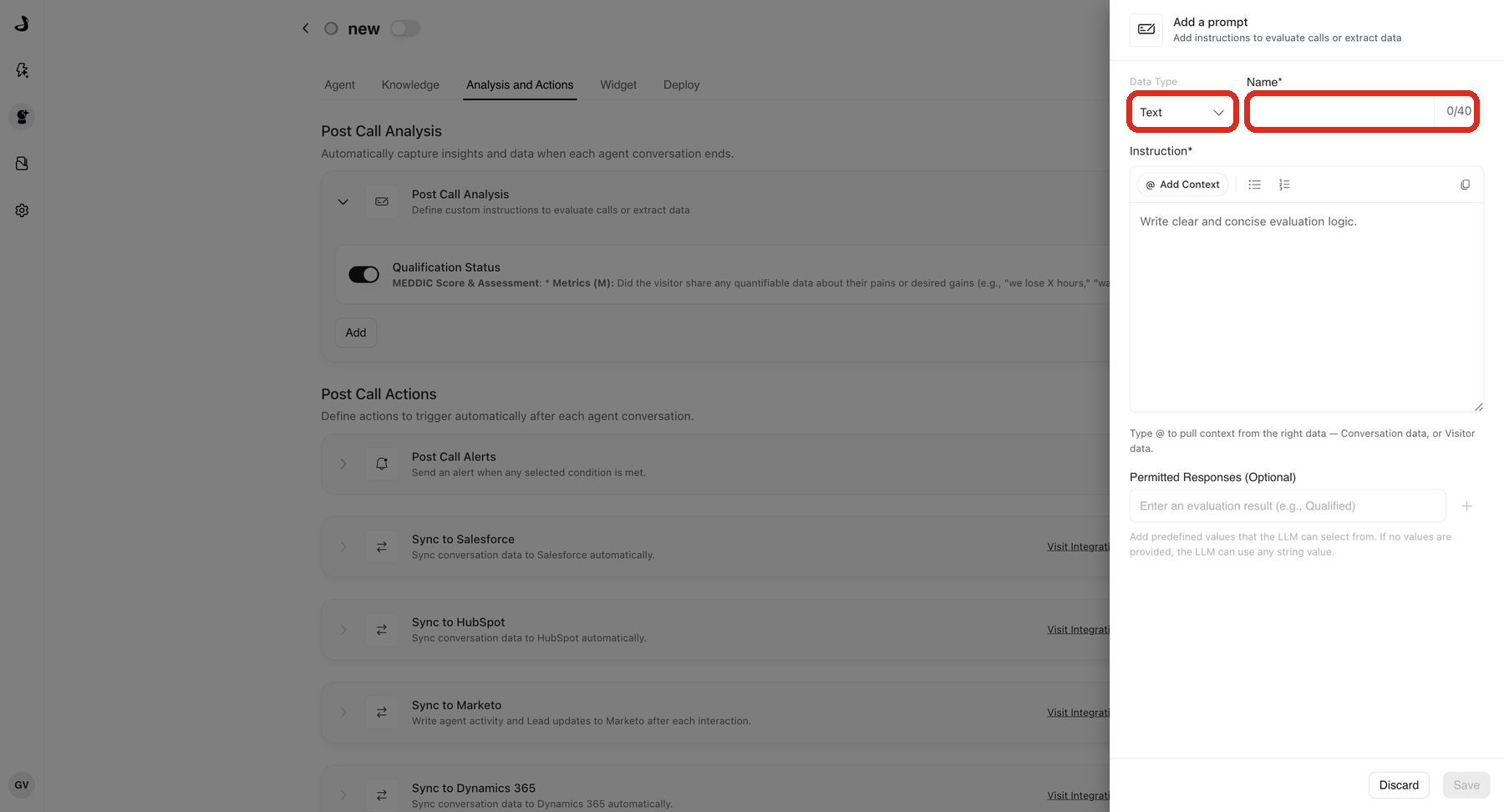
A prompt name is required and can contain up to 40 characters.
The instruction is required.
Prompt names must be unique for the agent.
The prompt's data type is fixed after creation.
Each agent can have up to 50 active prompts. The limit counts active prompts only, so switching one off frees a slot.
How to verify a prompt returns what you expect
Save the prompt and confirm it appears in Post Call Analysis.
Run a controlled conversation that should produce a known result.
End the conversation and review the extracted value.
Confirm the output matches the selected data type and any permitted values.
Repeat with missing or ambiguous input to verify the fallback behavior.
Frequently asked questions
Can I change a prompt's data type after I create it?
No. The Data Type menu is available while you are creating a prompt and is disabled once it exists. To change the type, create a replacement prompt and switch the old one off.
Why did my CRM reject a value the prompt returned?
The value almost certainly does not match the CRM's own option list exactly. Docket sending 101-500 to a CRM whose option is 100-500 is rejected and the field is skipped. Match the internal value, including spacing and punctuation.
How big should the CRM field be for a summary?
Use a multi-line text field. Conversation summaries typically run about 600 characters and can reach roughly 2,000 in long conversations. Qualification runs about 300 to 500, pain points about 500 to 1,200, and next steps about 300 to 600.
Does a Number prompt return whole numbers?
Not necessarily. Number values can include decimals. If your CRM field only accepts whole numbers, ask for a whole number in the instruction, because a decimal value is skipped without an error.
Should dates be a separate data type?
There is no date type. Capture dates and timeframes as Text unless the downstream workflow specifically expects a number.