Understanding CRM Sync from Analysis and Actions
Last updated: October 26, 2026
CRM sync sends what a Marketing Agent learned in a conversation into the system your team already works in.
Define your post-call analysis fields first. Sync moves the values Docket extracted, so what arrives in your CRM is only as good as the fields behind it.
Which systems can Docket sync conversation data to?
The Analysis and Actions tab includes dedicated sync sections for:
Sync to Salesforce
Sync to HubSpot
Sync to Marketo
Sync to Dynamics 365
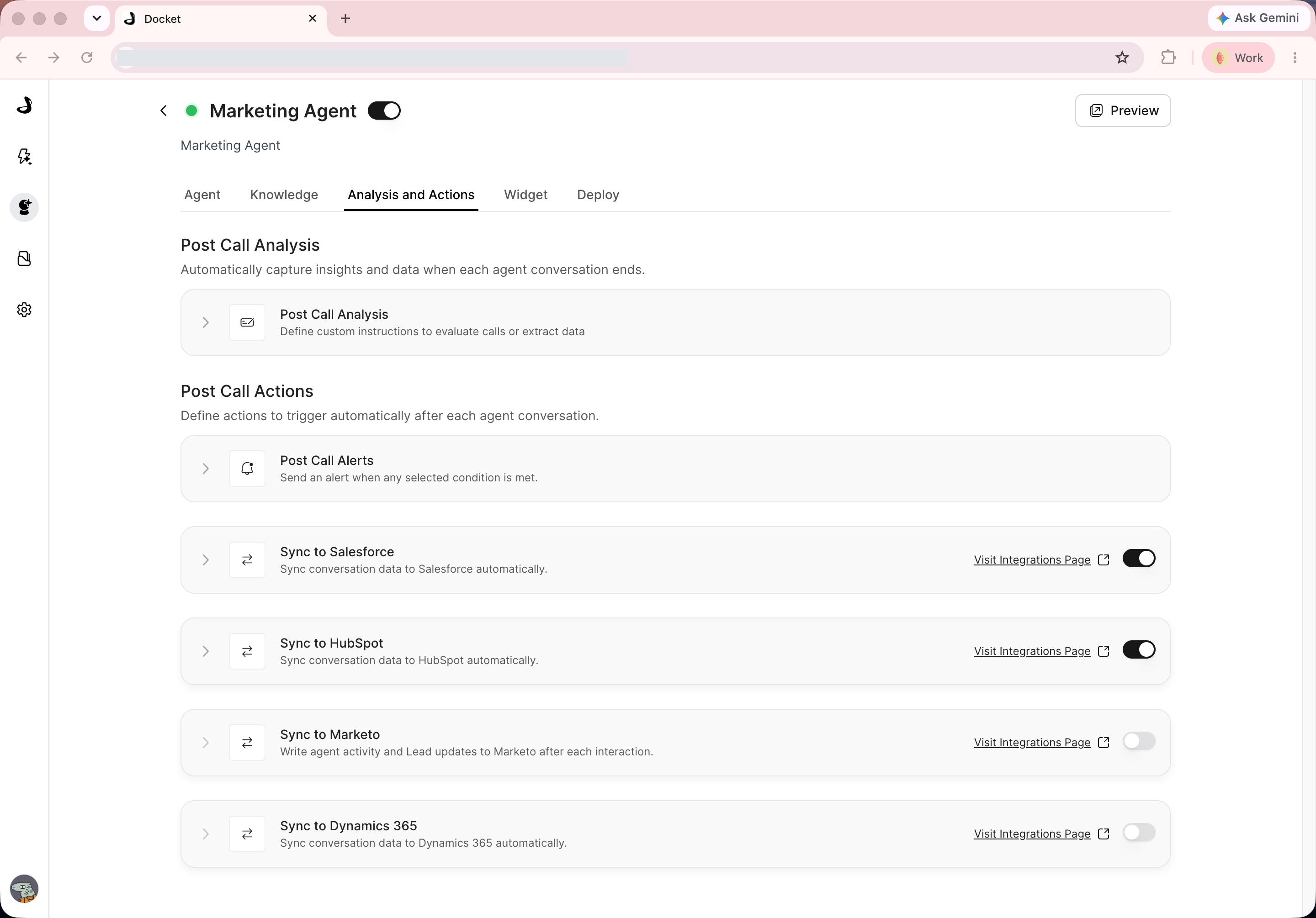
Before you enable CRM sync for an agent
Before turning on sync for an agent:
Confirm the CRM or marketing automation integration is connected.
Review the agent's Post Call Analysis fields.
Confirm the destination fields or activities are appropriate for the data Docket will send.
Decide which agents should sync data and which should stay internal to Docket.
Test with a controlled conversation before relying on sync operationally.
Each sync section includes a Visit Integrations Page link when integration setup needs attention.
Synced fields are overwritten every time a conversation is analyzed. If a value in your CRM was set by someone else or by another tool, a later Docket conversation can replace it, so map only the fields you want Docket to own.
How CRM sync uses your post-call analysis fields
Only fields you have created and mapped are written. See Creating Post-Call Analysis Fields for how to define them.
Post-call analysis extracts structured information from conversations. CRM sync moves selected conversation data or activity into a connected system.
For example:
A qualification field can help sales prioritize follow-up.
Product interest can help route the lead to the right team.
Meeting-booked activity can help keep CRM timelines current.
Conversation summaries can help reps understand what happened before they follow up.
Review analysis output before mapping it into a CRM. Vague or noisy analysis fields become vague or noisy CRM data.
Choosing the right provider section
Enable the section that matches the system your team works in. Each provider writes to its own objects, so the controls differ between them.
Provider | Use when |
|---|---|
Salesforce | Your sales team works from Salesforce and needs conversation data or follow-up context there. |
HubSpot | Your team uses HubSpot contacts, timelines, or marketing workflows. |
Marketo | Your team wants Docket agent activity or lead updates available in Marketo. |
Microsoft Dynamics 365 | Your team works from Dynamics 365 and needs conversation data, lead or contact context, or follow-up updates available there. |
Expand a provider to see its object and field controls. A provider only expands once its switch is on, so a section that looks empty usually means sync is still turned off for this agent. Use the provider-specific setup articles for what each system supports.
What are the best practices for CRM sync
Enable sync only for agents that produce useful follow-up data.
Start with the minimum set of fields your team needs.
Coordinate with the CRM or marketing operations owner before changing mappings.
Test sync on a controlled conversation before enabling it broadly.
Review records after the first few synced conversations.
Troubleshooting CRM sync
Issue | What to check |
|---|---|
Sync controls are disabled | Visit the integrations page and confirm the provider is connected. |
Data is missing in the CRM | Confirm the conversation had the required visitor information and that field mapping is complete. |
Synced values look wrong | Review the post-call analysis field output first. |
Wrong provider is being updated | Confirm the correct provider section is enabled for the agent. |
Team does not see expected activity | Check provider-specific object, activity, or timeline settings. |
Frequently asked questions
If the same email exists as both a Lead and a Contact, which record does Docket update?
Docket checks the Contact first. When a matching Contact exists and Contact write is enabled, Docket updates the Contact and does not fall through to the Lead.
Does Docket overwrite a value that is already in my CRM?
Yes. Mapped fields are overwritten each time a conversation is analyzed. Docket does not touch unmapped properties, so map only the fields you want Docket to own.
Are there fields Docket will never overwrite?
Docket does not overwrite First Name, Last Name, Company Name, Email, UTM first touch-points, or first interaction.
What happens when a mapped field does not exist in the CRM?
The field is skipped rather than failing the whole write. If the CRM rejects one field at write time, Docket removes it and retries the rest of the payload.
Does Docket create a company record for a brand-new domain?
No. For a net-new domain Docket creates the contact and relies on your CRM's own domain-based company creation. Company-level fields are written only when a matching company already exists, and there is no backfill afterwards.
Why can't I find my custom field in the mapping list?
Open the dropdown and type part of the name in the search box at the top. The list is ordered by creation date rather than alphabetically, so searching is faster than scrolling. If the search shows No results, the field is missing rather than hard to find: a Docket field has to be created in Post Call Analysis first, and a CRM field has to already exist in your CRM.
When does the sync actually run?
At the end of the conversation. Post-call analysis completes first, then Docket writes to the connected systems.
If I run two CRM integrations, which one wins?
The most recent write wins. Docket's CRM integrations run independently, so when two of them map to the same field, the later write is the value that stands. Map each field in one integration only, and the value in your CRM stays predictable.
Can I send leads to one system and activity logging to another?
No. If a provider's Lead or Contact write is disabled, Docket will not use that provider purely as an activity logger.