Understanding Analysis and Actions
Last updated: August 10, 2026
Use the Analysis and Actions tab to decide what Docket should extract after conversations and what follow-up actions should happen next.
This tab turns conversations into structured outputs your team can review, route, and sync into connected systems.
What You Can Configure
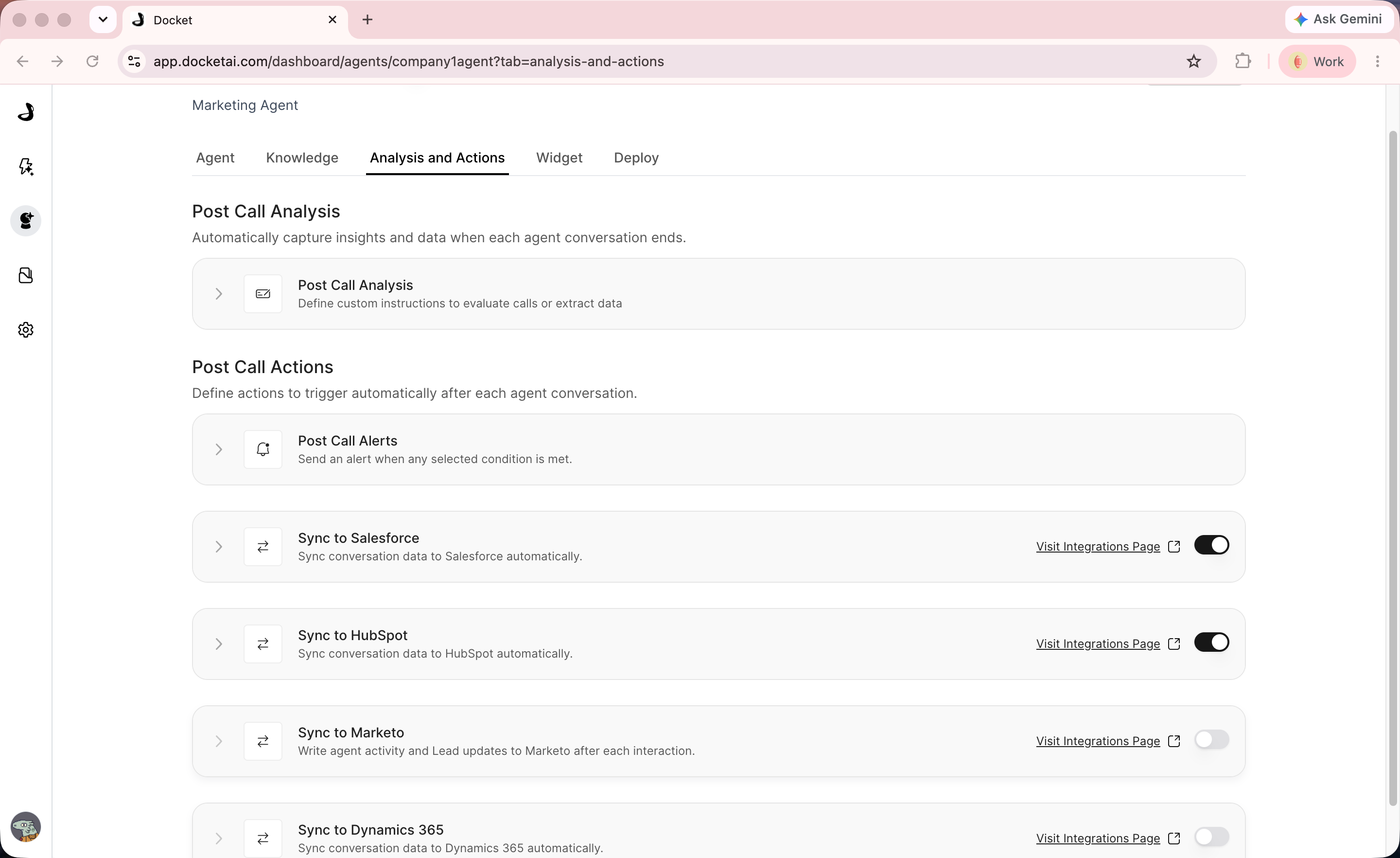
The Analysis and Actions tab includes these areas:
Post Call Analysis
Post Call Actions
Post Call Alerts
Sync to Salesforce
Sync to HubSpot
Sync to Marketo
Use each section for a different part of the post-conversation workflow.
Post Call Analysis
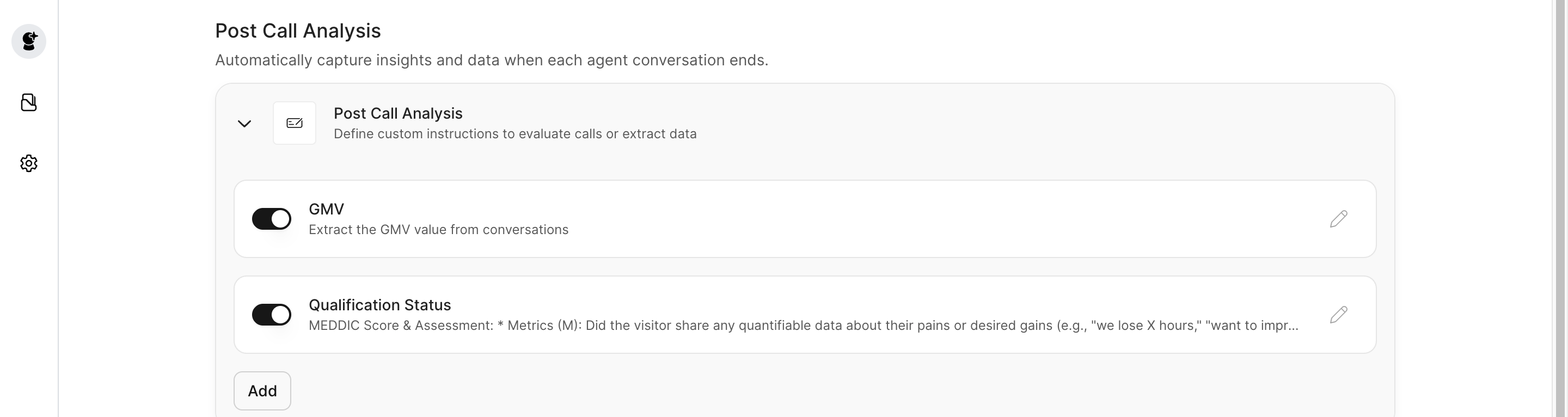
Use Post Call Analysis to define the insights or fields Docket should extract from a conversation.
Examples include:
Lead qualification details
Product interests
Pain points
Budget or timeline signals
Follow-up notes
CRM-ready summary fields
Keep analysis fields focused. Too many fields can make review harder and can reduce the clarity of downstream actions.
Post Call Actions
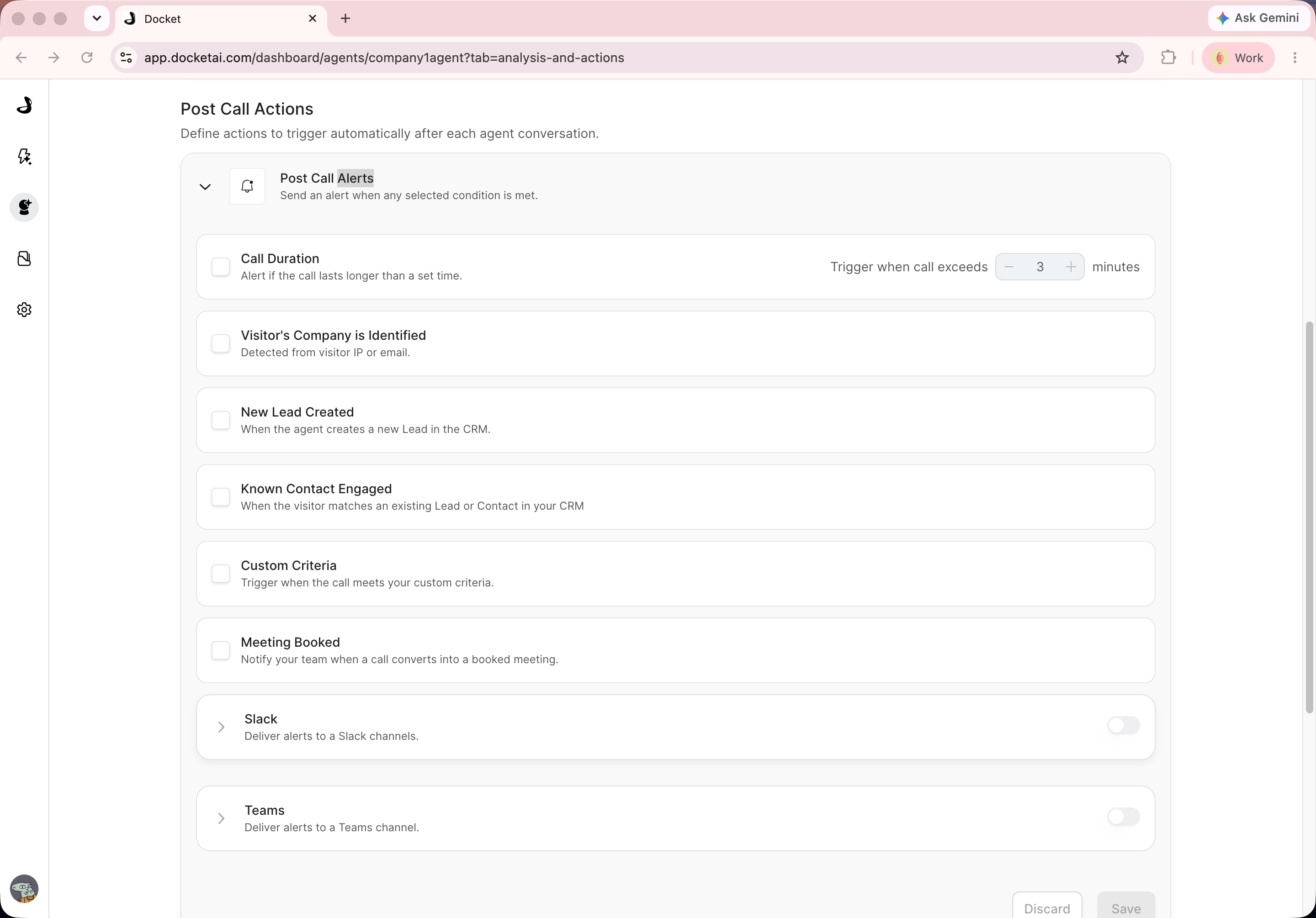
Use Post Call Actions to configure what should happen after a conversation meets your criteria.
Actions are useful when the conversation should trigger a follow-up workflow, update a connected system, or route information to the right team.
Post Call Alerts
Use Post Call Alerts to notify the right people after important conversations.
Alerts are useful for high-intent leads, meeting requests, urgent customer questions, or other conversations that should not wait for manual review.
CRM Sync
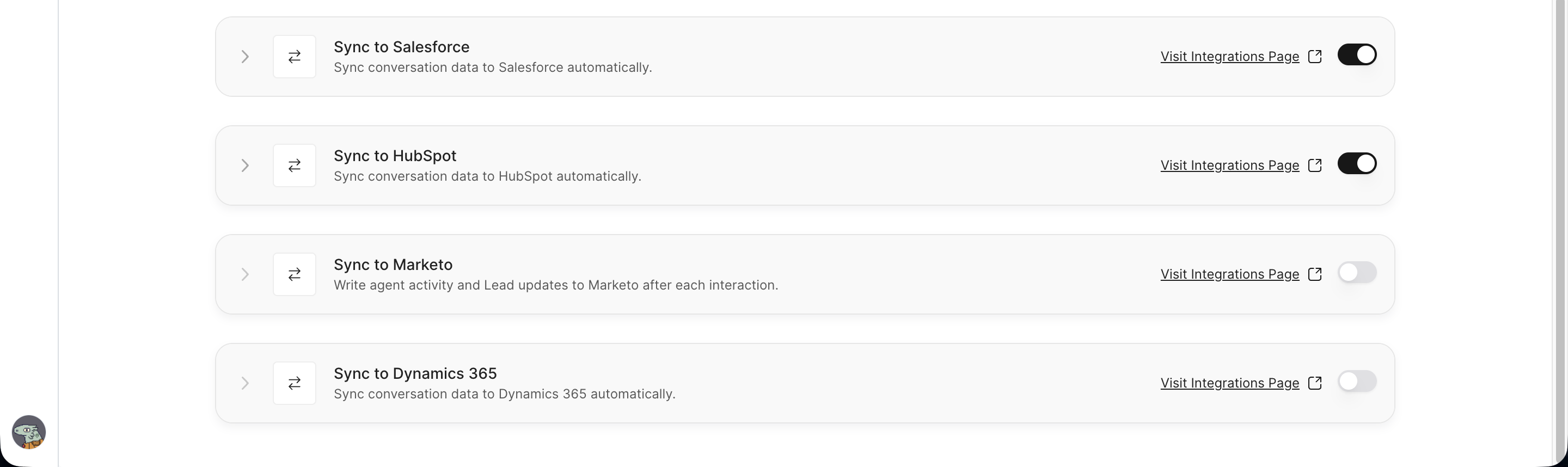
Use the CRM sync sections when conversation data should flow into connected systems.
The current tab includes dedicated sections for:
Sync to Salesforce
Sync to HubSpot
Sync to Marketo
Before enabling sync for an agent, confirm the corresponding integration is connected and that the fields you want to sync are mapped correctly.
Recommended Setup Order
Define the post-call fields you want Docket to extract.
Preview or test conversations that should populate those fields.
Configure any post-call actions.
Configure alerts for high-priority outcomes.
Enable CRM sync only after field mapping is ready.
Review synced records after the first few real conversations.
Best Practices
Start with a small set of high-value analysis fields.
Use field names that match your sales or operations process.
Keep action criteria specific enough to avoid noisy follow-up.
Test alerts before relying on them for urgent workflows.
Confirm CRM field mapping before enabling sync on a live agent.
Troubleshooting
Issue | What to check |
|---|---|
Analysis fields are empty | Confirm the field instructions are clear and the conversation contains the required information. |
Follow-up action did not run | Check whether the action criteria matched the conversation. |
Team did not receive an alert | Review the alert configuration and recipient list. |
CRM record is missing data | Confirm the integration is connected and field mapping is complete. |
Synced data looks wrong | Review the extracted analysis fields before troubleshooting the CRM sync. |