Understanding Analysis and Actions
Last updated: October 26, 2026
The Analysis and Actions tab is what turns a website conversation into something your team can act on. It pulls the details you care about out of every conversation, such as whether the visitor is qualified and what they want to buy. It then delivers them where your team already works: a Slack or Microsoft Teams channel, and the contact record in Salesforce, HubSpot, Marketo, or Dynamics 365.
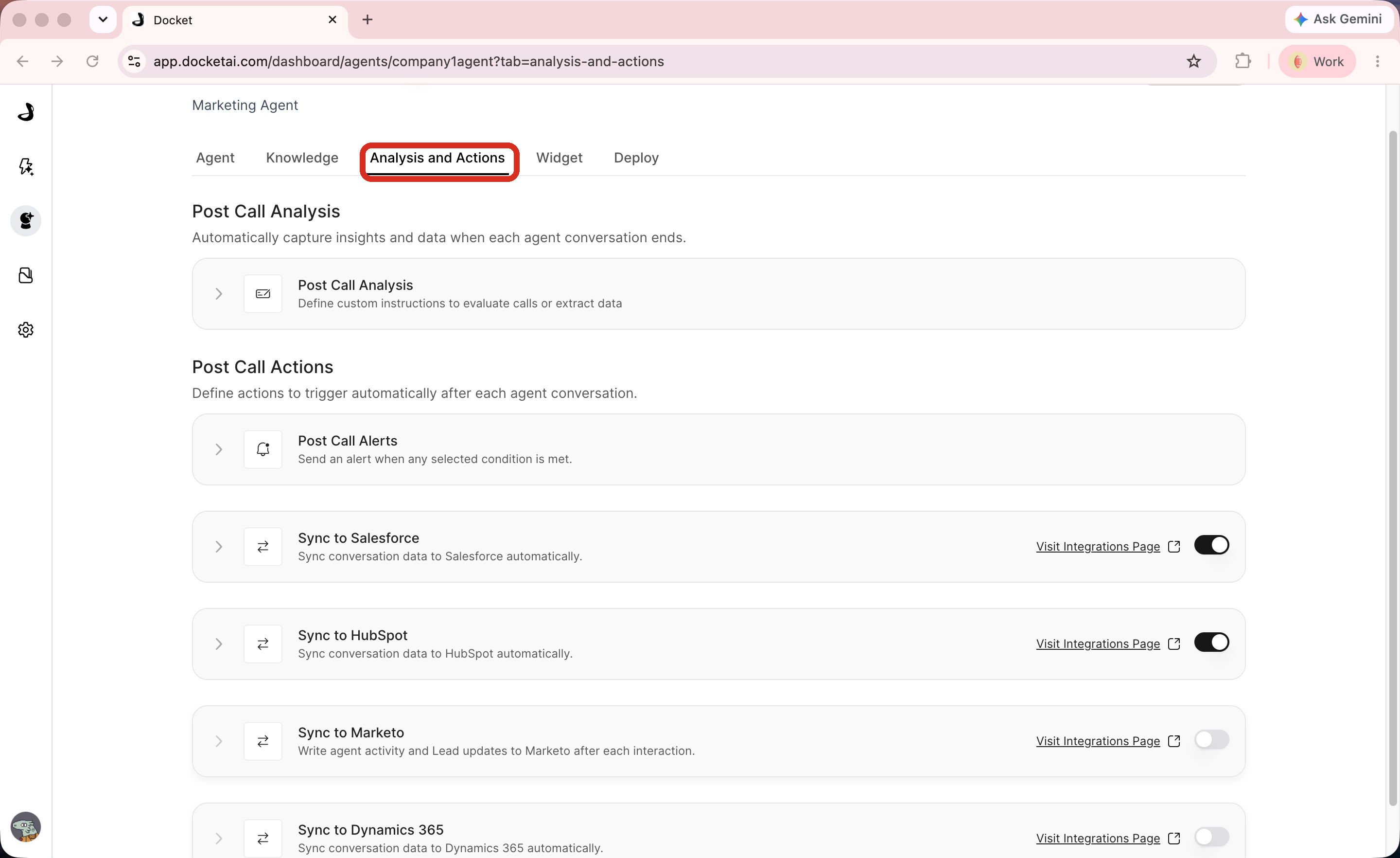
What can you configure in the Analysis and Actions tab?
The tab is organized into two sections:
Post Call Analysis is where you define what Docket extracts from each conversation.
Post Call Actions is where that information goes: an alert to Slack or Microsoft Teams, or a write into Salesforce, HubSpot, Marketo, or Dynamics 365.
Use each section for a different part of the post-conversation workflow.
How the pieces fit together
Everything in this tab runs as one chain, in a fixed order.
A conversation ends.
Post Call Analysis fills in the fields you defined for that agent. See Creating Post-Call Analysis Fields.
Post Call Actions then run, using the values the analysis just produced. See Configuring Post-Call Actions.
Alerts reach Slack or Microsoft Teams, and CRM sync writes your mapped fields. See Setting Up Post-Call Alerts and Understanding CRM Sync from Analysis and Actions.
The order matters because each step can only use what the one before it produced. An alert is only as precise as the field it tests, and CRM sync can only write a value the analysis actually found.
In what order should you configure this?
Define the post-call fields you want Docket to extract.
Preview or test conversations that should populate those fields.
Configure any post-call actions.
Configure alerts for high-priority outcomes.
Enable CRM sync only after field mapping is ready.
Review synced records after the first few real conversations.
Best practices for Analysis and Actions
Start with a small set of high-value analysis fields.
Use field names that match your sales or operations process.
Keep action criteria specific enough to avoid noisy follow-up.
Test alerts before relying on them for urgent workflows.
Confirm CRM field mapping before enabling sync on a live agent.
Troubleshooting Analysis and Actions
Issue | What to check |
|---|---|
Analysis fields are empty | Confirm the field instructions are clear and the conversation contains the required information. |
Follow-up action did not run | Check whether the action criteria matched the conversation. |
Team did not receive an alert | Review the alert configuration and recipient list. |
CRM record is missing data | Confirm the integration is connected and field mapping is complete. |
Synced data looks wrong | Review the extracted analysis fields before troubleshooting the CRM sync. |
Frequently asked questions
Do I need to enable object writes for timeline events to appear?
Yes. Event logging depends on the Lead or Contact write path being enabled for that provider. With those writes disabled, Docket will not log events on their own.
Is the Analysis and Actions tab configured per agent or per workspace?
Per agent. Analysis fields, alerts, and CRM sync mappings all belong to the individual agent, so a second agent starts with none of them.
Why does post-call analysis classify something differently from routing?
They are different systems running at different times. Routing runs during the conversation and post-call analysis runs after it, so equivalent rule text can still produce different answers.