Understanding CRM Sync from Analysis and Actions
Last updated: September 29, 2026
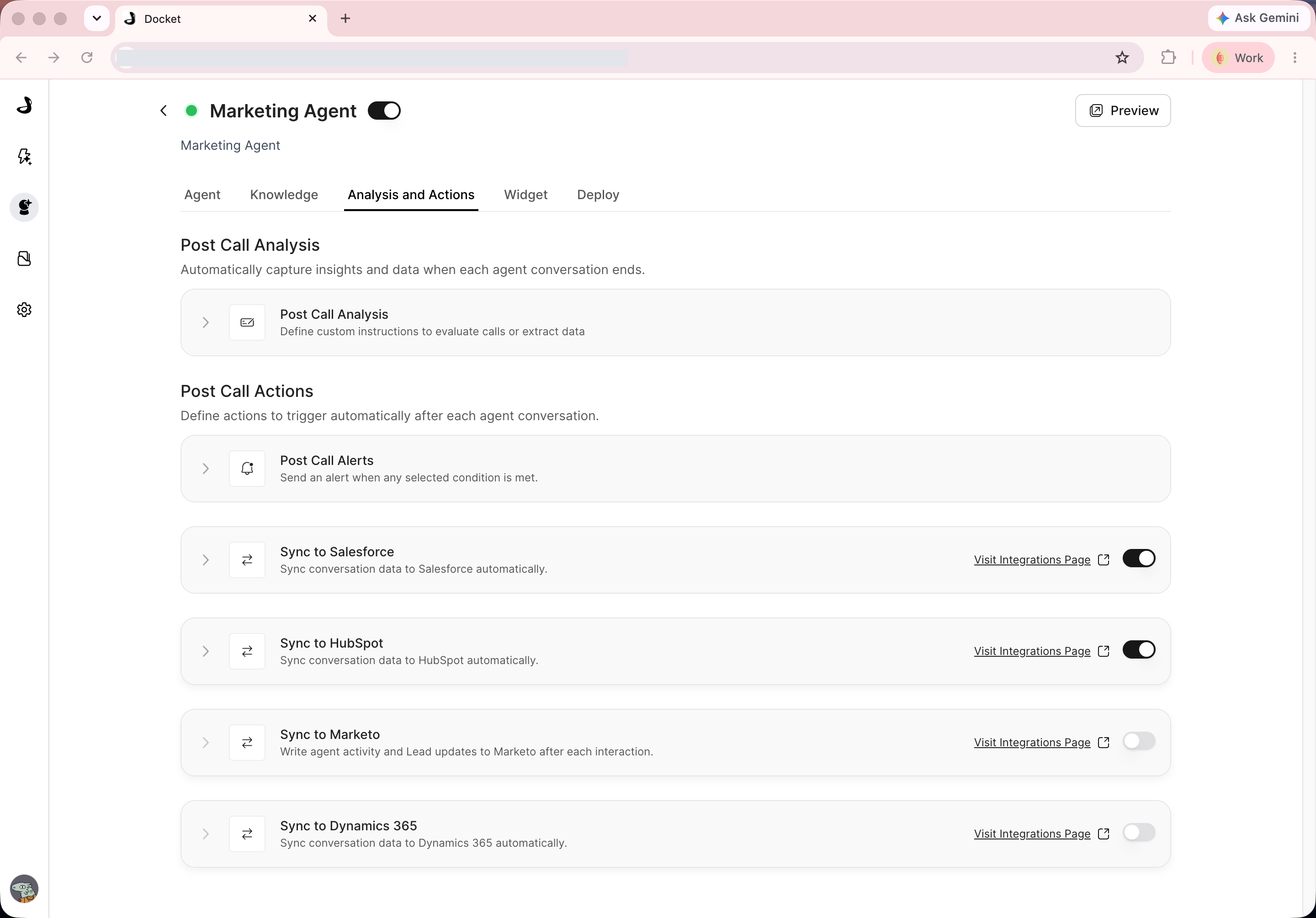
Use CRM sync in Analysis and Actions when conversation data should flow from a Marketing Agent into your connected sales or marketing system.
CRM sync works best after you have defined the post-call analysis fields your team wants to review or map downstream.
What You Can Sync
The Analysis and Actions tab includes dedicated sync sections for:
Sync to Salesforce
Sync to HubSpot
Sync to Marketo
Sync to Microsoft Dynamics 365
Before You Enable CRM Sync
Before turning on sync for an agent:
Confirm the CRM or marketing automation integration is connected.
Review the agent's Post Call Analysis fields.
Confirm the destination fields or activities are appropriate for the data Docket will send.
Decide which agents should sync data and which should stay internal to Docket.
Test with a controlled conversation before relying on sync operationally.
Each sync section includes a Visit Integrations Page link when integration setup needs attention.
How CRM Sync Relates to Post-Call Analysis
Post-call analysis extracts structured information from conversations. CRM sync moves selected conversation data or activity into a connected system.
For example:
A qualification field can help sales prioritize follow-up.
Product interest can help route the lead to the right team.
Meeting-booked activity can help keep CRM timelines current.
Conversation summaries can help reps understand what happened before they follow up.
Review analysis output before mapping it into a CRM. Bad or noisy analysis fields become bad or noisy CRM data.
Provider-Specific Notes
Provider | Use when |
|---|---|
Salesforce | Your sales team works from Salesforce and needs conversation data or follow-up context there. |
HubSpot | Your team uses HubSpot contacts, timelines, or marketing workflows. |
Marketo | Your team wants Docket agent activity or lead updates available in Marketo. |
Microsoft Dynamics 365 | Your team works from Dynamics 365 and needs conversation data, lead or contact context, or follow-up updates available there. |
Use the provider-specific setup articles for the controls currently exposed for each provider. Salesforce and HubSpot show expandable object controls; Marketo currently shows only the per-agent switch and integrations link.
Best Practices
Enable sync only for agents that produce useful follow-up data.
Start with the minimum set of fields your team needs.
Coordinate with the CRM or marketing operations owner before changing mappings.
Test sync on a controlled conversation before enabling it broadly.
Review records after the first few synced conversations.
Troubleshooting
Issue | What to check |
|---|---|
Sync controls are disabled | Visit the integrations page and confirm the provider is connected. |
Data is missing in the CRM | Confirm the conversation had the required visitor information and that field mapping is complete. |
Synced values look wrong | Review the post-call analysis field output first. |
Wrong provider is being updated | Confirm the correct provider section is enabled for the agent. |
Team does not see expected activity | Check provider-specific object, activity, or timeline settings. |
Related Articles
Enabling Salesforce Sync for an Agent
Enabling HubSpot Sync for an Agent
Enabling Marketo Sync for an Agent