Post-Call Analysis Setup and Configuration
Last updated: September 29, 2026
Post Call Analysis helps you extract structured information from Marketing Agent conversations after they end.
Use it when your team needs consistent follow-up fields such as qualification status, product interest, pain points, buying timeline, or CRM-ready notes.
Before You Start
You need access to app.docketai.com.
You need at least one Marketing Agent.
Decide which conversation details your team needs after each interaction.
If you plan to sync results to a CRM, confirm the relevant integration and field mapping first.
Open Post Call Analysis
Log in to app.docketai.com.
Open Marketing Agent Configuration.
Select the agent you want to configure.
Open the Analysis and Actions tab.
Find Post Call Analysis.
The Post Call Analysis section is where you define what Docket should evaluate or extract from conversations.
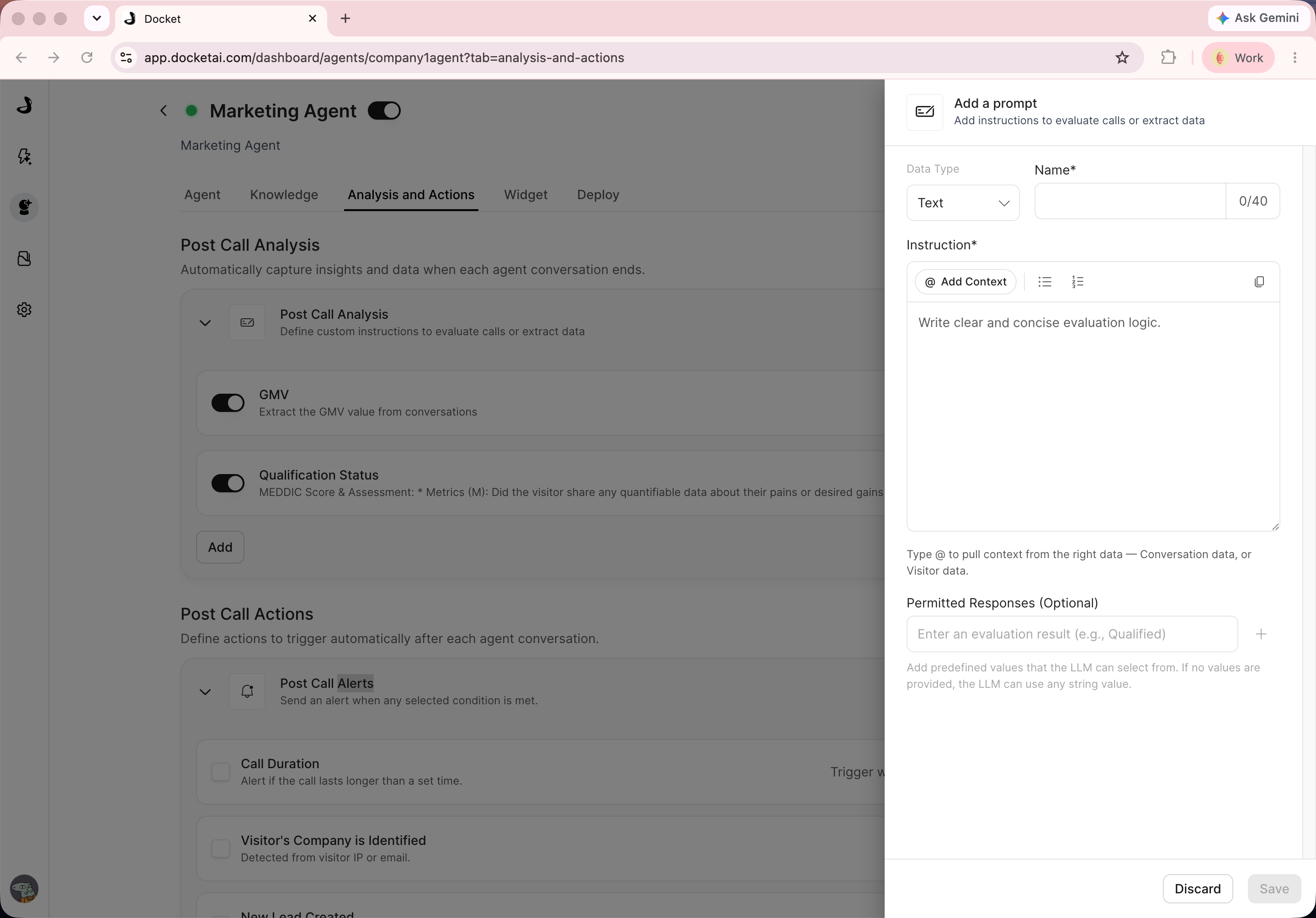
Post-call analysis is configured per agent. Use separate analysis prompts when different agents need different qualification criteria, routing signals, or CRM-ready summaries.
Plan Your Analysis Fields
Start with the few fields your team will actually use. Common examples include:
Field | What it should capture |
|---|---|
Qualification Status | Whether the visitor appears qualified based on your sales criteria. |
Product Interest | The product, feature, or use case the visitor asked about. |
Pain Points | The challenges or goals the visitor mentioned. |
Timeline | Any urgency, buying window, or implementation timing. |
Follow-Up Notes | A short summary for sales or customer-facing teams. |
Keep field names short and clear because they may appear in dashboards, reviews, or downstream systems.
Write Effective Instructions
For each analysis field, write instructions that tell Docket exactly what to look for and how to format the answer.
Good instructions are:
Specific about the signal to extract.
Clear about the expected output format.
Focused on one field or decision at a time.
Grounded in the conversation transcript.
For example, instead of asking for "lead quality," ask Docket to return one of a small set of statuses and explain which conversation signals should drive the choice.
Review Results
After the agent has conversations, review the analysis output where your team monitors Marketing Agent performance.
Check whether:
Fields are populated when the conversation contains the needed information.
Empty fields are reasonable when the visitor did not provide that information.
Output formats are consistent.
The extracted values are useful for follow-up and reporting.
If results are inconsistent, revise the field instructions before adding more fields.
Connect Analysis to Follow-Up
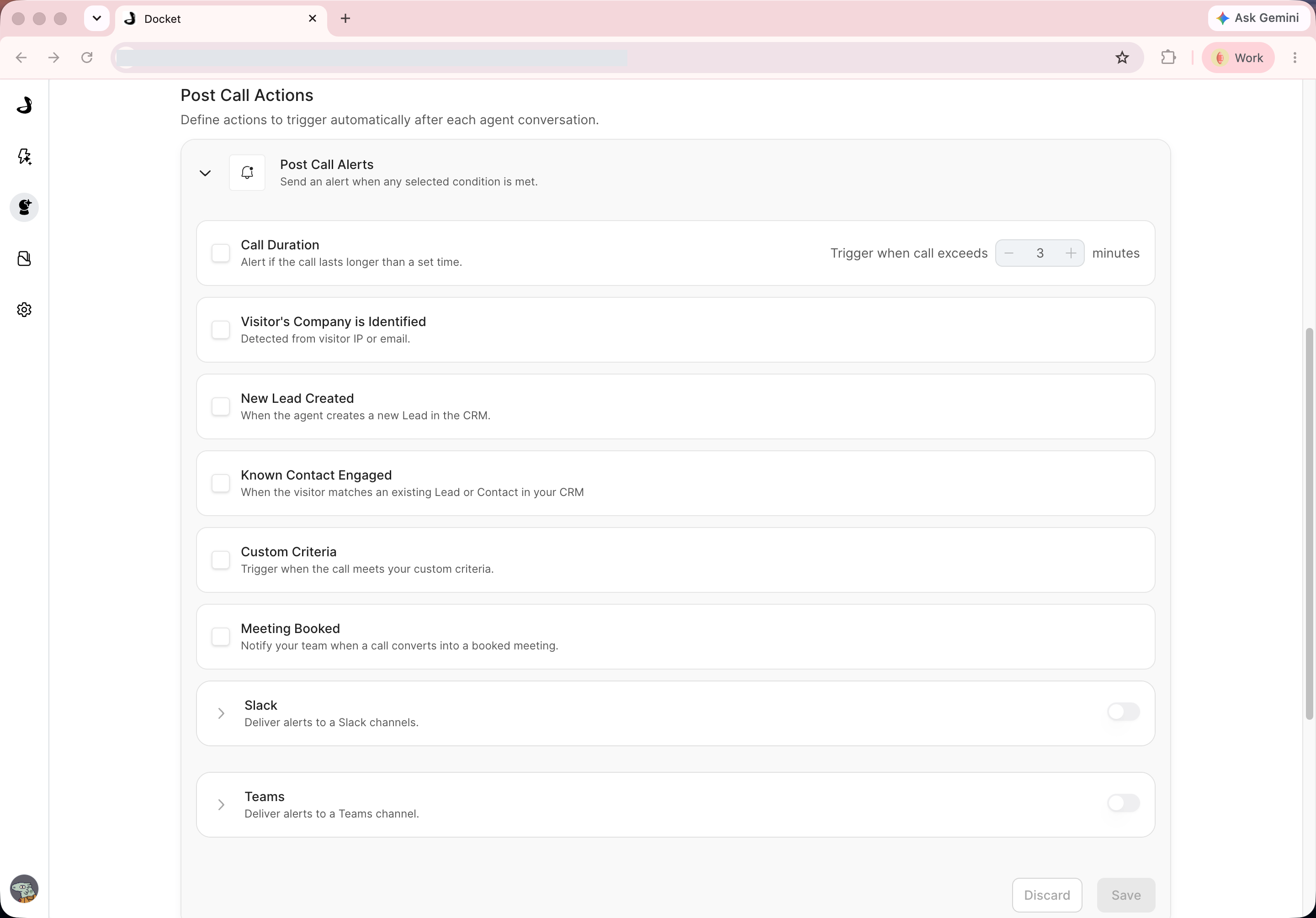
Post-call analysis becomes more useful when it feeds a follow-up workflow.
Use the rest of the Analysis and Actions tab to configure related workflows such as:
Post Call Actions
Post Call Alerts
Sync to Salesforce
Sync to HubSpot
Sync to Marketo
Before enabling CRM sync, confirm your integration is connected and the destination fields are mapped correctly.
Verify Post-Call Analysis
Save the prompt and confirm it appears in Post Call Analysis.
Run a controlled conversation containing the signal the prompt should evaluate.
End the conversation and wait for post-call processing to finish.
Review the extracted value and confirm it matches the configured data type and instruction.
Repeat with missing or ambiguous evidence to verify the fallback behavior.
Disable the prompt when its output is not reliable enough for alerts or CRM sync.
Best Practices
Start with a focused set of high-value fields.
Use controlled outputs when your team needs reporting consistency.
Avoid fields that ask for information the visitor is unlikely to provide.
Review early results before relying on the data operationally.
Update field instructions when your sales process or qualification criteria changes.
Troubleshooting
Issue | What to check |
|---|---|
Analysis field is empty | Confirm the conversation included the information the field asks for. |
Output is inconsistent | Make the instructions more specific and define the expected format. |
Field is not useful for follow-up | Rename, rewrite, or remove the field. |
CRM data is missing | Confirm the CRM integration and field mapping before troubleshooting sync behavior. |
Team receives too much low-value data | Reduce the number of fields and keep only actionable outputs. |