Setting up the Salesforce CRM for Docket Marketing Agent
Last updated: September 23, 2026
Connect Salesforce once for your workspace, then choose exactly what each Marketing Agent writes back when a conversation ends.
Docket's Salesforce integration turns Marketing Agent conversations into records your team already works in. It creates Leads and logs an Activity Event for every conversation, and it updates matching Contacts, Accounts, and Opportunities.
Reading and writing are set up separately, and write-back is configured per agent. You decide what Salesforce sends into a live conversation, and what each agent sends back afterwards.
What do I need before connecting Salesforce?
Have these ready before you start:
The Admin role in Docket, which is what lets you manage workspace integrations.
A Salesforce edition with API access. Enterprise, Unlimited, Performance, Developer, and Professional all include it.
A Salesforce user who can approve the connection. A System Administrator or a dedicated integration user gives the cleanest audit trail.
Read access to the Account, Contact, Lead, and Opportunity objects, which is what Docket uses to bring context into a conversation.
Write access to the Account, Contact, Lead, Opportunity, and Event objects, which is what Docket uses for write-back.
How do I connect Salesforce to Docket?
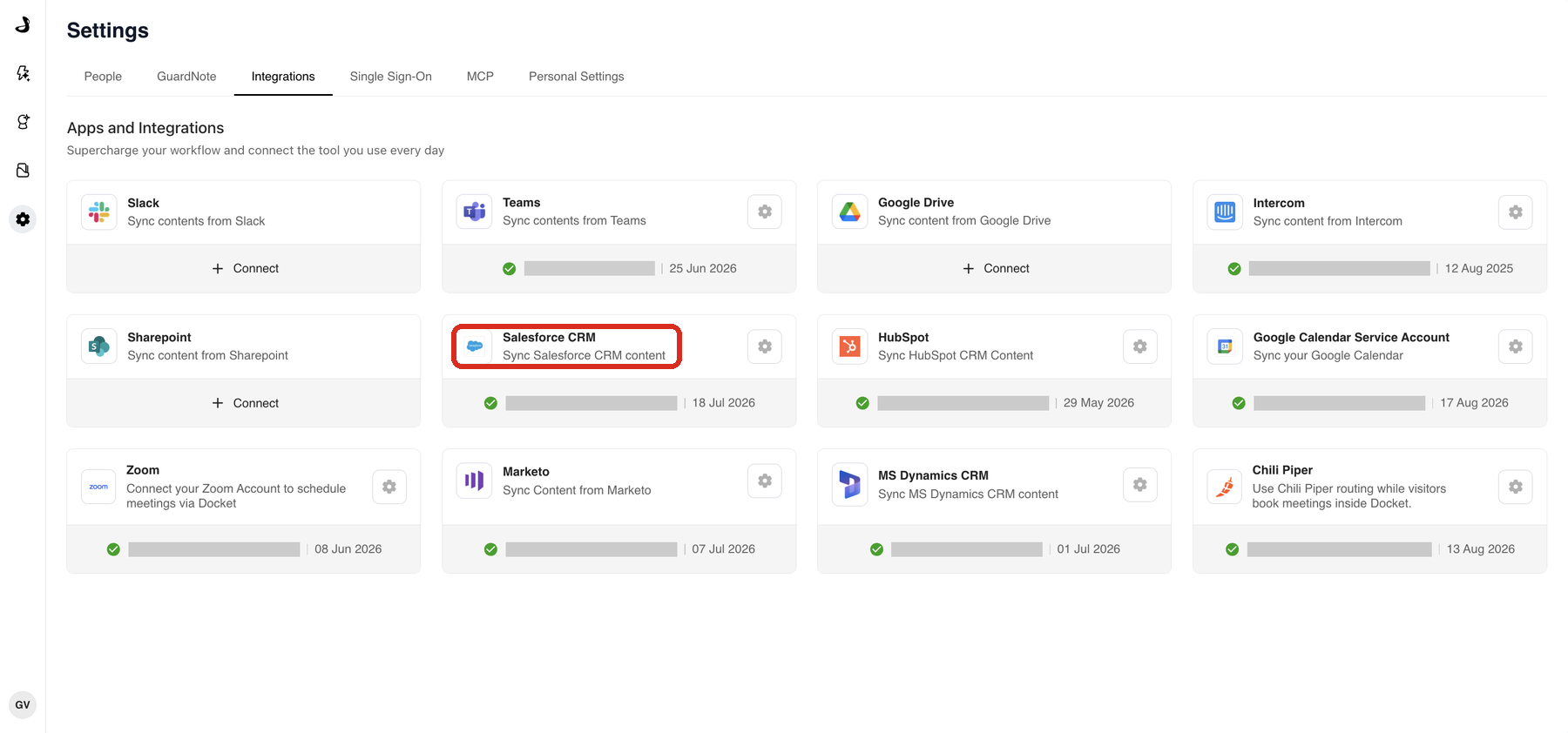
Connect Salesforce once for the whole workspace, from the Integrations tab in Settings.
In Docket, open Settings and select the Integrations tab.
Find the Salesforce CRM card and select Connect.
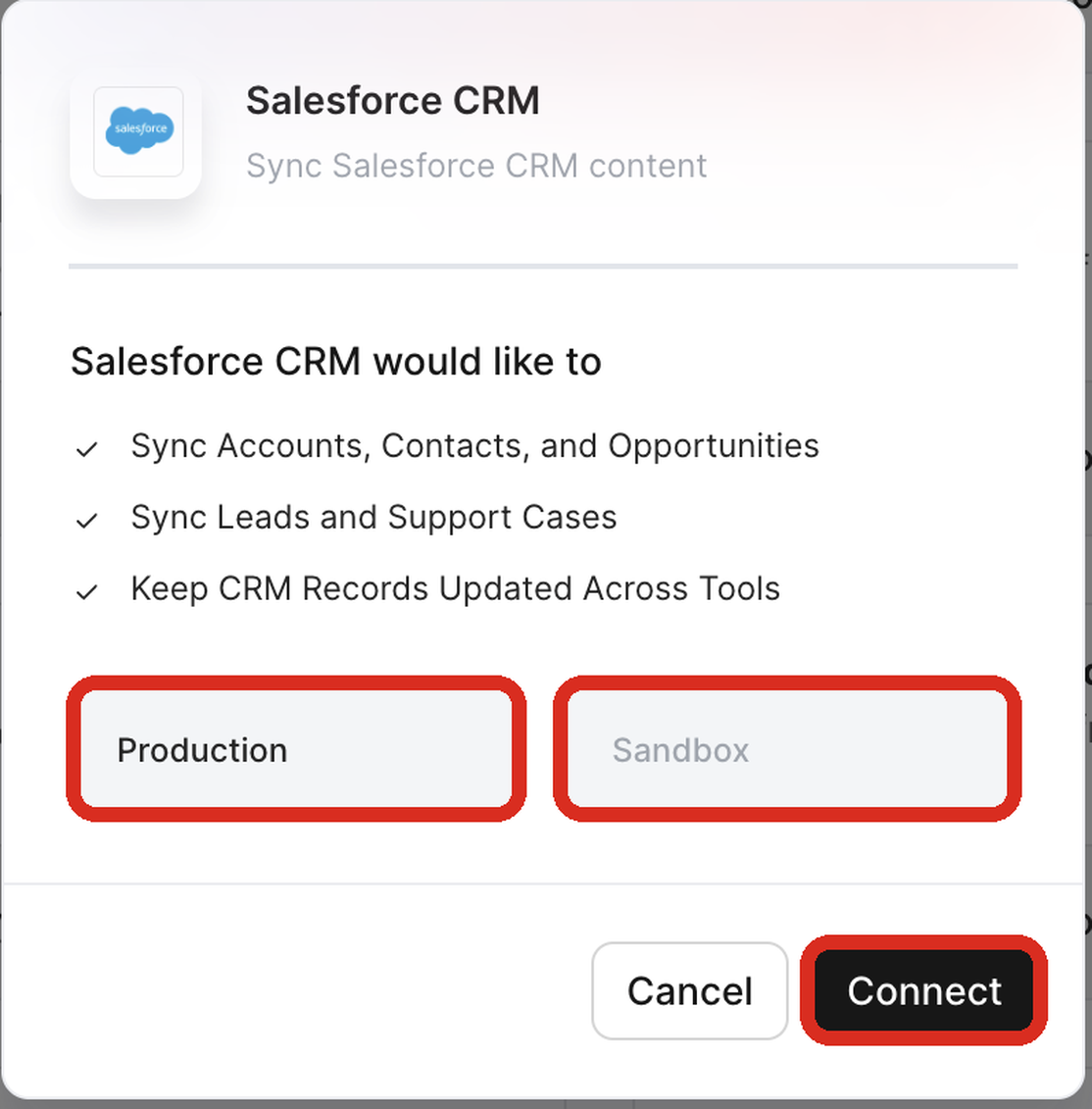
Choose Production or Sandbox.
Sign in with Salesforce, review the API access scope, and select Allow.
How do I choose what Docket reads from Salesforce?
Read access brings Salesforce records into Docket so an agent can use them while a visitor is still on the page. It is separate from write-back and is set on the Salesforce CRM card itself.
On the connected Salesforce CRM card, select the gear icon, then select Settings.
In Salesforce CRM configuration, under Field Mapping, turn on Read for Lead, Contact, Account, and Opportunity.
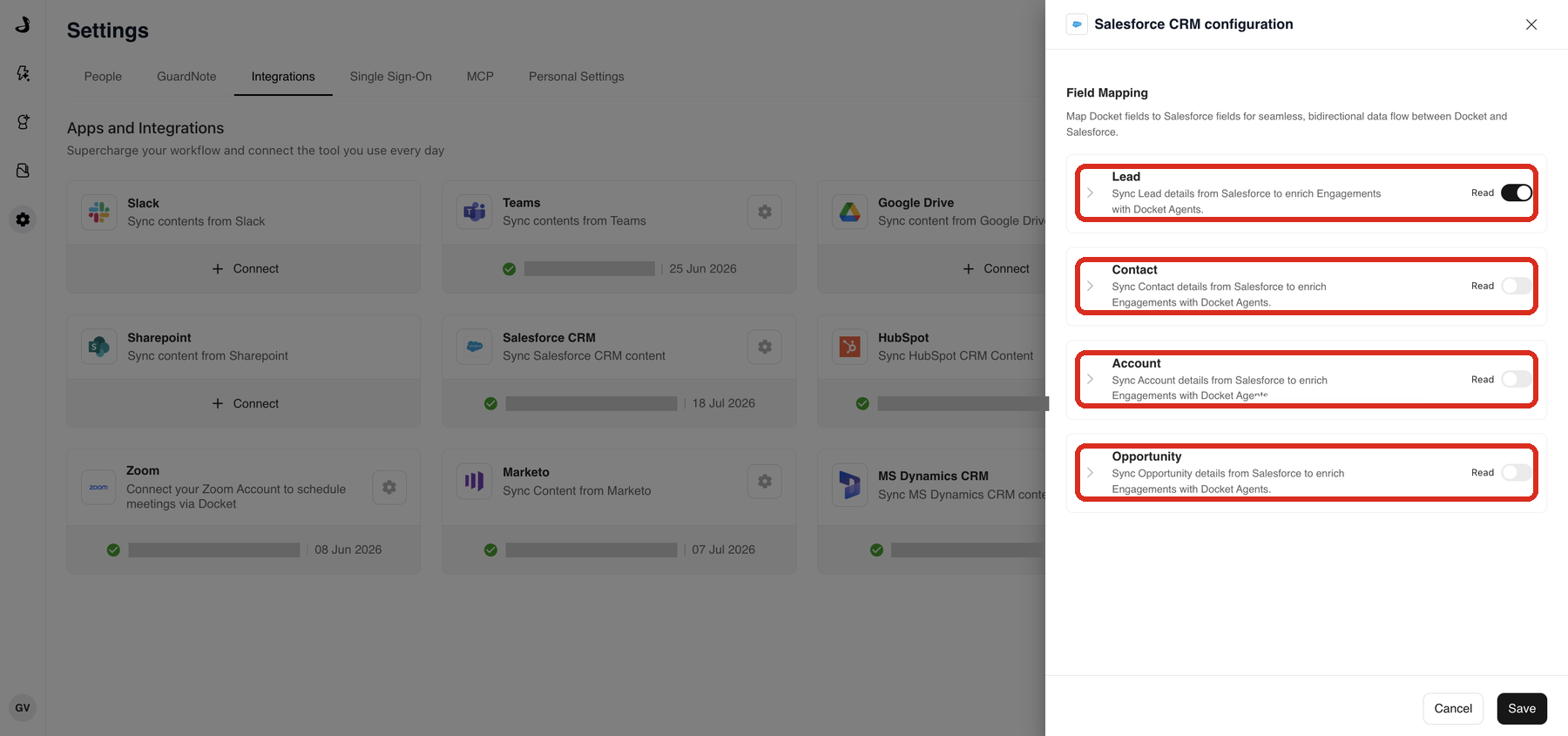
Select Save.
How do I turn on Salesforce write-back for a Marketing Agent?
Write-back is configured on each agent, so you can start with one agent and expand once you are happy with what it writes.
Open the Marketing Agent and select the Analysis and Actions tab.
Under Post Call Actions, turn on Sync to Salesforce.
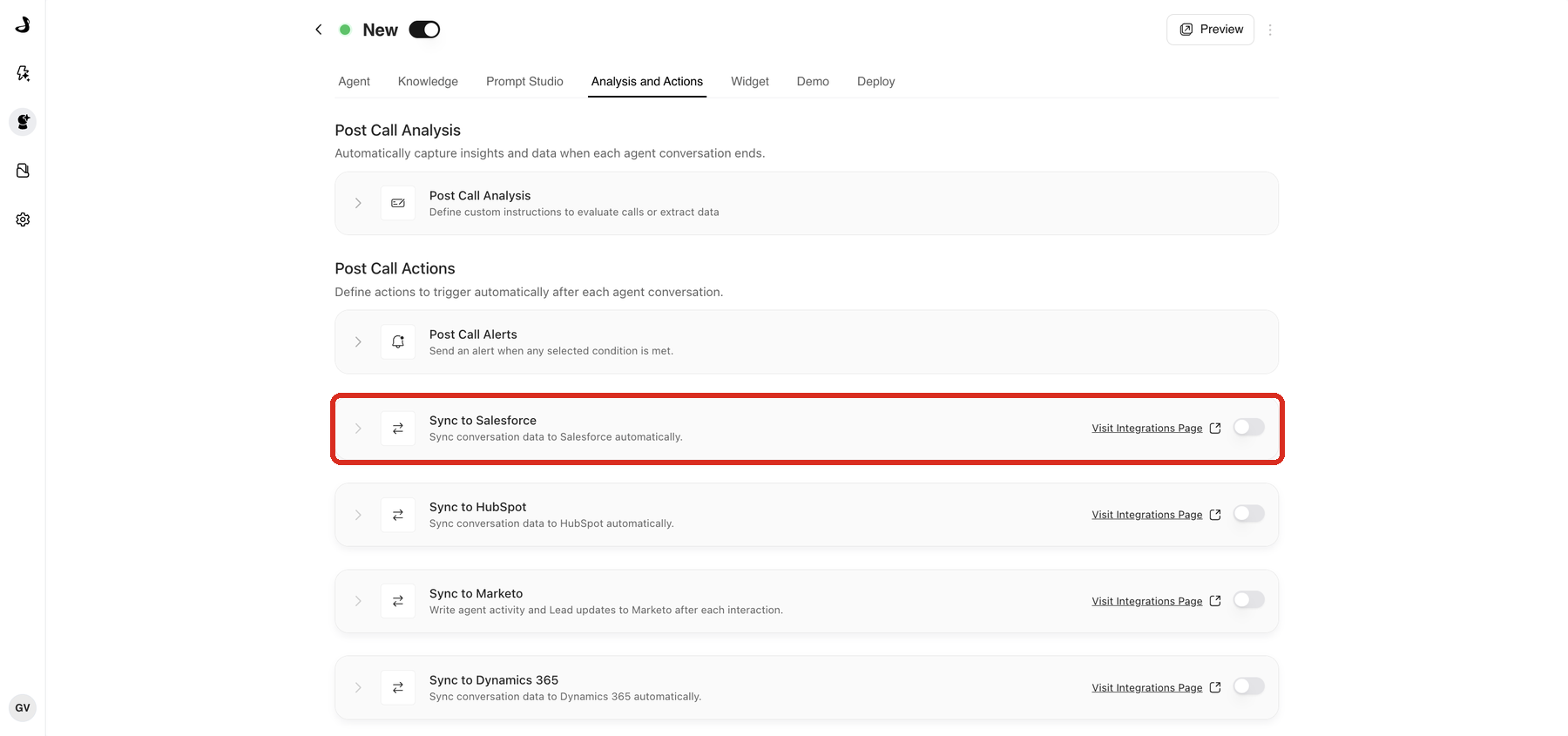
Expand Sync to Salesforce and map the fields you want for Lead, Contact, Account, Opportunity, and Activity Events.
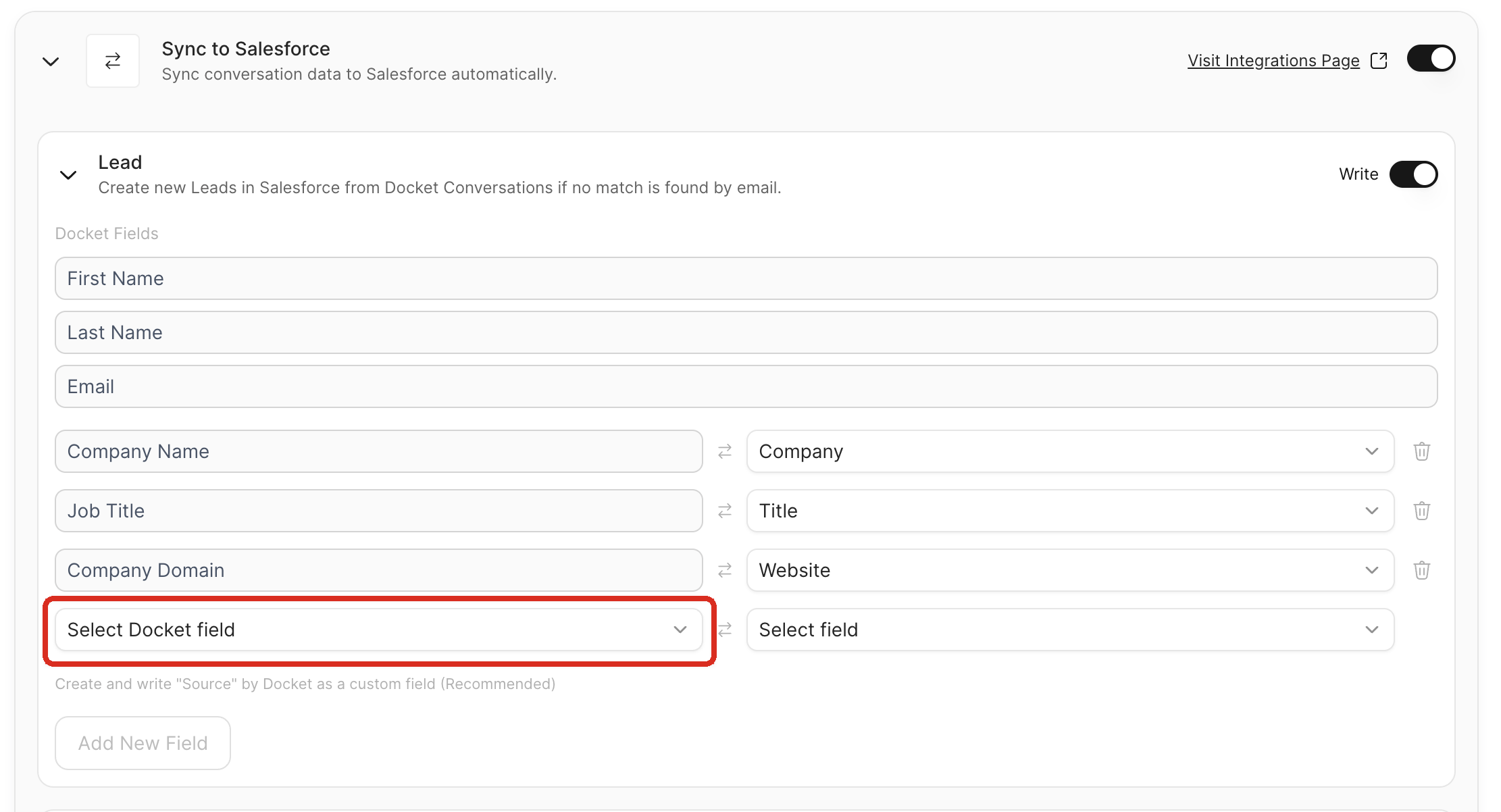
Select Save.
Write operations are non-blocking. If an object is unavailable or a permission is missing, Docket skips that object and carries on with the rest.
What does Docket write to each Salesforce record?
Docket matches the visitor by email address, then writes to the records related to that person.
Salesforce record | What Docket does |
|---|---|
Leads | Creates a Lead when the person is not found in Salesforce. Select Add New Field to map custom Docket fields, such as UTM parameters, click IDs, and your post-call analysis fields, to Lead properties. |
Contacts and Accounts | Updates the mapped fields on a matching record. Docket does not create Contacts or Accounts. |
Opportunities | Updates the mapped fields on an existing Opportunity associated with the Contact or Account. Docket does not create Opportunities. |
Activity Events | Logs an Activity Event after every conversation. Linking starts with the Lead, moves to the Contact if one is found, and then to the associated Opportunity where read access allows. The event carries the agent's name, interaction count, page URL, and UTM parameters. |
Activity Events follow the record write. If Lead write-back is turned off for an agent, Docket does not write the Event on its own.
Which attribution and interaction fields can I map?
Docket writes campaign attribution and interaction history alongside the conversation itself.
UTM parameters and click IDs. Map fields such as Docket UTM Source, Docket Page URL, and Docket Click ID to custom Salesforce fields, for example
Docket_UTM_Source__c. This is also what lets you export click IDs back to ad platforms for offline conversion tracking.Interaction lifecycle. Map Docket First Interaction Date, Docket Latest Interaction Date, and Docket Interaction Count to trigger alerts when a cold lead returns, or to build lists of high-intent visitors.
How do I map post-call analysis fields into Salesforce?
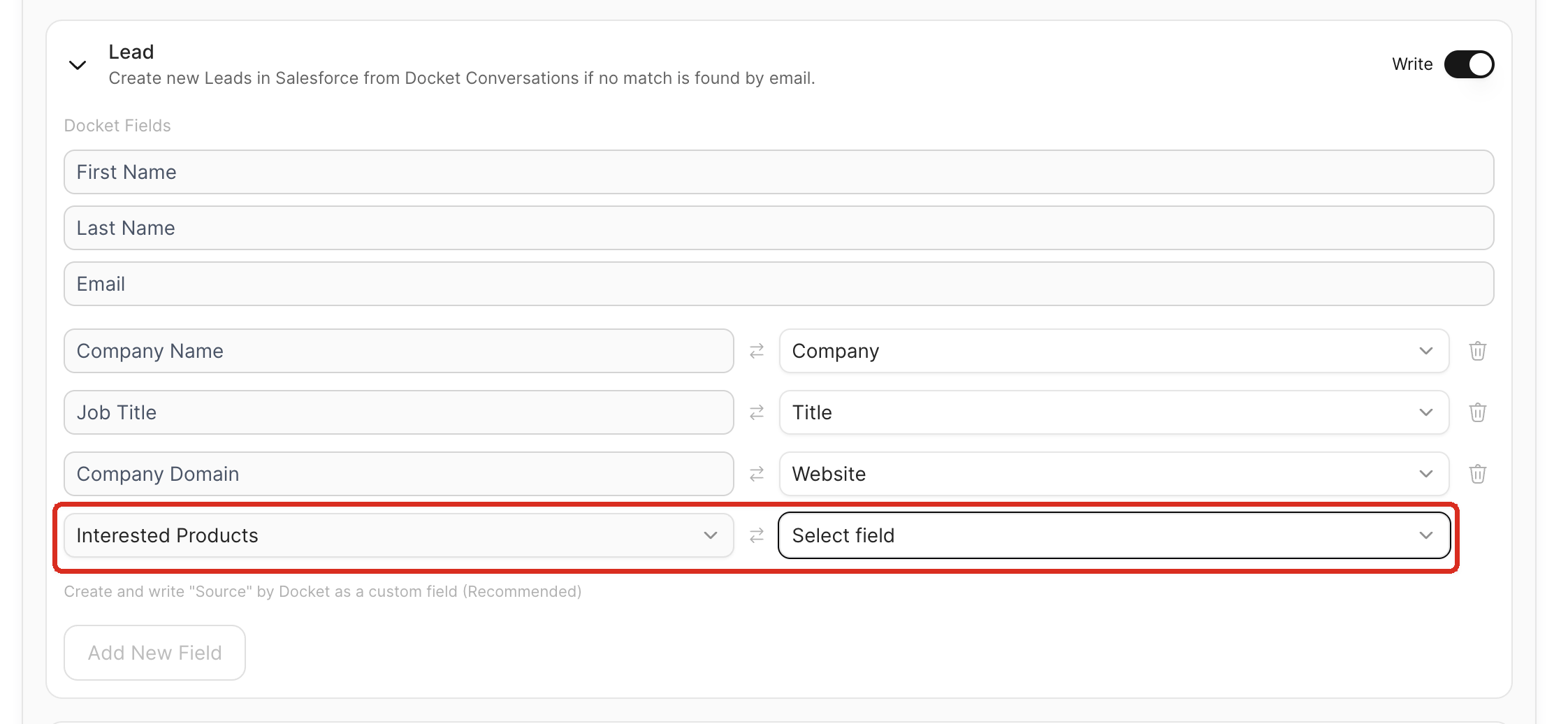
Post-call analysis extracts structured answers from each conversation, such as pain points, budget, or qualification status. Those extracted fields then appear in the Salesforce mapping list.
Open the agent and select Analysis and Actions.
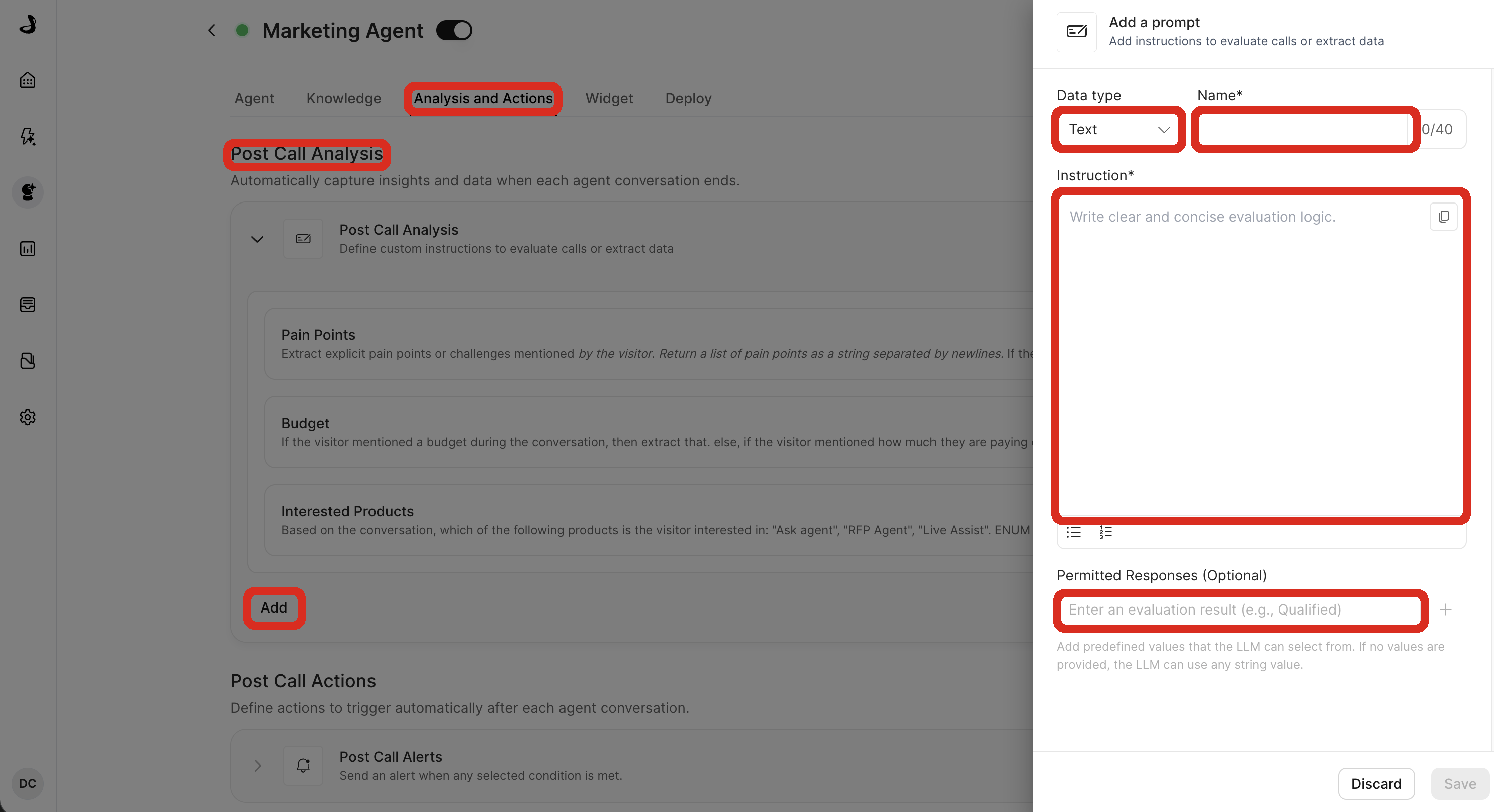
Under Post Call Analysis, select Add to create a new extraction prompt.
Choose the Data Type, give the field a Name, and write instructions describing what the agent should evaluate. Set Permitted Responses when the value has to match a picklist in Salesforce.
Return to Sync to Salesforce and map the new field to a Salesforce field.
Creating Post-Call Analysis Fields covers the extraction prompts in more depth, and Post-Call Analysis Data Types and Allowed Values lists what each data type can hold.
Once the fields are flowing, teams commonly use them to build segmented lists from captured pain points, to send an account executive the discovery summary before a booked meeting, and to group Opportunities by the mapped page URL to see which pages drive pipeline.
When does Docket write to Salesforce?
Docket writes back when the conversation ends, not while it is still running, and only when the conversation captured an email address.
Docket pushes updates to Salesforce in near real time once a conversation ends.
Docket refreshes the data it reads from Salesforce every 24 hours.
Rate limits can delay a sync. Docket retries automatically.
Docket respects your field and object permissions. Where write access is missing, it skips that object and continues.
Troubleshooting Salesforce sync
What you are seeing | What to check |
|---|---|
Nothing reaches Salesforce after a test conversation | Confirm the conversation captured an email address. Docket writes back only when it has one, and only once the conversation has ended. |
No Activity Event was logged | Confirm Lead write-back is turned on for that agent. Docket writes the Event alongside the record write rather than on its own. |
One field stays empty while the rest sync | The value Docket produced is not an accepted picklist value on that Salesforce field. Add the value in Salesforce, or set matching Permitted Responses on the post-call analysis field. |
A Contact or Account was not updated | Confirm the record already exists and matches the visitor's email. Docket updates Contacts and Accounts but does not create them. |
An Opportunity was not updated | Confirm the Opportunity is associated with the matched Contact or Account, and that Opportunity read access is on. |
The agent writes nothing although Salesforce shows Connected | Open the agent, select Analysis and Actions, and confirm Sync to Salesforce is on and saved for that specific agent. |
Frequently asked questions
Does Docket create Contacts and Accounts in Salesforce?
No. Docket creates Leads. It updates Contacts, Accounts, and Opportunities only when a matching record already exists.
When exactly does Docket write to Salesforce?
At the end of the Docket engagement. Sync to Salesforce is a Post Call Action, so the write happens when the conversation ends rather than during it.
What happens if the visitor never gives an email address?
Nothing is written for that conversation. Docket matches Salesforce records by email, so a conversation that ends without one produces no CRM record.
Can I connect a Salesforce sandbox first?
Yes. Choose Sandbox when you connect, test there, and connect the production environment when you are ready.
Do I have to connect Salesforce again for each agent?
No. Connect Salesforce once in Settings, then turn on Sync to Salesforce for each agent that should write back.
Can Docket write to Salesforce and HubSpot at the same time?
Yes. The sync actions are independent, so an agent can write to both. See Understanding CRM Sync from Analysis and Actions.
What happens when I disconnect Salesforce?
Sync stops immediately. Disconnecting while holding the data keeps what Docket has already ingested, and a permanent delete removes the ingested data along with the integration's configuration.