Creating Post-Call Analysis Fields
Last updated: August 10, 2026
Create post-call analysis fields when you want Docket to extract specific information from each Marketing Agent conversation.
Fields should map to information your team will actually review, route, or sync after the conversation ends.
Before You Start
You need access to app.docketai.com.
You need an existing Marketing Agent.
Decide which field you want to add and how the result should be formatted.
If the field will sync to a CRM, confirm the destination field exists and is mapped.
Open Post Call Analysis
Log in to app.docketai.com.
Open Marketing Agent Configuration.
Select the agent you want to configure.
Open the Analysis and Actions tab.
Find Post Call Analysis.
The section explains that Docket can automatically capture insights and data when each agent conversation ends.
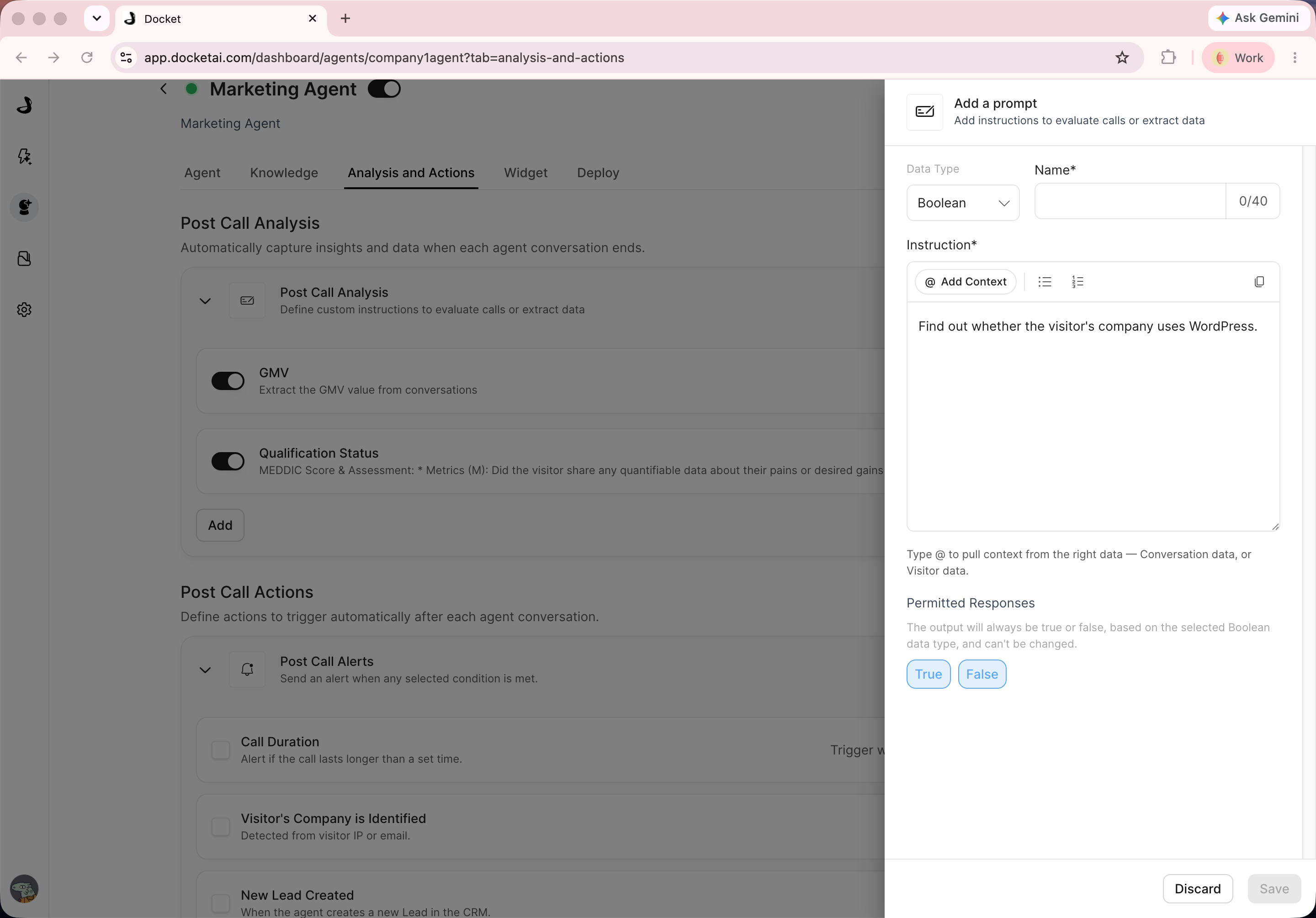
Review Existing Fields
Before adding a new field, review the existing analysis fields.
The live configuration may include default fields such as Qualification Status. Existing fields can be toggled on or off when you want to control whether Docket uses that field.
Only keep fields that produce useful follow-up data.
Add a Field
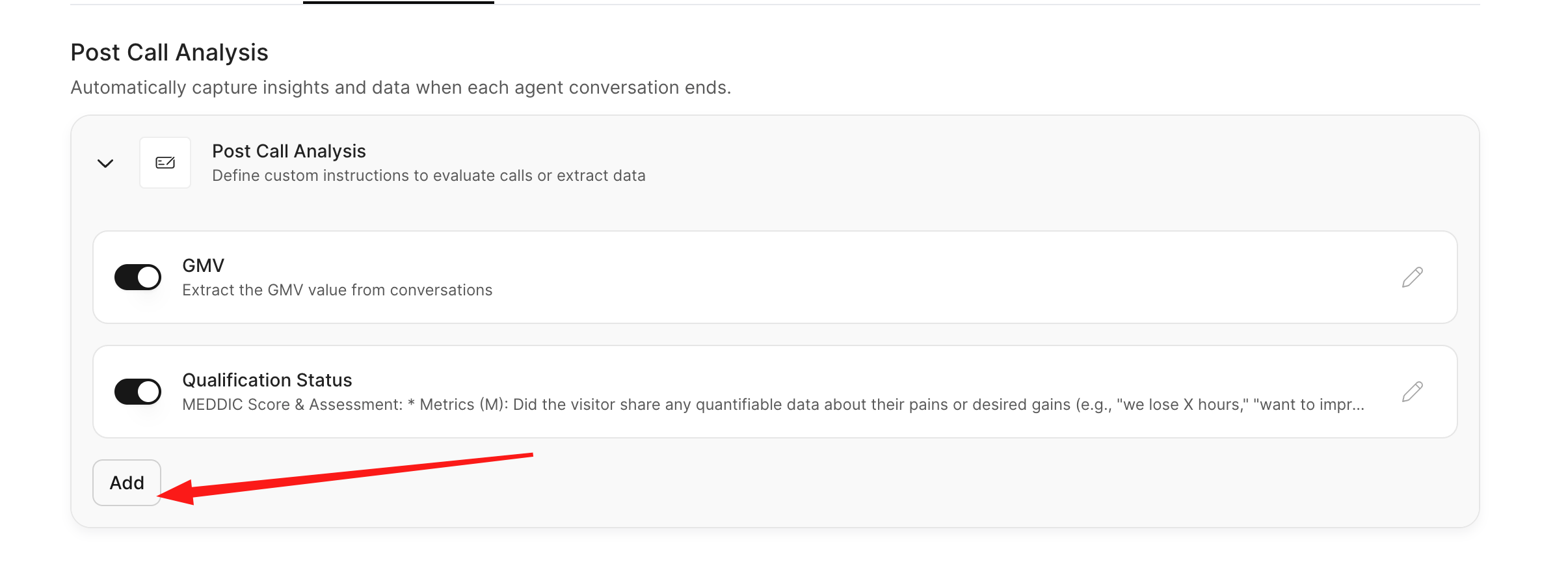
In Post Call Analysis, click Add.
Give the field a clear name.
Write instructions that explain what Docket should extract or evaluate.
Define the expected output format in the instructions.
Save the field.
Test the agent with a conversation that should populate the field.
Data Types for Post Call Fields
The Data Type menu controls the kind of value Docket should return for the field.
Data type | Use when | Example |
|---|---|---|
Text | The result should be a word, phrase, category, company name, summary, or other string value. |
|
Number | The result should be a numeric score, count, quantity, or amount. |
|
Boolean | The result should be a true-or-false answer. |
|
Use Permitted Responses when a Text field should only return values from a predefined list. For example, a qualification field might permit only Qualified, Not Qualified, and Unknown.
If you do not add permitted responses, Docket can return any string that matches the prompt instructions. For Number and Boolean fields, define the expected range or true/false condition directly in the instructions.
You can type @ in the instruction editor to pull in available context from Conversation data or Visitor data.
Conversation data is information from the actual chat or call transcript, such as what the visitor asked, which products they mentioned, objections, timeline, budget, or follow-up requests. Visitor data is information Docket knows about the person or company outside the conversation itself, such as company name, domain, role, CRM/account context, source, or other available visitor attributes. Use conversation data when the answer should come from what was said, and visitor data when the answer should use known profile or account context.
If the editor shows additional field settings, configure only the options your workflow needs.
If a field should be written to a CRM, keep the field name and expected output aligned with the destination property or field. Confirm the CRM mapping after the field is saved.
Write Clear Field Instructions
Good field instructions should answer three questions:
Question | Example guidance |
|---|---|
What should Docket look for? | Look for whether the visitor mentioned a budget, purchasing timeline, or product interest. |
What should Docket return? | Return one of: Qualified, Partially Qualified, Not Qualified, or Unknown. |
What should happen if the information is missing? | Return Unknown if the visitor did not provide enough information. |
Avoid vague instructions such as "summarize the lead." Use one field for one decision or one extracted value.
Field Ideas
Field | Use when |
|---|---|
Qualification Status | Sales needs a quick read on whether the visitor is a good fit. |
Product Interest | Routing depends on the product, feature, or use case discussed. |
Pain Points | Sales or support needs the visitor's main challenge summarized. |
Buying Timeline | Follow-up priority depends on urgency. |
Competitor Mentioned | Your team tracks competitive conversations. |
Follow-Up Owner | The conversation should route to a specific team or role. |
Verify the Field
After saving a field:
Preview or run a conversation that includes the expected signal.
Review the post-call output.
Confirm the result follows the format you requested.
Revise the instructions if the output is too broad, too long, or inconsistent.
Best Practices
Keep each field focused on one output.
Use controlled values when results will be filtered or synced.
Include an explicit fallback such as Unknown when information is missing.
Avoid fields that require guessing from weak signals.
Review early outputs before relying on the field operationally.
Troubleshooting
Issue | What to check |
|---|---|
Field is empty | Confirm the conversation contained the information the field asks for. |
Output is too long | Tell Docket to return a short phrase, a number, or one allowed value. |
Output is inconsistent | Use controlled values and define what each value means. |
Field is not useful | Rename, rewrite, or remove the field. |
CRM sync misses the value | Confirm the post-call field is mapped to the destination field. |