Understanding Widget Behavior and Access
Last updated: September 29, 2026
The Widget tab is where you decide how your Marketing Agent shows up on your website: what it looks like, which sites may load it, when it appears, and how it treats cookie consent.
Every setting here belongs to one agent, so two agents on the same site can look and behave differently. This page explains what each section does and the order to work through them.
What can you configure on the Widget tab?
The Widget tab has five sections. Open each one with the chevron on its left.
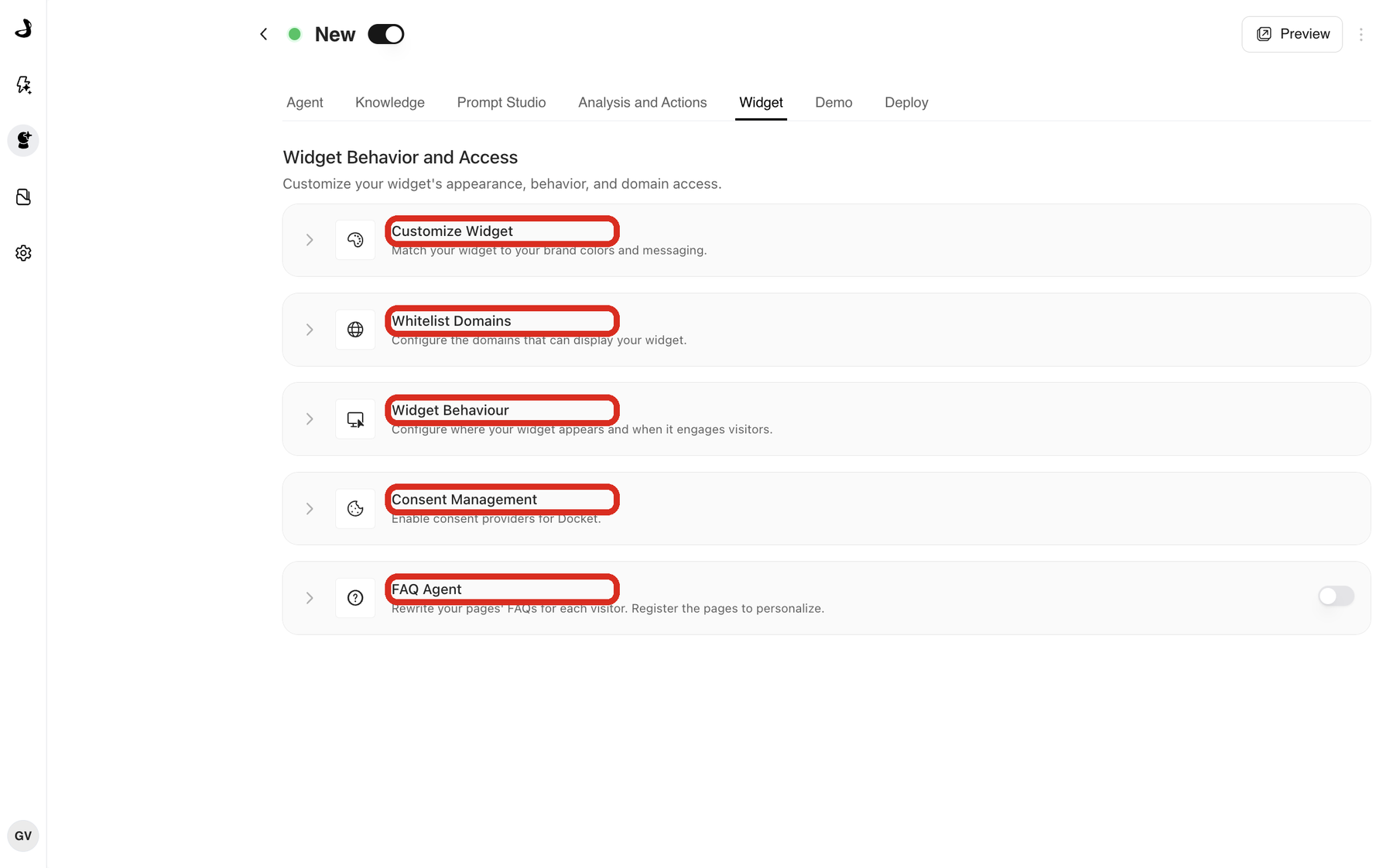
| Section | What it controls |
|---|---|
| Customize Widget | Appearance and wording: widget mode, position, theme, colours, halo, button text, welcome text and sounds. |
| Whitelist Domains | Which domains are allowed to load this agent. |
| Widget Behaviour | Where the widget appears on each approved domain, and when it invites the visitor to talk. |
| Consent Management | Whether the agent follows the cookie consent your site already collects. |
| FAQ Agent | Rewrites the FAQ section on pages you register, for each visitor. |
In what order should you set up the widget?
Work top to bottom. The sections depend on each other, and Widget Behaviour stays empty until at least one domain exists.
- Style the widget in Customize Widget and check the live preview.
- Add every domain that should run the agent under Whitelist Domains.
- Set where and when it appears for each domain in Widget Behaviour.
- If your site uses a consent banner, set up Consent Management.
- Install the script from the Deploy tab and test on a real page.
Until you add a domain, Widget Behaviour shows "Add at least one domain to the whitelist to get started." That is the dependency, not a fault.
How does the Widget tab relate to the Deploy tab?
The Widget tab decides how the agent behaves. The Deploy tab gives you the script that puts it on your site. You need both: configuration alone puts nothing on your website, and the script alone will not load on a domain that is not whitelisted.
Start with Adding the Marketing Agent Script to Your Website when you are ready to install.
Where do you change how the widget looks?
Customize Widget holds every appearance setting, including Widget mode, which chooses between the Classic corner launcher and the Co-browsing side panel. It also holds the live preview, which updates as you change settings.
Full detail is in Customizing Your Widget Appearance and Branding.
Where do you control which sites can load the agent?
Whitelist Domains lists the domains allowed to load this agent. Each host is a separate entry, so example.com and www.example.com both need adding, and staging and production are listed separately too.
See Whitelisting Domains for Your Marketing Agent Widget.
Where do you choose which pages show the widget?
Widget Behaviour gives every whitelisted domain its own card. For each one you pick All Pages, Selected Pages, or On Click (Function Call), and choose when a callout invites the visitor to talk.
See Configuring Widget Behavior and Page Targeting Rules, and Setting up OnClick Trigger for the widget for the function-call option.
Where do you connect the agent to your cookie banner?
Consent Management connects the agent to Cookiebot or OneTrust so it only remembers a returning visitor when your banner says it may. The agent still answers questions and books meetings either way.
See Privacy and Consent for Docket Marketing Agent.
Frequently asked questions
Do widget settings apply to all my agents?
No. Every setting on the Widget tab belongs to the agent you are editing. If you run several agents, set each one up separately.
Why is Widget Behaviour empty?
No domains are whitelisted yet. Widget Behaviour builds one card per approved domain, so add a domain under Whitelist Domains first.
Do I have to save each section separately?
Yes. Sections have their own Discard and Save controls, so saving Customize Widget does not save changes you made in another section.
Will my changes appear on the website immediately?
Saved settings apply to new page loads. If you do not see a change, reload the page without cached content, and clear your CDN or CMS cache if your site uses one.
Does the widget need a separate script for each agent?
Yes. Each agent's script carries its own agent ID. Copy it from that agent's Deploy tab rather than reusing another agent's snippet.
Can two agents run on the same domain?
You can whitelist the same domain for several agents, but deploy only one agent's script per page. Two widgets on one page compete for the same screen space.
Why can I not find Contextual Callouts on the Widget tab?
Contextual Callouts are the AI-written prompts that appear beside the agent, and they are managed by Docket rather than from this tab. The "When to trigger a callout" setting inside Widget Behaviour is a different, simpler control. Contextual Callouts explains the difference.