Whitelisting Domains for Your Marketing Agent Widget
Last updated: September 29, 2026
Your Marketing Agent only runs on domains you have approved. Adding a domain to the whitelist is what turns the installed script into a working widget, and it is the most common reason a new deployment shows nothing.
The list lives in Whitelist Domains on the agent's Widget tab, and it belongs to that agent.
How do you add a domain to the whitelist?
- Sign in to app.docketai.com.
- Select Marketing Agent Configuration in the left sidebar, then open your agent.
- Open the Widget tab.
- Expand Whitelist Domains using the chevron on the left of the section.
- Type the domain into the Add Domain field. The field already supplies
https://, so enter just the host, such aswww.example.com. - Select Add Domain.
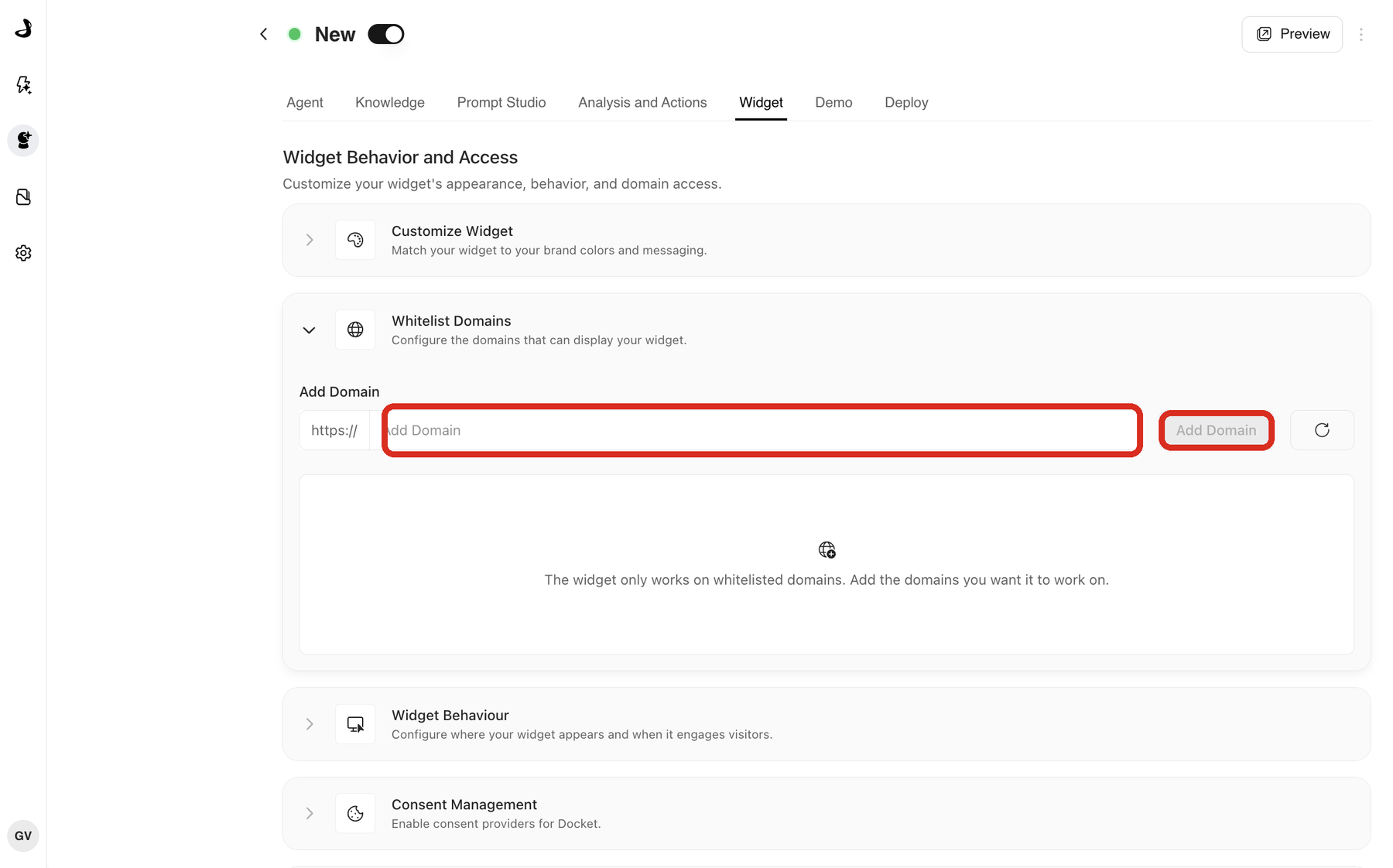
The domain appears in the list below. Repeat for every site that should run this agent.
Which domains do you need to add?
Add every host the widget should appear on. Docket matches the exact host, so related addresses are separate entries.
| Situation | What to add |
|---|---|
| Your site answers on both www and the bare domain | Both www.example.com and example.com |
| You have a blog or docs subdomain | Each subdomain separately, such as blog.example.com |
| You test on staging before production | Both the staging host and the production host |
| You run regional or language subdomains | Every one of them, individually |
| You have a campaign or landing-page domain | That domain too |
There is no wildcard, so a parent domain does not cover its subdomains. A site running six language subdomains needs six entries alongside the main domain.
This also means whitelisting repeats as you promote a deployment. Adding your development host does not cover staging, and staging does not cover production.
What does the icon on each domain row mean?
Each row carries an indicator showing whether Docket could find your script on that domain, along with a control to check again. It is a helpful signal that your install landed.
Treat it as information rather than a gate. It reports what Docket saw when it last looked, and it does not control whether the widget runs. A domain can show an unverified indicator and still work, and the reverse is worth investigating in Troubleshooting Widget Not Loading or Displaying.
How do you remove a domain?
Remove the row for any site that should no longer run this agent, then reload a page on that domain to confirm the widget is gone. Clear your CDN or CMS cache if your site uses one, since a cached page can keep showing the old behaviour for a while.
What else does whitelisting affect?
| Area | Effect |
|---|---|
| Widget Behaviour | Builds one card per whitelisted domain. With no domains, there is nothing to configure. |
| Deploy script | Still required. Approving a domain does not install anything on your site. |
| Standalone page | Not affected. It is hosted by Docket and needs no whitelisting. |
| Preview | Not affected. Preview works regardless of the whitelist. |
How do you confirm a domain is working?
- Reload the Widget tab and confirm the host is still listed.
- Open a page on that domain where the script is installed.
- Confirm the widget follows the rule set for that domain in Widget Behaviour.
Test in a private window so you are not seeing a cached page.
Frequently asked questions
Should I enter the full URL or just the domain?
Enter the host on its own, such as www.example.com. The field supplies https:// for you, and the whitelist works at the domain level rather than the page level.
Does adding example.com also cover www.example.com?
No. They are different hosts and need separate entries. This catches a lot of teams out, because a site often answers on both.
Can I use a wildcard to cover all my subdomains?
No. Each subdomain is added individually.
I whitelisted the domain and the widget still does not appear. What now?
Confirm the script is actually on the page and that the agent is Active rather than Disabled or Draft. If both check out, work through Troubleshooting Widget Not Loading or Displaying, which covers consent banners, tag managers and page-optimisation plugins.
Do I need to whitelist my staging site separately?
Yes, and again for production when you promote. Each host is its own entry.
Is this the same as allowlisting Docket on our firewall?
No, and the two are easy to confuse. This list tells Docket which of your domains may load the agent. Separately, some corporate networks and content security policies need Docket's own domains allowed so the script can load at all. If you use a strict CSP or proxy, ask your Docket contact for the current list of hosts to allow.
Can two agents use the same domain?
You can whitelist one domain for several agents, but deploy only one agent's script per page.
Does removing a domain delete the conversations from it?
No. Removing a domain stops the widget loading there. Conversations already captured stay in your reporting.