Configuring Consent Management for Cookiebot and OneTrust
Last updated: October 21, 2026
If your website asks visitors for cookie consent, Docket Marketing Agent can follow the answer they give. Consent Management connects your agent to the consent management platform (CMP) already running on your site, so it only remembers a returning visitor when your CMP says that visitor agreed.
Docket Marketing Agent reads consent from Cookiebot and OneTrust. You configure it yourself, per agent, on the Widget tab. Docket Marketing Agent never shows its own consent banner and never signs in to your CMP: your banner stays yours, and it reads the result.
What Consent Management changes for a visitor
Consent Management controls what Docket Marketing Agent keeps about a visitor. The chat itself always loads. A visitor who declines cookies can still open your agent, ask questions and book a meeting.
When consent is granted, Docket Marketing Agent stores a visitor identity in a first-party cookie named _docket_id. That is what lets the agent recognise someone who comes back next week and pick up where they left off.
When consent is not granted, Docket Marketing Agent does not write that cookie, does not merge an email address into a stored person record, does not keep the conversation as context, and does not personalize FAQ content for that visitor. The visitor still gets a full conversation, but on their next visit they arrive as a new anonymous visitor, and the agent has no history to draw on. For the privacy detail, see Privacy and Consent for Docket Marketing Agent.
Who owns what | Details |
|---|---|
Your CMP owns the question | The banner, the wording, the categories, which regions see a banner, and the visitor's recorded answer. |
Docket Marketing Agent owns the response | Reading your CMP's answer for the category you name, and deciding whether to keep |
You own the mapping | Classifying |
What you need before you start
Have these ready:
Cookiebot or OneTrust running on the site where your agent is deployed. Docket Marketing Agent reads the CMP that is loaded on the page.
Access to your CMP's admin, so you can see how
_docket_idis classified and change it if you need to.Access to configure the agent in Docket's Marketing Agent Configuration.
A decision on which cookie category fits
_docket_id. Most teams treat a persistent visitor identifier as a marketing or targeting cookie, because it recognises the same person across sessions. Your privacy team makes the final call.
Consent settings live on each agent separately. If you run one agent on your marketing site and another on your app, you can point each one at the CMP and category that site actually uses.
How to classify the Docket Marketing Agent cookie in Cookiebot or OneTrust
Start in your CMP, not in Docket Marketing Agent. It asks your CMP about one category, so that category has to be the one _docket_id belongs to.
Look for
_docket_idin your CMP's cookie list. Note the leading underscore.If your CMP has not found it, add it manually. Automatic scanners often miss
_docket_id, because Docket Marketing Agent sets it during a conversation rather than on page load. Both CMPs support adding a cookie manually, and OneTrust documents this exact case for cookies "triggered behind a login or by specific user actions".Assign
_docket_idto the category you chose, then save and republish your banner.
The navigation differs by product, and Cookiebot has two back offices with different menus.
Your CMP | Where to classify a cookie |
|---|---|
Cookiebot Admin | Select Cookies & Reports, open the Cookies and Trackers tab, choose your domain, then find the cookie under Discovered cookies and trackers. Open its row and set Category. To add one, use + Add cookie / tracker. |
Cookiebot Manager | Go to Cookies, select the domain tab, and set the category on the cookie's row. To add one, use add cookie, then rescan the domain. |
OneTrust | Go to Cookie Consent then Categorizations, and assign the cookie there. Your category IDs are listed on the Categories tab. |
In Cookiebot, a change to a cookie's category can take up to two minutes to appear on your site. In Cookiebot, note also that a cookie you add by hand is recorded in your declaration but is not blocked automatically by Cookiebot's cookie blocker.
How to find the category value Docket Marketing Agent needs
Docket Marketing Agent needs the category written the way your CMP writes it, and the two products express it differently.
Cookiebot uses four fixed categories: Necessary, Preferences, Statistics and Marketing. Docket Marketing Agent offers the last three. Necessary is missing on purpose: Cookiebot always grants it, so choosing it would leave consent gating switched on while denying nobody.
OneTrust uses category IDs, and yours may not match anyone else's. OneTrust ships five defaults, and it also lets an administrator create custom IDs of up to five characters, so you have to read the value out of your own tenant rather than copy one from documentation.
For OneTrust, open Cookie Consent, select Categorizations, and go to the Categories tab. Each group is listed with the ID assigned to it. Note the ID of the group holding
_docket_id.
OneTrust default ID | Default category name |
|---|---|
| Strictly Necessary |
| Performance |
| Functional |
| Targeting |
| Social Media |
Treat this table as a starting point for reading your own Categories tab. If your team renamed the groups or set custom IDs, your tenant is the authority. It is also worth knowing that a OneTrust category only appears to your site once it has at least one cookie in it, so classifying _docket_id may be what makes your chosen category show up at all.
How to turn on a consent provider in Docket Marketing Agent
Consent Management sits on the Widget tab of each agent, below Widget Behaviour.
Sign in to app.docketai.com.
Select Marketing Agent Configuration in the left sidebar, then select the agent deployed on the site you are configuring.
Open the Widget tab.
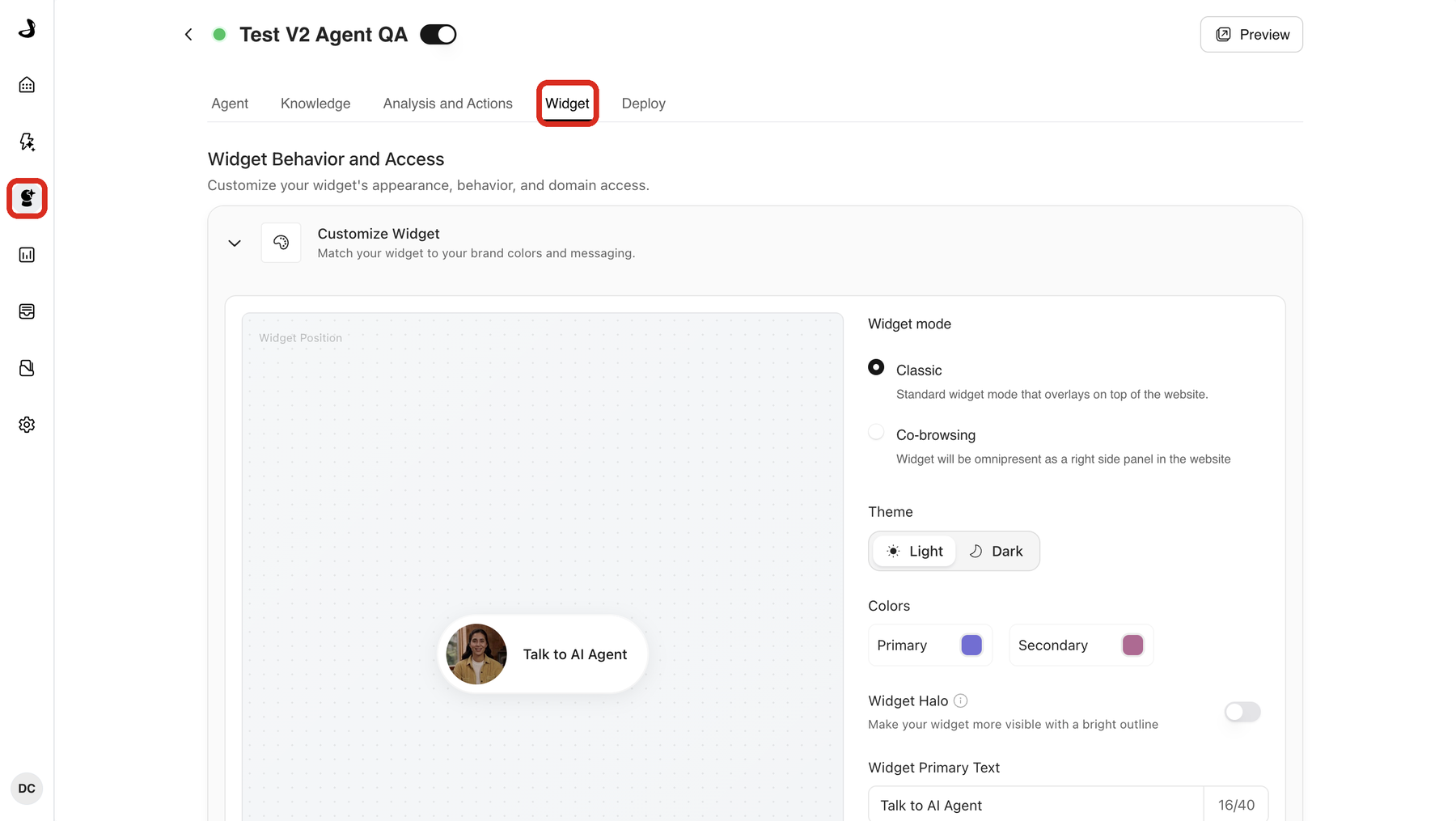
Scroll to Consent Management and select the chevron beside it to open the section.
Turn on the switch for the CMP your site uses, Enable OneTrust or Enable Cookiebot. Each provider's category field becomes available once its switch is on.
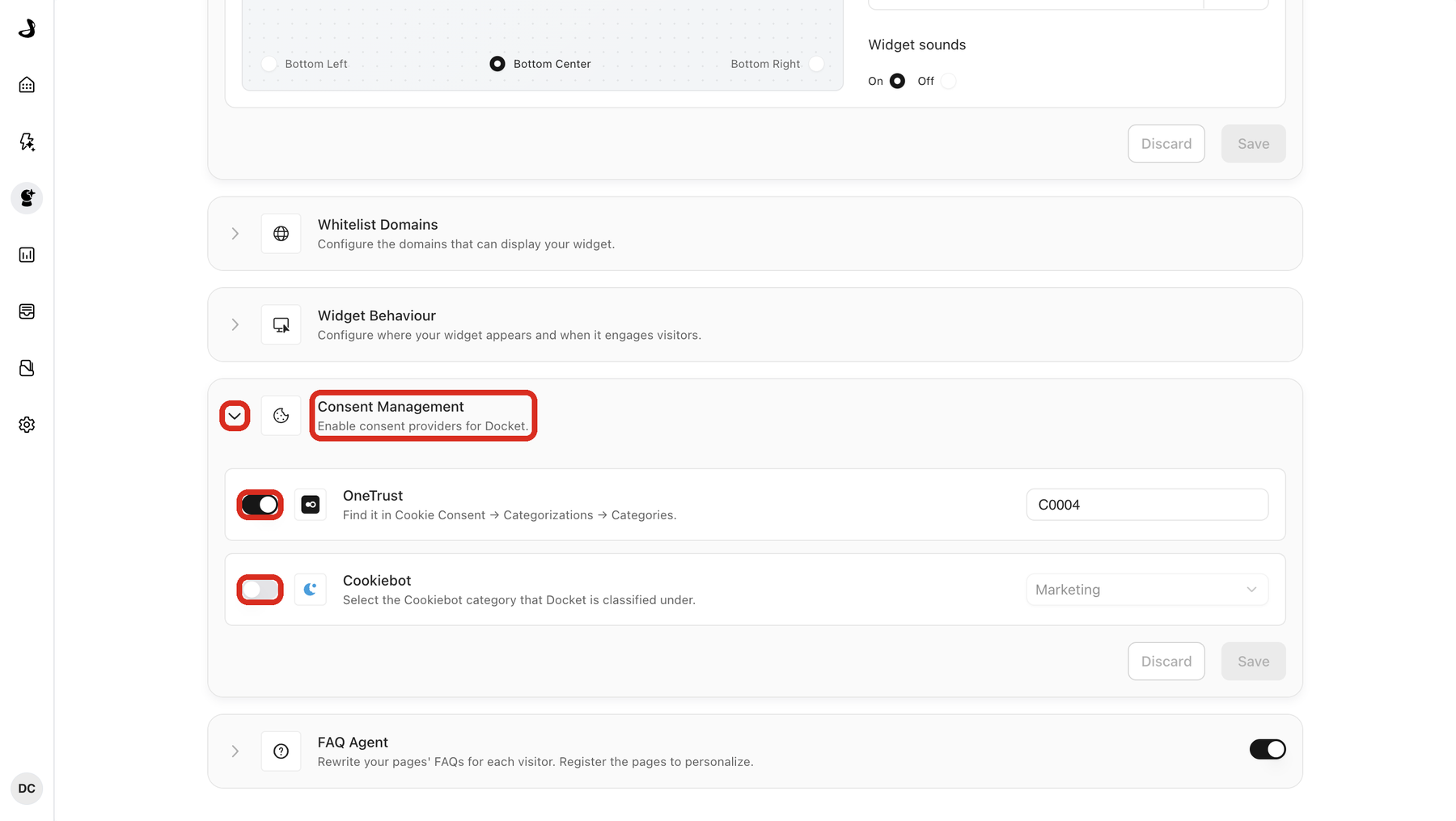
Set the category:
For OneTrust, type the category ID you noted, for example
C0004. The field accepts your tenant's own IDs, including custom ones.For Cookiebot, choose Preferences, Statistics or Marketing from the dropdown.
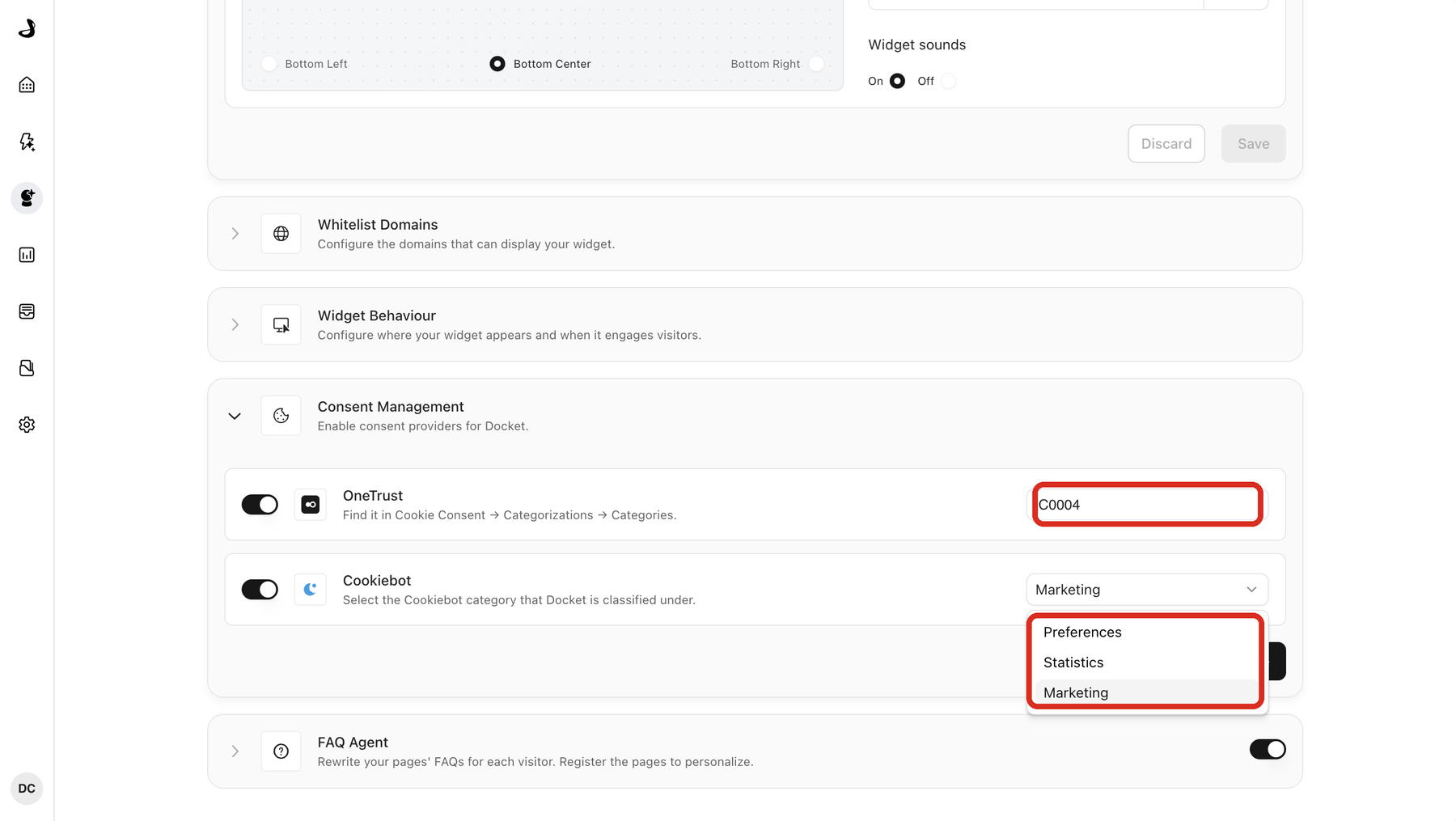
Select Save in the Consent Management section. Discard beside it reverts any change you have not saved yet.
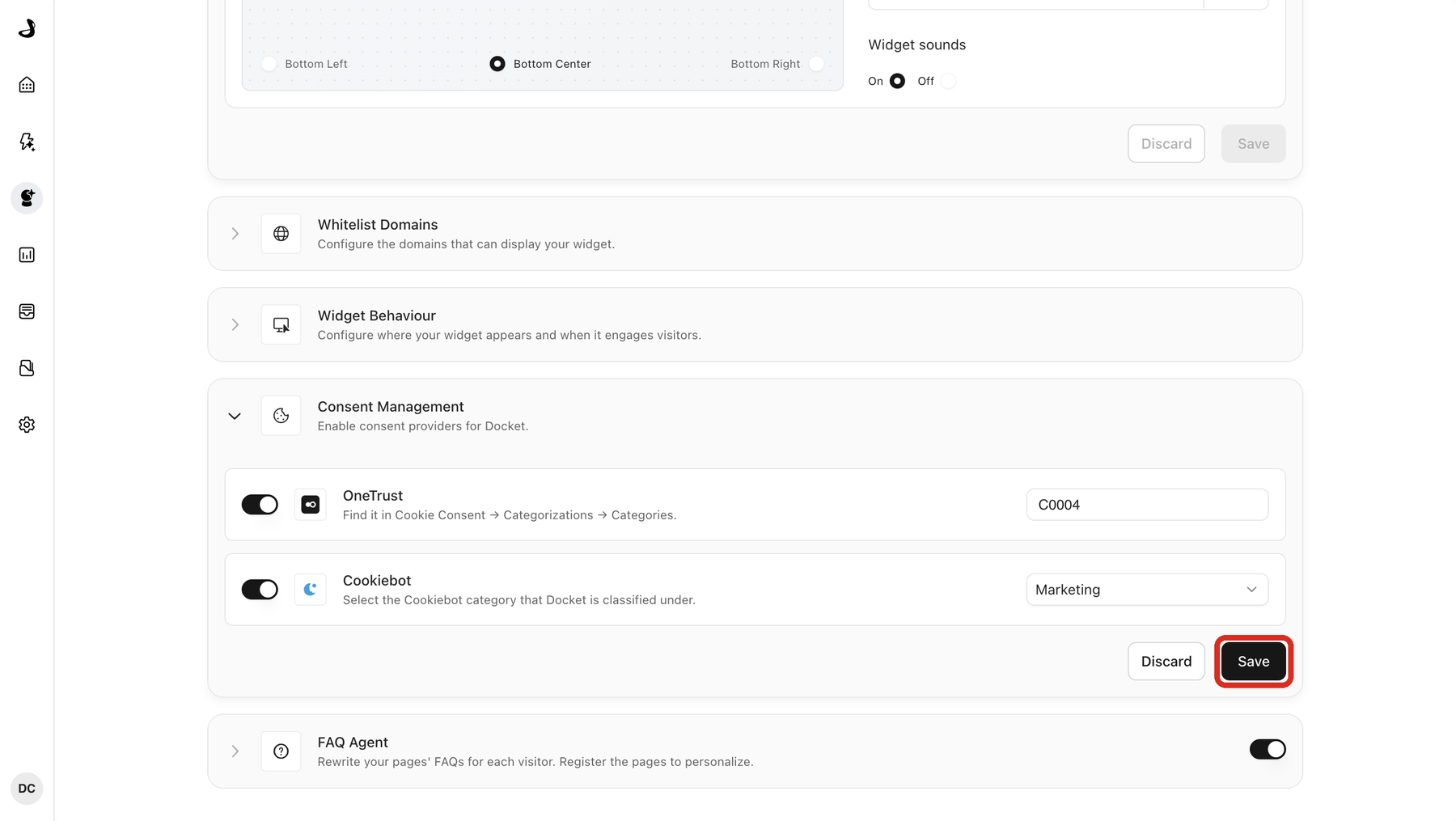
You can leave both providers on at once. That is useful while you migrate from one CMP to another, when some visitors still carry a cookie from the CMP you are leaving. Docket Marketing Agent ignores a provider whose cookie is not present on the page.
From the next page load onward, every visitor is evaluated against the category you nominated. Visitors your agent already recognises are included: if their consent does not grant that category, the agent stops recognising them and clears the identity it was holding. Visitors who do grant it carry on as before.
How Docket Marketing Agent decides whether to remember a visitor
It checks consent on every page load, so a visitor who changes their mind is respected from that point on. A visitor who accepts or withdraws consent takes effect on the page they are already on, without needing to reload it.
Situation | What Docket Marketing Agent does |
|---|---|
No provider turned on | Remembers visitors exactly as before. Consent Management is optional, and turning it off changes nothing else about your agent. |
Your CMP grants the category | Writes |
Your CMP does not grant it | Keeps the conversation working, but does not write |
A visitor withdraws consent | Stops writing to their profile from that point, and clears the identity it was holding. |
The browser sends Global Privacy Control | Treats it as a refusal and does not remember the visitor, whatever the banner says. |
Both providers on and their cookies disagree | Takes the cautious answer and does not remember the visitor, so a stale cookie from your old CMP cannot override a live refusal. |
Withdrawing consent stops Docket Marketing Agent collecting and using data from that moment. It does not delete what was already stored. For how withdrawal, deletion and browser storage work, see Privacy and Consent for Docket Marketing Agent.
How to check that Consent Management is working
Test both answers on a real page, in a browser with no existing consent recorded.
Open a page carrying the agent in a private or incognito window, and accept the category you configured in your banner.
Open your browser's developer tools, go to Application then Cookies, and confirm
_docket_idis present.In the Console, check what your CMP is reporting. On Cookiebot, enter
Cookiebot.consent.marketing, substituting the category you nominated, and expecttrue. On OneTrust, enterOnetrustActiveGroupsand expect your category ID in the list it returns.Open a second private window, decline that category, and confirm
_docket_idis absent while the agent still opens and answers a question.
If your CMP only shows a banner in certain regions, remember that a visitor outside those regions may be granted every category automatically and never see a banner. Cookiebot's region setting defaults to the EU and EEA, so a test from elsewhere can look like a full grant.
Troubleshooting
Issue | What to check |
|---|---|
The category field is greyed out | Turn on that provider's switch first. Each category field becomes available only once its own switch is on. |
You saved but nothing changed | The Consent Management section has its own Save. Saving another section on the Widget tab does not save this one. |
| The category you nominated probably does not match the one |
Consent looks granted but identity still does not persist | Confirm your banner has been republished since you changed the classification. In Cookiebot, a category change can take up to two minutes to reach your site. Confirm the test browser is not sending Global Privacy Control. |
A visitor saw no banner and was remembered anyway | Check which regions your CMP shows a banner to. Cookiebot's distribution setting defaults to the EU and EEA, and visitors outside the regions you choose can be granted every category automatically. |
Frequently asked questions
What is the name of the Docket Marketing Agent cookie?_docket_id, with a leading underscore. It is a first-party cookie holding the visitor identity Docket Marketing Agent uses to recognise a returning visitor.
Will the chat still work if a visitor declines cookies?
Yes. Declining stops Docket Marketing Agent remembering the visitor between visits. The agent still loads, answers questions and books meetings in that session.
Which Cookiebot category should Docket Marketing Agent use?
Most teams choose Marketing, because _docket_id recognises the same person across sessions. Docket Marketing Agent offers Preferences, Statistics and Marketing, and your choice must match how _docket_id is classified in Cookiebot. Your privacy team owns the decision.
Why is Necessary missing from the Cookiebot dropdown?
Cookiebot always grants Necessary, so a visitor cannot refuse it. Choosing it would leave consent gating turned on while never actually withholding anything, so Docket Marketing Agent leaves it out.
Where do I find my OneTrust category ID?
In OneTrust, open Cookie Consent, select Categorizations, and go to the Categories tab, where each group is listed with its ID. Use your own tenant's value: OneTrust lets administrators rename groups and create custom IDs.
What happens if my site has no consent banner?
Nothing changes. If you turn no provider on, Docket Marketing Agent remembers visitors exactly as it did before.
What if I use a CMP that is not Cookiebot or OneTrust?
Consent Management reads Cookiebot and OneTrust. If your site runs a different consent platform, leave both providers off and talk to your Docket contact about the platform you use.
Can I use a different CMP for each of my sites?
Yes. Consent settings belong to the agent, so an agent on your marketing site and an agent on your app can each point at the CMP and category that site uses.
Does Docket Marketing Agent show its own cookie banner?
No. It reads the banner you already run and never replaces it. It also never signs in to your CMP, so there are no credentials to share.