Setting up OnClick Trigger for the widget
Last updated: September 29, 2026
Most visitors open the Docket Marketing Agent by clicking its launcher. Sometimes you would rather they open it from something you already have on the page, like a Talk to Sales button or a Request a demo link.
The On Click trigger does that. The widget stays hidden until your own button calls it, so the agent shows up exactly where the conversation makes sense.
When should you use the On Click trigger instead of the normal launcher?
Use On Click when your website should decide the moment the agent opens. It suits a high-intent call to action such as Talk to Sales, Request a Demo, or Get Help, and it suits campaign pages where the standard launcher would compete with the page's own design.
Keep the default launcher when you want the agent available everywhere without changes to your site code. You can compare all three options in Configuring Widget Behavior and Page Targeting Rules.
What do you need before you start?
- Access to configure the agent in Marketing Agent Configuration at app.docketai.com.
- The domain where the button lives, added under Whitelist Domains. See Whitelisting Domains for Your Marketing Agent Widget.
- Someone who can add JavaScript to the page, either directly or through a tag manager.
How do you set up the On Click trigger?
There are four steps: copy your agent's script, install it, set the domain to On Click, then connect your button.
Step 1: Copy the script from the Deploy tab
Always copy the script from your own agent rather than from documentation. Each agent has its own ID, and the script host differs depending on when the agent was created, so a copied-from-an-article snippet can point at the wrong place.
- Sign in to app.docketai.com.
- Select Marketing Agent Configuration in the left sidebar, then open your agent.
- Open the Deploy tab.
- Under Add widget to your domain or page, select Copy Script.
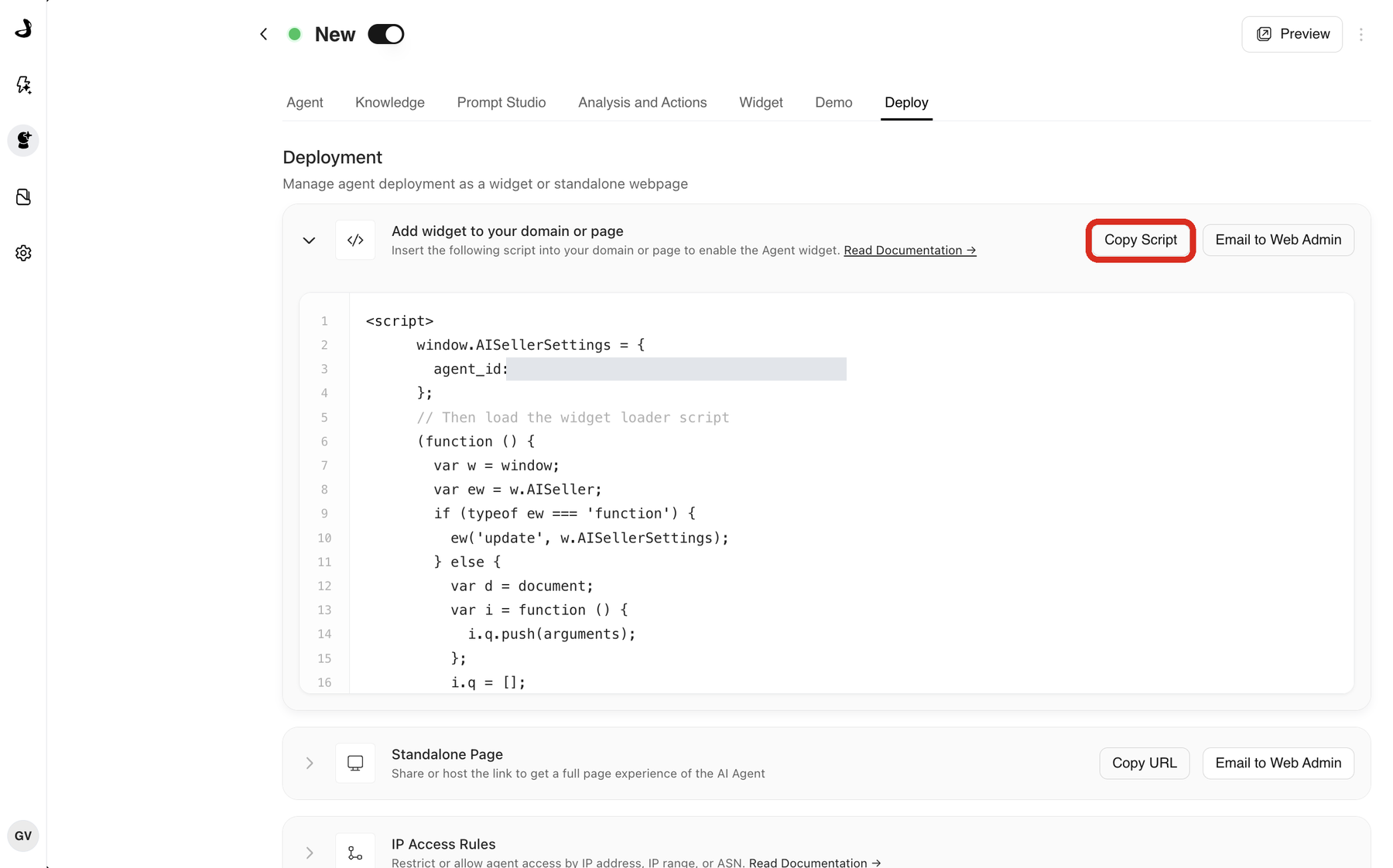
If your web team installs the script for you, Email to Web Admin sends it to them directly.
Step 2: Install the script on your site
Paste the script into the pages that hold your button. Installing it site-wide is fine: the widget stays hidden on any domain set to On Click.
For a tag manager, follow Installing the Widget with Google Tag Manager. To edit the page source directly, follow Installing the Widget Directly in Website HTML.
Step 3: Set the domain to On Click (Function Call)
- Open the Widget tab.
- Expand Widget Behaviour using the chevron on the left of the section.
- Find the card for your domain.
- Under Show Widget on, select On Click (Function Call).
- Select Save.
The callout options disappear once On Click is selected. That is expected: callouts only apply when the widget appears on its own.
Step 4: Open the agent from your button
Once the script has loaded, window.AISeller.showAndConnect() opens the agent and starts the conversation.
<button onclick="window.AISeller.showAndConnect()">Talk to Sales</button>A visitor can click faster than the script loads, so check that the method exists before calling it:
function openDocketAgent() {
  if (window.AISeller && typeof window.AISeller.showAndConnect === 'function') {
    window.AISeller.showAndConnect();
    return true;
  }
  return false;
}
Wire that to your button, and call event.preventDefault() first if the button is a link that would otherwise navigate away.
Which other widget actions can your page call?
The same window.AISeller object exposes show(), hide(), toggle(), connect() and hideAndDisconnect(). hide() is useful when you want your own button to be the only way in on a page that otherwise shows the launcher.
Every method, plus passing visitor context with setContext(), is documented in Using the AISeller JavaScript API and Triggering the Widget Programmatically.
How do you check the On Click trigger is working?
- Open the page in a private browser window.
- Confirm the widget does not appear on its own.
- Type
window.AISellerin the browser console and confirm it is defined. - Click your button and confirm the agent opens and connects.
If window.AISeller is undefined, the script is not loading, which is a deployment problem rather than a trigger problem. Troubleshooting Widget Not Loading or Displaying covers the usual causes.
Frequently asked questions
Why does nothing happen when I click my button?
Open the browser console and check for an error. The two common causes are that the script has not loaded yet, so window.AISeller is undefined, or that the click handler ran before the page finished loading. The guard in Step 4 handles both.
Do I still need to whitelist the domain if the widget only opens on click?
Yes. The agent checks the domain before it will connect, whatever opens it. An unlisted domain fails that check and the agent will not start.
Can I use On Click on one domain and the normal launcher on another?
Yes. Show Widget on is set per domain, so each whitelisted domain can behave differently.
Can I show the launcher on desktop and use On Click on mobile?
Not from Docket. The setting applies per domain, not per device. Teams who need this call showAndConnect() from their own code after checking screen width, and hide the launcher with hide().
Where do I find my agent ID?
It is already in the script on the Deploy tab, as the agent_id value. Copying the script from that tab is the reliable way to get it.
Can I open the agent on a specific question?
showAndConnect() opens the agent and starts the conversation using the agent's configured greeting. To carry page or visitor context into that conversation, use setContext() before calling it, as described in Using the AISeller JavaScript API.
Does the visitor see a launcher at all in On Click mode?
No. On a domain set to On Click, the widget waits for your page to call it, so the only way in is the control you connect.