Personalizing Your Website FAQs with Smart Dynamic FAQ Agent
Last updated: September 16, 2026
The Smart Dynamic FAQ Agent rewrites the FAQ section you already have, for each visitor, on the pages you register. It works with your existing markup, so your design, your accordion behaviour and your mobile layout stay as your team built them. Visitors can also open your Docket agent straight from an answer.
You configure it per agent, on the Widget tab, where the section is labelled FAQ Agent. This article uses that shorter label from here on, to match what you see on screen. It only ever touches pages you register yourself.
What does the FAQ Agent change on your page?
The FAQ Agent customizes the wording of the questions and answers already in your fixed FAQ section, along with the heading above them. Docket scans a registered page, records where each question and answer sits, and later writes new text into those same places.
In practice that means:
Your layout is untouched. Docket writes text into the existing elements. It does not rebuild the section, change your classes, or replace your markup.
Your accordion keeps working. Expand and collapse behaviour, multi-paragraph answers and responsive breakpoints all behave as before.
The question count stays the same. A five-question FAQ stays a five-question FAQ. The FAQ Agent rewrites questions in place; it does not add, remove or reorder them.
At most five FAQs are personalized. Five is the cap per page. If a page holds more than five, the rest keep your original copy.
The section heading changes too. While the agent is working the heading reports progress, and it reads Questions curated for you once the section settles.
Each answer gains one link. Docket appends a short link after an em dash, worded for what that answer is about rather than repeating the question. Selecting it opens your Docket agent on a related question.
What do you need before you turn on the FAQ Agent?
You need to have these ready:
The Docket widget script live on your site. The FAQ Agent runs through the script you already installed. There is nothing new to add to your pages.
A real FAQ section on the pages you want to personalize. Docket looks for a recognisable set of question and answer pairs, so a page with a genuine FAQ block works well.
The full URL of each page. Docket personalizes the exact pages you register.
Docket needs the FAQ block on the page so it knows where to write. The answers themselves are retrieved from the agent's Knowledge Sources, so a well-stocked agent matters more here than a long FAQ section.
How do you turn on the FAQ Agent and register a page?
The FAQ Agent section sits at the bottom of the Widget tab.
Sign in to app.docketai.com.
Select Marketing Agent Configuration in the left sidebar.
Select the agent whose FAQs you want to personalize.
Open the Widget tab.
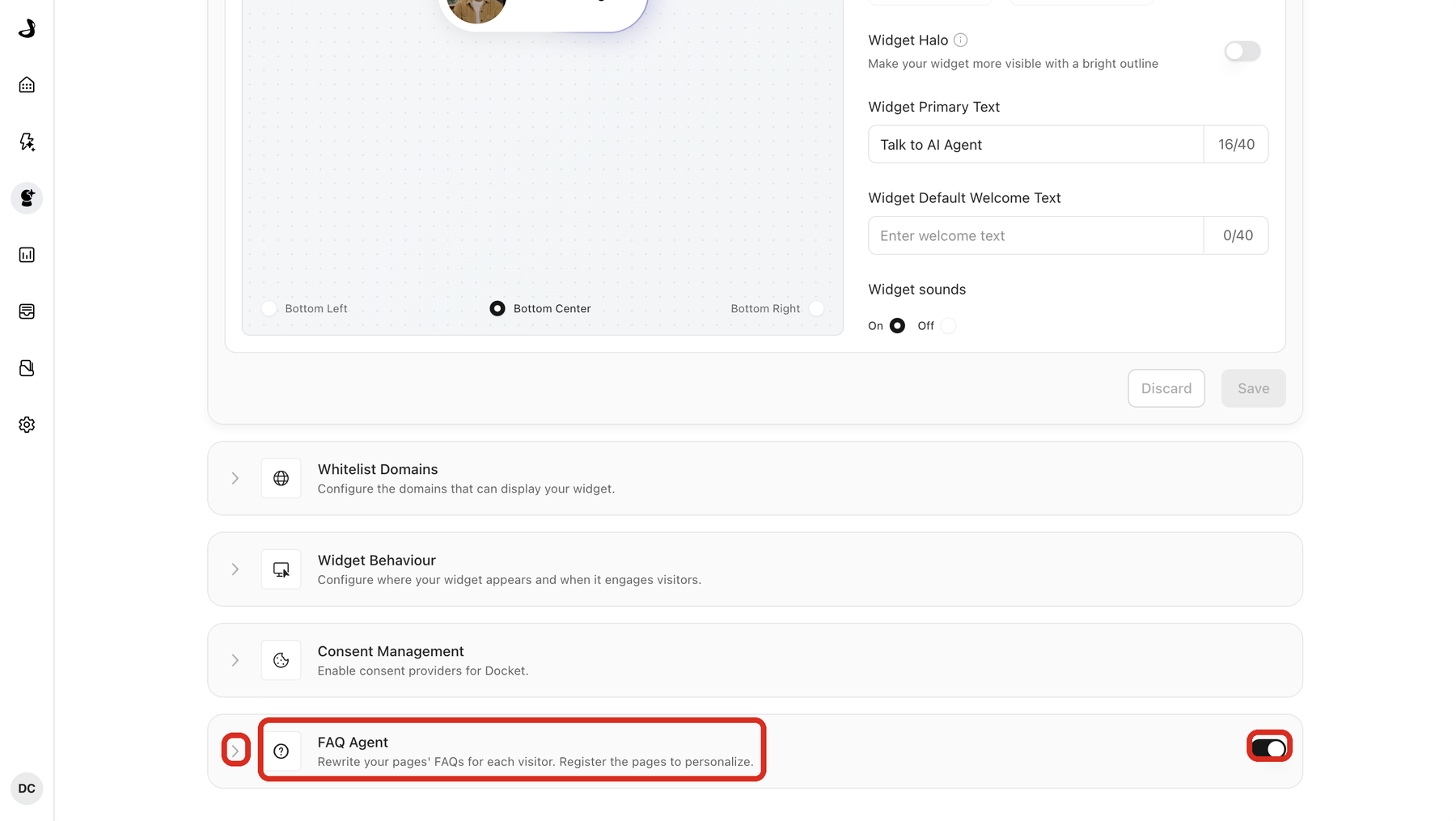
Scroll to FAQ Agent and turn on the switch in its header.
Select the chevron beside FAQ Agent to open the section.
The open section has three parts: Instructions for the FAQ agent, Register pages for FAQ scanning, and Registered pages.
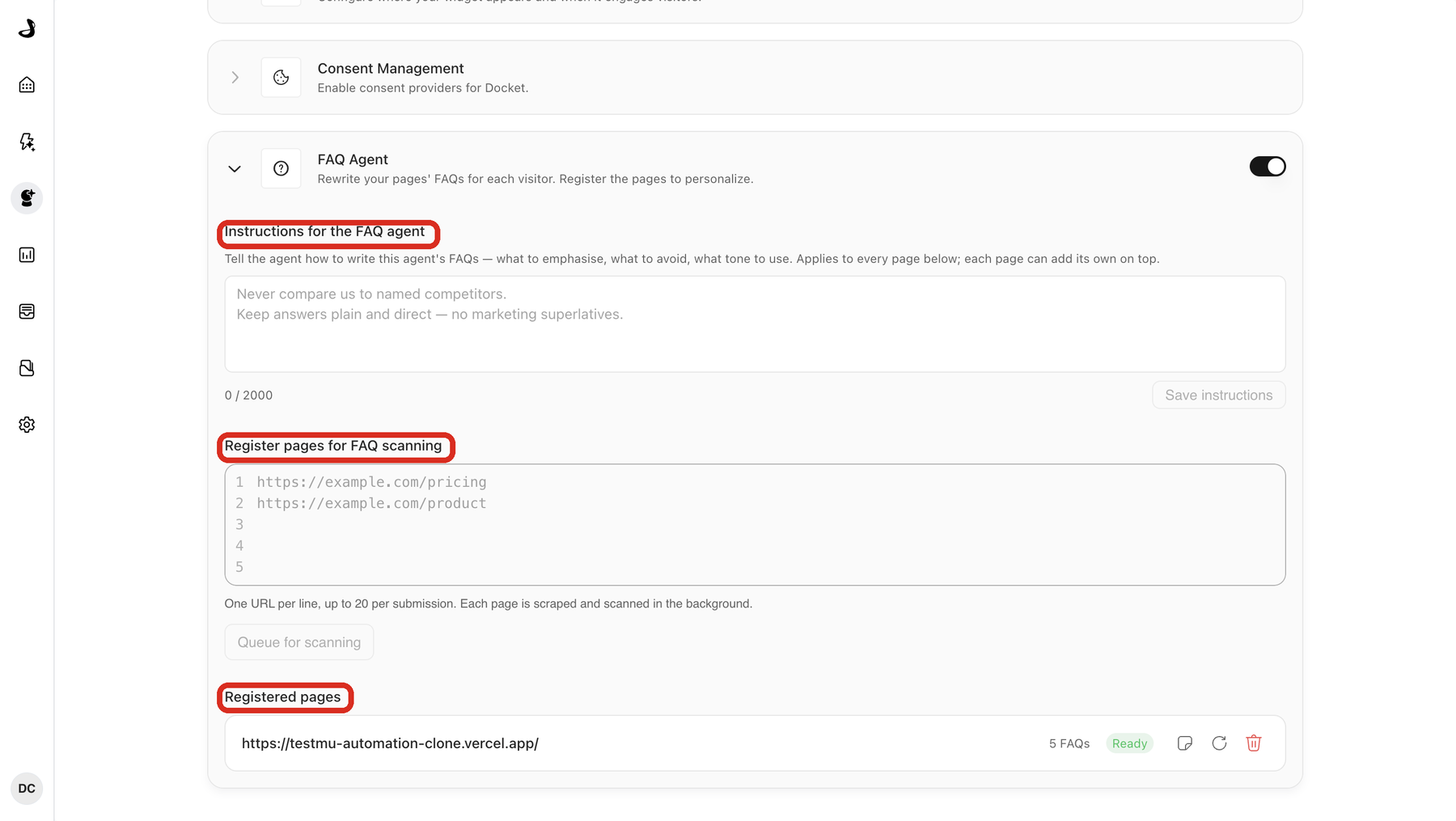
Under Register pages for FAQ scanning, enter the full URL of each page you want personalized, one URL per line. You can submit up to 20 URLs at a time.
Select Queue for scanning.
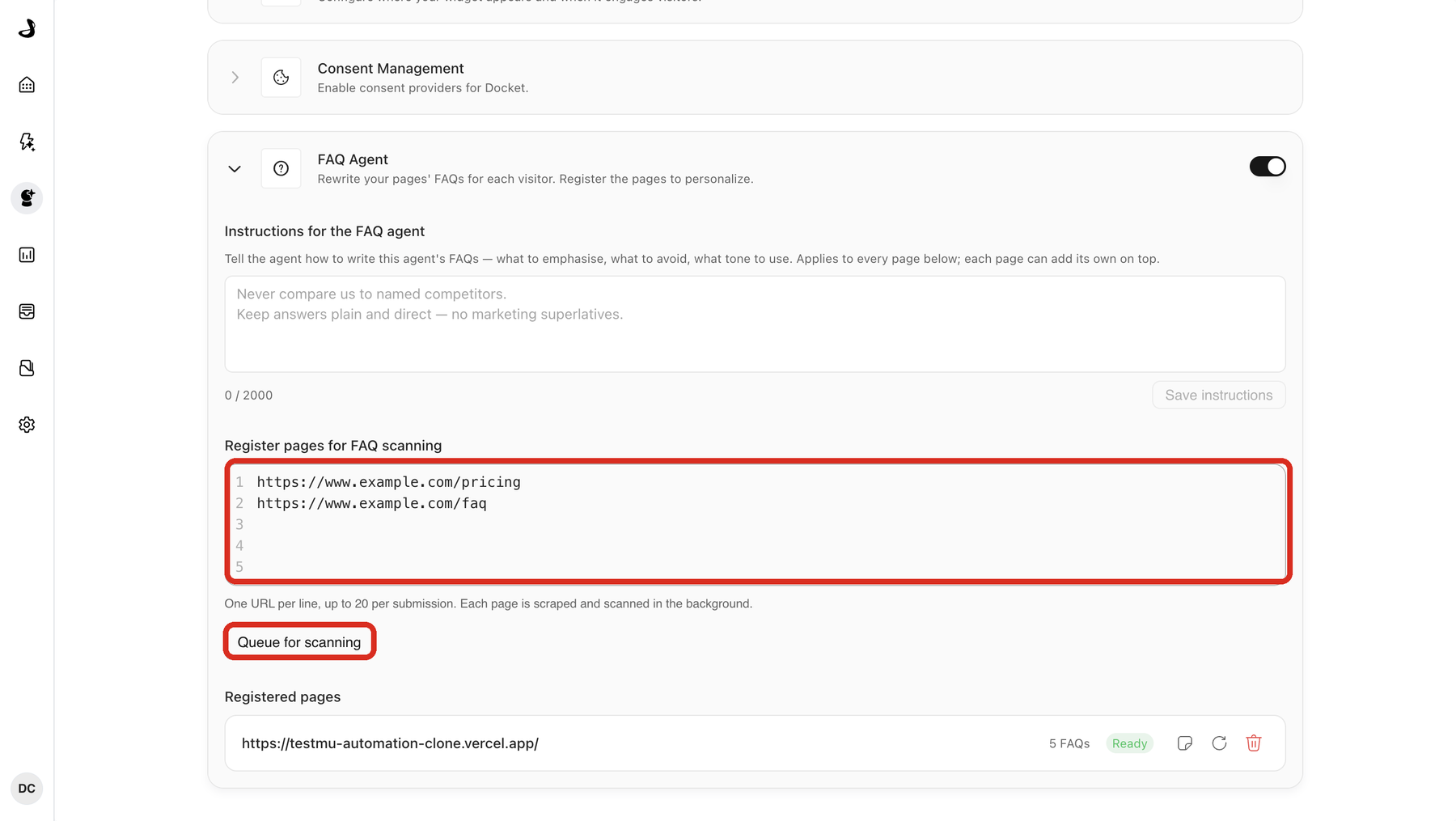
Each page you submit appears under Registered pages. Docket scrapes and scans it in the background, so the page starts as Pending.
Wait for the page's status to reach Ready. The row then shows how many FAQs Docket found on that page, for example 5 FAQs. Each row also carries its own Instructions, Rescan and Remove controls.
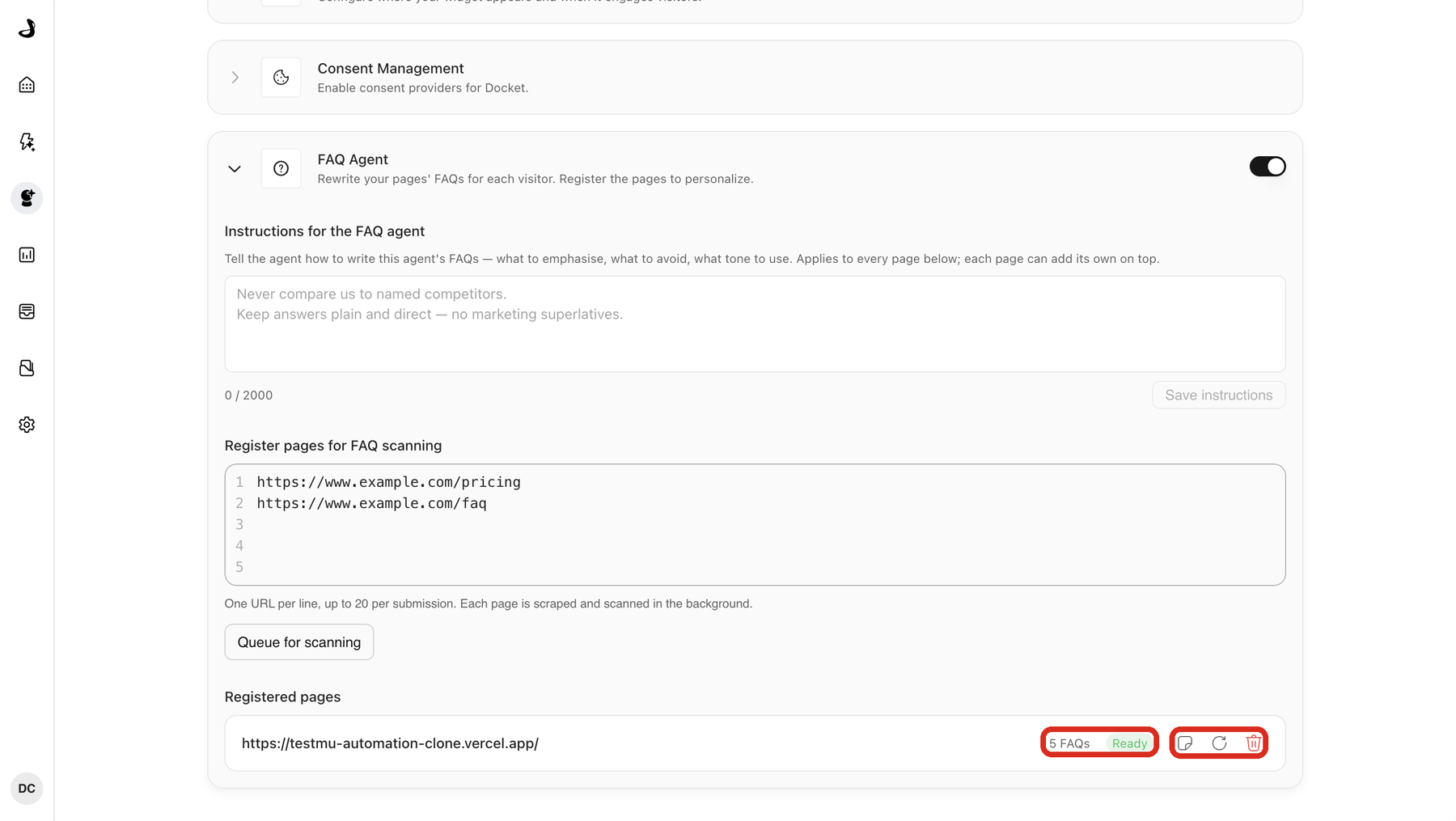
A registered page shows one of six statuses:
Status | What it means |
|---|---|
Pending | The page is queued or being scanned. It is not personalized yet. |
Ready | The scan finished and the page can be personalized. |
No FAQ found | Docket did not find a recognisable FAQ on the page. Your page is left as published. |
Failed | The scan did not complete. Select Rescan on the row to try again. |
Disabled | The page is registered but is not being personalized. |
Rescanning | Docket is scanning the page again, for example after it noticed the page changed. |
A page that reaches Ready is live. From the next visit onward, Docket can personalize the FAQs on it.
How do you steer what the FAQ Agent writes?
Two fields shape the writing. Agent instructions apply to every registered page, and page instructions add to them for one page.
In Instructions for the FAQ agent, describe what to emphasise, what to avoid and what tone to use.
Select Save instructions.
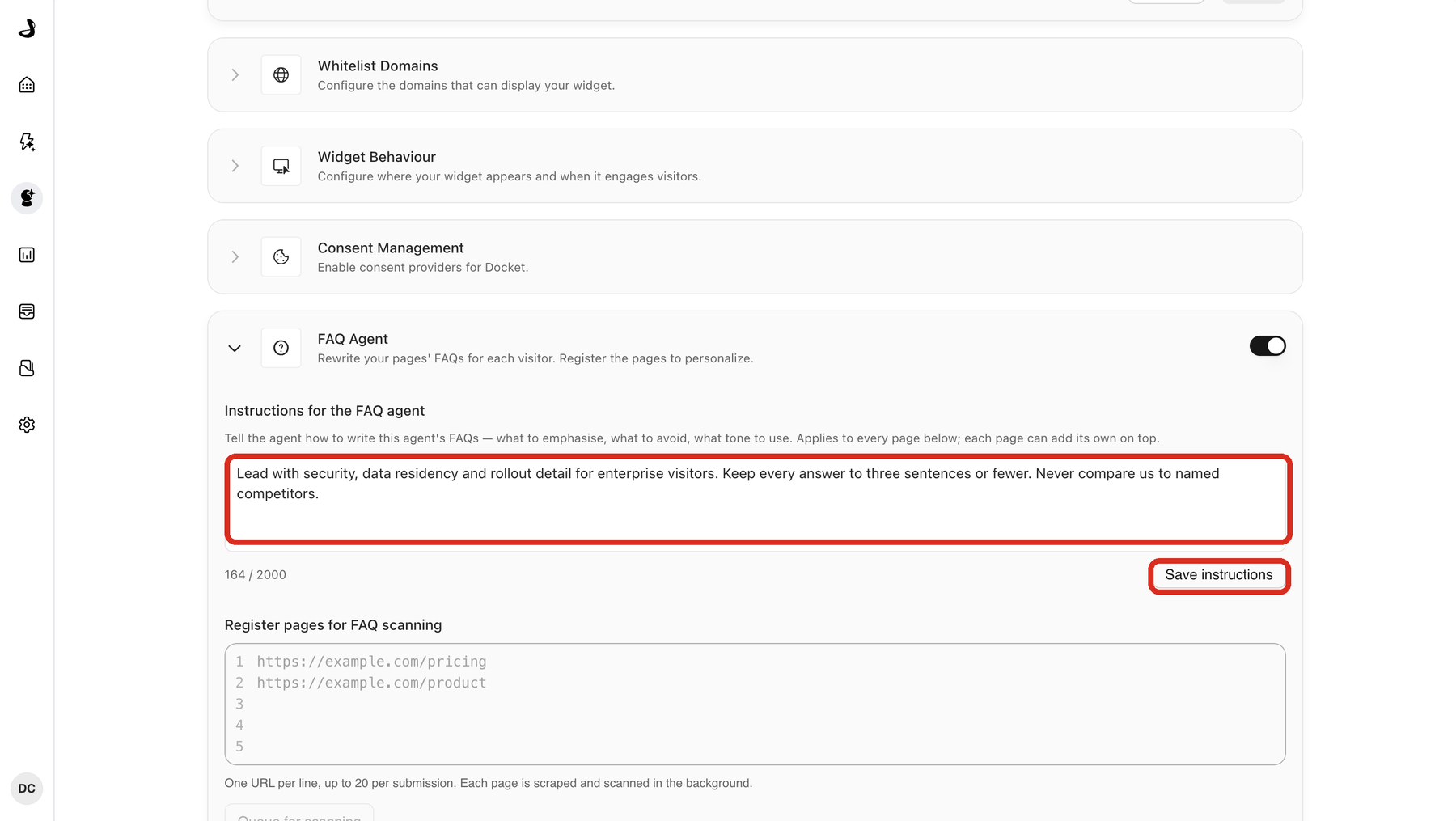
Useful instructions read like guidance to a writer on your team. For example: 'keep answers plain and direct', or 'never compare us to named competitors'.
To add guidance for a single page, select the Instructions icon on that page's row under Registered pages. A box opens beneath the row.
Enter instructions and select Save instructions.
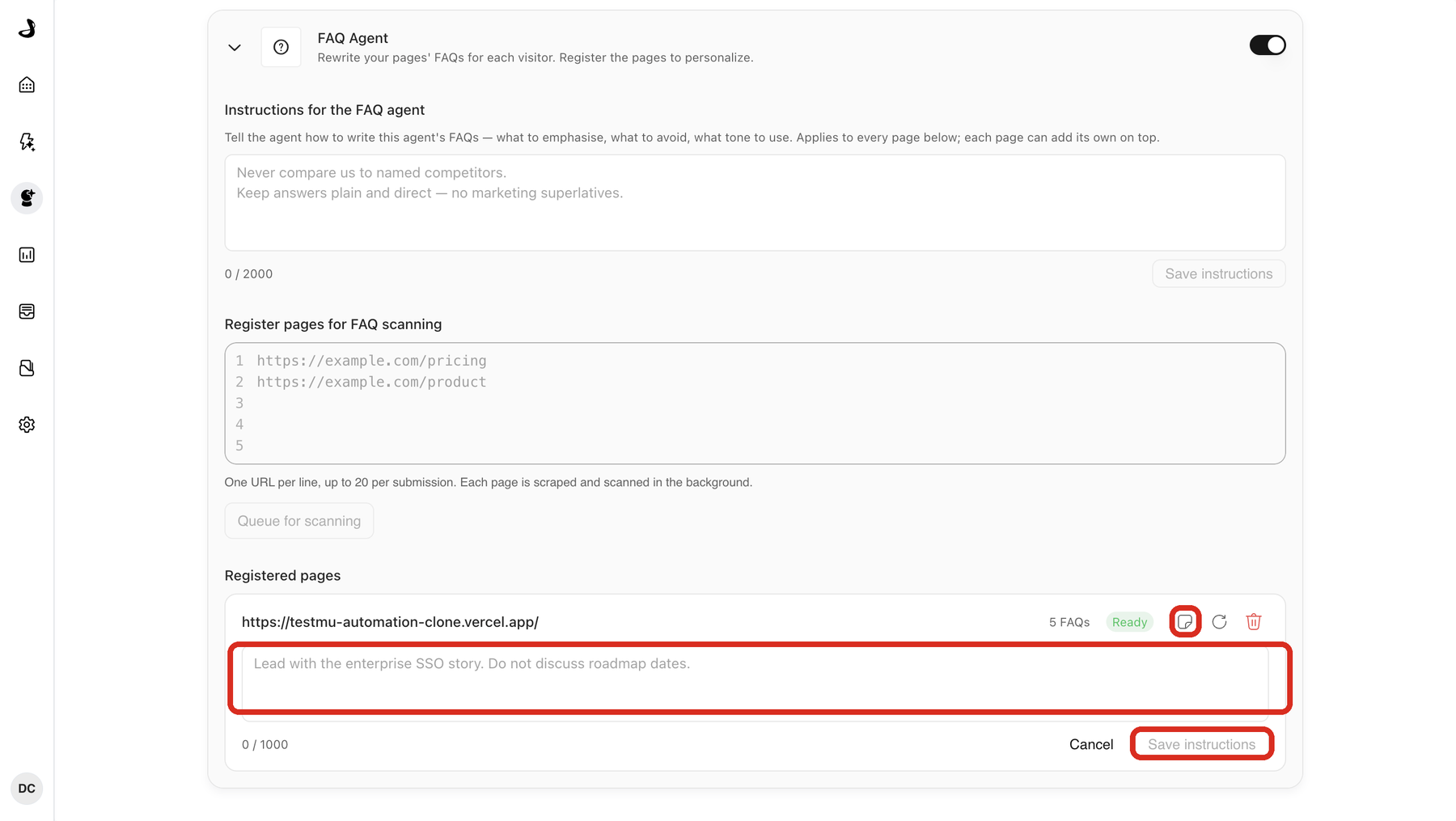
Page instructions sit on top of the agent instructions rather than replacing them, so use them for what is specific to that page.
Instructions shape the writing; they do not guarantee a particular question. The FAQ Agent decides which of a visitor's questions, pain points and interests matter most on that page.
How do you check that FAQ personalization is working?
Confirm the page shows Ready and an FAQ count under Registered pages.
Open the registered page and hold a short conversation with your Docket agent. Mention a concrete problem you want solved.
Reload the page and scroll to the FAQ section.
Give it a few minutes. The FAQ Agent curates the questions, refines the answers, then finalises the set, and the heading above your questions reports progress while it works. Your published questions stay on screen until the new ones are ready. Once the heading reads Questions curated for you, the section has settled and what you see is final.
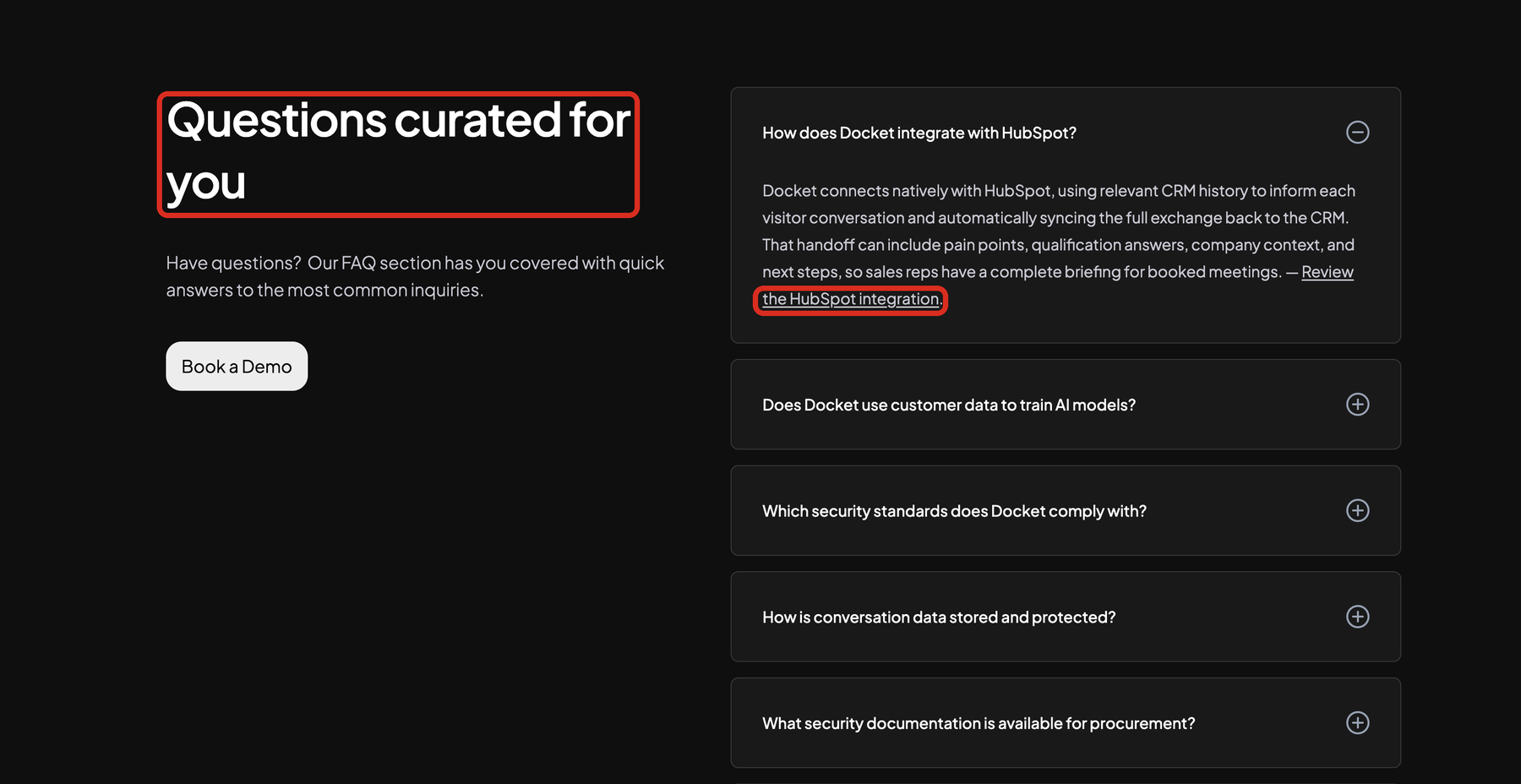
Expand an answer and look at the end of it. Docket appends a short link worded for what that answer is about. Select it to confirm your Docket agent opens on a related question.
Reload the page again. The same set of questions should come back rather than changing on every load, because Docket reuses what it generated for that visitor on that page.
What happens when the FAQ Agent cannot personalize a page?
Your original FAQ stays on the page. Docket treats the copy your team wrote as the version to fall back to, and it leaves that copy in place whenever it cannot safely improve on it.
That is what a visitor sees when:
The visitor is new to you. With no context to work from, the FAQ Agent does not change anything.
The page is not registered. FAQ Agent only personalizes pages in your Registered pages list.
The page has no FAQs the FAQ Agent can recognise. FAQ Agent reports this on the page's row instead of altering the page.
The page changed since it was scanned. The FAQ Agent notices that the FAQs no longer matches what it recorded, keeps your original copy, and rescans the page on its own.
You turned the FAQ Agent off. The switch stops personalization for the whole agent, and your pages read exactly as you published them.
If you edit an FAQ on a registered page yourself, you do not have to wait for the FAQ Agent to catch up. Select Rescan on that page's row to pick up the new copy straight away.
What does the FAQ Agent use to write the answers?
The FAQ Agent retrieves its answers from that agent's Knowledge Sources, shaped by what the Docket Marketing Agent knows about the visitor. It is not limited to rewording the copy already on your page, and it does not draw on anything outside those sources.
This is worth knowing when answers come back thinner than you expected. What the FAQ Agent has to work with is the depth of that agent's Knowledge Sources, not the length of the FAQ copy on the page. Add to the agent's knowledge rather than padding the page.
On the visitor side, the FAQ Agent draws on the questions a visitor has already asked your agent, the problems and priorities they described, and signals from other people at their company who have spoken to the same agent. Explicit and unresolved questions carry the most weight.
How does visitor consent affect the FAQ Agent?
A visitor who has not consented to tracking sees your original FAQ. The FAQ Agent works from visitor context, and when there is no context it has nothing to personalize with, so your published copy stands.
The FAQ Agent follows the same consent settings as the rest of your Docket widget, configured under Consent Management on the Widget tab. Turning the FAQ Agent on does not change what Docket collects or how consent is handled.
Troubleshooting
What you are seeing | What to do |
|---|---|
The page stays on Pending | Scanning runs in the background, so give it a few minutes. Check that the URL you registered is the exact public URL of the page, including the path. |
The page reached Ready but reports no FAQs | Docket did not find a recognisable FAQ. Confirm the page has a set of question and answer pairs rather than prose, and register the page that holds the FAQ rather than a parent page. |
Only some of the FAQs on the page changed | Five is the cap per page. If your page holds more than five FAQs, the rest keep your original copy, and that is expected rather than a fault. |
The FAQ never changes for you while testing | Confirm you have held a conversation with the agent in that browser, then reload the page. Docket needs visitor context before it personalizes anything. |
The same FAQs keep appearing after you change instructions | Docket reuses what it generated for a stable visitor and page, so an existing set can persist for a while. Test in a fresh browser profile to see instructions applied to a new set. |
Your own FAQ edits are not reflected | Select Rescan on that page's row so Docket records the new questions and answers. |
Frequently Asked Questions
Will the FAQ Agent change my page's design?
No. Docket writes text into the elements already on your page and leaves your markup, styling and scripts alone. Your accordion, spacing, fonts and mobile layout are unchanged. The one thing it adds is a link at the end of each answer that opens your Docket agent.
Can I make sure a specific question always appears?
No. Instructions steer tone, emphasis and what to avoid, but the FAQ Agent chooses which of a visitor's questions and priorities to cover on that page. Treat instructions as editorial direction rather than a fixed script.
What happens if I edit the FAQ on a registered page?
Docket notices that the page no longer matches what it scanned, leaves your original FAQ visible, and rescans the page on its own. To pick the change up immediately, select Rescan on that page's row.
How do I stop personalizing a page?
Select Remove on that page's row to take it out of Registered pages. That page goes back to your published FAQ. To stop personalization everywhere for that agent, turn off the switch in the FAQ Agent header.
How many pages can I register?
You can submit up to 20 URLs each time you use Queue for scanning, and you can submit as many times as you need. Each page you register keeps its own status, FAQ count and page instructions.
How many FAQs on a page get personalized?
Up to five. Five is the cap per page, so a page with five or fewer FAQs can have all of them personalized. On a page with more than five, the rest keep the copy you published.
Do visitors know the FAQ was written for them?
No. The FAQ Agent keeps personalization implicit. It writes questions and answers that fit the reader without naming them, naming their company, or referring to what Docket knows about them.