Setting Up Post-Call Alerts
Last updated: October 26, 2026
Post Call Alerts tell your team about a conversation as soon as it ends, in Slack or Microsoft Teams.
Choose the conditions worth interrupting someone for, pick where the alert should land, and Docket posts it once the conversation has been analyzed.
Before you set up post-call alerts
Connect Slack or Microsoft Teams from Settings > Integrations.
Decide which channel should own each alert.
Keep alert conditions limited to events that require a timely response.
Prepare a controlled conversation for each condition you enable.
How to open Post Call Alerts in Docket
Open Marketing Agent Configuration.
Select the agent.
Open Analysis and Actions.
Expand Post Call Alerts under Post Call Actions.
Which conditions can trigger a post-call alert?
Docket offers six conditions. An alert fires when any enabled condition is met, so enable only the ones your team will act on.
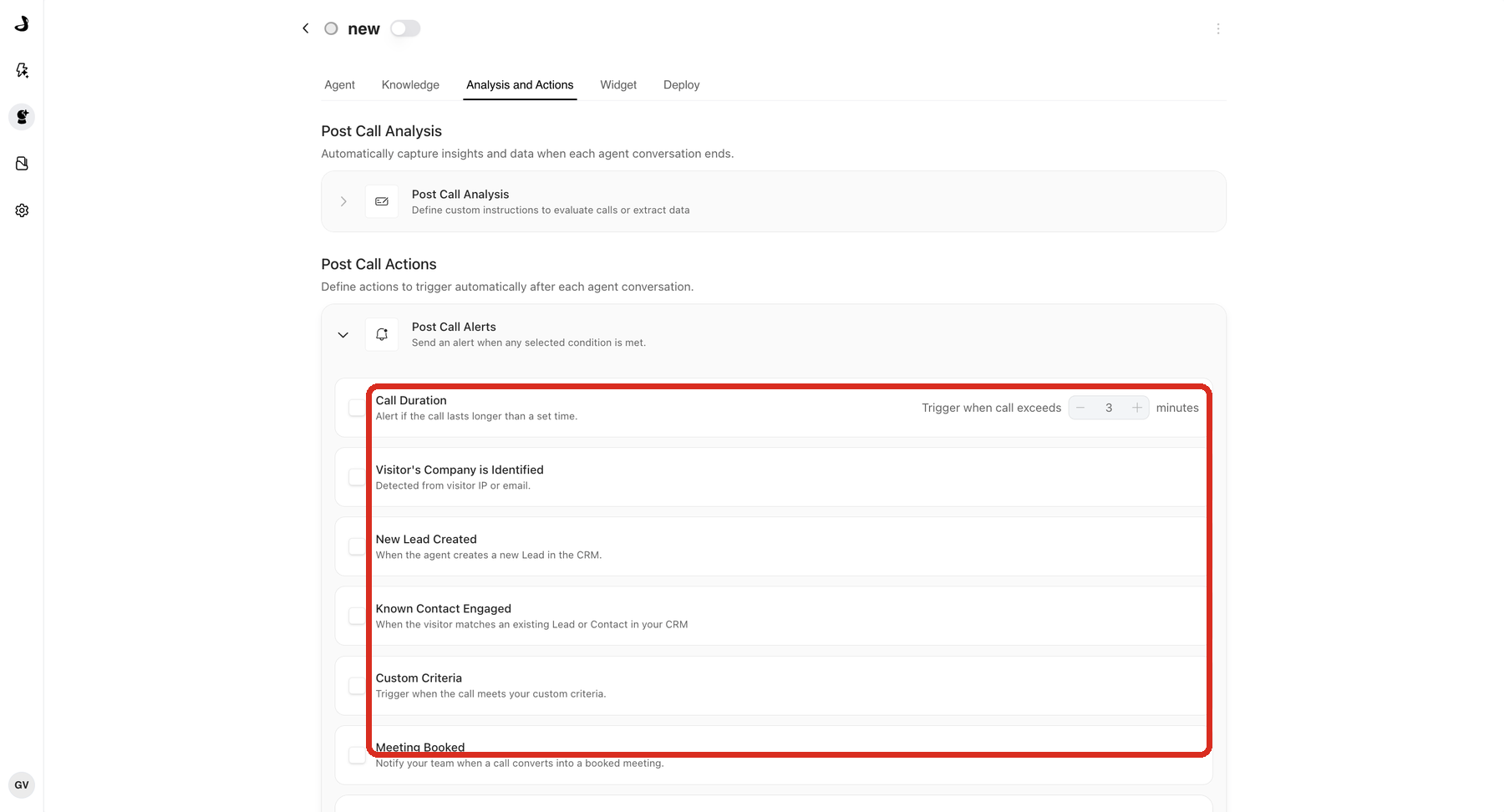
Condition | Alert behavior |
|---|---|
Call Duration | Fires when the conversation lasts longer than the configured number of minutes. |
Visitor's Company is Identified | Fires when Docket identifies the visitor's company from IP or email data. |
New Lead Created | Fires when the agent creates a new Lead in the connected CRM. |
Known Contact Engaged | Fires when the visitor matches an existing Lead or Contact. |
Custom Criteria | Evaluates the written criterion against the completed conversation. |
Meeting Booked | Fires when the conversation results in a booked meeting. |
Enable at least one condition before configuring a delivery channel. For Custom Criteria, enter the criterion before saving.
How to choose where alerts are delivered
Docket delivers post-call alerts to Slack, Microsoft Teams, or both. Connect the channel first in Apps and Integrations, then pick the destination here.
Turn on Slack or Microsoft Teams.
For Slack, choose the destination channel.
For Microsoft Teams, choose the team and channel.
Confirm the selected destination is appropriate for the enabled conditions.
Save the alert configuration.
You can enable both delivery channels. Keep destinations specific so alerts reach the team responsible for follow-up.
How to test a post-call alert
Run a conversation that clearly matches one enabled condition.
End the conversation and wait for post-call processing to finish.
Confirm the alert appears in the selected Slack or Microsoft Teams destination.
Verify the alert identifies why it fired and gives the recipient enough context to act.
Repeat for every enabled condition, including a negative test that should not alert.
Troubleshooting post-call alerts
Problem | What to check |
|---|---|
Delivery controls are disabled | Enable at least one alert condition first. |
Custom Criteria cannot be saved | Enter a non-empty criterion and try again. |
Slack does not receive the alert | Confirm Slack is connected and the selected channel is still available. |
Microsoft Teams does not receive the alert | Confirm the team and channel remain connected and selected. |
Too many alerts fire | Disable broad conditions or narrow the Custom Criteria text. |
Meeting Booked does not fire | Confirm the conversation completed Docket's meeting-booking workflow successfully. |
Frequently asked questions
Why didn't an alert fire for a lead we captured?
Check which conditions are enabled. A returning visitor who matches an existing CRM record counts as a known contact, not a new lead, so an agent set to alert only on New Lead Created stays silent. Enable Known Contact Engaged to catch those visitors.
Why don't I see my Slack channel in the list?
The Docket app has to be in the channel before Docket can offer it. Invite the Docket bot to the channel, then reopen the channel picker.
Alerts are arriving in a channel I did not configure. Why?
Alerts are configured per agent. A channel receiving alerts you did not set up on this agent is being fed by a different agent that has that channel configured.
Why can't I turn on the Slack or Teams switch?
Enable at least one alert condition first. The delivery switches stay unavailable until a condition is selected.
What does the alert actually contain?
Each alert names the condition that triggered it, along with company and prospect details, qualification signals, a conversation summary with duration and the page the visitor was on, and meeting status. Active post-call analysis fields are included too.