Archiving and Managing Agent Lifecycle
Last updated: September 29, 2026
Agents do not need to live forever. When a campaign ends or an agent is replaced, you can pause it or archive it.
Pausing is reversible. Archiving is not, and it also takes the agent's analytics with it, so it is worth knowing which one you actually want before you open that dialog.
Should you pause or archive the agent?
Situation | Do this |
|---|---|
The campaign is over but may come back | Pause with the toggle next to the agent name |
You are testing a replacement agent | Pause, so you can switch back |
You still want the agent's analytics | Pause. Archiving removes them |
The agent is permanently retired and its history is no longer needed | Archive |
When in doubt, pause. A paused agent stops serving visitors and keeps everything else intact.
What does a Marketing Agent's lifecycle look like?
Most agents move through the same stages:
Create the agent from Marketing Agent Configuration. See Creating a Marketing Agent.
Configure it across the Agent, Knowledge, Analysis and Actions, Widget, and Deploy tabs. See Agent Configuration Overview.
Activate it with the toggle next to the agent name.
Preview after meaningful changes. See Previewing an Agent Before Launch.
Pause or archive when it is no longer needed.
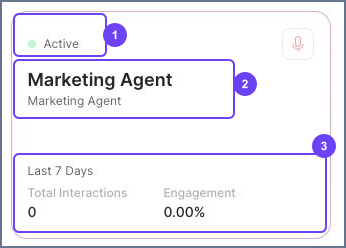
Agent cards show status and recent activity. An agent marked Draft is still being set up and is not live on your site. See Understanding Active and Draft Agents.
How do you pause a Marketing Agent?
Use the toggle next to the agent name at the top of its configuration page. The agent stops serving visitors and keeps its configuration, knowledge, and analytics.
Turn the toggle back on whenever you want it live again.
What should you check before archiving?
Archiving is permanent, so run through this first:
Do you still need the agent's analytics? Archiving removes them from the dashboard.
Is the agent deployed anywhere? Update the pages, scripts, and campaign links that point to it.
Do you want any of its setup later? Copy the instructions, CTA logic, and routing rules somewhere safe.
Would pausing do the job? If there is any chance you need it again, pause instead.
How do you archive a Marketing Agent?
Open Marketing Agent Configuration and select the agent.
Open the Agent tab and scroll to Archive Agent at the bottom.
Select Archive Agent.
Read the confirmation, then select Archive Agent to go ahead or Cancel to stop.
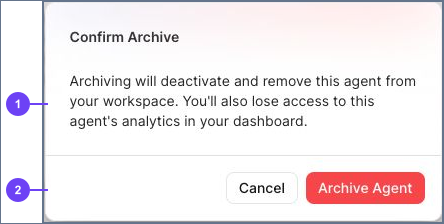
Opening the dialog changes nothing on its own. Cancel leaves the agent exactly as it was.
What happens after you archive an agent?
Archiving is permanent and cannot be undone from the platform. After it completes:
The agent is disabled.
It stops appearing on deployed websites and standalone pages.
Its analytics are removed from the dashboard.
It cannot be recovered.
Anywhere you embedded the agent will no longer show it, so remove or replace those references as part of retiring it.
How do you confirm the agent is fully retired?
Return to Marketing Agent Configuration and confirm the agent is gone.
Check every page, campaign, and standalone link that used it.
Tell anyone who relied on its reporting that the analytics are no longer available.
Why can't I find Archive Agent?
What you see | What to check |
|---|---|
No Archive Agent section | Open the agent itself, go to the Agent tab, and scroll to the bottom. |
You opened the dialog by mistake | Select Cancel. Nothing changes until you confirm. |
You are not sure whether to continue | Cancel, and use the toggle next to the agent name to pause instead. |
The agent is archived but still linked from your site | Remove or repoint those scripts and links. |
Frequently asked questions
Can an archived agent be restored?
No. Archiving is permanent, which is why pausing is the safer option whenever there is any doubt.
Does pausing an agent affect its analytics?
No. A paused agent keeps its history and simply stops serving visitors.
What happens to conversations that already took place?
Pausing keeps them. Archiving removes the agent's analytics from the dashboard.
Does archiving remove the widget script from our site?
No. The script stays where your team installed it, and the archived agent no longer appears through it. Remove the script as part of the cleanup.
Can I reuse the name of an archived agent?
Yes. Nothing about the archived agent blocks the name from being used again.