Understanding the Agents Dashboard
Last updated: September 17, 2026
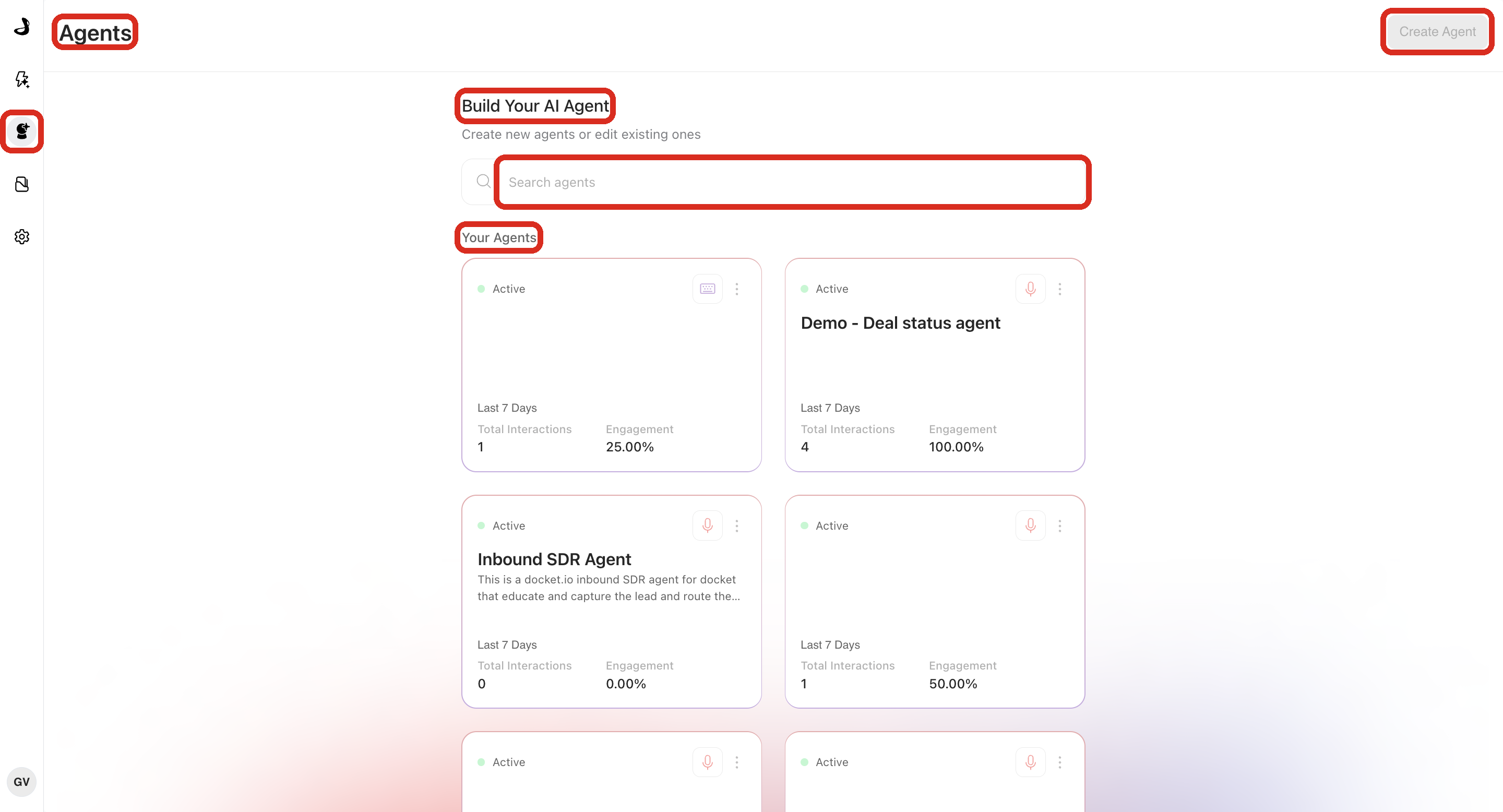
The Agents page is the home screen for every Marketing Agent in your workspace. It is where you create agents, find the one you want, check how each is doing at a glance, and open one to change how it works.
How do you know you are on the Agents page?
Open it with Marketing Agent Configuration in the left sidebar.
The page title will read Agents and the header will read Build Your AI Agent. Below that you will find the Search agents field and the Your Agents list, with Create Agent in the top right.
What does each agent card show?
Every agent appears as a card, and each card carries the same four things:
Status, in the top-left corner, telling you whether the agent is switched on or off.
The agent name and description, so you can confirm you are opening the right one.
Last 7 Days metrics, which are Total Interactions and Engagement.
A three-dot menu, which can help you Clone the agent.
What do Total Interactions and Engagement mean on a card?
Both cover the last seven days only, and both are meant for a quick scan rather than analysis.
Metric | What it tells you |
|---|---|
Total Interactions | Whether visitors are reaching this agent at all. |
Engagement | Whether those visitors did something meaningful rather than leaving straight away. |
For a longer range and the full set of outcomes, open the Marketing Agent Dashboard. See Understanding the Marketing Agent Analytics Dashboard.
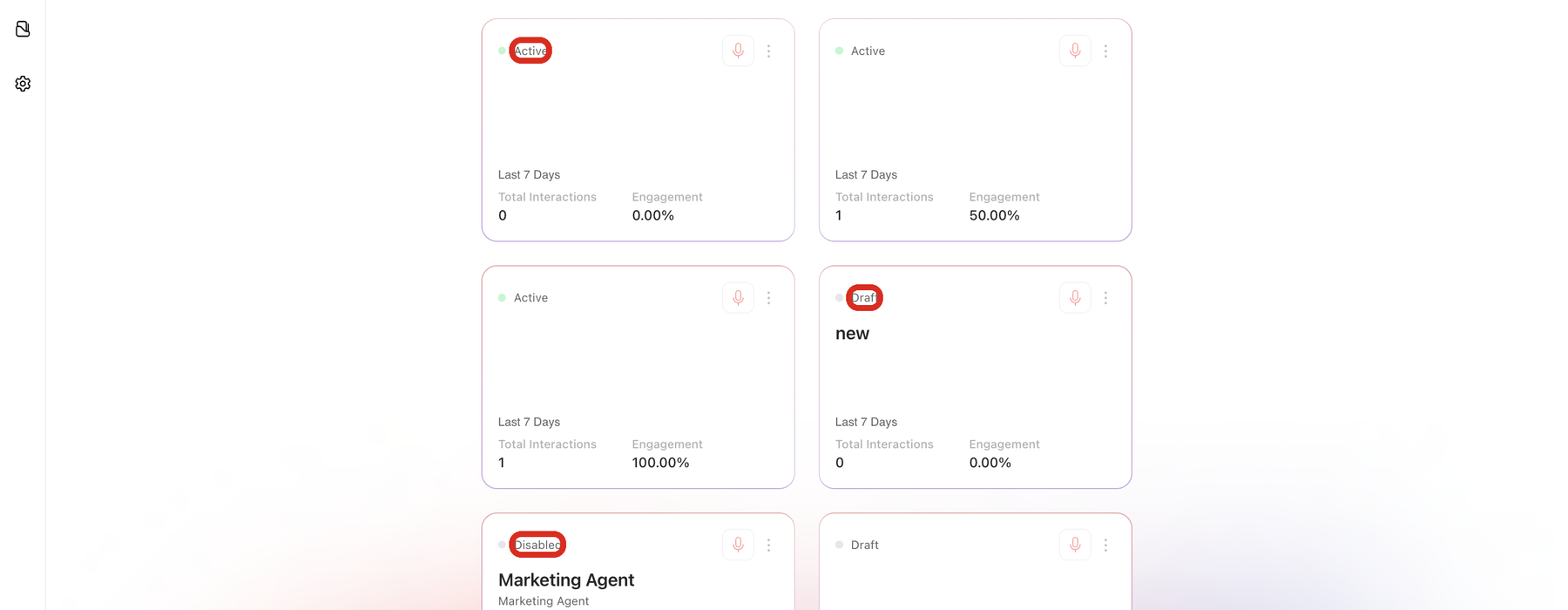
What do Active, Draft, and Disabled mean on an agent card?
Docket shows three statuses. Active means the agent is switched on. Draft means it has been created but never switched on. Disabled means it was switched on before and has since been switched off, keeping its configuration and history.
For what each status changes about your setup, see Understanding Active, Draft, and Disabled Agents.
How do you find a specific agent?
Type part of the agent's name into Search agents. The Your Agents list narrows as you type, and clearing the field brings the full list back.
If an agent is still missing, check that you are in the right workspace and scroll the full list, since drafts and disabled agents sit alongside active ones. An archived agent no longer appears here at all.
How do you copy an agent from the Agents page?
Select the three-dot menu in the top-right corner of an agent's card, then select Clone agent. Docket copies that agent's configuration into a new draft agent and leaves the original running exactly as it was.
This is the fastest way to start a second agent that should behave almost like one you already trust.
Frequently asked questions
What is the difference between the Agents page and the Marketing Agent Dashboard?
The Agents page is where you build and manage agents. The Marketing Agent Dashboard is where you review results across agents, with date ranges, filters, and export.
Why do some agent cards look empty?
Cards show Last 7 Days activity. An agent with no conversations in that window shows zeros, which is normal for a draft or a newly deployed agent.
Can I reorder the agents on this page?
The list is not manually sortable. Use Search agents to jump to the one you want.
Where do archived agents go?
Archived agents are removed from Your Agents. Archiving is permanent, so use Disabled when you only want to pause an agent. See Archiving and Managing Agent Lifecycle.
Can I see which agent is on which page of my website?
Open the agent and review the allowed domains and page-targeting rules on its Widget tab. See Configuring Widget Behavior and Page Targeting Rules.
Have questions?
For any further assistance or troubleshooting, please reach out to our customer support team at support@docketai.com.