Previewing an Agent Before Launch
Last updated: September 18, 2026
Preview lets you talk to your agent exactly the way a website visitor would, inside Docket and without touching your website. It is the quickest way to check how your agent greets people, check the answers it gives, and confirm a meeting link or handoff appears when it should.
Use Preview after you change anything that affects a conversation, and always before you put an agent in front of real visitors.
Where is the Preview button in Docket?
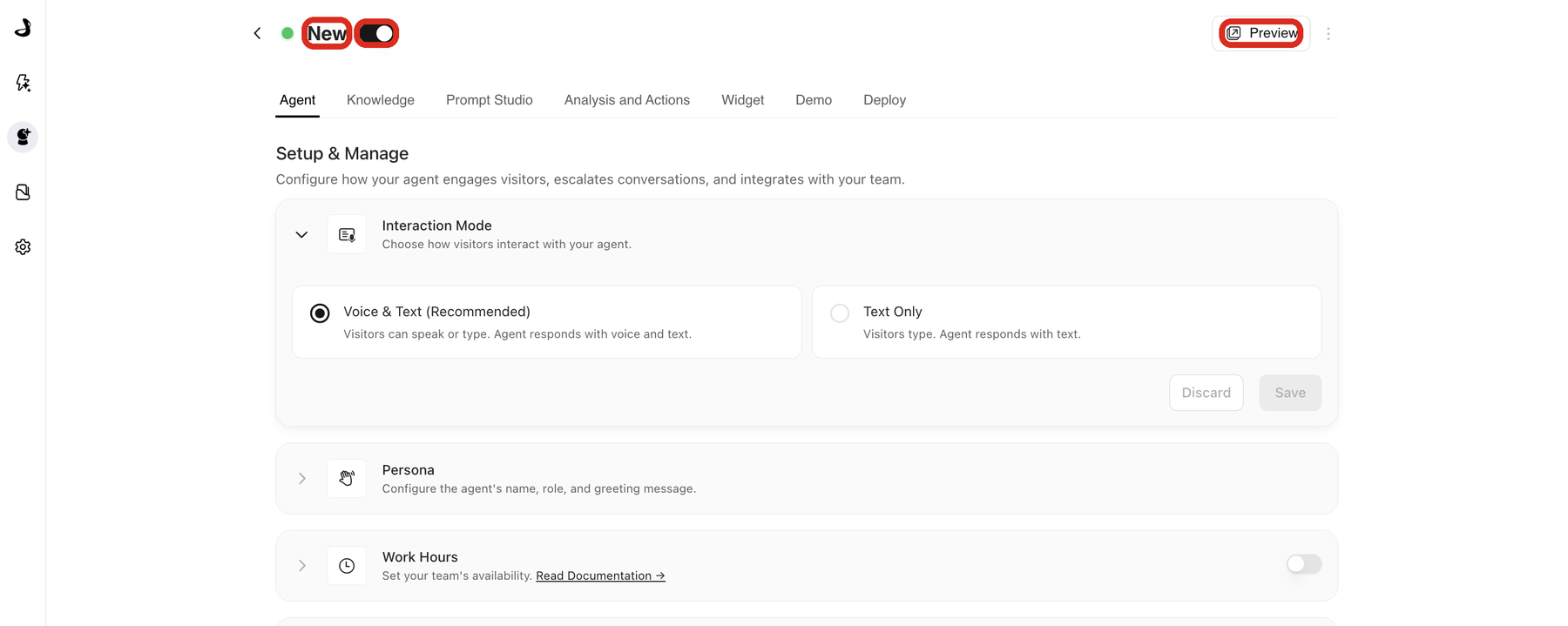
Open Marketing Agent Configuration from the left sidebar, select an agent from Your Agents, and look at the header beside the agent name.
Preview sits in the top right of the agent page, next to the three-dot menu.
Why can't you see the Preview button on your marketing agent?
Preview appears once the agent is active. Turn on the toggle beside the agent name and the Preview button appears in the header straight away.
An agent that shows Draft or Disabled has that toggle off, so the header shows only the three-dot menu. Switching the toggle on does not put the agent on your website: visitors reach an agent through the widget script on your pages, which you add from the Deploy tab. Turning an agent on and deploying it are two separate steps.
If you would rather not make the agent active yet, the Deploy tab also gives you a standalone page URL you can open yourself. See Deploying the Agent as a Standalone Page.
How do you preview the visitor experience?
Open Marketing Agent Configuration and select the agent you want to review.
Confirm the agent is active, so that Preview is available in the header.
Select Preview. Docket opens the visitor experience in a new browser tab.
Select Talk to agent to start a voice conversation, or select the keyboard button next to it to type instead.
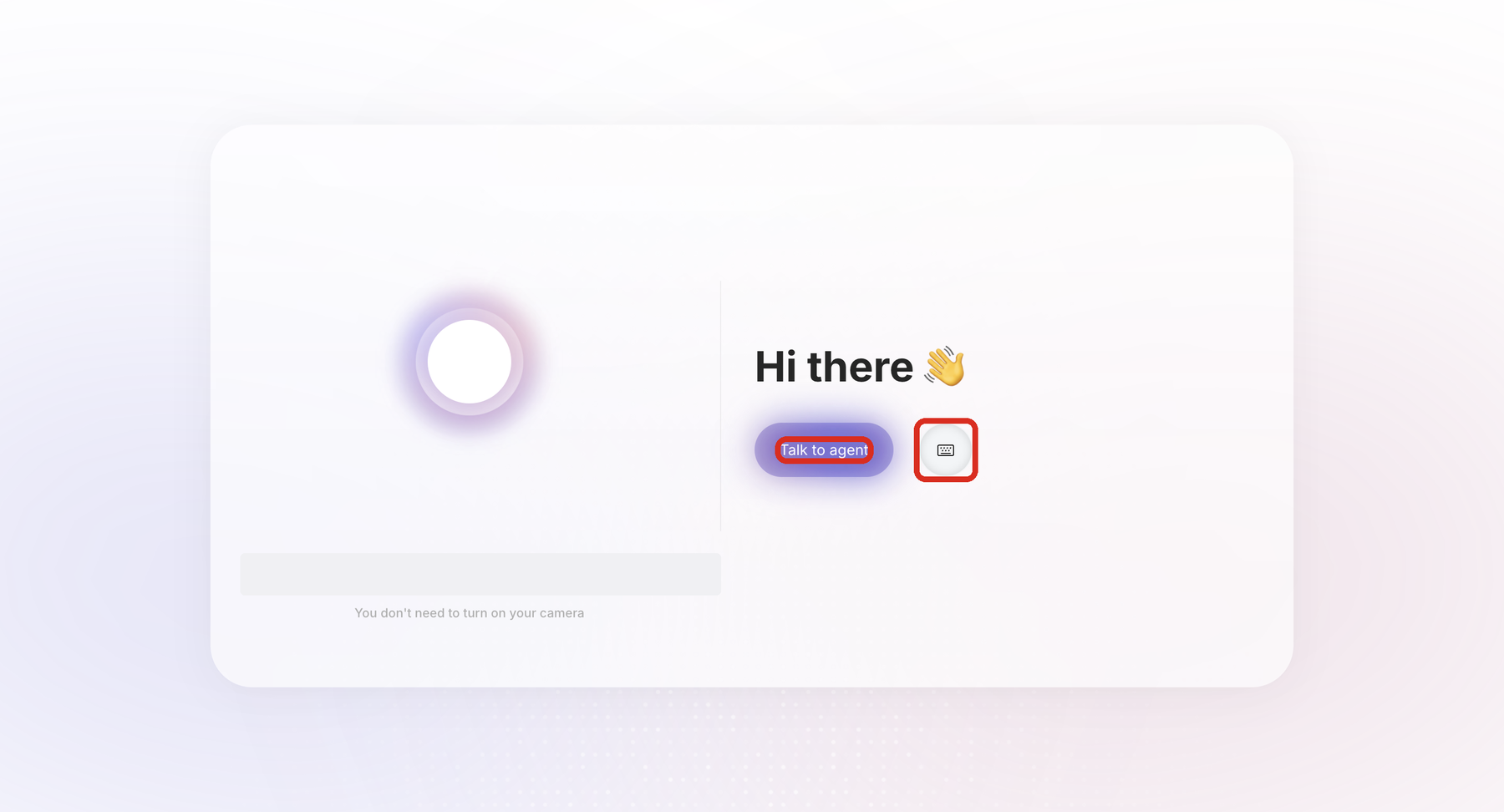
The first time you start a voice conversation, your browser asks for microphone access. Until you allow it, the microphone and speaker selectors on the preview page read Permission needed. You do not need to turn on your camera.
What should you check in Preview before launch?
Review the agent as a visitor would, and focus on the things a visitor would actually notice:
The greeting and persona match how you want your company to sound.
Common product questions get accurate answers.
Answers come from the sources you approved, not from unrelated content.
A question the agent should not answer is handled the way your instructions describe, instead of being invented.
The intended call to action, meeting booking, or handoff appears when its condition is met.
Your agent is ready when expected questions get accurate answers, unsupported questions follow your fallback behaviour, and the next step you designed appears at the right moment.
When should you preview an agent again?
Preview again after you change anything that shapes a conversation. That includes the agent's prompt or instructions, its persona or greeting, the knowledge sources it can use, slides and videos, calls to action, work hours, handoff settings, widget behaviour, and deployment or access rules.
On newer agents the wording that drives the conversation lives in the Prompt Studio tab. After you publish a new prompt version there, preview the agent again before you rely on it. See Editing Agent Behaviour with Prompt Studio.
Troubleshooting Preview in Docket
Issue | What to check |
|---|---|
There is no Preview button in the header | The agent is in Draft or Disabled. Turn on the toggle beside the agent name to make it active. |
Talk to agent does not start a conversation | The microphone selector reads Permission needed. Allow microphone access for the page in your browser, then reload the preview tab. You can also use the keyboard button to test by typing. |
The answer does not match what you expected | Review the agent's wording in Prompt Studio or Agent Instructions, and the sources selected in Knowledge. |
The agent cannot answer a question at all | Confirm the source covering it is selected on the Knowledge tab and is suitable to show visitors. |
A call to action or meeting prompt never appears | Review Agent CTAs, the meeting scheduler setup, and Work Hours, since some steps only run inside your set hours. |
Frequently asked questions
Do I have to publish my agent to preview it?
No. Preview needs the agent to be active, which is the toggle beside the agent name, but that is separate from deploying it. Visitors only reach an agent once its widget script is on your pages.
Can visitors see my agent while I am previewing it?
Only if you have already added the agent's script to your website. Preview itself is a private browser tab and does not place the agent anywhere.
Does a preview conversation show up in my reporting?
Preview runs a real conversation against your agent, so treat your own test chats as activity you will see alongside visitor conversations. Keep test runs short and recognisable if you plan to compare numbers later.
Why does the preview ask for microphone access?
Agents set to Voice & Text let visitors speak, so the browser asks for the microphone before a voice conversation starts. An agent set to Text Only does not need it.
Where do I change the agent's answers after previewing?
On newer agents, describe the change in the Prompt Studio tab and publish a new version. On older agents, edit the Agent Instructions section of the Agent tab.
Can I preview two agents side by side?
Yes. Preview opens in its own browser tab, so you can open one agent, then open a second in another browser tab and compare them in separate tabs.
Have questions?
For any further assistance or troubleshooting, please reach out to our customer support team at support@docketai.com.