Setting Up Work Hours and Availability
Last updated: September 29, 2026
Work Hours tells Docket when your team is around. Setting it stops the agent offering a live person at 2am, and it can also flip the widget so it only appears outside your staffed hours.
Work Hours is optional. If you leave it off, the agent can still hand a conversation to a person, at any time of day.
How do you set Work Hours for a Marketing Agent?
Open Marketing Agent Configuration and select your agent.
Open the Agent tab.
Find Work Hours under Setup & Manage and turn on the switch at the right of the row. The fields stay greyed out until the switch is on.
Under Choose work days, select the days your team covers, then set the hours for those days.
Under Time Zone, pick the time zone of the team that answers handoffs, not the time zone of your visitors.
Select Save.
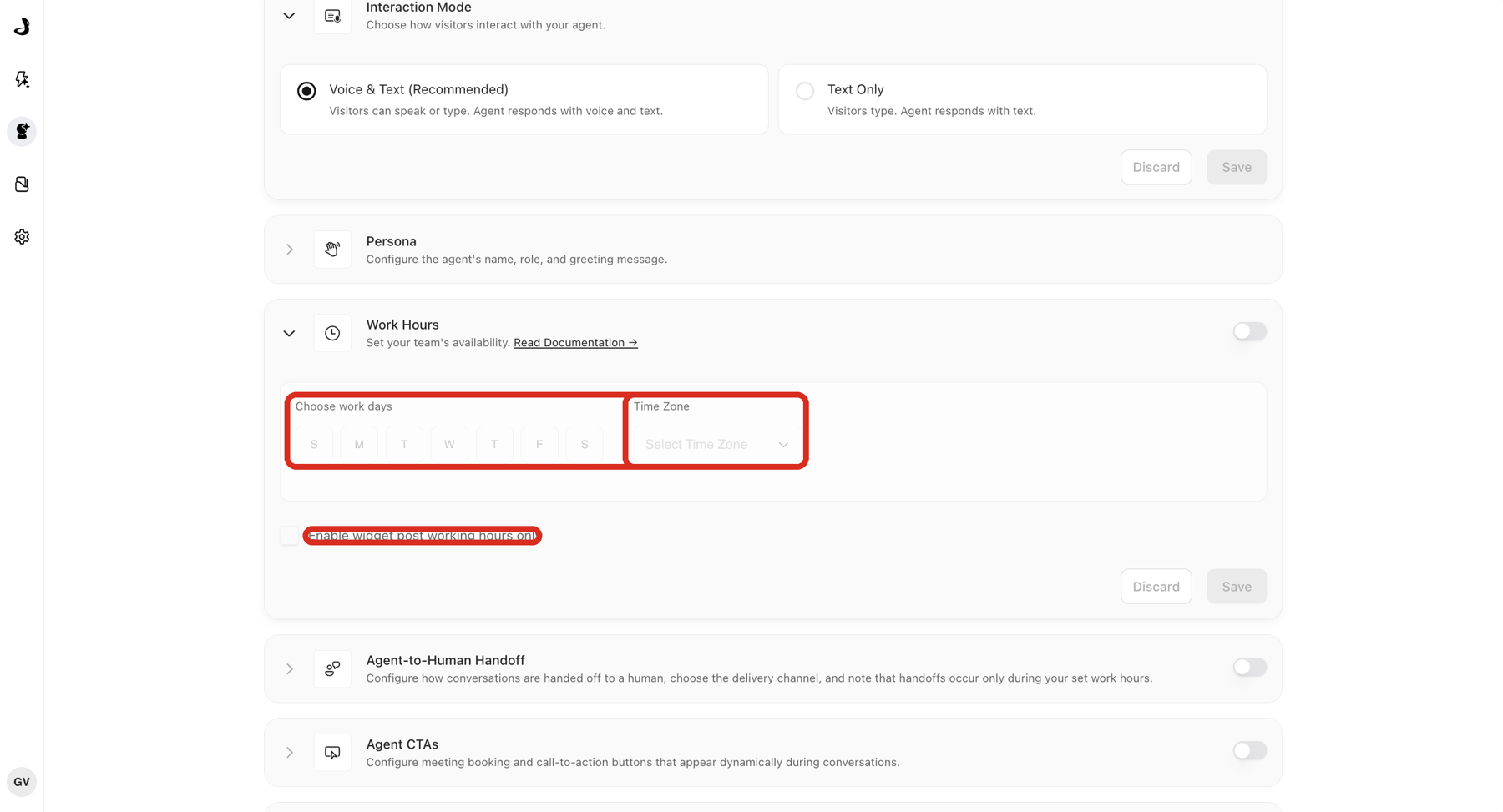
Turning the switch on and saving are two separate actions. If you set days and hours but do not select Save, the schedule is not applied.
What does "Enable widget post working hours only" do?
It flips when the widget appears. With the checkbox on, the widget runs outside your saved schedule instead of during it.
Use it when you want the agent to cover the gap your team cannot. Visitors arriving after hours still get answers and can leave their details, and during the day your team handles conversations through your usual channels.
Docket confirms this when you enable it, with a message noting that the agent runs outside work hours when your team is unavailable to receive handoffs. Live handoff is not offered during those hours, because there is nobody staffed to take it.
How does Work Hours affect Agent-to-Human Handoff?
Work Hours | What happens to handoff |
|---|---|
Off | Handoff is available at any time. |
On | Handoff is available during your schedule. Outside it, the agent keeps answering on its own instead of promising someone who is offline. |
On, with post working hours only | The widget runs outside the schedule, and live handoff is not offered during those hours. |
Set the escalation criteria themselves in Configuring Agent-to-Human Handoff. For the after-hours experience, see Controlling Widget Behavior Outside Work Hours.
Do Work Hours control the times offered for meetings?
No. This is the setting people most often expect to control booking, and it does not.
Work Hours here applies to the agent: when it offers a live handoff, and when the widget appears. The times a visitor can pick when booking a meeting come from a different place, which is each rep's own connected calendar and the Work Hours on their personal settings.
So if the agent is booking meetings at odd hours, the fix is with the reps rather than with this section. Each person who can receive meetings needs to connect their own calendar and set their own hours and time zone. A rep with no hours set is treated as available around the clock. See Intelligent Routing for Docket Marketing Agent Meetings.
How do you confirm Work Hours is working?
Reload the Agent tab and reopen Work Hours. Your days, hours, and time zone should still be there.
Test the agent once inside the schedule and once outside it.
If handoff is on, confirm the in-hours test reaches your channel and the out-of-hours test does not.
If Enable widget post working hours only is on, confirm the widget appears outside the schedule.
Why is the widget or handoff appearing at the wrong time?
What you see | What to check |
|---|---|
The widget appears at the wrong hours | Compare against the saved Time Zone, not your browser's local time. |
Handoff is offered after hours | Confirm the Work Hours switch is on and saved. With it off, handoff is available at all times. |
The widget does not appear after hours | Confirm Enable widget post working hours only is ticked and saved, then retest in a new browser session. |
Meetings are booked at odd hours | This comes from each rep's personal calendar and hours, not this section. |
Save is greyed out | Save becomes available once you change something in the section. |
Frequently asked questions
Do I have to set Work Hours?
No. Work Hours is optional, and handoff works without it. Set it when your team covers specific hours and you do not want the agent offering a live person outside them.
Can I set different hours for different days?
Yes. Choose the days your team covers, then set the hours that apply to them.
Is Work Hours per agent or for the whole workspace?
Per agent. Each agent carries its own schedule, so a regional agent can follow different hours from your main one.
Which time zone should I use?
The time zone of the team that answers handoffs. If your visitors are in another region, that is handled by the agent staying available, not by this setting.
What happens to a conversation already in progress when work hours end?
The agent carries on with the visitor. Work Hours governs whether a live handoff is offered, not whether the agent keeps talking.