Spotlights: Bring Relevant Website Text into Conversations
Last updated: October 12, 2026
Spotlights bring the most relevant text on your website to each visitor's attention and start a conversation with your Docket agent in one click.
Most of what a visitor needs is already on your website, but it is easy to miss. A key claim sits in the middle of a paragraph, or a term only makes sense with context the visitor does not have. Spotlights bring that text forward. Your Docket agent highlights a phrase that matters to the visitor, explains it, and offers a question. One click on the question starts a conversation with your agent.
A Spotlight is the doorway, not the answer. The answer always comes from your Docket agent.
How Spotlights work for a website visitor
Spotlights follow the same path for every visitor: your Docket agent spotlights a phrase, the visitor opens it, and the agent answers.
1. Your Docket agent spotlights a relevant phrase
While a visitor browses your website, your Docket agent spotlights a phrase that is relevant to them. Docket considers where the visitor is on your site and the visitor context it already has, such as previous conversations with your agent. The agent then highlights the parts of your website text that help the visitor learn what matters to them, as if it were presenting your website.
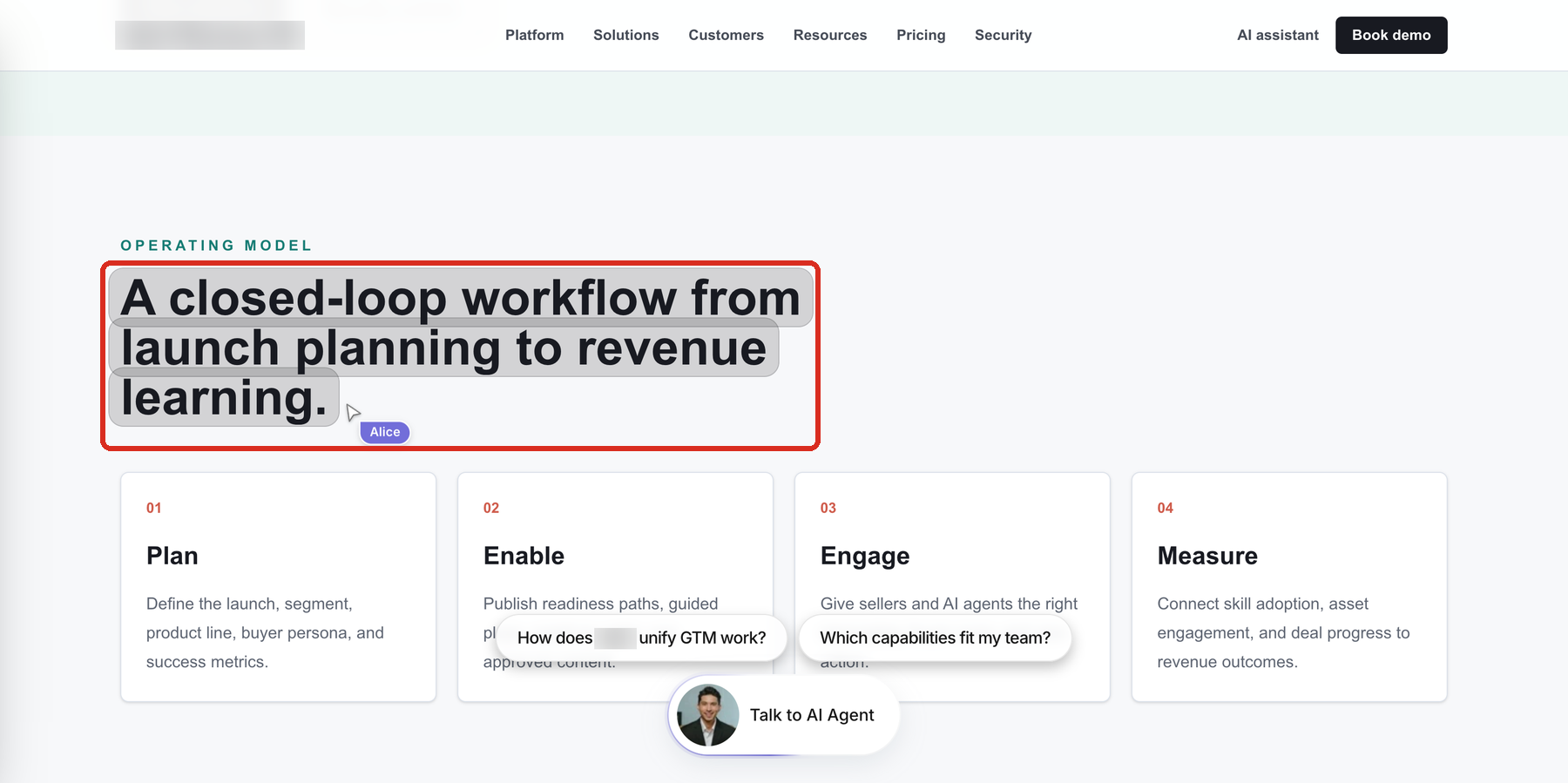
Personalization stays soft outside the agent. Spotlights do not expose private, sensitive, or surprising details about the visitor. Two visitors on the same page can see different Spotlights.
Spotlights are drawn over your page. They do not change your website's content, layout, or formatting.
2. The visitor opens the Spotlight
On desktop, the visitor hovers over the highlighted phrase. On mobile, the visitor taps it. A popover shows a short explanation of the phrase, followed by a suggested question.
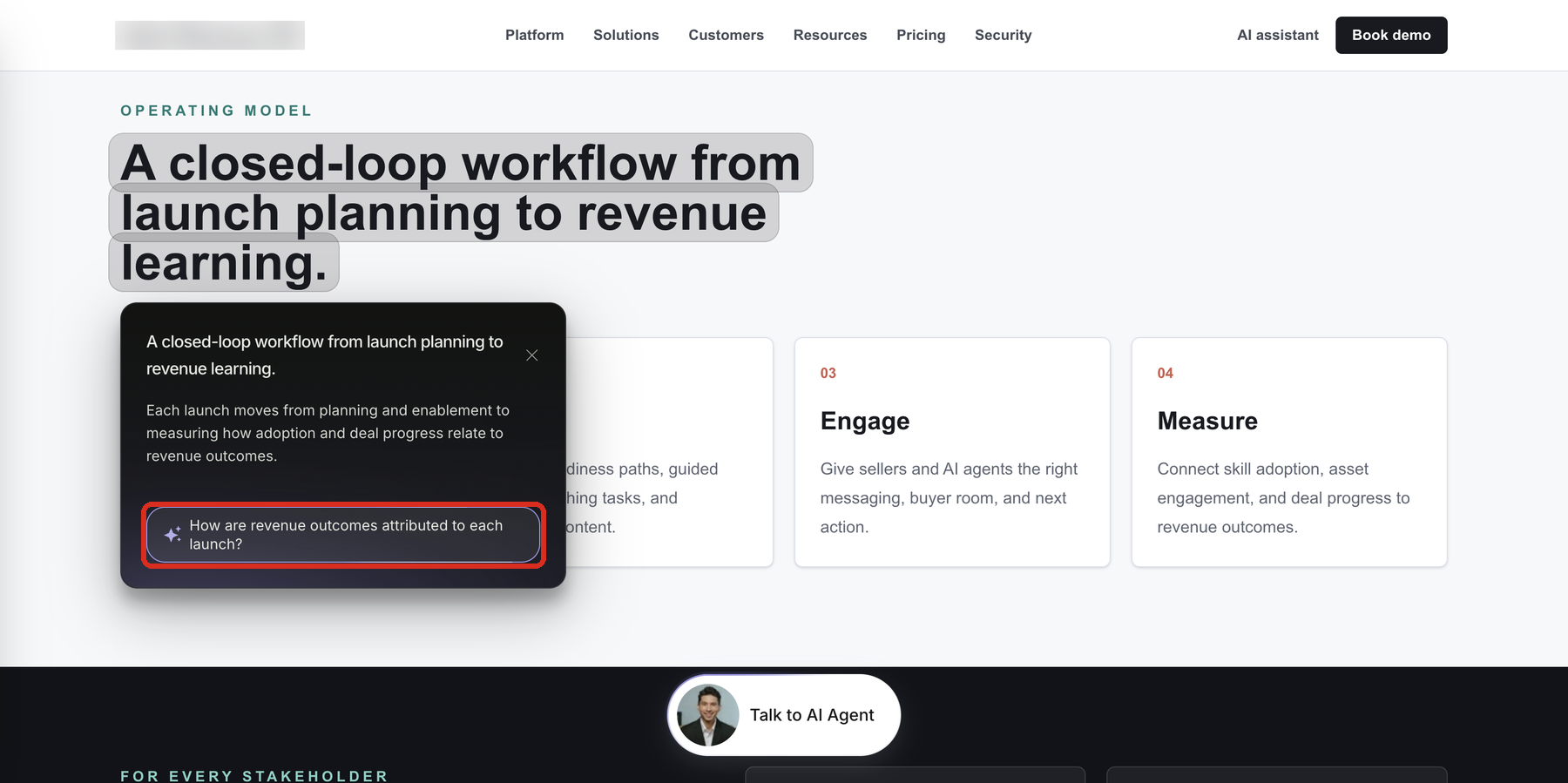
3. The visitor starts a conversation in one click
Selecting the suggested question opens your Docket agent and submits the question for the visitor. The visitor does not need to type or send anything. The agent answers from its configured knowledge and actions.
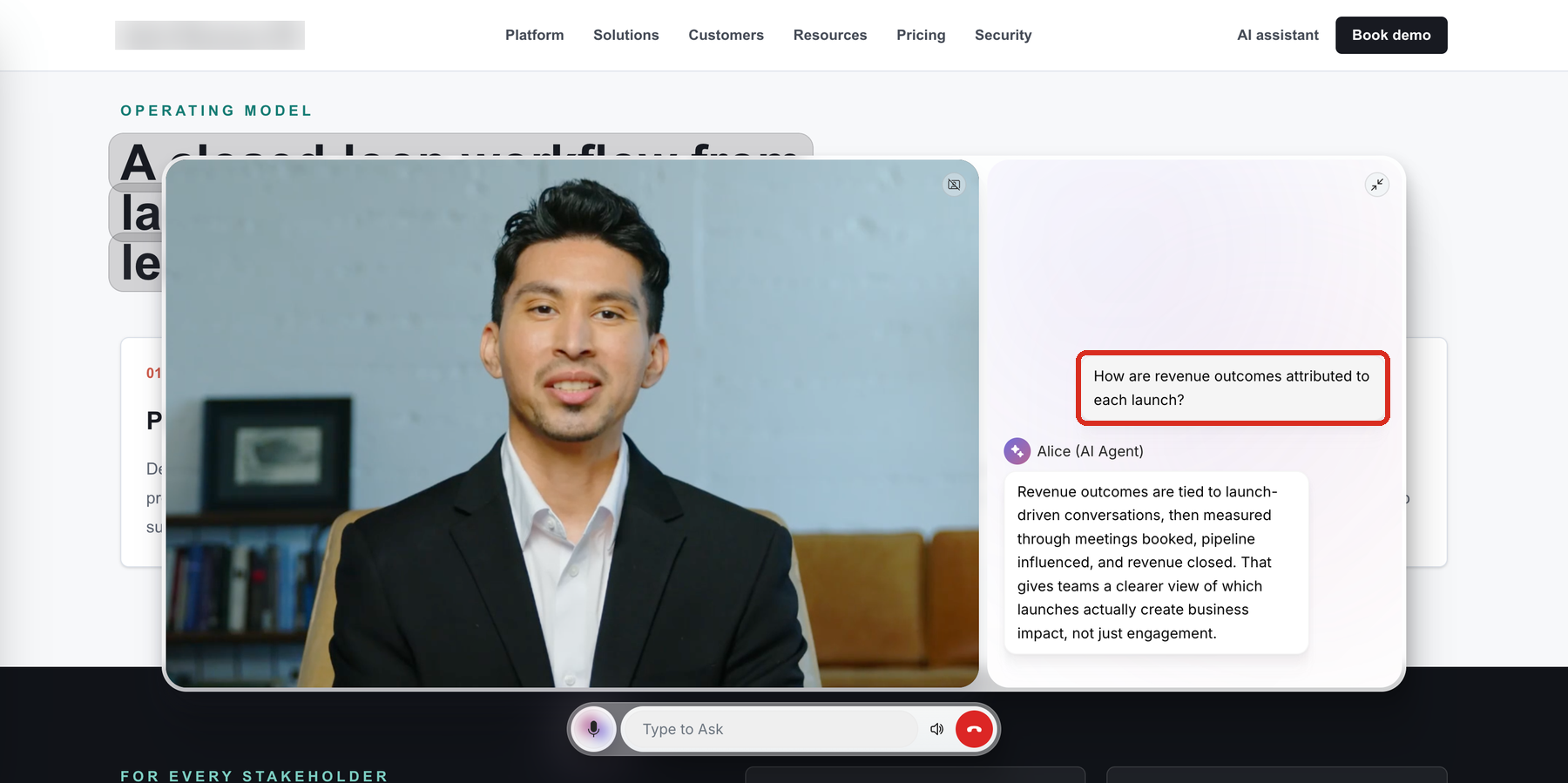
If the visitor already has a conversation open, the question is added to that same conversation instead of starting a new one. Spotlights stay available during a conversation, so a visitor can open another Spotlight at any time.
An example
Maya is evaluating your product and reaches your security page. Your Docket agent spotlights the phrase SOC 2 Type II certified. When Maya hovers over it, the popover explains what the certification covers and suggests:
What does your SOC 2 report cover for customer data?
Maya selects the question. Your Docket agent opens with the question already asked and answers it from your security documentation.
Exact phrases, explanations, and questions vary with the page, the visitor, and your agent configuration.
Where Spotlights appear
Spotlights appear on pages where your Docket agent is deployed and the page has enough relevant content to spotlight. They do not appear on:
pages where your Docket agent is not deployed
pages without enough relevant content to highlight
pricing pages
careers pages
Spotlights stay attached to the right content when a visitor moves between pages or switches between tabs on the same page.
How to switch Spotlights on or off
Spotlights are controlled per agent, from the Widget tab of the agent's configuration in Docket. Spotlights work only when the Spotlight toggle is on for that agent.
In Docket, open Agents and select the agent you want to update.
Open the Widget tab.
Expand Engagement Points.
Switch the Spotlight toggle on.
Save your changes.
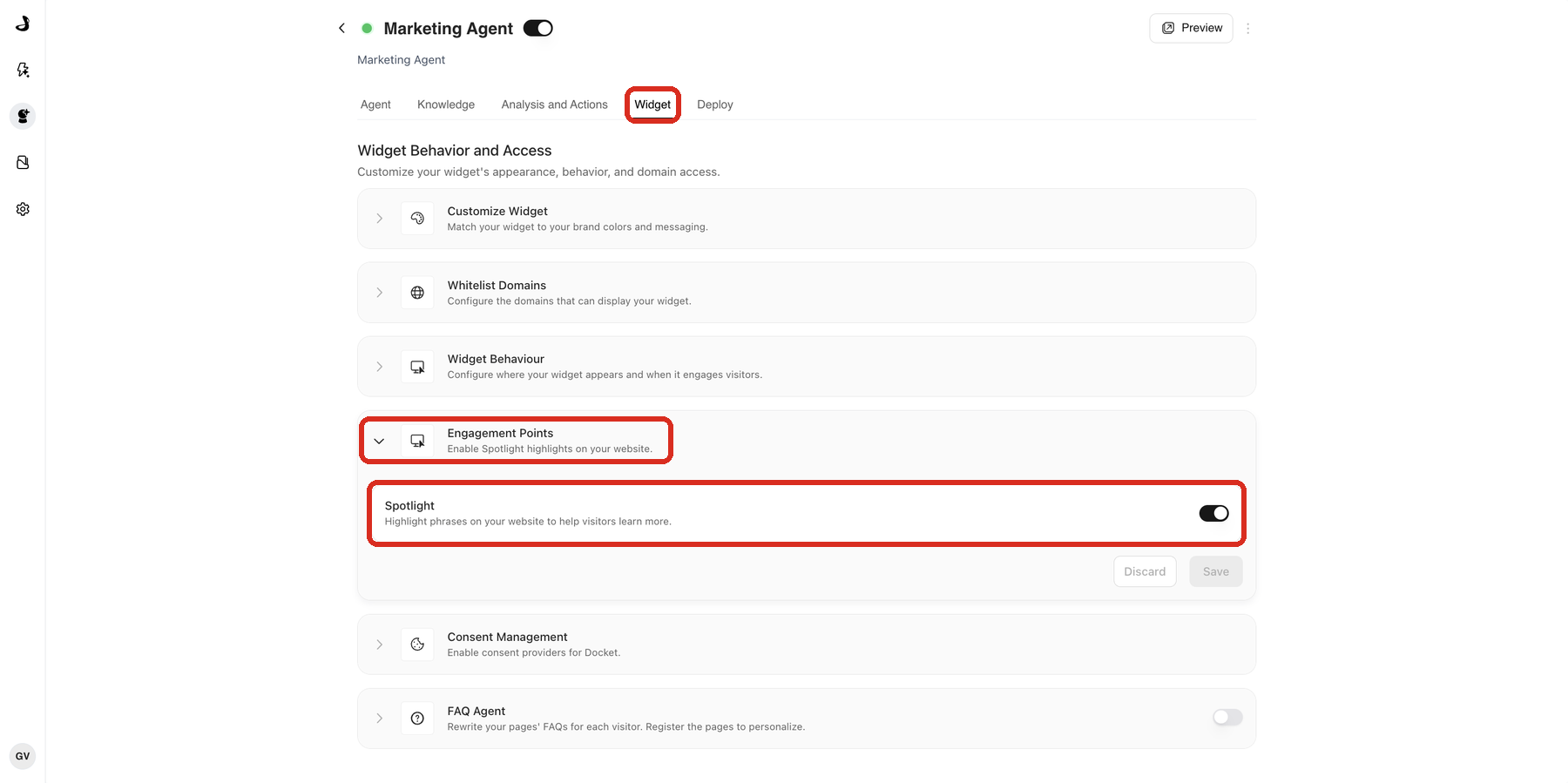
To stop showing Spotlights, follow the same steps and switch the Spotlight toggle off.
Spotlights work alongside Contextual Callouts. You can use both on the same agent at the same time.
What can you control, and what is set by Docket?
You control whether Spotlights are on for an agent, where the agent is deployed, and what the agent knows. Docket controls which phrases are spotlighted and how each explanation and question is written, because both are chosen for each visitor.
Spotlights do not support custom instructions or page rules today. You cannot choose specific phrases to highlight or exclude, or limit Spotlights to particular pages. Your Docket agent picks the relevant content on its own.
What is needed before switching on Spotlights?
Required: Your Docket agent is deployed on your website, and the Spotlight toggle is on for that agent.
Recommended: Your agent's knowledge sources are current, so it can answer the questions Spotlights start.
Launch check: Test one desktop and one mobile visit. Confirm a Spotlight appears, the popover shows an explanation and a question, and selecting the question opens your agent with an answer.
Limits and edge cases
No Spotlight on a page can be the correct outcome. When a page does not have enough relevant content, Docket does not show a Spotlight, and your agent stays available.
Showing a Spotlight does not create a lead, book a meeting, or start a human handoff. Those happen only if the visitor continues through your agent and the relevant capability is configured.
The chat bubble stays available. Visitors can always open your agent directly.
How are Spotlights different from Contextual Callouts?
Spotlights and Contextual Callouts both start conversations with your Docket agent, but they appear in different places. Contextual Callouts are short conversation starters shown beside the agent. Spotlights appear inside your page content, on the phrase the visitor is reading. Both open the same agent, and both can run on the same page.
Frequently asked questions
How do I switch on Spotlights?
Open the agent in Docket, go to the Widget tab, expand Engagement Points, and switch on the Spotlight toggle. Spotlights work only when this toggle is on.
Will Spotlights change the design of my website?
No. Spotlights are drawn over your page by the Docket script. Your website's content, layout, and formatting stay unchanged.
Can I choose which phrases are spotlighted?
Not today. Your Docket agent chooses the phrases based on the page and the visitor. Custom instructions for Spotlights are not available yet.
Does every visitor see the same Spotlights?
No. Docket considers where each visitor is and the context it has for them, so different visitors can see different Spotlights on the same page.
Why are there no Spotlights on some pages?
Spotlights do not appear on pricing pages, careers pages, pages without enough relevant content, or pages where your Docket agent is not deployed.
Do Spotlights work on mobile?
Yes. On mobile, visitors tap a highlighted phrase instead of hovering over it.
Can I use Spotlights and Contextual Callouts together?
Yes. Spotlights work alongside Contextual Callouts, and both can run on the same agent and page.
What happens if a visitor already has a conversation open?
The suggested question is added to the current conversation. Docket does not start a second conversation.
Does showing a Spotlight create a lead?
No. A Spotlight is an invitation. A lead, meeting, or handoff happens only if the visitor continues through your agent and the relevant capability is configured.
Do Spotlights respect cookie consent?
Spotlights follow the same visitor context rules as the rest of your Docket agent. See Privacy and Consent for Docket Marketing Agent.