Adding and Managing Web URLs
Last updated: September 29, 2026
Your website already answers most of what visitors ask. The Web URLs area brings that content into Docket so your Marketing Agents can answer from it too.
This guide shows you how to add a domain or specific pages, keep them in sync, and read the status of an ingestion job.
What do I need before I add a URL source?
- Access to app.docketai.com.
- The domain or page URLs you want the agent to use.
- A quick check that the pages are suitable for customer-facing conversations.
How do I open the Web URLs area?
- Log in to app.docketai.com.
- Open Knowledge Sources in the left navigation.
- Open Web URLs.
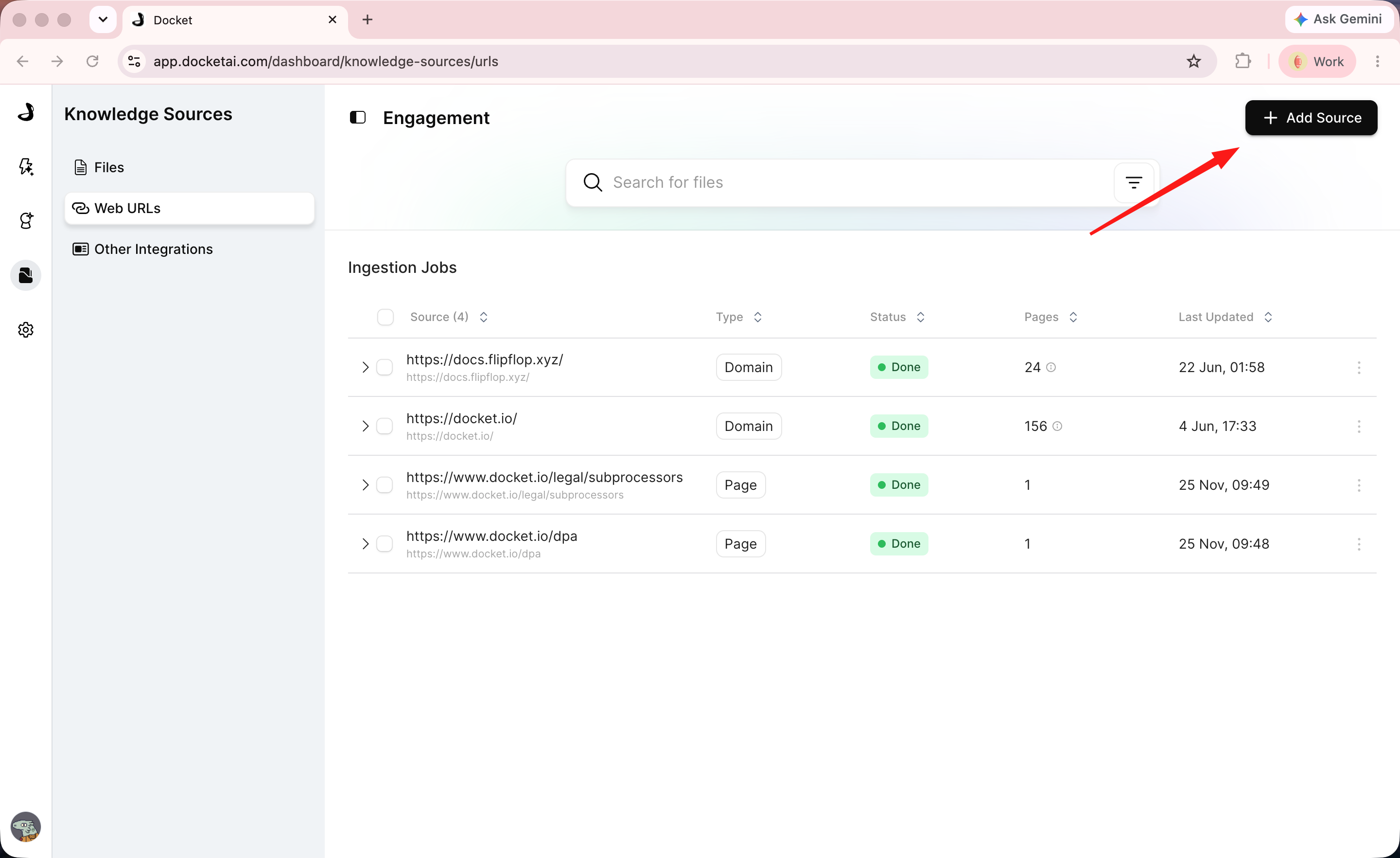
You will see Add Source, a search field, Ingestion Jobs, and a table of existing sources.
Should I add a whole domain or individual URLs?
Add a domain when you want the agent to draw on a whole site or a large section of one, such as your documentation. Add individual URLs when you only need a handful of specific pages, or when you are testing a new source before committing to a full crawl.
How do I add a URL source?
- Click Add Source.
- Choose Domains or Individual URLs.
- For a domain, enter it and decide whether to use Use sitemap (auto discover via robots.txt), which is recommended, and whether to Exclude links.
- Review Automatic Re-sync. Domains re-sync every 30 days by default, and you can choose 14 or 7 days for pages that change often.
- Click Start Ingestion.
Google Drive, SharePoint, and OneDrive links cannot be ingested this way. Those need their own integration.
How do I read the source table?
The table shows Source, Type, Status, Pages, and Last Updated.
Type is Domain or Page. Status is Done when the source is ready to use, or Error when the crawl could not complete. Pages tells you how many pages came in, which is the quickest way to spot a crawl that pulled in far more or less than you intended.
What should I do if a source shows Error?
An Error status means the job stopped rather than that it is still working, so waiting will not clear it. Open Ingestion Jobs and check the error detail for that source.
Common causes are a page that no longer exists, a redirect, or a site that blocks automated crawling. Re-running the job with a corrected URL, or switching from a domain crawl to specific pages, usually resolves it.
How do I refresh a source after my website changes?
Ingested pages re-sync on the schedule you chose. When you need an update sooner, trigger a re-sync from the source's row menu.
To check when a source last refreshed, read Last Updated here in Knowledge Sources. The Last synced date shown in an agent's source picker records when the source was first added, so it can read much older than the content really is.
How do I let an agent use the web source?
- Wait until Status is Done.
- Open Marketing Agent Configuration and select the agent.
- Open the Knowledge tab and click Customize Sources.
- Open the WebApp URLs group with its chevron, select the source, and click Save.
- Click Apply.
- Open Preview and ask a question answered by one of the ingested pages.
Frequently asked questions about Docket web URLs
Ingestion Jobs and the agent picker show different dates. Which is right?
Last Updated in Knowledge Sources is the real refresh date. The picker's Last synced date shows when the source was first added, so the two can differ by months on a source that is refreshing normally.
My source says Error. Should I wait for it to finish?
No. Error means the job stopped. Check the error detail in Ingestion Jobs and re-run the source once the cause is fixed.
The crawl pulled in far more pages than I wanted. What now?
Check the Pages count against what you expected. Use the sitemap option or Exclude links to narrow a domain crawl, or add individual URLs instead.
How often does web content re-sync?
Every 30 days by default, with 14 and 7 day options for pages that change frequently. You can also re-sync manually at any time from the source's row menu.
Can I add a Google Drive or SharePoint link as a URL?
No. Those need their own integration, which you connect in Settings. The link will not ingest as a web page.
My website changed but the agent still gives the old answer.
Trigger a manual re-sync, wait for Status to return to Done, then retest in Preview. Confirm Last Updated has moved before concluding the crawl is at fault.
Where do web sources appear when I configure an agent?
Inside the WebApp URLs group in Customize Sources. Open the group with its chevron to pick individual sources.