Getting Started with Web Ingestion in Docket
Last updated: September 29, 2026
Web ingestion brings your website into Docket, so your Marketing Agents can answer from pages you already publish and maintain.
This guide explains when to use it, how to choose the right scope, and how to tell when a crawl has worked.
When should I use web ingestion?
Use it when the content you want the agent to know already lives on a website. Typical cases include a product documentation site, a set of onboarding pages, or refreshing content after a site update.
For files stored in Google Drive, OneDrive, or SharePoint, use that product's integration instead. Those links do not ingest as web pages.
Should I ingest a domain or individual URLs?
Docket offers two ways to add web content, and you choose between them when you add a source.
Method | Use it when |
|---|---|
Domains | You want a whole site or a large section of one. Docket discovers pages for you, and you can narrow the scope with the sitemap option and link exclusions. |
Individual URLs | You need a specific handful of pages, or you are testing a source before committing to a full crawl. |
How do sitemaps fit in?
A sitemap is not a separate method. It is an option inside a domain crawl.
When you add a domain, Use sitemap (auto discover via robots.txt) is recommended and switched on. Docket looks for the site's sitemap through robots.txt and uses it to decide which pages to crawl, which keeps the result closer to the pages you actually publish. Turn it off if the site has no usable sitemap and you want Docket to follow links instead.
How do I add web content?
- Log in to app.docketai.com.
- Open Knowledge Sources and then Web URLs.
- Click Add Source.
- Choose Domains or Individual URLs.
- Set the sitemap and exclusion options, and choose an Automatic Re-sync interval of 30, 14, or 7 days.
- Click Start Ingestion.
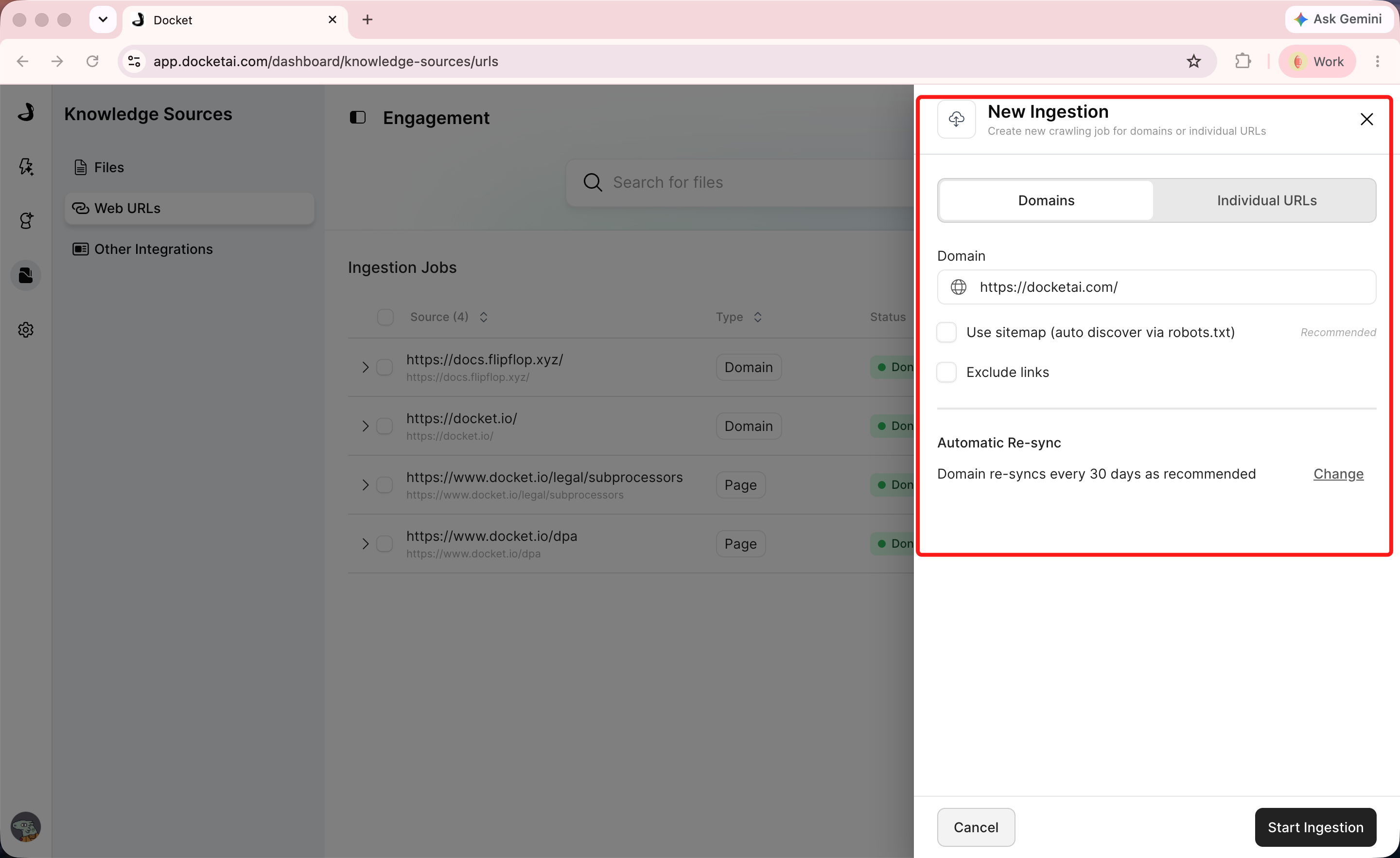
For the field-by-field walkthrough, see Adding and Managing Web URLs.
How do I check whether the crawl worked?
Open Ingestion Jobs. It shows the discovered URLs, how many pages completed, any pages that need attention, error categories, when the job started, and when the next sync is due.
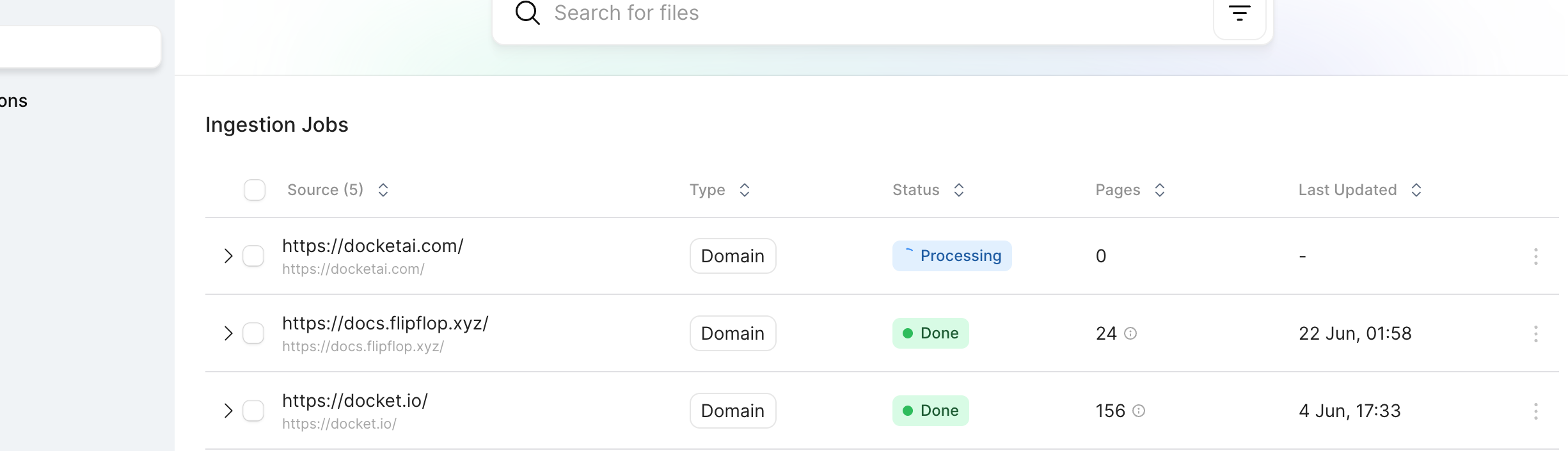
Treat Done as the signal that a source is ready for a live agent. Error means the job stopped and needs attention rather than more time.
Check the page count too. A number far higher than expected usually means the crawl reached more of the site than you intended, and a very low number often means the sitemap or the starting URL was not what you thought.
How do I keep web content current?
Ingested pages re-sync automatically on the interval you chose, with 30 days as the default. When a site changes sooner, trigger a manual re-sync from the source's row menu.
Check freshness using Last Updated in Knowledge Sources. The Last synced date in an agent's source picker shows when the source was first added, not its latest refresh, so it can look far out of date on a healthy source.
How do I use the ingested content in an agent?
- Confirm Status is Done and the page count matches your intended scope.
- Open Marketing Agent Configuration and select the agent.
- Open the Knowledge tab and click Customize Sources.
- Open the WebApp URLs group with its chevron, select the source, and click Save, then Apply.
- Open Preview and ask a question answered by an ingested page, then one that is clearly out of scope.
The source is ready when the job is Done, the page count looks right, and Preview answers from the content you expected.
Frequently asked questions about Docket web ingestion
Is "site maps" a separate ingestion method?
No. You choose between Domains and Individual URLs. The sitemap is an option within a domain crawl, switched on by default because it usually gives the most accurate page list.
Does Docket respect robots.txt?
Yes. The recommended domain option discovers the sitemap through robots.txt.
My crawl brought in too many pages. How do I narrow it?
Keep the sitemap option on, use Exclude links to leave out sections you do not want, or switch to Individual URLs for a small, fixed set of pages.
Important pages are missing after the crawl.
Check the discovered URLs and error categories in Ingestion Jobs. Pages that are blocked, redirected, or absent from the sitemap will not be ingested. Adding those pages as individual URLs is the quickest fix.
The job shows Error. What should I do?
Open Ingestion Jobs and read the error detail. Error means the crawl stopped, so it will not resolve on its own; fix the cause and run the source again.
How long until an agent can use newly ingested content?
Once the job reaches Done, select the source for the agent under Customize Sources. Content is not used by any agent until it is selected there.
The website is updated but the agent still gives the old answer.
Trigger a manual re-sync and confirm Last Updated in Knowledge Sources moves. Do not judge freshness from the agent picker's Last synced date.