Setting Up Demo Agent for Live Product Demos
Last updated: September 28, 2026
Demo Agent lets your Docket Marketing Agent run a live product demo inside a visitor conversation. Use it when visitors want to see the product rather than just read about it. Nothing is pre-recorded and nothing is cloned, so visitors see the product as it is today.
What Demo Agent does during a visitor conversation
The agent signs in to a sandbox of your product, opens it in a browser the visitor watches in real time, and narrates the walkthrough as it works. Visitors can ask to see any part of the product at any point, and the agent opens it instead of running a fixed sequence. When you allow it, they can also take control of the screen or circle an area to ask about it.
The demo runs inside the conversation the visitor is already having. There is no form to fill in and no email capture before the demo starts.
What to have ready before you turn on Demo Agent
Gather these before you start:
A sandbox of your product on its own URL.
Sign-in details for that sandbox, if it needs them. Docket keeps these private and never shows them to visitors.
Good to have: a description of your product, the flows worth showing, and the pages to keep out of the demo. You can add this at any point, or ask your Docket customer success contact to put it together for you.
How to prepare your sandbox
Demo Agent drives a real environment, so set the sandbox up before visitors see it.
Use a dedicated instance of your product rather than production, and one you can reset.
Sign the agent in as a restricted user whose records are synthetic rather than real customer data.
Turn off write operations so nothing a visitor does persists. Reads and previews still work, so the walkthrough stays interactive.
Remove permissions the demo does not need, such as billing, administration, export, and anything destructive.
Mask sensitive information, including real customer names, contact details, and commercially confidential figures.
How to connect your sandbox to your Marketing Agent
Connect the sandbox first. Until Docket can reach an environment, the Demo tab reads Demo Agent is off and the Enable Demo Agent switch stays unavailable.
Open the Marketing Agent you want to run demos, then select the Demo tab.
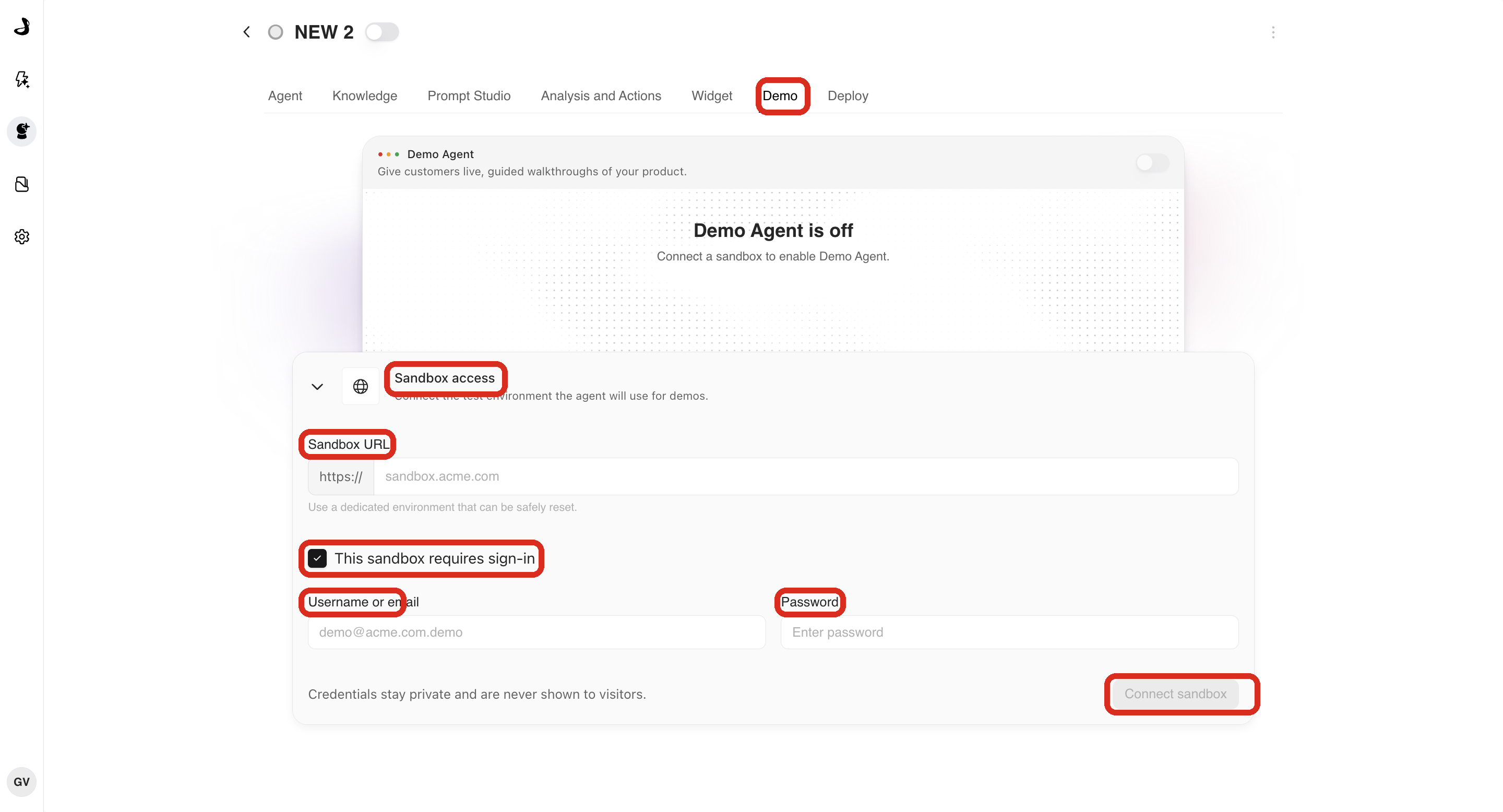
Under Sandbox access, enter your sandbox address in Sandbox URL. Point it at the page you want demos to start from.
If the sandbox needs a login, select This sandbox requires sign-in, then enter the Username or email and Password for the demo account. The password is never included in what the agent can read, so the agent cannot repeat it or show it to a visitor.
Select Connect sandbox. The status changes to Connected once Docket can reach the environment.
Turn on Enable Demo Agent if it is not already on.
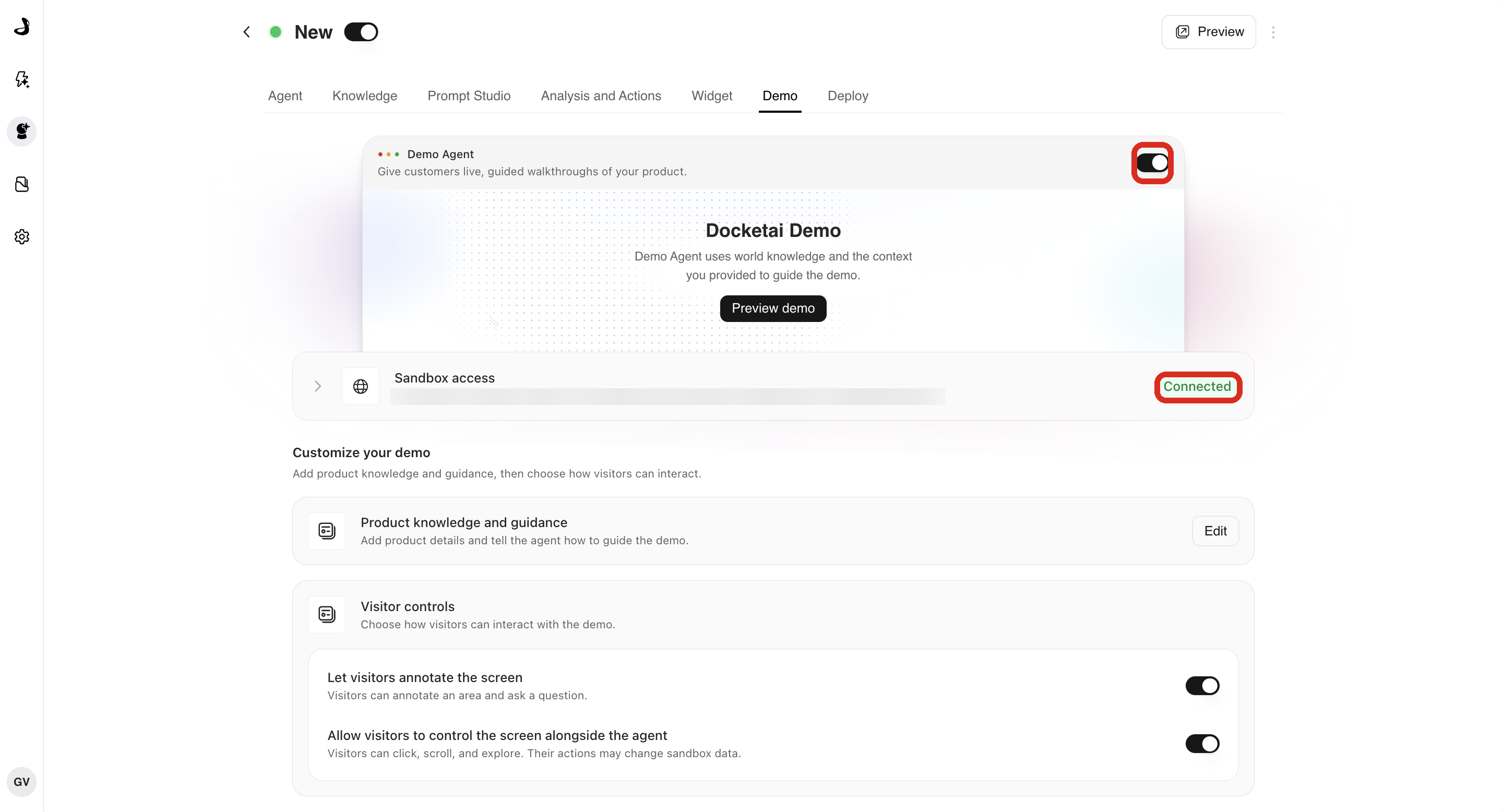
Once a sandbox is connected, the button reads Update sandbox and the rest of the demo settings appear. To change the password later, type the new one over the saved value and save again. Leaving the password field blank keeps the password you already saved.
How to write product knowledge and guidance
Product knowledge and guidance is the free-text field that shapes how the agent demos your product. Demo Agent works without it, and adding it makes the walkthrough sharper and more accurate. You can write it yourself, or have a first version generated from your sandbox.
Under Customize your demo, select Edit next to Product knowledge and guidance.
In Knowledge and guidance, describe what your product does, which flows are worth showing, and where those flows live in the interface. Use Markdown headings to keep longer guidance organised, and list the exact URLs you want to keep out of the demo under a "Restricted URLs" heading in the same text.
Select Save changes.
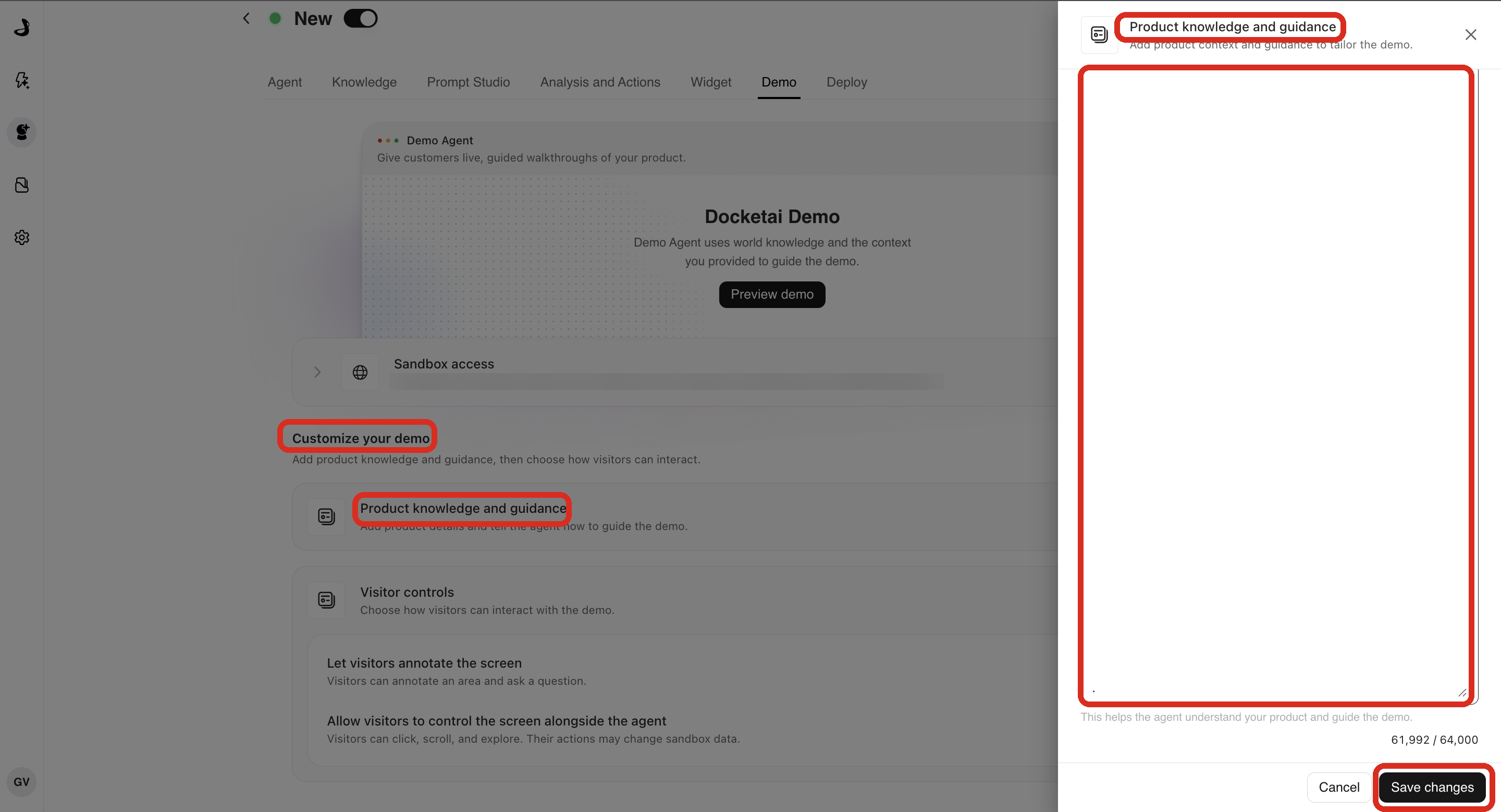
Write it the way you would brief a new sales engineer. Name the screens the way they are labelled in your product, say which use case makes the strongest demo, and call out anything half-built that you would rather not show.
Have your product context generated from your sandbox
Docket can explore your sandbox and write a first version of your product knowledge and guidance for you. It signs in, works through the product, and writes up what it finds as structured text you can paste into Knowledge and guidance. It only reads the product and does not save changes.
Ask your Docket customer success contact to run this for you. They can also share the tool and setup guide if you would rather run it yourself. Treat the result as a first draft: review it, add anything it missed, and add your restrictions and your Restricted URLs list before you save.
You do not need to get this right in one pass. Preview the demo, see how the guidance lands, and keep refining until the walkthrough covers what you want. If it still misses something you described, your Docket customer success contact can help you sharpen it.
How to set visitor controls
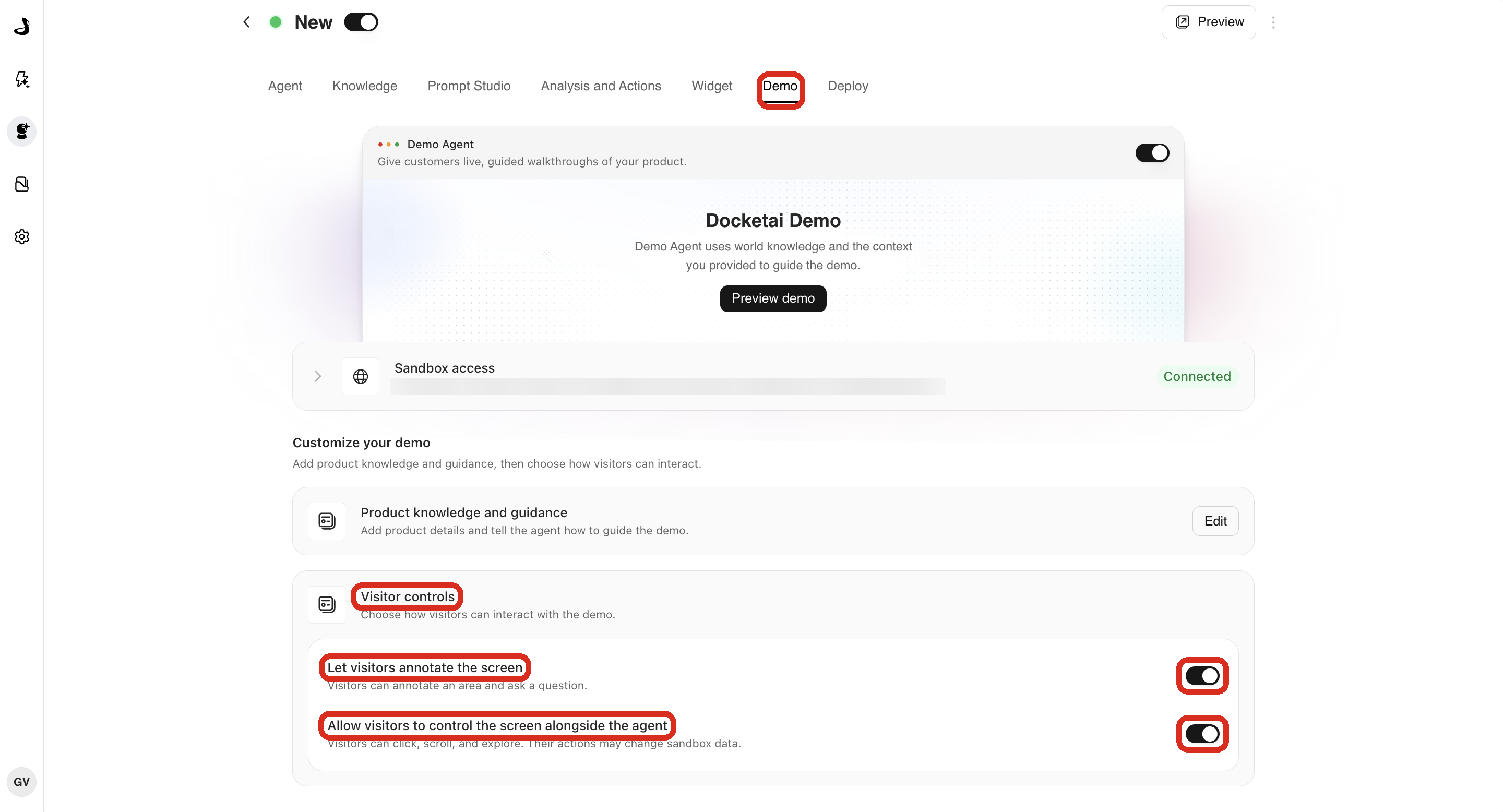
Visitor controls decide whether visitors can act on the screen or only watch while the agent drives. Both settings sit under Visitor controls on the Demo tab.
Turn on Let visitors annotate the screen so visitors can circle an area and ask a question about it.
Turn on Allow visitors to control the screen alongside the agent so visitors can click, scroll, and explore for themselves. Their actions run against your sandbox and can change data in it, which is why a resettable environment matters.
What visitors can do during a live demo
Visitors watch and talk to the agent by default. Two controls sit on the demo view when you have turned them on.
Co-browse with agent hands the mouse to the visitor so they can click and scroll themselves. The button then reads Back to guided demo, which returns control to the agent and lets it continue the walkthrough. The agent stays in the conversation throughout.
Annotate lets the visitor circle anywhere on the screen and ask about it. The agent answers about the area they marked.
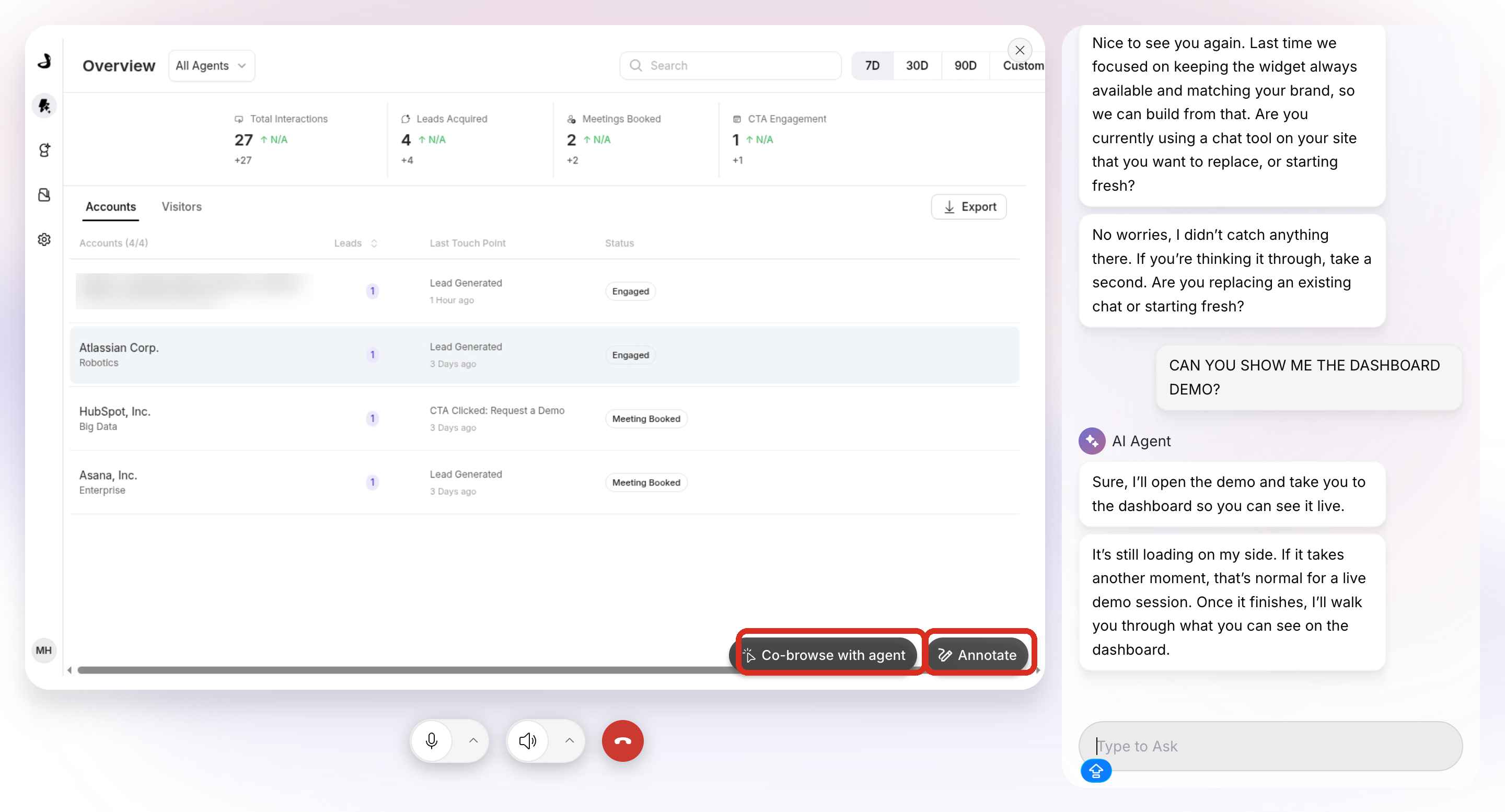
Visitors can also ask the agent where they are, and it will tell them which screen is open.
How to preview the demo before visitors see it
Preview runs the demo exactly as a visitor would experience it, so you can check the walkthrough before the agent is live.
Select Preview demo on the Demo tab.
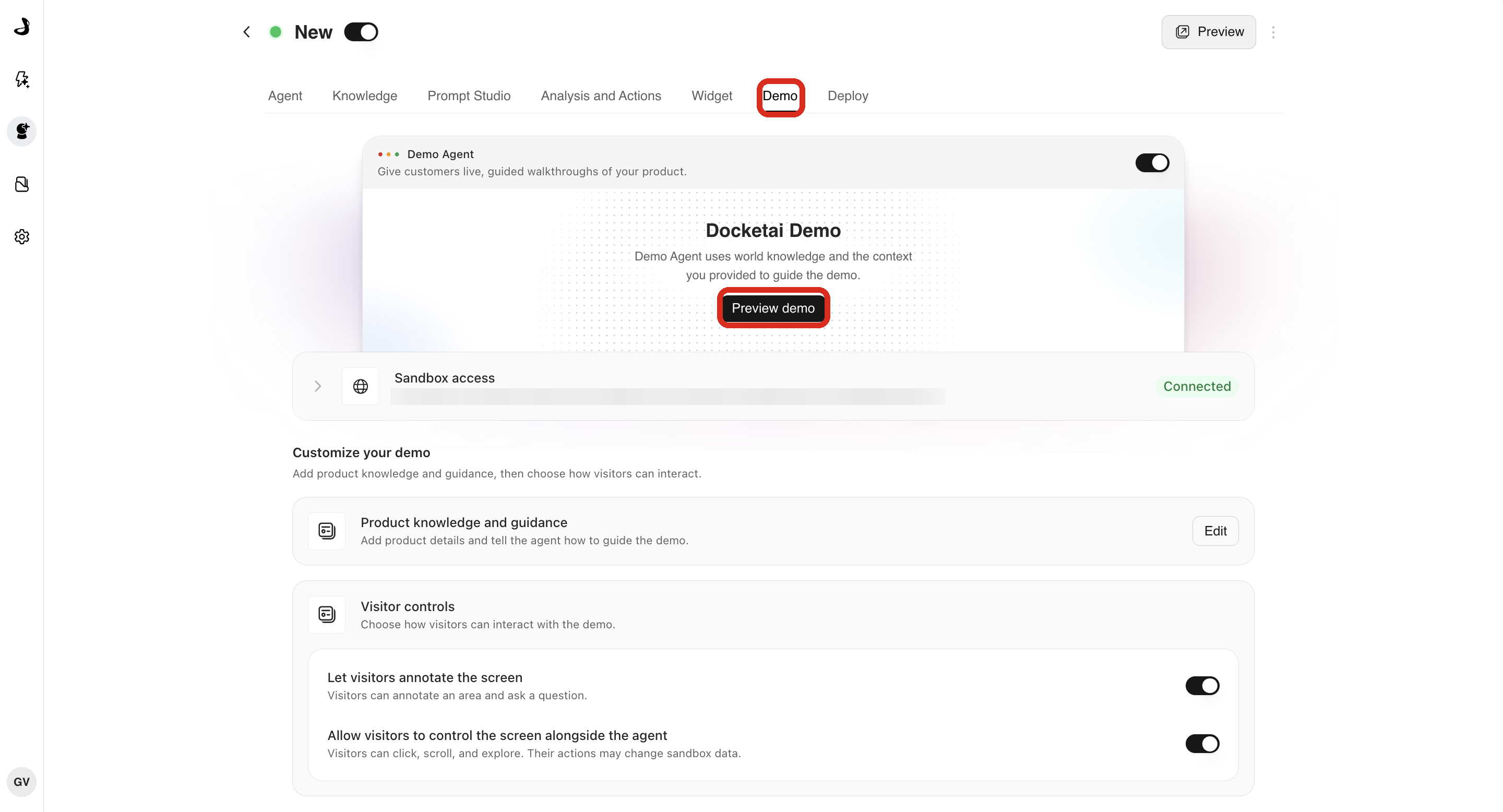
The demo opens straight away. Ask the agent for a few different parts of your product and check that it lands on the right screens and describes them correctly. If it goes somewhere unhelpful, add that detail to product knowledge and guidance and preview again.
How Docket keeps the demo inside your sandbox
Docket works out the demo's boundary from your product knowledge and guidance each time you save it.
Blocked pages are refused in the browser for the agent and for the visitor. When a visitor asks for one, the agent says the page is not part of the demo and continues the walkthrough rather than stalling.
Where demo conversations appear after the call
Demo conversations appear in the Marketing Agent Dashboard alongside your other agent conversations, with the demo events recorded in order. Screen annotations render in the transcript with the image the visitor marked up.
Troubleshooting
What you see | Why it happens | What to do |
|---|---|---|
The agent has no Demo tab | Demo Agent is available on agents created on the current version of Docket. | Create a new agent and set the demo up there. |
The demo opens on a sign-in screen | The Sandbox URL points at your login page, or the sandbox needs a login and This sandbox requires sign-in is not selected. | Point Sandbox URL at the page you want demos to start from, then select This sandbox requires sign-in and add the credentials. |
Edits to product knowledge and guidance have no effect | The drawer closed without saving. | Open Product knowledge and guidance again and select Save changes. |
Visitors cannot take control or annotate | Those switches are off. | Turn on Let visitors annotate the screen or Allow visitors to control the screen alongside the agent under Visitor controls. |
The agent will not show part of your product | That page is on the Restricted URLs list in your guidance. | Remove the page from that list, then select Save changes. |
The demo returns to the start screen | The session ended while the visitor was inactive. | Ask for the demo again. The agent starts a new session. |
Frequently asked questions
Do I need to add product knowledge and guidance before turning Demo Agent on?
No, it is not a prerequisite, and the demo can run without it too. However, adding product knowledge and guidance is highly recommended as it is what lets the agent navigate your product and deliver the walkthrough accurately.
Can visitors see my sandbox username and password?
No. Docket stores the credentials and uses them to open your sandbox. The agent does not have access to the password, and the sign-in is not part of what the visitor watches.
If a visitor closes the demo and opens it again, does it restart?
No. In the same conversation the demo reopens on the screen it was showing, and the agent does not sign in to the sandbox again. A new conversation starts a fresh demo.
What happens if a visitor asks for a person during a demo?
The demo view stays open and the visitor's messages go to your handoff channel. The conversation does not switch back to the agent afterwards.
Can a visitor's clicks change data in my sandbox?
Yes, when Allow visitors to control the screen alongside the agent is on. Visitors can click, scroll, and explore, and their actions may change sandbox data. Turn that switch off to keep the agent in control of the screen. Visitors can still ask questions, and can still annotate when Let visitors annotate the screen is on.
What happens if a visitor opens a page on the Restricted URLs list?
They see a message headed "This page isn't part of the demo", telling them they have stepped outside the sandbox set up for the walkthrough. The demo returns to the last working page after five seconds, and the visitor can select Take me back to return straight away.
Does cloning a Marketing Agent copy the demo setup?
No. A cloned agent starts with Demo Agent turned off, and the sandbox connection and product knowledge are not copied. Set the demo up again on the new agent.
Can I stop the demo reaching parts of my sandbox?
Yes. Add the URLs of the pages you want blocked under a "Restricted URLs" heading in product knowledge and guidance. Docket turns them into blocked areas when you save, and blocks them for both the agent and the visitor.
Does the agent speak during the demo?
The agent narrates the walkthrough as it works, and the visitor can reply by voice or by typing. Which modes are available depends on the agent's interaction mode.
Does Preview demo ask for an email or push a meeting?
No. Preview opens the walkthrough directly, without email capture, calls to action, or a meeting booking prompt, so you can judge the demo on its own.