Configuring Persona, Greeting, and Avatar
Last updated: September 29, 2026
Persona is how your Marketing Agent introduces itself: the name visitors see, the first thing it says, and the face next to the conversation.
These are small settings that set the tone of every conversation, so they are worth a few minutes before you launch an agent.
Where do you find Persona settings?
Open Marketing Agent Configuration and select your agent.
Open the Agent tab.
Select Persona under Setup & Manage to open the section.
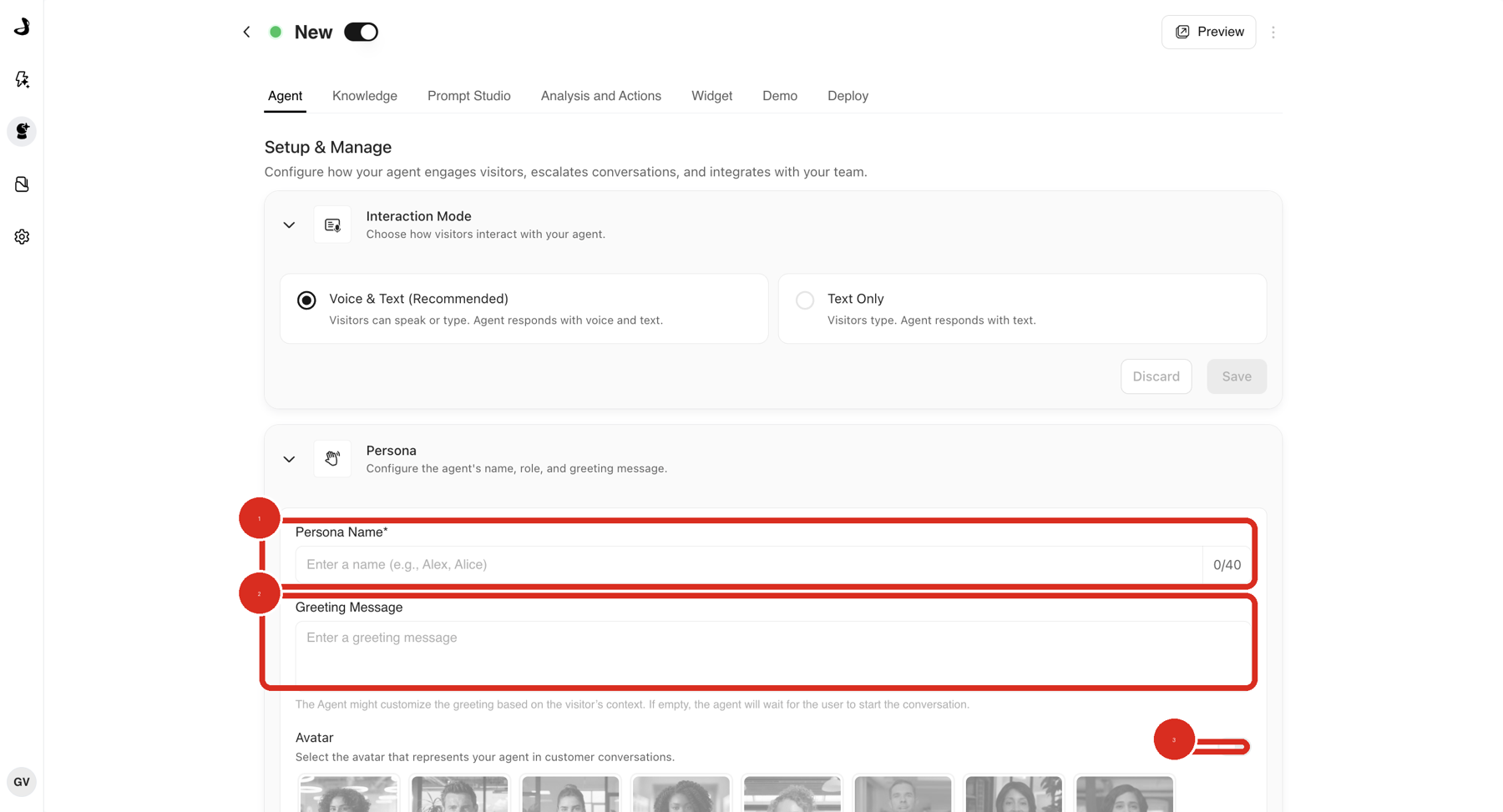
What should the persona name be?
A short, human first name works best, and the field allows up to 40 characters. Persona Name is required.
Match it to the job the agent does. A homepage assistant can use a friendly general name, while a campaign agent can carry the tone of that campaign. Visitors read it at a glance in the widget, so shorter is easier to scan.
What makes a good greeting message?
One line that says what the agent can help with. Greeting Message is the first thing a visitor sees, and it sets what they ask next.
"How can I help?" puts the work back on the visitor. "I can walk you through pricing, setup, or book you time with the team" tells them what is actually on offer.
If you leave the greeting empty, the agent waits for the visitor to start. The agent may also adapt the greeting to what it knows about the visitor, so keep your wording simple and free of assumptions about who is reading it.
How do you choose or turn off the avatar?
The Avatar section has its own switch, and the gallery is greyed out until that switch is on. If you cannot select a picture, that switch is the reason.
Turn on the switch at the right of Avatar.
Select one of the avatars in the gallery.
Select Save.
Leave the switch off if you would rather the agent appear without a face, which some teams prefer when the agent is clearly presented as an assistant rather than a person.
How do you confirm the persona is live?
Reload the Agent tab and reopen Persona to confirm your name, greeting, and avatar saved.
Select Preview and start a conversation.
Check the widget shows the name and avatar you chose, and opens with your greeting.
Why doesn't my persona look right?
What you see | What to check |
|---|---|
You cannot select an avatar | The Avatar switch is off, which greys out the gallery. Turn it on first. |
The greeting does not appear | Confirm Greeting Message has text and was saved, then preview again. |
Save is greyed out | Save becomes available once you change a field in the section. |
The greeting is not the words you wrote | The agent can adapt the greeting to visitor context. Keep it short and general if you want it used as written. |
The agent talks about your company in the third person | That comes from the agent's instructions rather than Persona. Tell it to speak as your company, not about it. |
Frequently asked questions
How long can the persona name be?
Up to 40 characters, with a counter next to the field. The name is required.
Can I upload our own avatar image?
You choose from the avatars Docket provides. If none suit the agent, turning the Avatar switch off is the alternative.
Is the persona the same as the agent name?
No. The agent name is what you and your team see in Marketing Agent Configuration. The persona name is what visitors see in the widget.
Can two agents share a persona?
Yes. Persona is set per agent, and nothing stops you using the same name and avatar across several so the experience feels consistent.
Does the persona change how the agent writes?
Only a little. Tone, boundaries, and what the agent will discuss come from its instructions. See Editing Agent Behaviour with Prompt Studio, and Understanding Agent Modes: Voice & Text vs Text Only for how the agent sounds when speaking.