How to Validate a Widget Deployment
Last updated: September 29, 2026
You have added the Docket script to your site, and now you want to confirm the widget really works before visitors arrive. Start inside Docket, which reports whether it has detected the script on each whitelisted domain, then test the live page yourself. Have the agent open in Docket and the page you installed the script on open in another tab.
How do I check in Docket that it detected my widget script?
Open the agent's Widget tab and read the detection state on each domain row under Whitelist Domains, which is where Docket reports whether it found the script on that domain.
Log in to Docket at app.docketai.com.
Click Marketing Agent Configuration in the left sidebar.
Select the agent you deployed.
Open the Widget tab.
Find the Whitelist Domains section, "Configure the domains that can display your widget."
Confirm the domain you installed the script on is listed.
Read the detection state on that domain's row.
Use the rescan control next to the Add Domain field after you change the page.
A domain Docket cannot verify reads "We couldn't find the DocketAI Script on your domain". Fix that before you spend time in page source or DevTools, because the widget only works on whitelisted domains.
If the domain is missing from the list, add it. The Add Domain field is prefixed https://. Whitelisting Domains for Your Marketing Agent Widget covers the section in full.
How do I test the widget on the live page?
Open the page in a clean browser session and follow the same path a visitor would, from the widget appearing to a short conversation.
Open the target page in a private browser window.
Confirm the widget appears the way its behaviour setting says it should.
Open the widget and send a short test message.
Confirm CTAs, meeting booking, handoff, and post-call actions behave as configured.
Test the microphone if the agent uses Voice & Text mode.
Confirm the widget stays hidden on pages you excluded.
Open the browser console and network panel, and look for failed or blocked Docket requests.
Confirm the loader script request appears once, using the host shown in your own agent's generated script.
Repeat the check at desktop and mobile widths.
Widget mode changes what you should expect on a phone. Co-browsing falls back to Classic on mobile, so a phone shows the overlay widget instead of the right side panel even when the agent is set to Co-browsing.
Which Docket settings decide whether the widget appears?
Four things decide whether the widget loads at all: the domain whitelist, the widget behaviour set for that domain, the agent's status, and any IP Access Rules.
Whitelist Domains, on the Widget tab. The widget only works on domains listed here.
Widget Behaviour and its Show Widget on choice, on the Widget tab. Per domain it can be All Pages, Selected Pages, or On Click (Function Call).
Agent status. A Draft agent is not live on your website, so set the agent to Active before you judge the deployment.
The generated script and IP Access Rules, both on the Deploy tab.
Widget mode, Classic or Co-browsing, decides how the widget presents rather than whether it loads. Classic overlays the website. Co-browsing is a right side panel.
These settings change what the agent does once it opens:
Agent Instructions, where the location varies by agent. Older agents have an Agent Instructions section on the Agent tab. Newer agents have no such section and use the Prompt Studio tab instead, described in Editing Agent Behaviour with Prompt Studio.
Persona, greeting, avatar, CTAs, Work Hours, and handoff, covered in Agent Configuration Overview.
Post-call analysis and CRM sync, on the Analysis and Actions tab.
The set of tabs on an agent differs by when the agent was created, so look for the section by name rather than expecting a fixed row of tabs.
What should I re-check on the Deploy tab?
Open the agent's Deploy tab and re-check its three sections, which hold the script you installed, the standalone link, and the rules that can refuse a visitor.
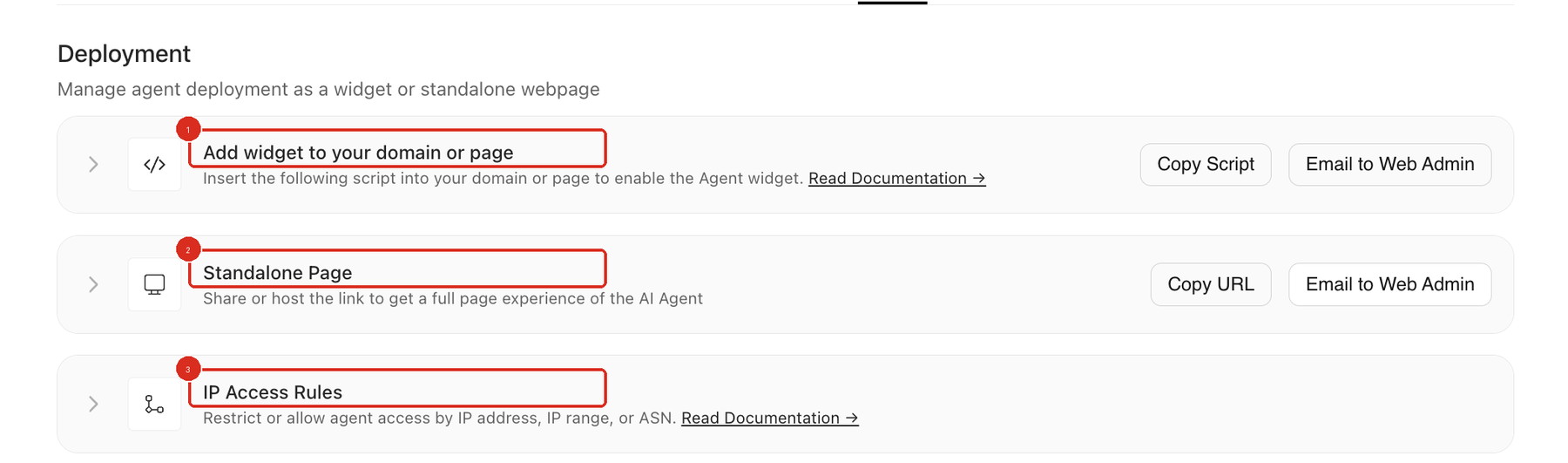
Add widget to your domain or page. Click Copy Script and compare the current script against what is on your page, including the agent id and the loader host.
Standalone Page. Click Copy URL and open the link to check the agent itself without your website in the way.
IP Access Rules. Review every rule listed and confirm each one is intentional.
Do not add your own office IP address under Restrict Access For hoping to allow it. A rule always restricts, so that entry would block your office. Setting Up IP Access Rules for Agent Security explains the form.
Why doesn't the widget appear on load even though the script is installed?
A widget set to On Click (Function Call) is not meant to appear on load, so nothing showing by itself is not a failed deployment.
Check Show Widget on for that domain under Widget Behaviour. With On Click (Function Call) selected, the widget opens only when your site calls a JavaScript function, so validate it by triggering that function rather than by loading the page. Setting up OnClick Trigger for the widget covers the call your site needs to make.
Why am I seeing a 403 in the network panel?
A 403 on a Docket request means access was refused, and there are two causes to check.
An IP Access Rule matches the visitor. A blocked visitor gets an HTTP 403, so compare their IP address, range, ASN, or country code against the rules on the Deploy tab.
The domain is not whitelisted. An un-whitelisted domain also returns 403, so add it under Whitelist Domains on the Widget tab.
The status code is the same for both causes. Check the domain whitelist first, then the rules.
Could a consent manager, CSP, or firewall be blocking Docket?
Yes. Any of them can stop the Docket script from reaching the browser, so rule them out when the request never appears or never completes.
Allow both of these hosts:
docketai.comand its subdomains.d33t2173eag6fx.cloudfront.net.
Check them in the consent manager's script rules, in script-src and connect-src in your Content Security Policy, and in any firewall, proxy, DNS, WAF, or content-blocking rule. Read the loader host from your own agent's generated script as well, because it can differ by agent. Adding the Marketing Agent Script to Your Website covers allowlisting in more detail.
What do the common widget symptoms mean?
Most failed checks trace back to the script, the domain whitelist, page targeting, IP Access Rules, or browser permissions.
Symptom | What to check |
|---|---|
Widget does not appear at all | Confirm the script is on the page, the domain is whitelisted and detected, and page targeting includes that page. |
Widget does not appear until something is clicked | Expected when Show Widget on is On Click (Function Call). The widget waits for your site's function call. |
Widget appears on the wrong page | Review Selected Pages and the rest of Widget Behaviour for that domain. |
Docket request returns HTTP 403 | Either an IP Access Rule matched the visitor, or the domain is not whitelisted. |
Script request is blocked or never fires | Allow |
No right side panel on a phone | Expected. Co-browsing renders as Classic on mobile. |
Voice does not work | Confirm the page is served over HTTPS and the browser has microphone permission. |
Frequently asked questions
Does Docket tell me whether it found the script on my domain?
Yes. Each row under Whitelist Domains on the Widget tab carries a detection state for that domain, and there is a rescan control next to the Add Domain field. Check that before you open page source or DevTools.
Docket still says it couldn't find the script. What should I do?
Run the rescan control next to Add Domain once the script is live on that domain. If the row still reads "We couldn't find the DocketAI Script on your domain", confirm the script is present on that exact domain and that your consent manager, CSP, firewall, or WAF allows Docket's hosts. Domains carried over from a cloned agent arrive unverified, because verification cannot transfer.
Is a widget that never appears on load a broken install?
No, not when Show Widget on is set to On Click (Function Call). That setting means the widget waits for your site to call a JavaScript function, so loading the page proves nothing on its own. See Setting up OnClick Trigger for the widget.
Why is the widget not a right side panel on my phone?
Co-browsing falls back to Classic on mobile. A phone therefore shows the standard overlay widget, and that is not a sign the deployment failed. Test the right side panel at desktop width.
Why can't I find Agent Instructions on the Agent tab?
Newer agents have no Agent Instructions section. Those agents carry a Prompt Studio tab and the instructions are edited there instead, as described in Editing Agent Behaviour with Prompt Studio.
Can I validate the widget while the agent is in Draft?
No. A Draft agent is not live on your website, so a test on a live page needs the agent set to Active. Agent status is Active, Draft, or Disabled.
Can I use IP Access Rules to allow my office network?
No. Every rule restricts, so entering your office IP address would block your office. Use the rules only for networks that should be refused, and expect blocked visitors to see an HTTP 403.