Integrating Docket with WordPress, Webflow, and Shopify
Last updated: September 29, 2026
Add your Docket Marketing Agent to a WordPress, Webflow, or Shopify site by pasting the script Docket generates into the custom-code location your CMS provides.
Use this route when your pages are published by a CMS rather than hand-edited as HTML files. Before you start, open the agent's Deploy tab so you have the current script in hand.
What do I need before I add the script to my CMS?
You need a custom-code location you are allowed to edit, the current script from the agent's Deploy tab, and agreement on who publishes production changes.
Confirm your CMS plan and role allow custom JavaScript.
Add the site's domain under Whitelist Domains on the agent's Widget tab. The widget only works on whitelisted domains.
Decide how the widget should appear on pages, using Configuring Widget Behavior and Page Targeting Rules.
Use a staging site or unpublished theme when available.
Identify who owns production changes and rollback.
Where do I copy the current script for my CMS?
Copy it from Add widget to your domain or page on the agent's Deploy tab.
Log in to Docket at app.docketai.com.
Click Marketing Agent Configuration in the left sidebar.
Select the agent you want to deploy.
Open the Deploy tab.
Find Add widget to your domain or page under the Deployment heading.
Click Copy Script.
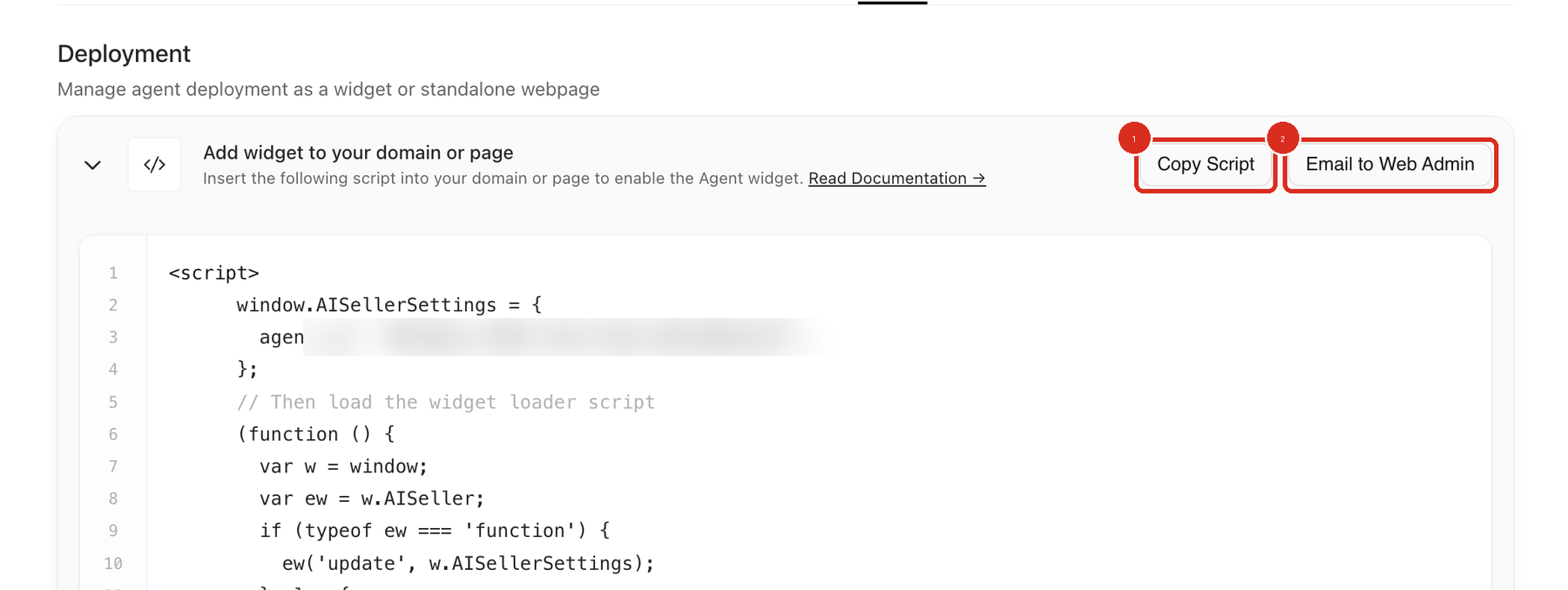
Copy Script is callout 1. Email to Web Admin, callout 2, sends the script to whoever manages the CMS when you are not the person pasting it in. See Sending Deployment Instructions to a Web Admin.
Do not reuse a script copied from another agent or an older document. The Deploy tab is the source of truth for the current agent.
How do I add the Docket widget to WordPress?
Paste the copied script into one custom-code location approved by your WordPress administrator, then clear every cache that sits between WordPress and the visitor.
Open the site's approved header/footer code manager, custom-code plugin, or child theme.
Add the Docket script to the site header or the template used by the intended pages.
Save or publish the change.
Clear WordPress, plugin, and CDN caches that could retain the old page output.
Avoid editing a parent theme directly when theme updates would overwrite the change.
A security plugin or web application firewall on a WordPress site can block the Docket script even when the script is present in the page source. If the widget does not appear, work through the allowlist section below before you edit the install again.
How do I add the Docket widget to Webflow?
Paste the copied script into the site-wide head code or the intended page's head code, then publish the site.
Open the site's custom-code settings.
Add the Docket script to the site-wide head code or the intended page's head code.
Save the change and publish the site.
Test the published staging and custom domains separately when both are in use.
Custom code may not execute inside the visual designer. Validate the published site.
Whitelist each published domain you test on. A domain that is not whitelisted in Docket returns an HTTP 403 for the widget.
How do I add the Docket widget to Shopify?
Paste the copied script into the shared storefront layout or an intended template, working on a duplicated or development theme first.
Duplicate the active theme or use the store's approved development theme.
Open the storefront theme code or approved custom-code integration.
Add the Docket script to the shared storefront layout or an intended template.
Save and preview the theme before publishing it.
Use Docket's page-targeting controls when the script is installed site-wide but the widget should appear only on selected storefront pages. The Show Widget on setting for each domain offers All Pages, Selected Pages, and On Click (Function Call).
Which Docket hosts does my CMS site need to allow?
Allow docketai.com and its subdomains, plus d33t2173eag6fx.cloudfront.net, in every place your site or your organization can block an external script.
Host | Why it is needed |
|---|---|
| Covers |
| Serves the widget script for older agents. |
Which host your agent uses depends on when the agent was created, and both are live today. Read the host from your own agent's script: open the Deploy tab, look at the loader URL inside Add widget to your domain or page, and allow the host you see there. Treat the two hosts above as the current list rather than a permanent one.
Check every one of these places, not only the first one you find:
The script rules in your consent manager.
The
script-srcdirective in your Content Security Policy, so the browser can load the script.The
connect-srcdirective in your Content Security Policy, so the widget can call back to Docket. Both directives need the hosts.Any firewall, proxy, DNS filter, or web application firewall rule, including a security plugin installed on the CMS itself.
On WordPress, a security plugin is a common cause. Allowlisting an external script is not the same as exempting one of your own URLs, and the two settings usually live on different screens. In one blocked go-live, the customer's security team was working in a Wordfence WAF Allowlisted URLs parameter table. That table exempts a parameter on the customer's own URLs from firewall rules and cannot allow an external script to load. Ask for the rule that governs outbound or third-party script loading instead.
How do I tell a caching problem from a blocked script?
Check the domain row under Whitelist Domains on the agent's Widget tab, because each row shows whether Docket has detected the script on that domain.
When Docket has not found it, the row reads "We couldn't find the DocketAI Script on your domain". Use the rescan control next to the Add Domain field to check the domain again after you publish.
For a CMS install this is the fastest way to separate the two usual causes. If Docket detects the script but you do not see the widget in your browser, suspect a cache, a consent manager, or page targeting. If Docket still cannot detect it after a rescan, the script is not reaching visitors: it was not published, the CMS cache is still serving old output, or a security plugin or firewall is blocking it.
For adding and managing the list, see Whitelisting Domains for Your Marketing Agent Widget.
How do I confirm the widget is live on my CMS site?
Open the published page in a private browser window and confirm the intended agent loads on the pages you expect.
Open the published test page in a private browser window.
Confirm the Docket script loads once.
Confirm the intended agent appears on allowed pages and stays hidden on excluded pages.
Complete a short text interaction and test any voice, CTA, meeting, slide, or video behavior the agent uses.
Repeat at desktop and mobile widths.
Why isn't the widget appearing on my CMS site?
Confirm the current script is in the published page source first, then rule out caching, a blocked script, and page targeting.
Problem | What to check |
|---|---|
Widget does not appear | Confirm the current script is present in rendered page source, and that the domain is listed under Whitelist Domains on the Widget tab. |
A security plugin or WAF is blocking the script | Allow |
Old behavior remains | Clear CMS and CDN caches, then test in a private browser window. |
Script is removed after a theme change | Move the installation to an approved persistent custom-code method or child/development theme. |
Widget appears on the wrong pages | Review Docket page targeting and the CMS template where the script was added. |
Browser blocks the script | Review Content Security Policy and consent-manager rules with the web administrator. |
Nothing loads and the request returns HTTP 403 | The domain is not whitelisted, or an IP Access Rule is blocking the visitor. |
More causes are covered in Troubleshooting Widget Not Loading or Displaying.
Frequently asked questions
Do WordPress, Webflow, and Shopify need different Docket scripts?
No. All three take the same script from Add widget to your domain or page on the agent's Deploy tab. What changes is where your CMS lets you paste it.
The script is installed but the widget never opens. What is wrong?
Check the Show Widget on setting for that domain on the Widget tab. On Click (Function Call) means the widget will not open by itself and your site must call a JavaScript function, so the install looks broken until that call exists. See Setting up OnClick Trigger for the widget.
Can I tell from Docket whether the script reached my site?
Yes. Each domain row under Whitelist Domains on the Widget tab shows whether Docket detected the script, and a row that has not been detected reads "We couldn't find the DocketAI Script on your domain". Rescan after publishing, using the control next to the Add Domain field.
The widget works on my custom domain but not on the staging domain. Why?
Each domain has to be whitelisted in Docket on its own. A domain that is not on the list returns an HTTP 403, so add the staging domain under Whitelist Domains while you are testing.
Which hosts should I give our security team?
Give them docketai.com and its subdomains, plus d33t2173eag6fx.cloudfront.net. Ask them to apply both hosts to the consent manager's script rules, to script-src and connect-src in the Content Security Policy, and to any firewall, proxy, DNS, or WAF rule.
The script disappeared after a theme update. How do I stop that happening again?
Move the script out of the parent theme. Use a child theme, a development theme, or an approved custom-code location that theme updates do not overwrite.