Deploy a Marketing Agent
Last updated: September 29, 2026
Getting your Marketing Agent in front of visitors takes one of three routes: add it to your website as a widget, share it as a full page at its own link, or restrict which networks can reach it. Choose the widget when you want the agent on pages people already visit, and the standalone page when you want a link you can send, host, or embed. You will need an agent that is ready to go live, plus access to your website code or the person who manages it.
Where do I find the deployment options for my agent?
The deployment options live on the Deploy tab of the agent you want to launch.
Open Marketing Agent Configuration in the left sidebar.
Select the agent you want to deploy.
Open the Deploy tab.
The tab is headed Deployment and holds three collapsible sections. Add widget to your domain or page is already expanded when you arrive. Standalone Page and IP Access Rules start collapsed, so select a section to open it.
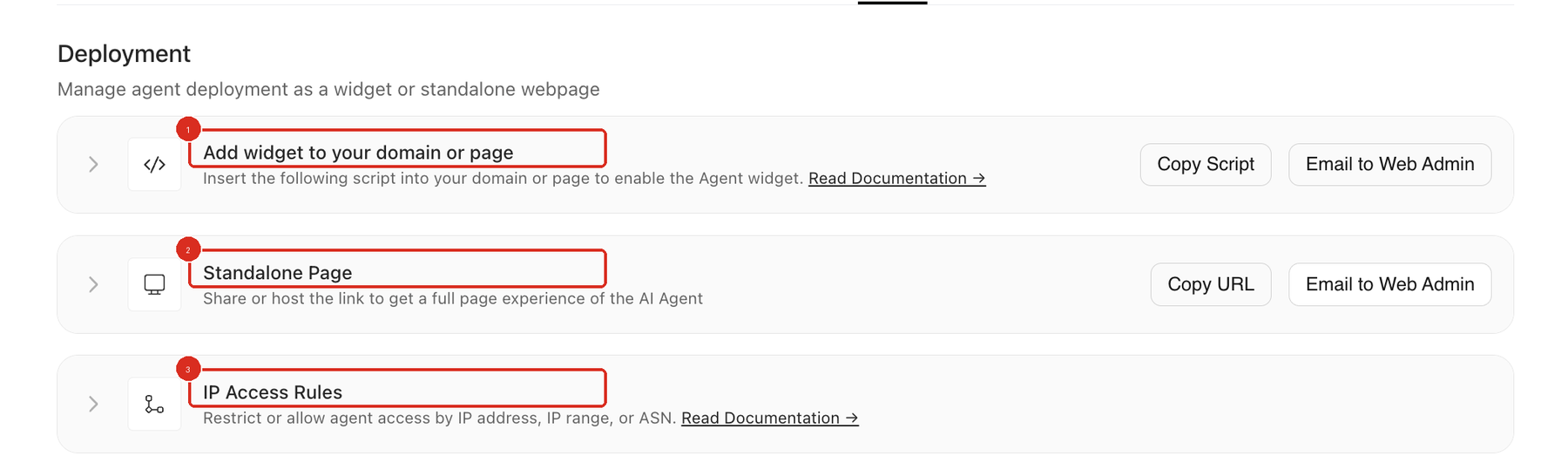
Which deployment method should I use?
Match the section to what you want visitors to see, using the table below.
Your goal | Use |
|---|---|
Show the agent on your website | Add widget to your domain or page |
Share a full-page agent experience at a link | Standalone Page, then Standalone Page URL |
Place the full-page agent inside a page of your own | Standalone Page, then Embedding Code |
Block a network from reaching the agent | IP Access Rules |
How do I add the Docket widget to my website?
Copy the generated script from Add widget to your domain or page, then add it to the pages where the agent should appear.
Expand Add widget to your domain or page if it is collapsed.
Select Copy Script.
Paste the script into your site, or select Email to Web Admin to send it to the person who manages your site.
The script sets window.AISellerSettings with your agent id, then loads the widget from Docket's CDN. Two installation routes are documented step by step: Installing the Widget with Google Tag Manager and Installing the Widget Directly in Website HTML.
The widget only runs on domains you have whitelisted. Add each domain on the Widget tab under Whitelist Domains, as described in Whitelisting Domains for Your Marketing Agent Widget. A domain that is not whitelisted returns an HTTP 403.
How do I share the agent as a standalone page?
Expand Standalone Page to get a hosted link to the full-page agent, and the code to embed that page elsewhere.
Standalone Page URL is the hosted link, in the form https://aiseller.app.docketai.com/<id>/. Select Copy URL in the section header to copy it without expanding the section.
Embedding Code is a generated iframe snippet with its own Copy button, for placing the page inside a page of your own.
The section also has an Email to Web Admin button.
The generated snippet uses height:100%. Pasted into a container with no height of its own, the iframe collapses and nothing is visible, so give the parent container an explicit height or replace height:100% with a fixed height. For the link on its own, see Deploying the Agent as a Standalone Page. For the embed, see Embedding a Standalone Agent with an iframe.
How do I block a network from reaching my agent?
Add a rule under IP Access Rules on the Deploy tab, naming the IP address, IP range, ASN, or two-letter country code you want kept out.
Expand IP Access Rules.
Under Restrict Access For, type the value in the IP address, range or ASN field.
Type a name your team will recognize in the Rule Label field, which is optional.
Select Add Rule. The button stays disabled until the value field has something in it.
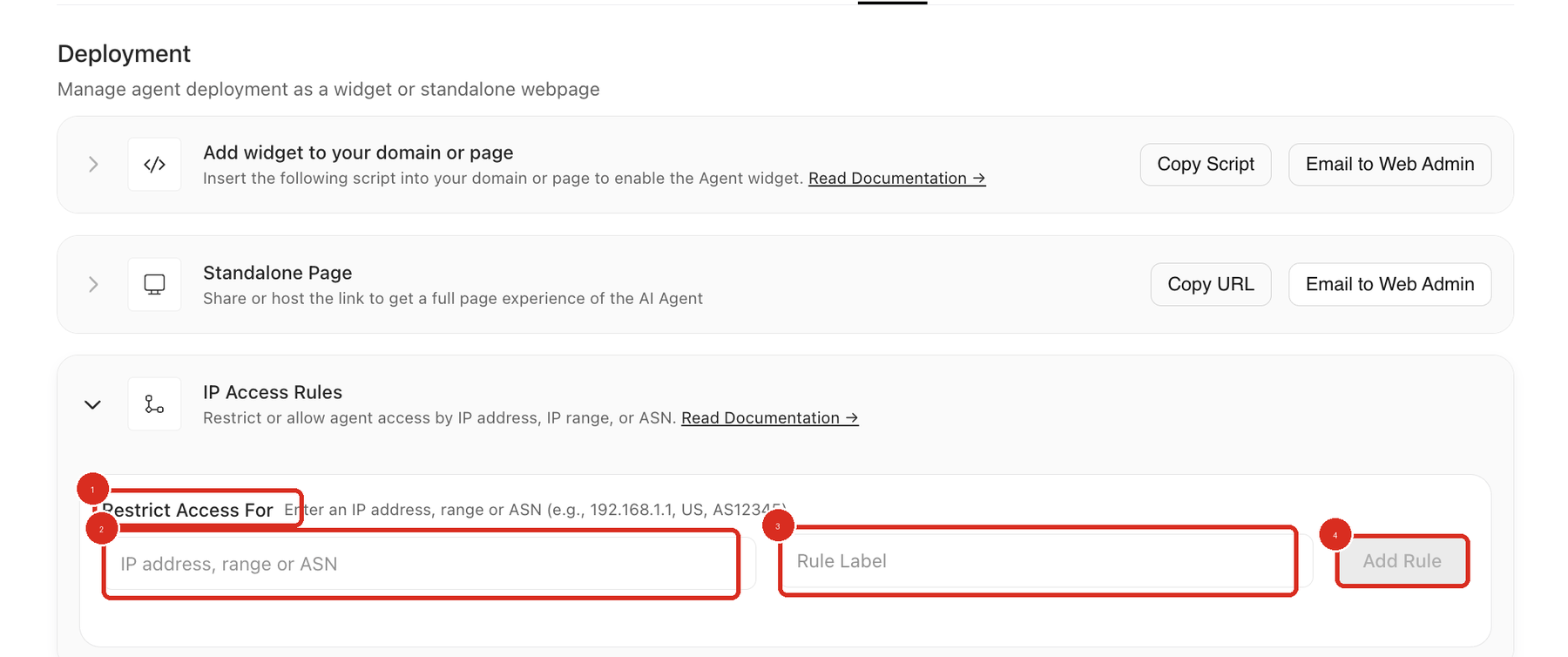
Every rule you add restricts. There is no rule type selector, and Add Rule is the only button, so nothing else needs confirming. Each rule then appears below the form with a delete control.
Check your rules before you share the agent. A visitor caught by a rule gets an HTTP 403, so a rule that matches your own range will block your own team. Setting Up IP Access Rules for Agent Security covers the field formats in more detail.
What do we need to allow through our CSP, firewall, or consent manager?
Two hosts have to get through for the agent to load:
docketai.com and its subdomains, which covers cdn.docketai.com, app.docketai.com, and aiseller.app.docketai.com
d33t2173eag6fx.cloudfront.net
Check the script rules in your consent manager, both script-src and connect-src in your Content Security Policy, and any firewall, proxy, DNS, or content-blocking rule. Read the loader host from your own agent's script as well, since the host differs between agents while Docket moves between CDNs.
A web application firewall's allowlisted URL parameter table is the wrong screen for this. It exempts a parameter on your own URLs and cannot let an external script through.
How do I confirm the agent is live for visitors?
Open the page or the standalone link in a private browser window and watch the agent load as a visitor would.
Open the website or the Standalone Page URL in a private browser window.
Confirm the agent loads.
Start a test conversation.
Confirm the expected CTA, booking, or handoff behavior appears.
For the full check, including what to look for in the browser console and network tab, see How to Validate a Widget Deployment.
Why isn't my agent showing up after I deployed it?
Check the agent's status, the domain whitelist, your network filters, and the widget's open behavior, in that order.
Problem | What to check |
|---|---|
Nothing appears anywhere | Confirm the agent status is Active. A Draft agent is not live on the website. |
Nothing appears on one domain | Add that domain on the Widget tab under Whitelist Domains. An un-whitelisted domain returns HTTP 403. |
The script never loads | Check your consent manager, Content Security Policy, firewall, and proxy for the two hosts listed above. |
The widget loads but never opens | Show Widget on may be set to On Click (Function Call), which means your site has to call a JavaScript function. See Setting up OnClick Trigger for the widget. |
A tester cannot open the agent | Review IP Access Rules and delete any rule that matches the tester's network. |
The wrong agent appears | Return to Marketing Agent Configuration and confirm you opened the intended agent before copying deployment values. |
Frequently asked questions
Can I use IP Access Rules to allow only my office network?
No. Every rule in IP Access Rules restricts the value you enter, so typing your office range would block your office. There is no setting that limits access to one network and turns everyone else away.
Why does the IP Access Rules section say "Restrict or allow"?
The section subtitle is out of step with the form, and the form is the one to trust. It offers a single value field, an optional Rule Label, and Add Rule, and a rule always restricts.
Why does my agent's script point at a different host than my colleague's?
Docket is moving the widget loader between two CDN hosts, and both are live, so scripts generated at different times can differ. Copy the script from your own agent rather than reusing one from a teammate. If your site filters outbound scripts, allow both hosts listed above.
Do I need to add my website anywhere else in Docket?
Yes. Add each domain on the Widget tab under Whitelist Domains, because the widget only works on whitelisted domains. Each domain row also shows whether Docket has detected the script on that domain, and there is a rescan control next to the Add Domain field.
Can I deploy an agent that is still in Draft?
Set the agent to Active first, because a Draft agent is not live on the website. If you plan to send the Standalone Page URL to someone, open it yourself first and confirm it works.
Does voice work on an embedded standalone page?
Yes, as long as you paste the generated Embedding Code unchanged. It includes allow="microphone" and allowfullscreen, and voice works when the parent page is served over HTTPS and those attributes are left intact.