Deploying the Agent as a Standalone Page
Last updated: September 29, 2026
Share your Docket Marketing Agent as a link that opens the agent on a full page of its own, with no changes to your website.
Choose this over the website widget when you want one destination to send people to, such as a campaign email, a sales follow-up, or a QR code.
What do I need before I share a standalone page?
You need an agent in Docket that is already configured the way a visitor should see it, plus a decision about where the link will be shared.
The agent has been created in Docket.
The agent's persona, greeting, and CTAs are set the way a visitor should see them.
You know where the standalone page link will be shared.
You know whether any network should be kept out, because IP Access Rules only restrict access.
How do I share my Docket agent as a full-page link?
Copy the link from the Standalone Page section on the agent's Deploy tab, then share that link wherever you want people to land.
Log in to Docket at app.docketai.com.
Click Marketing Agent Configuration in the left sidebar.
Select the agent you want to share.
Open the Deploy tab.
Find Standalone Page under the Deployment heading.
Click Copy URL on that section's header row.
Click the arrow at the left of the Standalone Page row to expand the section.
Read the full link in the Standalone Page URL field.
Click Copy beside Embedding Code if you also want the embed snippet.
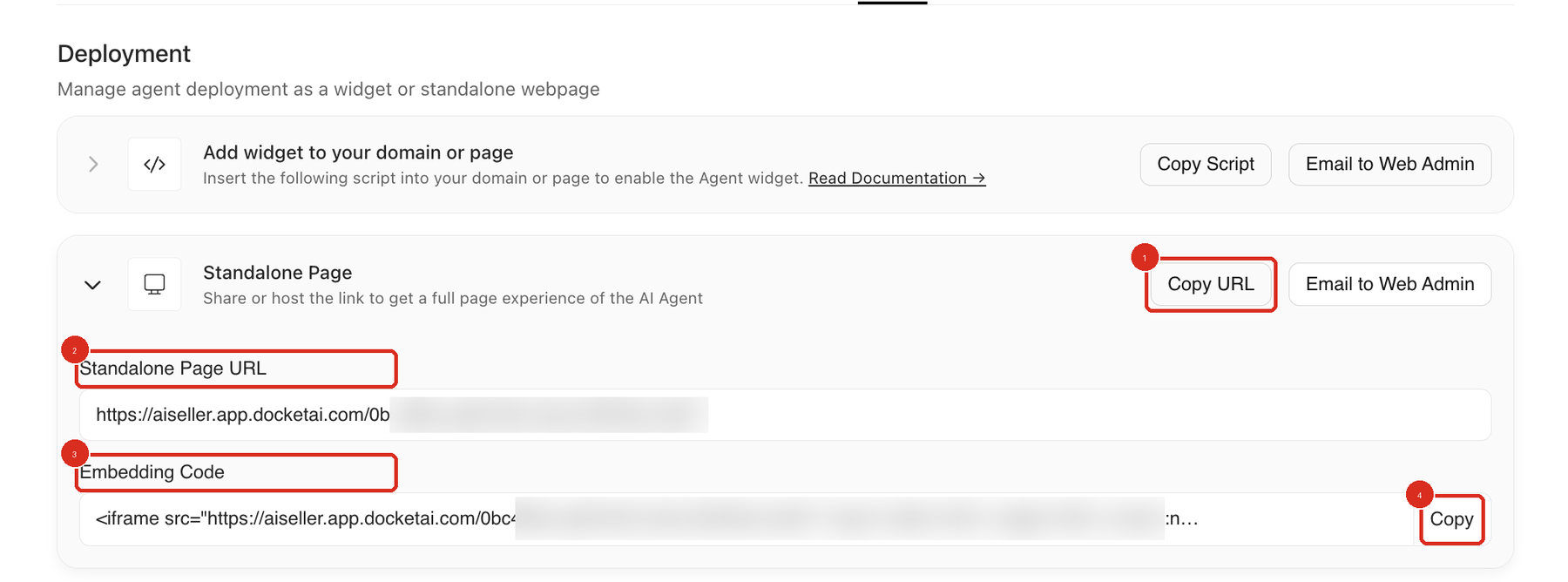
Standalone Page is collapsed when you open the Deploy tab. Expanding it is what reveals the Standalone Page URL and Embedding Code fields.
Copy URL and Email to Web Admin sit on the header row, so both work while the section is still collapsed. Expand the section only when you want to read the link itself or take the embed snippet.
The link takes the form https://aiseller.app.docketai.com/<id>/. That id identifies the standalone page, not the agent, so copy the link rather than building it by hand.
Where can I use the standalone page link?
Use it anywhere a visitor should land directly in the agent experience instead of on one of your own web pages.
Email campaigns.
Sales outreach.
Event follow-up messages.
Internal review links.
Campaign landing-page CTAs.
QR codes for events or printed material.
How do I put the agent inside a page I already have?
Use the Embedding Code that Docket generates in the expanded Standalone Page section, which wraps the standalone page URL in an iframe.
Click Copy beside Embedding Code to take the snippet. Sizing, the microphone attribute, and screen-reader labelling are covered in Embedding a Standalone Agent with an iframe.
How do I send the link to a web admin?
Click Email to Web Admin on the Standalone Page row when someone else owns the page, campaign, or website where the link will be used.
Agree these points with the web admin so the link is used as you intend:
Where the link should appear.
Which CTA text should point to the standalone page.
Whether the link is for staging, testing, or production.
When the link should go live.
For more on that action, see Sending Deployment Instructions to a Web Admin.
Should I use the standalone page or the website widget?
Use the standalone page when the visitor should land directly in the agent experience, and the website widget when the agent should appear on your existing website pages.
Option | Best For | Requires Website Script |
|---|---|---|
Standalone Page | Direct links, campaigns, outreach, internal review | No |
Website Widget | Always-on website engagement | Yes |
The widget route needs the generated script on your site, which is described in Adding the Marketing Agent Script to Your Website.
How do I check the standalone page before I share it?
Open the copied link in a private browser window and walk the path you expect a visitor to take.
Confirm the intended agent loads.
Complete a short text interaction.
Confirm the greeting, persona, and branding are correct.
Test microphone access when the agent uses Voice & Text mode.
Confirm slides, videos, CTAs, and meeting booking behave as configured.
Confirm any IP Access Rules are intentional, and retest from a network that a rule should block.
Why isn't the standalone page working for a visitor?
Check the agent's IP Access Rules first, then confirm the visitor has the current link for the right agent.
Problem | What to check |
|---|---|
The visitor gets an HTTP 403 | An IP Access Rule is blocking them. Compare their public IP address, range, ASN, or country code against the rules on the Deploy tab. |
URL does not load | Copy the current URL again from the intended agent's Deploy tab. |
Microphone is unavailable | Use HTTPS and allow microphone access in the browser. |
Wrong agent appears | Replace the shared link with the URL from the intended agent. |
Frequently asked questions
Do I have to expand the Standalone Page section to copy the link?
No. Copy URL sits on the section's header row and works while Standalone Page is still collapsed. Expand the section when you want to read the Standalone Page URL field or take the generated Embedding Code.
Why does a visitor get an HTTP 403 on the standalone page?
An IP Access Rule is blocking that visitor. Rules on the Deploy tab restrict access only, so any rule matching the visitor's IP address, range, ASN, or country code turns the page into a 403 for them. See Setting Up IP Access Rules for Agent Security.
Is the id in the standalone page URL the same as the agent id?
No. The id in https://aiseller.app.docketai.com/<id>/ is a standalone page id, not the agent id. Copy the URL from the Deploy tab instead of assembling it from an agent id.
Can I put the standalone agent inside one of my own pages?
Yes. Copy the generated Embedding Code and place that iframe in your page. Embedding a Standalone Agent with an iframe covers how to size it and what the attributes do.
Does the standalone page need the agent script on my website?
No. The standalone page is hosted for you and opens from the link on its own. The generated script is only needed for the website widget.