Apps and Integrations Overview
Last updated: September 23, 2026
Connect Docket to the tools your team already uses for content, CRM, calendars, and marketing operations, then switch each one on for the agents that should use it.
Most integrations work in two stages. You connect the app once for the whole workspace in Settings, and then you turn on the part you need for an individual Marketing Agent. Knowing about those two stages saves the most common surprise: an app that shows as Connected while an agent still writes nothing.
A few integrations work differently, because they belong to a person rather than the workspace. Your own calendar and your own Zoom account live in Personal Settings, and each person connects their own.
Which apps can I connect to Docket?
The Integrations page groups every workspace app in one place. What each one is for, and where to read more:
App | What you use it for | Setup guide |
|---|---|---|
Slack | Send human-handoff and post-call alerts to a Slack channel. | |
Teams | Send human-handoff and post-call alerts to a Microsoft Teams channel. | |
Google Drive | Use documents in Google Drive as agent knowledge. | |
Intercom | Use your Intercom help content as agent knowledge. | |
Sharepoint | Use documents in SharePoint as agent knowledge. | |
Salesforce CRM | Read Salesforce records for context, and write conversations back as Leads and Events. | |
HubSpot | Read HubSpot records for context, and write conversations back as Contacts and Timeline Events. | |
MS Dynamics CRM | Read Dynamics 365 records for context, and write conversations back as Leads and activities. | |
Marketo | Import Marketo Lead data, and write Docket activity and program enrollment back to Marketo. | |
Google Calendar Service Account | Let the Marketing Agent read team availability and book meetings on Google Calendar. | |
Chili Piper | Send meeting booking through your existing Chili Piper Concierge routers. | |
Zoom | Add Zoom conferencing to meetings the Marketing Agent books. | Connect it from the Zoom card, then choose Zoom as the meeting platform on the agent. |
The exact set of cards can differ between workspaces, because availability depends on your plan and on the sources your team uses. Docket connects to more sources than this page shows by default, so contact Docket Support if you need one that is not listed.
Where do I find the Apps and Integrations page?
The Integrations tab in Settings holds every workspace-level app.
Log in to Docket at app.docketai.com.
Select the Settings icon at the bottom of the left icon rail.
Open the Integrations tab. The page is titled Apps and Integrations.
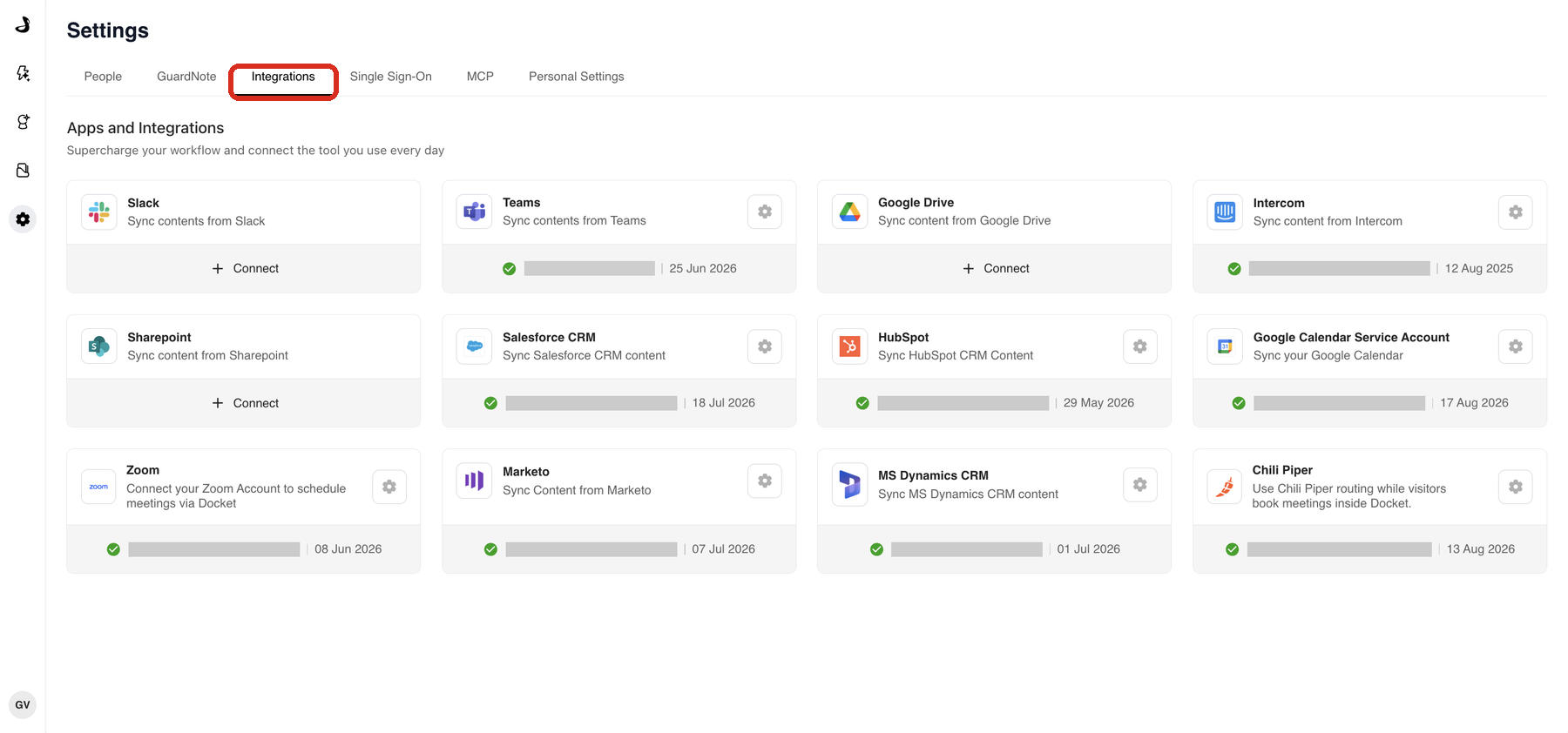
Connecting a workspace integration needs the Admin role in Docket. Roles are managed on the People tab in the same Settings area.
Which integrations does each person connect for themselves?
Your own calendar and your own Zoom account are connected in Personal Settings, not on the Integrations tab. Each person who should host meetings connects their own, so a rep who has not connected is never offered to a visitor.
Open Settings.
Select Personal Settings.
Under Integrations, find Google Calendar, Outlook Calendar, or Zoom, and select Connect.
Set your availability under Work Hours on the same page.
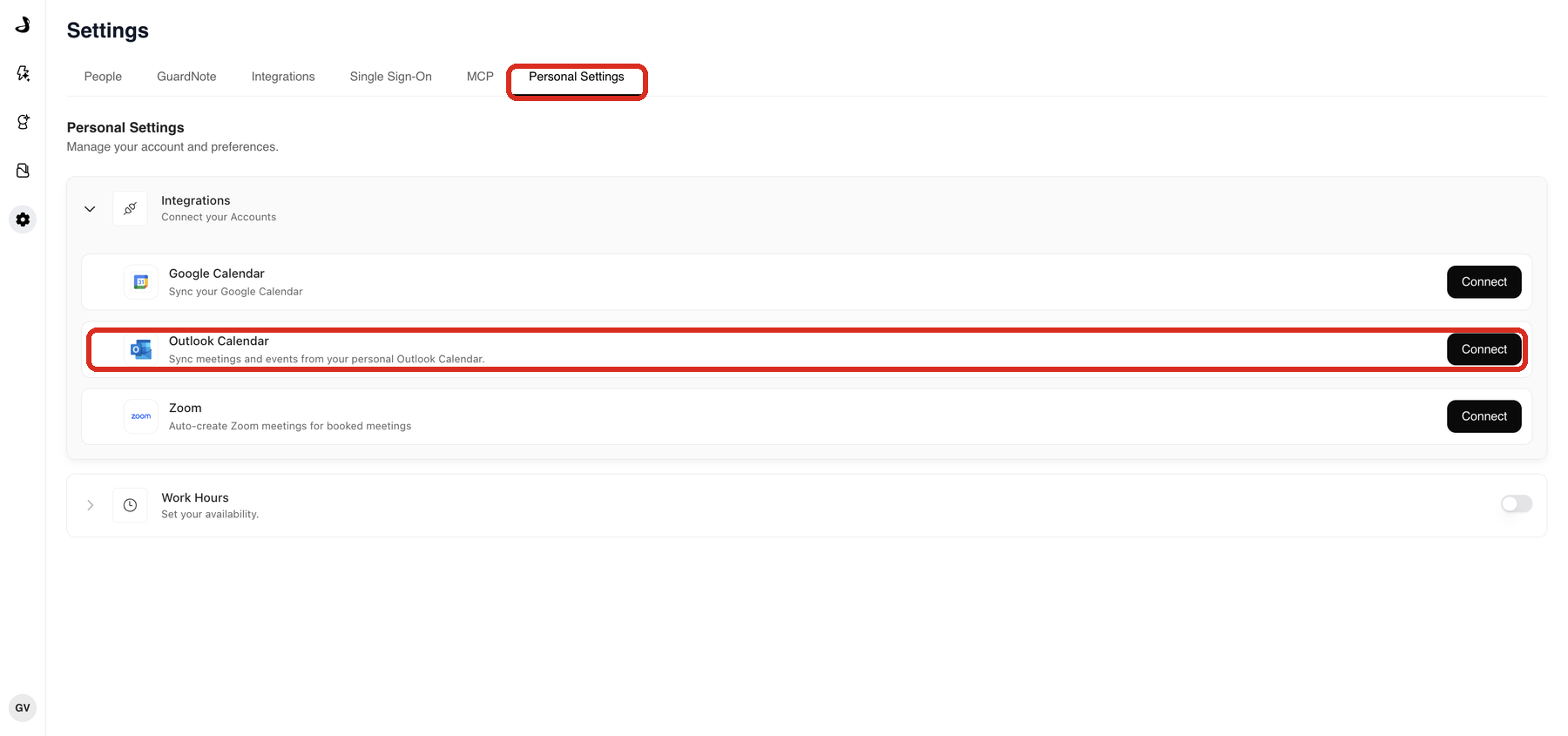
The workspace Google Calendar Service Account card and the personal Google Calendar card are different things. The service account lets Docket read team availability across the workspace. The personal card connects one person's calendar.
For the full Outlook setup, including the Microsoft account requirements, see Connecting Outlook Calendar for Marketing Agent Meetings.
What does Connected mean on an integration card?
A card shows one of two states, and the state describes the workspace, not any single agent.
Connect means nobody has authorized the app yet. Select it to start the connection.
Connected shows a green check with who connected the app and on what date.
Select the gear icon on a connected card to manage it. Most cards offer Settings and Disconnect. Some, including Google Calendar Service Account, Zoom, and Chili Piper, offer only Disconnect, because they have nothing to configure at the workspace level.
Why is my integration connected but the agent is still not syncing?
Because connecting an app makes it available to the workspace, and each agent still needs the matching action turned on.
For the four CRM and marketing automation integrations, that second switch lives on the agent: open the agent, select Analysis and Actions, and under Post Call Actions turn on Sync to Salesforce, Sync to HubSpot, Sync to Marketo, or Sync to Dynamics 365. Understanding CRM Sync from Analysis and Actions explains what each one writes.
The same pattern applies elsewhere. Slack and Teams need a channel chosen on the agent's handoff settings, and calendars need a meeting CTA configured under Setting Up Agent CTAs.
Frequently asked questions
Who can connect an integration in Docket?
Anyone with the Admin role. Roles are set on Settings then People, and a teammate without Admin can still use an agent that relies on a connected integration.
Do I have to connect an integration separately for every agent?
No. You connect the app once for the workspace. After that you choose, agent by agent, which ones that agent uses, so you can roll a CRM sync out to one agent before the rest.
Why does one integration card show Settings and another only Disconnect?
Because only some integrations hold workspace-level configuration. Salesforce CRM, HubSpot, MS Dynamics CRM, Marketo, Teams, and Intercom have read settings to review, so their gear menu includes Settings. Google Calendar Service Account, Zoom, and Chili Piper are configured on the agent instead, so their gear menu offers only Disconnect.
An integration I was told about is missing from the page. Where is it?
Docket supports more sources than the Integrations page lists by default, including several document and conversation sources used mainly by sales teams. They are hidden rather than removed. Contact Docket Support and the team can enable the one you need for your workspace.
Where do I connect my own calendar?
In Settings then Personal Settings, under Integrations. Calendar and Zoom connections belong to individual people, so each person who hosts meetings connects their own account and sets their own work hours.
What happens to my data if I disconnect an integration?
Sync stops immediately. Disconnecting while holding the ingested data pauses sync and keeps what Docket already has, and a permanent delete removes the ingested data along with the integration's configuration.