Use Chili Piper Routing for Marketing Agent Meetings
Last updated: September 23, 2026
Set up and Use Chili Piper Routing for Marketing Agent Meetings
Docket's Marketing Agent can book meetings using the Chili Piper routers you already have. You connect Chili Piper once, then tell an agent which router to use. Your routing rules stay in Chili Piper and carry on working exactly as they do today. Chili Piper picks the rep and the times, and the visitor books right there in the conversation.
What do you need before connecting Chili Piper?
You need permission to edit the Marketing Agent.
Chili Piper must be connected in your Docket workspace.
Your Chili Piper plan must include Concierge. Concierge contains the routing engine that Docket asks for a host and available times.
Every router you use must have the Web form is submitted trigger enabled in Chili Piper. Docket approaches a router the way a web form does, so a router without that trigger will not respond. Docket checks this when you save and rejects the router if the trigger is missing. This is a Chili Piper setting and Docket cannot enable it for you.
Each router must require only the visitor's email address. A router that also requires fields such as company size or job title will fail validation.
How do you create a Chili Piper API token and get the webhook signing secret?
Connecting Chili Piper takes two credentials from your Chili Piper account: an API access token and a webhook signing secret. The token lets Docket ask Chili Piper for routing decisions and availability on your behalf. The signing secret lets Docket confirm that the meeting updates arriving from Chili Piper are genuine.
1. Request the Chili Piper webhook signing secret
Write to support@chilipiper.com with your instance name and ask for your webhook signing secret. Chili Piper sends it by email.
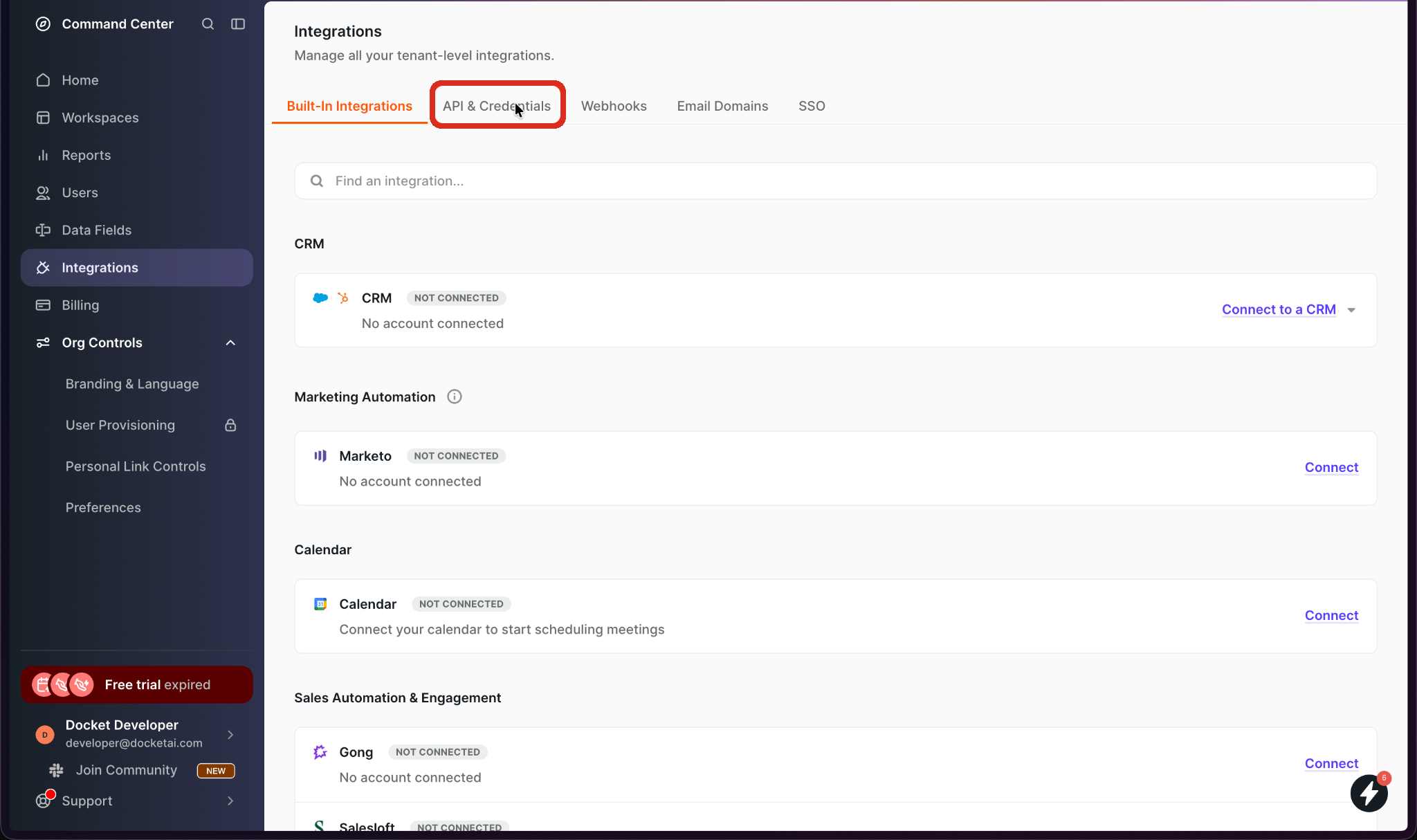
2. Open API Access Tokens in the Chili Piper Command Center
Go to Integrations in the left menu, then the API & Credentials tab, then API Access Tokens.
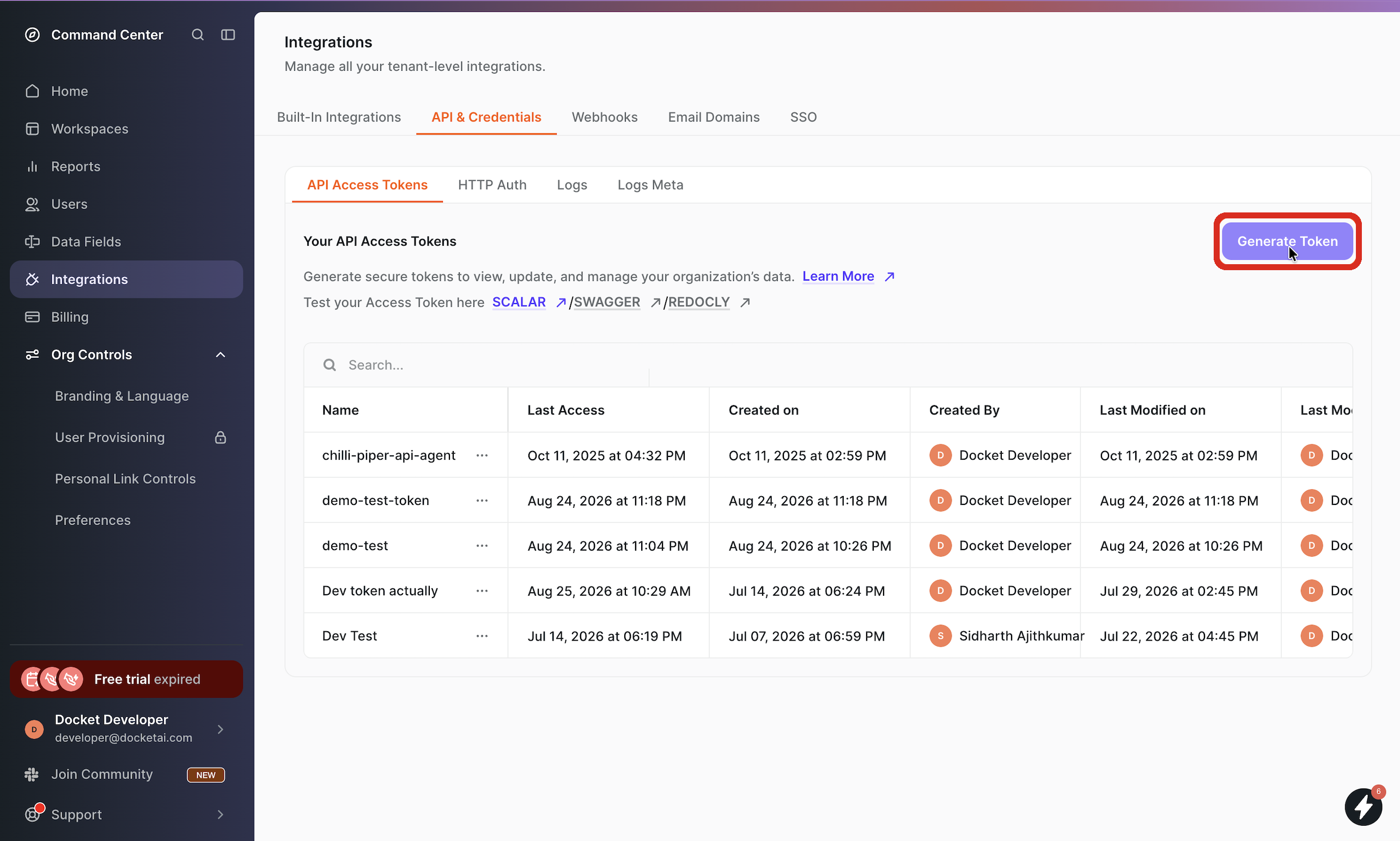
3. Generate a new Chili Piper API token
Select Generate Token, give the token a name that says where it will be used, such as docket, and select Next.
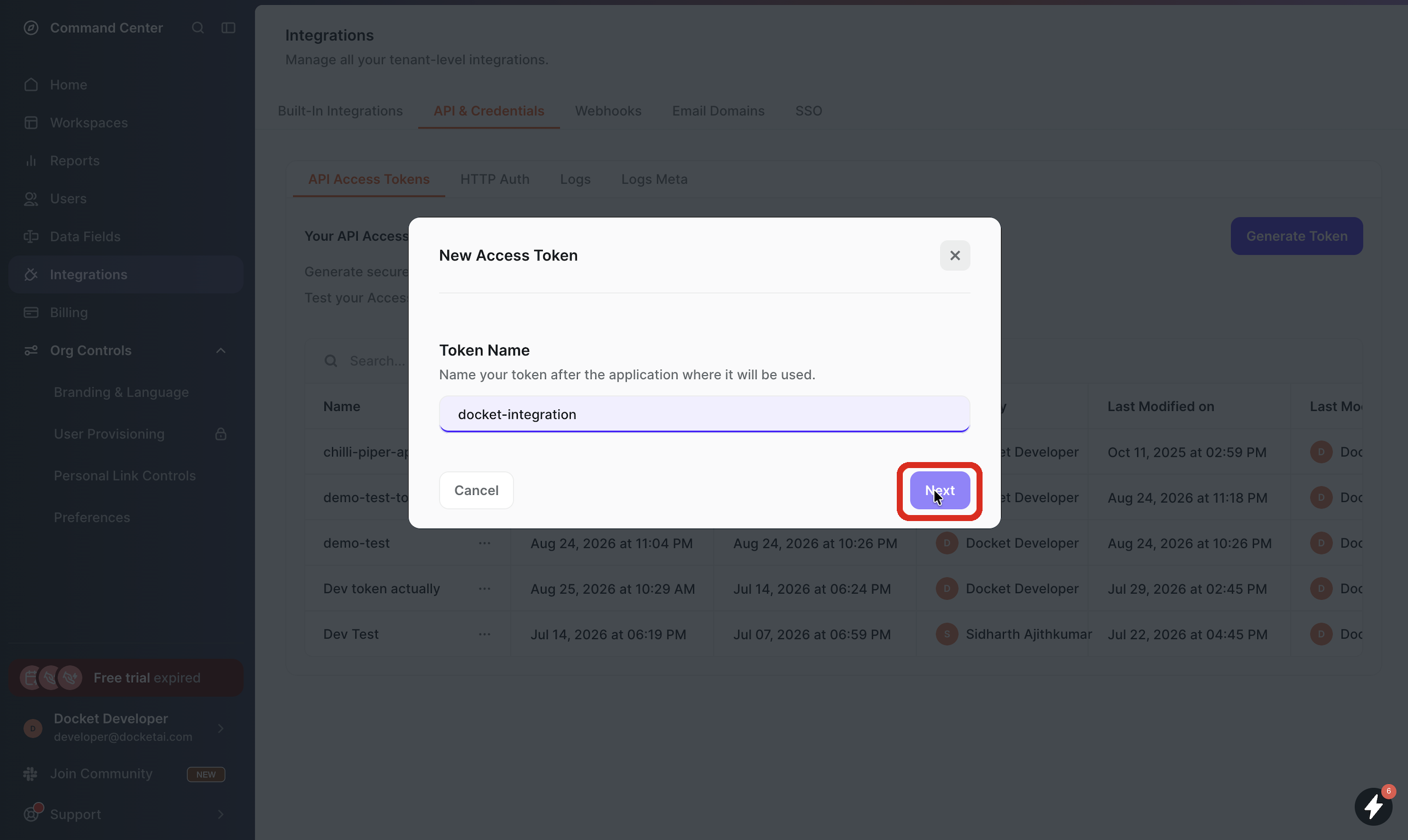
4. Select the Chili Piper permissions Docket needs
After clicking Next, the Select Permissions list will open. Tick these, then select Generate.
Group | Tick | What Docket uses it for |
|---|---|---|
API | Ping | A quick health check on the connection |
Concierge | Read and Schedule | Find your routers, then route a lead and book a slot |
Meeting | Read | Read the details of a booked meeting |
Webhook | All four | Set up the webhooks that keep bookings in sync, and remove them again if you disconnect. Ticking the Webhook group heading selects all four at once. |
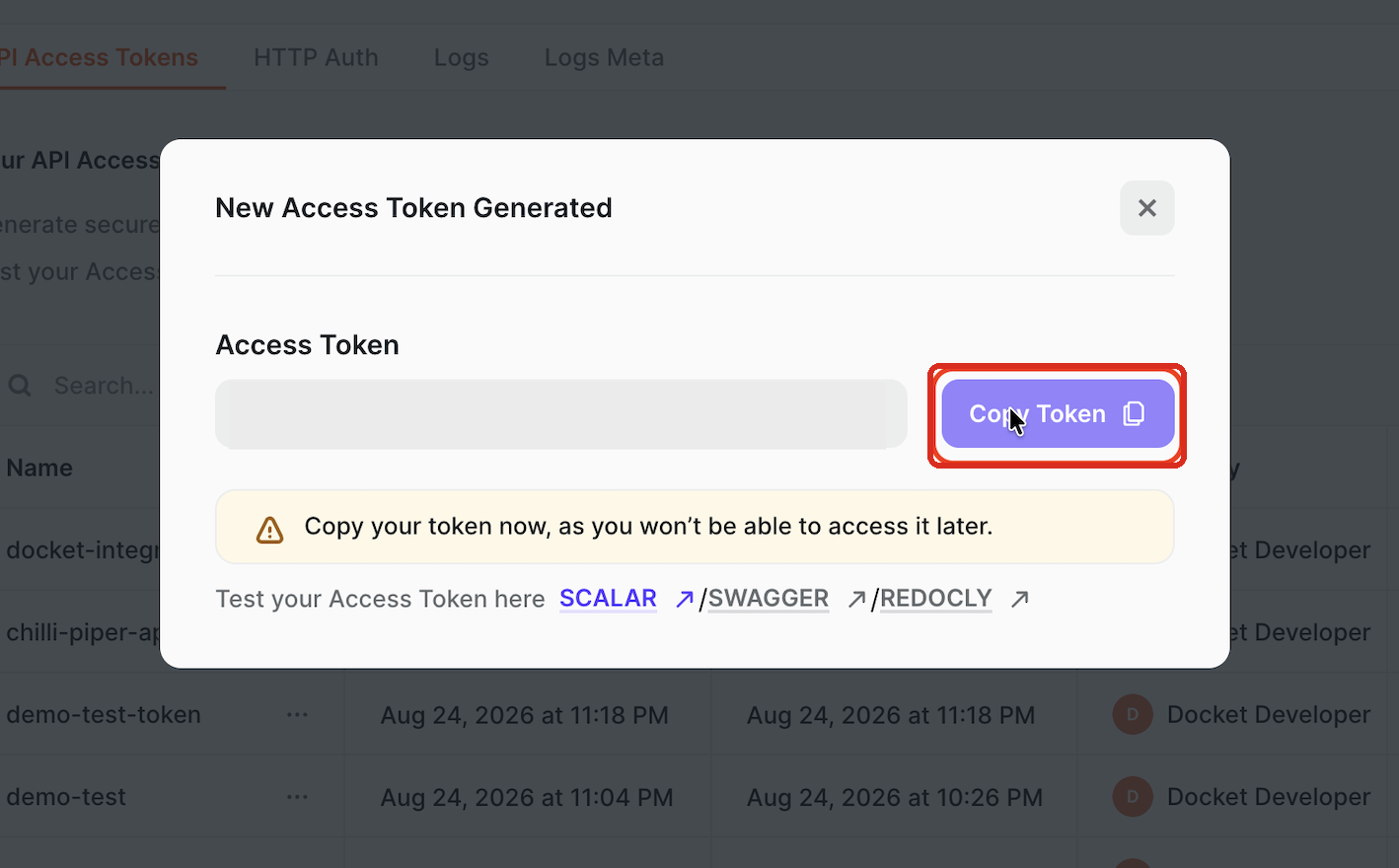
5. Copy the Chili Piper API token
Chili Piper shows the token once, so copy it now and keep it somewhere safe, the same as any other password.
How do you connect Chili Piper to Docket?
6. Open the Integrations tab in Docket Settings
Select the Settings icon at the bottom of the left icon rail, then open the Integrations tab.
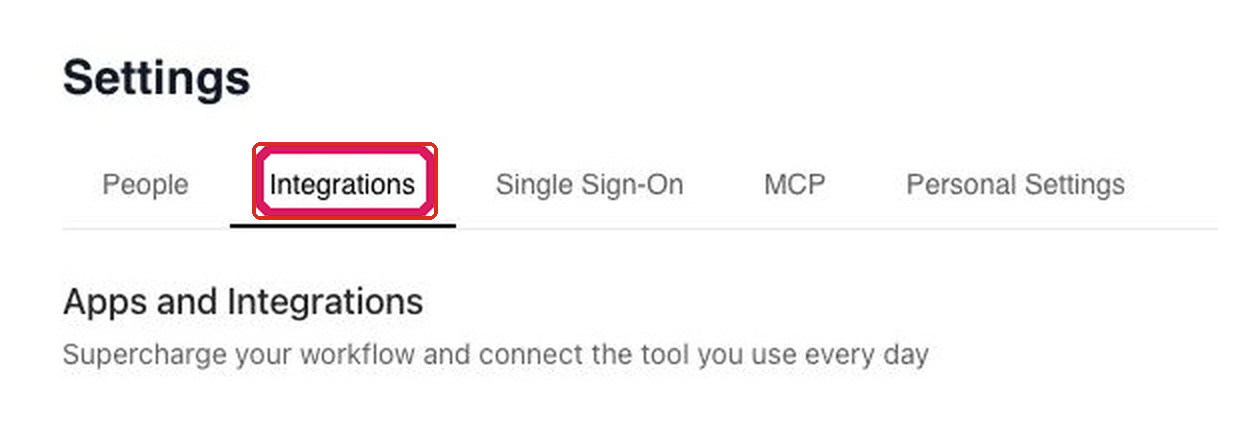
7. Select Connect on the Chili Piper card
Under Apps and Integrations, find the Chili Piper card and select + Connect.
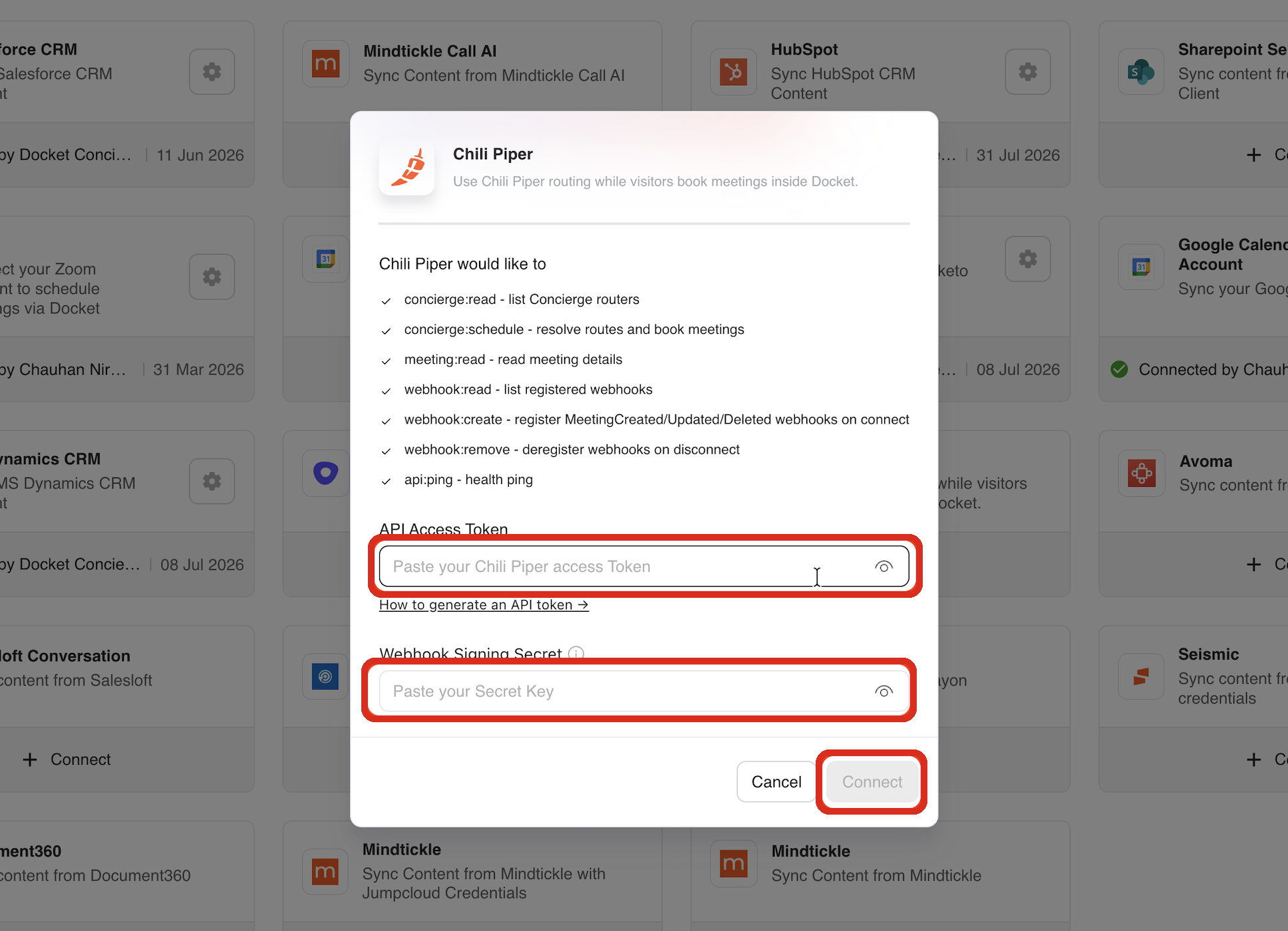
8. Enter the API token and webhook signing secret
Paste the token into API Access Token and the secret into Webhook Signing Secret, then select Connect. Both fields stay hidden as you paste; select the eye icon if you want to check them.
9. Confirm Chili Piper shows as connected
The card now shows a green check with who connected it and the date.
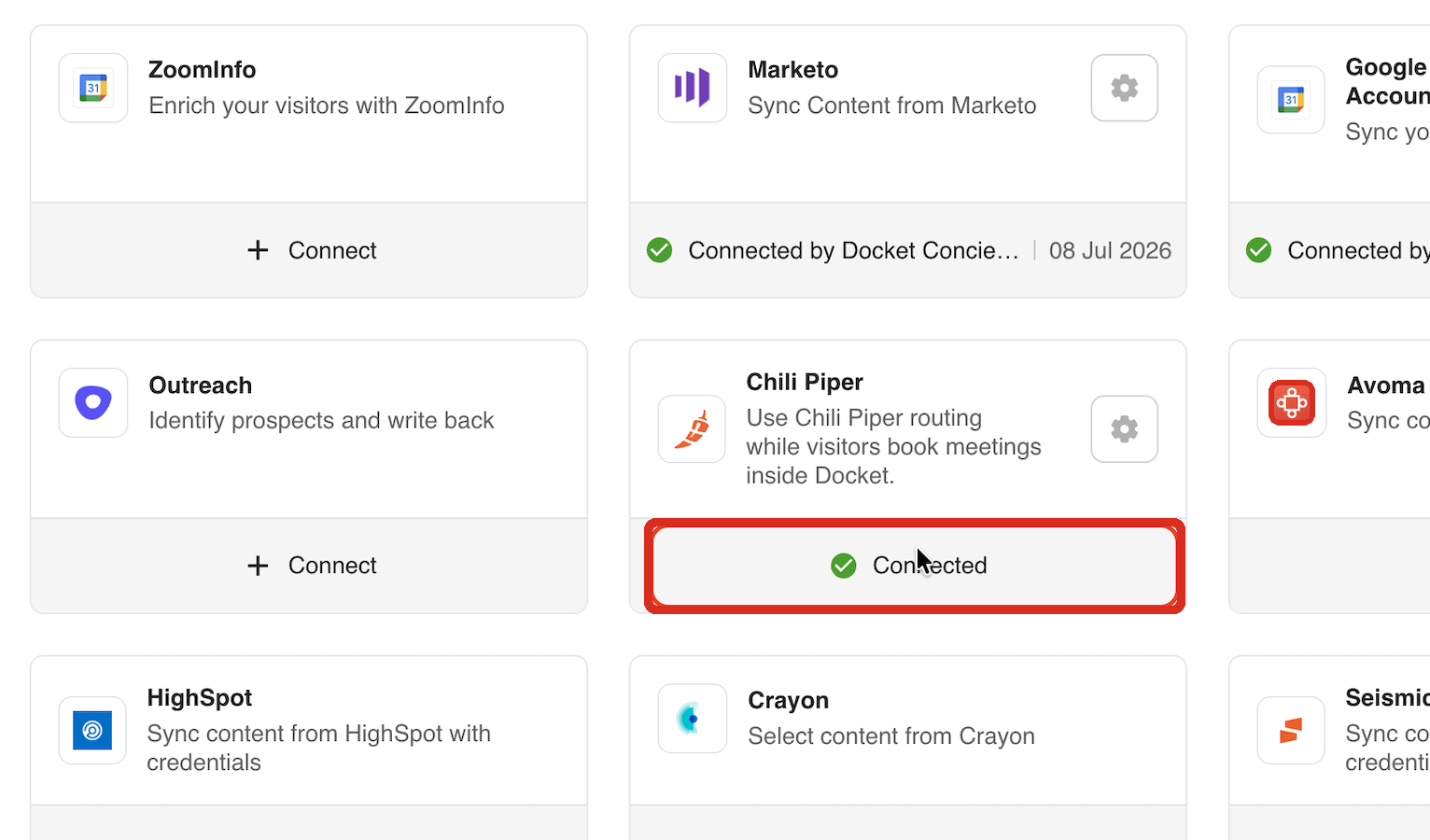
After this, Chili Piper workspace side is all set-up. Docket has picked up your router list and set up the webhooks that keep bookings in sync. The next steps are adding and setting up the Chili Piper router in Docket's workspace.
How do you add a Chili Piper router to a Marketing Agent?
Do this for each agent that should use Chili Piper.
10. Open the Marketing Agent in Docket
In the left icon rail, hover over the icons to find Marketing Agent Configuration, then open the agent you want to set up. The rail is a different length in every workspace, so go by the label.
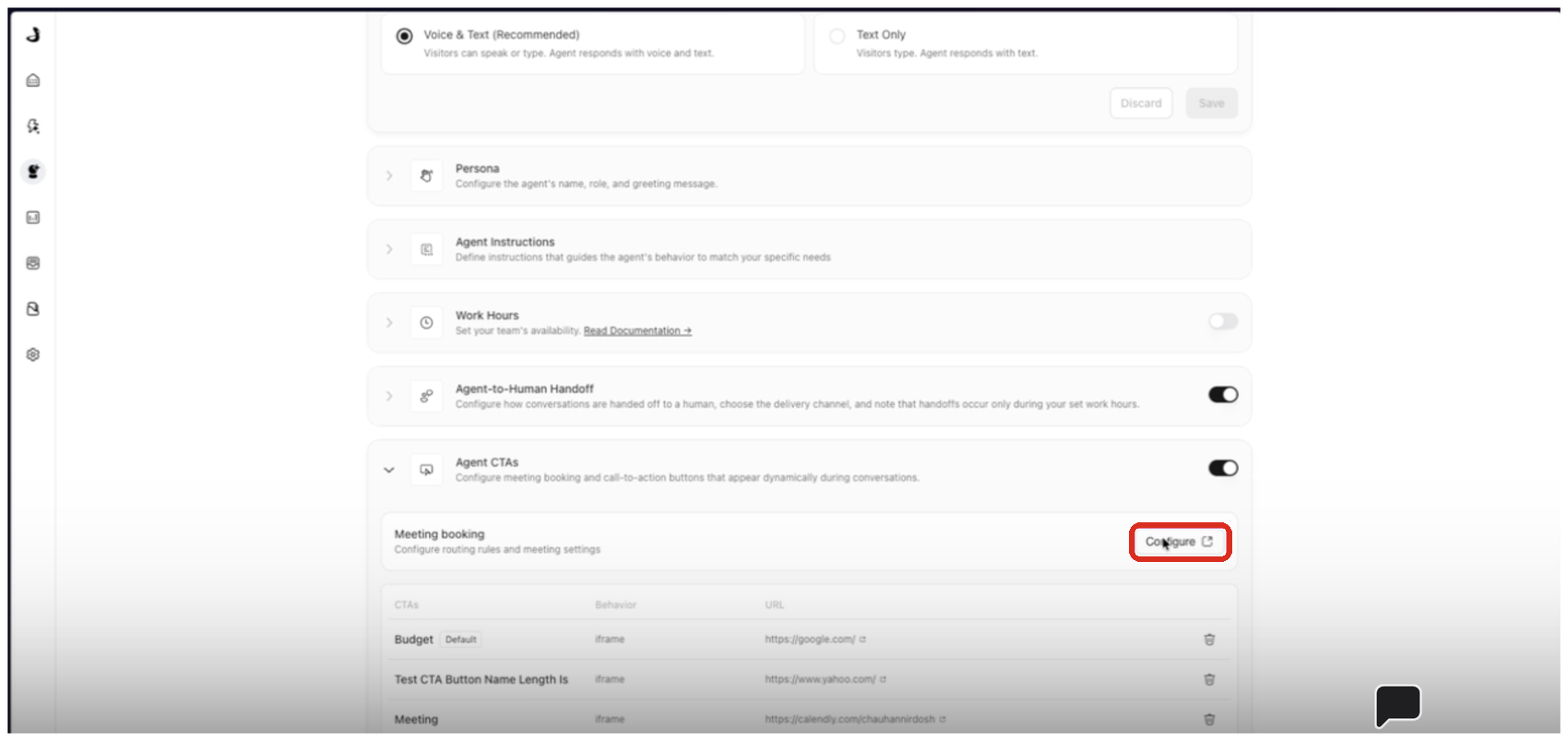
11. Expand Agent CTAs on the agent
Select the chevron on the left of the row. The switch on the right turns the whole section on and off, so use the chevron to open it.
12. Open Meeting booking settings
On the Meeting booking card, select Configure. A panel called Configure Meeting CTA opens on the right, on the same tab.
13. Set when the agent offers a meeting
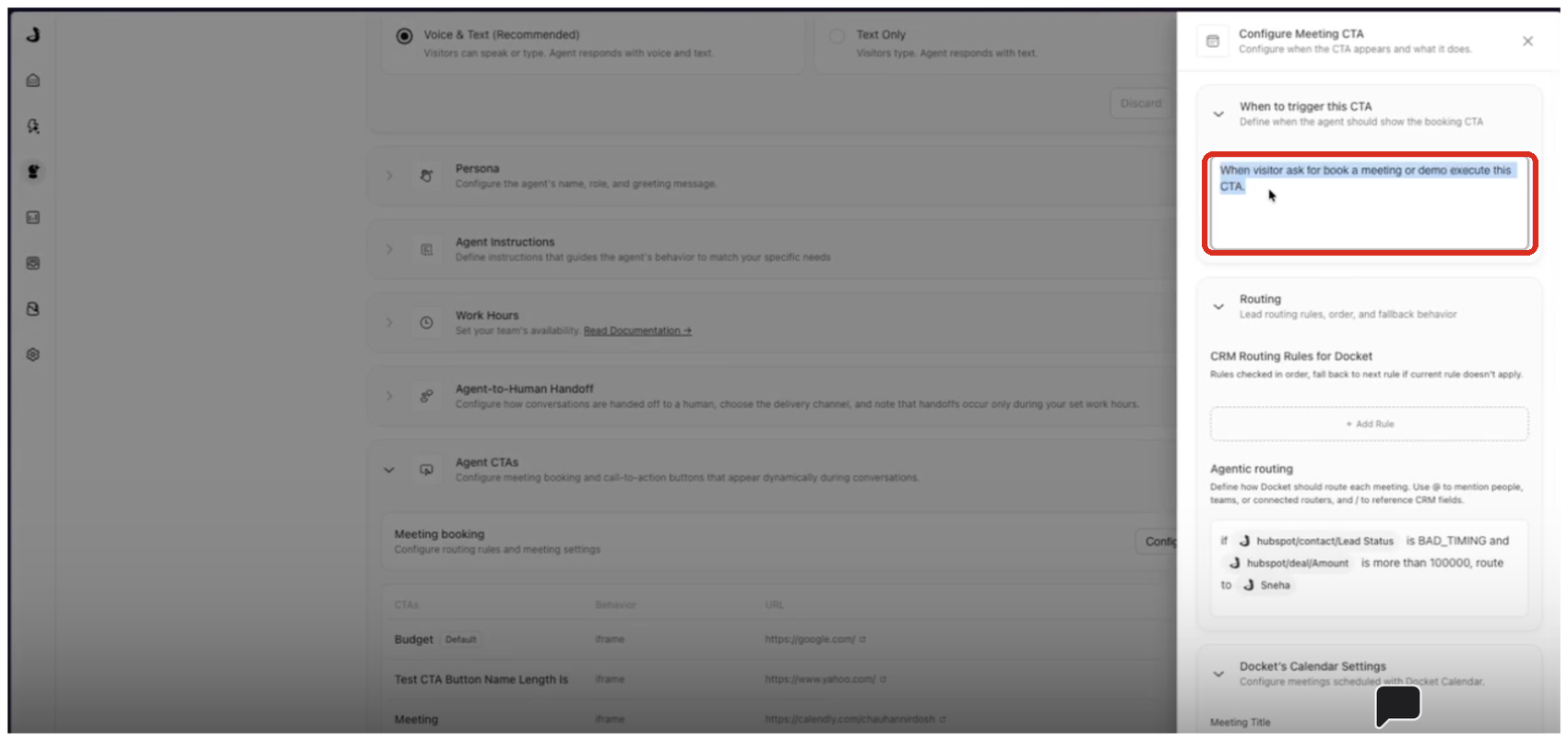
Under When to trigger this CTA, describe the moment in your own words. For example: when a visitor asks to book a meeting or a demo.
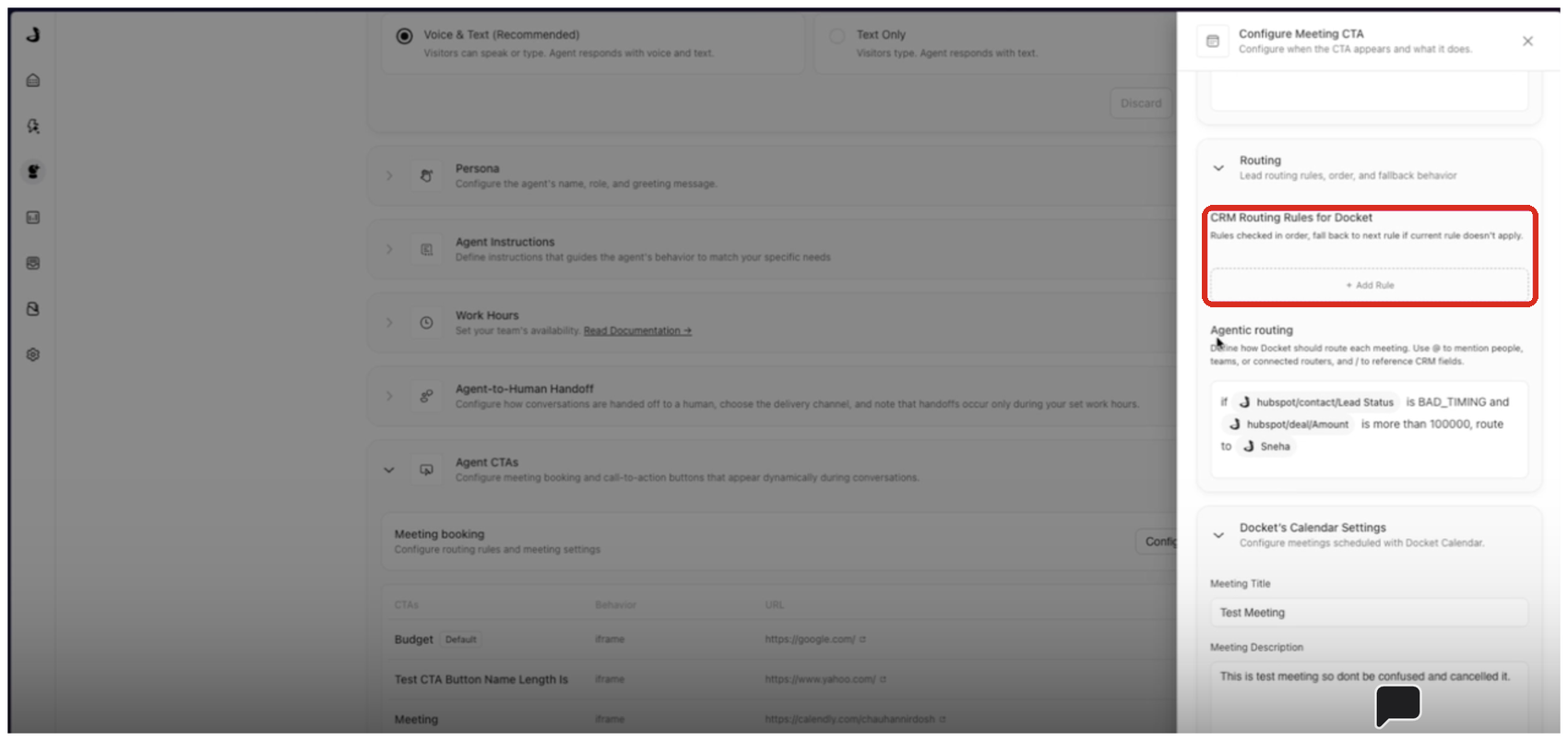
14. Open the Routing section
The first block, CRM Routing Rules for Docket, is for routing within Docket, so you can leave it empty.
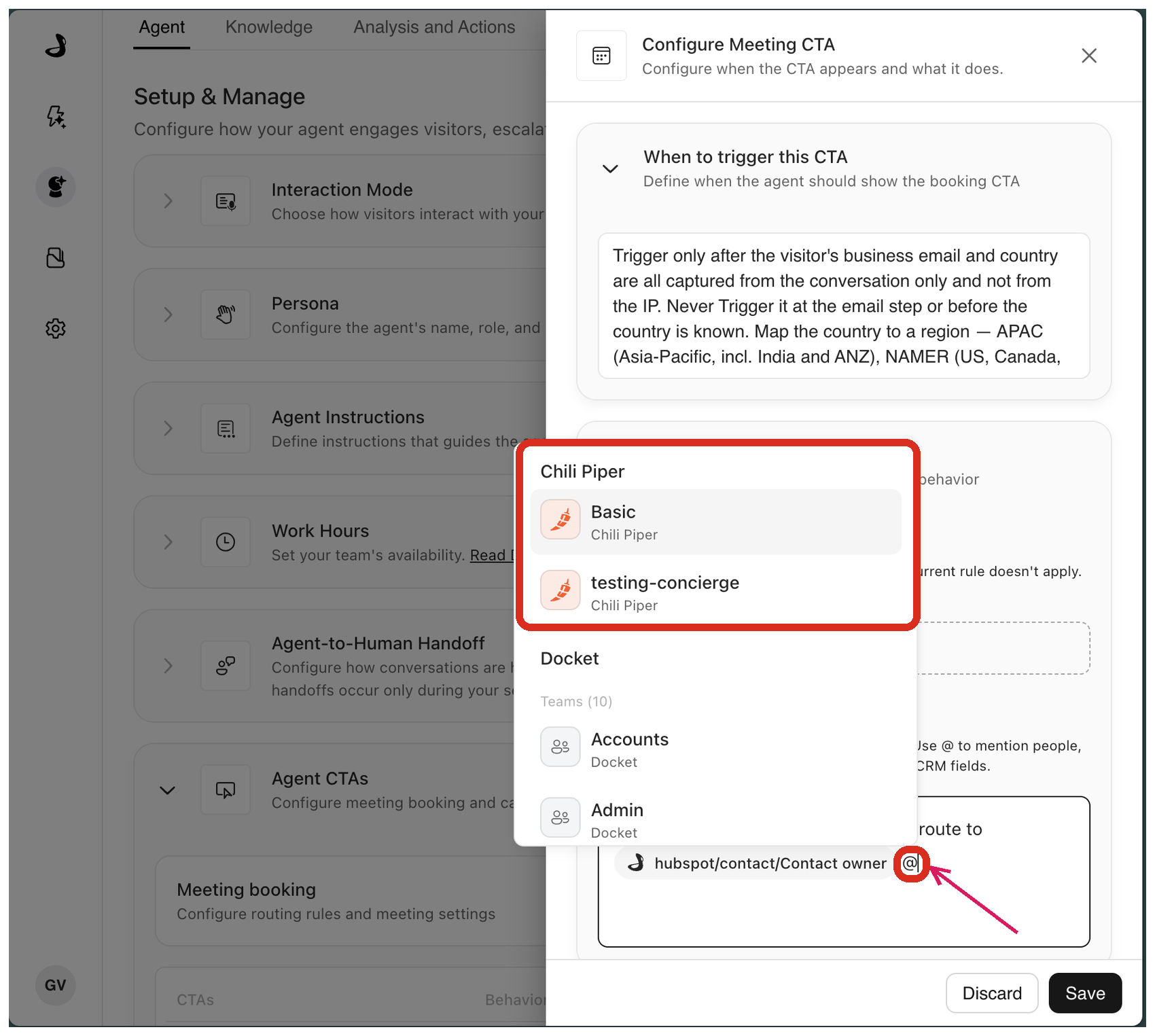
15. Write the routing instruction in Agentic routing
Type @ to bring up your routers, teams and people, and / for CRM fields. Your Chili Piper routers sit at the top of the @ list.
If every meeting should go to Chili Piper, one line does it:
always use @Your Router
You can also mix the two. Put the specific case first and finish with a fallback, so every visitor has somewhere to land:
if /hubspot/company/Annual Recurring Revenue is more than 100 mil usd, route to @Enterprise Team. for everything else use @Your Router
Pick names from the menu rather than typing them, so Docket can link them up.
16. Save the Meeting CTA
Select Save at the bottom of the panel.
How do you test Chili Piper booking in Docket Preview?
17. Run a preview conversation
Select Preview at the top right of the agent page and start a conversation that matches your trigger. Give a real test email address when the agent asks. Then check:
the router you expected was used
the times match that router's availability in Chili Piper
the host is the one you expected
What does Chili Piper control and what does Docket control?
Chili Piper stays in charge of routing. Docket passes the visitor's email address across, shows the times that come back, and completes the booking in the conversation.
Chili Piper | Docket |
|---|---|
Picks the rep | Passes the visitor's email address and asks for a route |
Offers times from that rep's availability | Shows those times in the conversation |
Applies round-robin and every other rule on the router | Books the meeting and keeps it in sync |
Troubleshooting Chili Piper meeting booking
What you see | What it means | What to do |
|---|---|---|
Chili Piper is not showing as connected | The integration is not set up in this workspace | Open Settings, then Integrations, and look for the Chili Piper card near the bottom of Apps and Integrations |
Docket does not accept the token | One of the permissions is missing | Open the token in Chili Piper, tick what is missing, save, and connect again |
A router is not accepted when you save | It has no Web form is submitted trigger, or it asks for more than an email address | Adjust it in Chili Piper, then select it again |
A router is not in the @ list | The list needs a refresh | Close and reopen Configure. The list refreshes when the panel opens |
A router you renamed is not showing | Docket still has the earlier list | Reopen Configure, then select the current router |
No time is offered | The router had no availability to return | Check the router's rules and availability in Chili Piper, and add a fallback in Agentic routing |
The meeting title or duration is not on the invite | Those settings apply to Docket Calendar only | Set them on the Chili Piper meeting type |
Frequently asked questions
Which Chili Piper plan does Docket meeting booking need?
Concierge. Docket asks a Concierge router for a rep and available times, so a plan without Concierge cannot be used.
Do Chili Piper routing rules need rebuilding in Docket?
No. Docket calls your existing Concierge router and uses the rules already set up there. Nothing is copied or duplicated.
Where does the Chili Piper webhook signing secret come from?
From Chili Piper by email. It is not shown in the Command Center, so write to support@chilipiper.com with your instance name and ask for it.
Does Docket create the webhooks in Chili Piper?
Yes, on connection. Docket registers the meeting webhooks that keep bookings in sync, and removes them again if you disconnect. There is nothing to set up by hand.
Can Chili Piper API token permissions be changed after the token is created?
Yes. Open the token from the API Access Tokens list in Chili Piper, tick what is missing and save. A new token is not needed.
Why is a Chili Piper router missing from the @ menu in Docket?
The router list refreshes each time the Configure panel opens, so close the panel and reopen it. A router renamed in Chili Piper appears under its new name after the same refresh.
Why was a Chili Piper router rejected when saving?
Either the router does not have the Web form is submitted trigger switched on, or it asks for more than the visitor's email address. Docket names which one in the message.
Can Chili Piper and Docket's own calendar be used on the same agent?
Yes. Write both into one instruction in Agentic routing, with the specific case first and a fallback at the end.
Why is the meeting title set in Docket missing from the invite?
Docket's Calendar Settings apply to Docket Calendar only. On a Chili Piper booking, the title, description and duration come from the Chili Piper meeting type, so set them there.
Do Docket Work Hours limit the times Chili Piper offers?
No. Availability comes from the rep's calendar as Chili Piper sees it. Work Hours applies to Docket's own calendar and handoffs.
Do visitors leave the conversation to book?
No. The times appear in the conversation and the booking completes there. Nothing opens in a new tab or an embedded page.
Is a Chili Piper booking link still needed as a CTA button?
No. A CTA embeds your scheduler as a page. Meeting booking routes through the router and books in the conversation, so the old CTA can be removed once routing is set up.
What happens if a Chili Piper router returns no availability?
Docket moves to the next target in your routing instruction. Ending the instruction with a fallback means a visitor always has somewhere to land.
How is Chili Piper disconnected from Docket?
Select the gear icon on the connected Chili Piper card in Settings, then Integrations, and choose Disconnect. Docket removes the webhooks it set up in your Chili Piper account first.