Sending Deployment Instructions to a Web Admin
Last updated: September 29, 2026
When someone else looks after your website, you can hand the Docket widget script to them straight from the agent's Deploy tab. Use this route when you can configure the agent in Docket but do not have access to the website's tag manager, CMS, or source code. Have the recipient's email address and the target domain ready before you start.
How do I send the widget install instructions to my web admin?
Send them with Email to Web Admin in the Add widget to your domain or page section of the agent's Deploy tab.
Open Marketing Agent Configuration in the left sidebar.
Select the agent you want to deploy.
Open the Deploy tab.
Find Add widget to your domain or page, which is already expanded.
Select Email to Web Admin at the top right of that section.
Supply the web admin's email address.
Send the instructions.
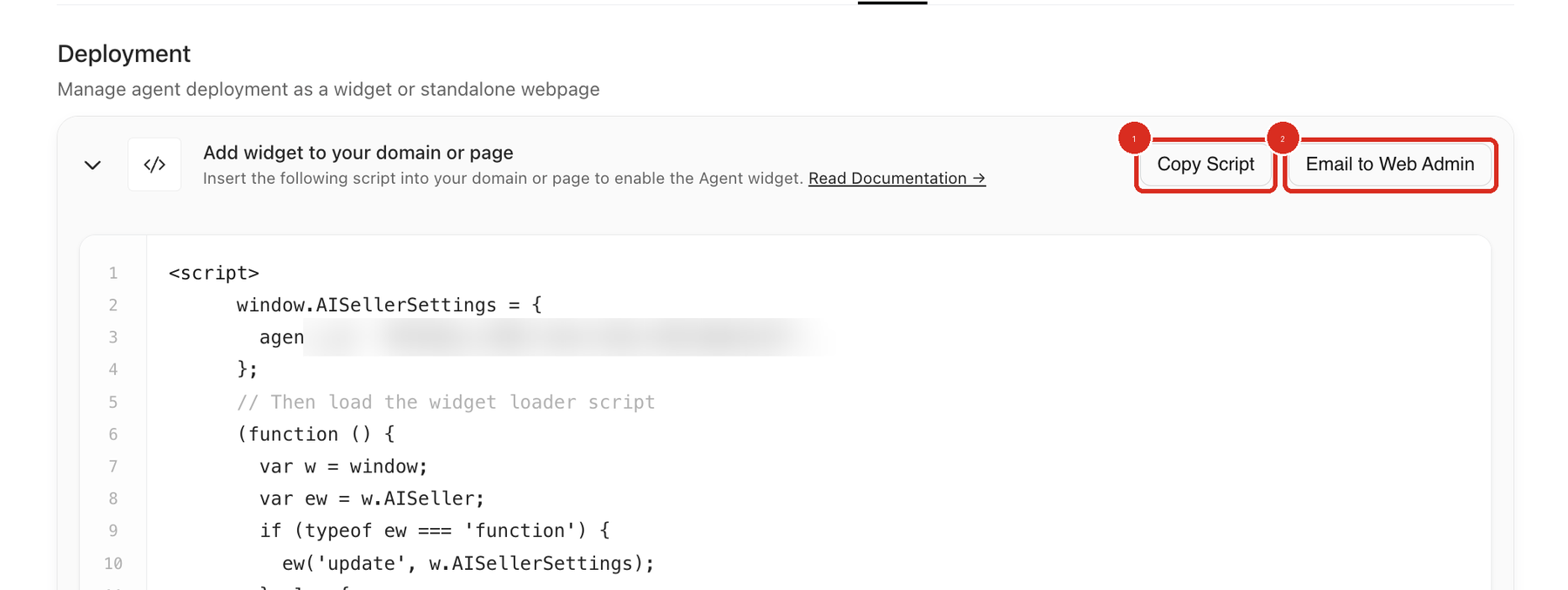
Callout 2 is the button to use. Callout 1, Copy Script, is for installing the script yourself.
Which Email to Web Admin button should I send from?
Send from the section that matches what you want installed, because two sections each have their own Email to Web Admin button.
Add widget to your domain or page is the section to use for the widget script that goes on your website. Its other button is Copy Script.
Standalone Page is the section to use for the full-page version of the agent at its own link. It starts collapsed, and its other button is Copy URL. See Deploying the Agent as a Standalone Page.
What else does my web admin need besides the script?
Your web admin also needs your site's security and privacy tooling to let the Docket script load, which is a separate change from pasting the script. Send them these two hosts to allow:
docketai.com (and its subdomains)
d33t2173eag6fx.cloudfront.net
Allowing docketai.com and its subdomains covers cdn.docketai.com, app.docketai.com, and aiseller.app.docketai.com. Ask the admin to add both hosts in every place below that your site uses.
Where to allow the hosts | What to change |
|---|---|
Consent manager | Add both hosts to the script rules, so the loader is not held back or stripped. |
Content Security Policy | Add both hosts to |
Firewall, proxy, DNS, or WAF | Add both hosts to any outbound or content-blocking rule that filters third-party scripts. |
A blocked host is the most common reason a correctly installed script still does not load. Two customer go-lives have stalled on it.
The host in the generated script differs by agent vintage while Docket moves between two CDNs, and both are live. Older agents load from d33t2173eag6fx.cloudfront.net and newer agents load from cdn.docketai.com. Read the host from your own agent's script in the Deploy tab rather than from a teammate's, and re-check it if Docket changes the script later.
Alongside the allowlist, tell the admin the target website, the install method you expect, and when you want the agent live. If only some pages should show the widget, include those paths. Send them Adding the Marketing Agent Script to Your Website if they want the full install steps.
What do I need to set up in Docket before the admin installs?
Add the target website under Whitelist Domains, check the widget's page targeting, and set the agent to Active.
Open the Widget tab and find Whitelist Domains.
Add the domain the admin will install on. The field is prefixed
https://.Check Show Widget on for that domain under Widget Behaviour.
Set the agent's status to Active, because a Draft agent is not live on the website.
The widget only works on whitelisted domains, and an un-whitelisted domain returns HTTP 403. If Show Widget on is set to On Click (Function Call), the widget will not open by itself and your site has to call a JavaScript function, so pass Setting up OnClick Trigger for the widget to the admin as well.
How do I confirm the admin installed the script?
Docket shows whether it has detected the script on each whitelisted domain, so you can check the handoff without asking the admin.
Open the Widget tab and find Whitelist Domains.
Read the detection state on the row for your domain.
Use the rescan control next to the Add Domain field after the admin says the change is live.
A row that reads "We couldn't find the DocketAI Script on your domain" means Docket has not seen the script there yet. Rescan first, since detection does not update on its own the moment the admin publishes.
What should I check if the widget still does not appear?
Work through the checks below, starting with the allowlist, then read Troubleshooting Widget Not Loading or Displaying if it is still missing.
Problem | What to check |
|---|---|
The script is on the page but nothing loads | Confirm both hosts are allowed in the consent manager, the CSP, and any firewall or WAF. |
Visitors get an HTTP 403 | Check the domain is whitelisted, and check whether an IP Access Rule restricts those visitors. |
The widget never opens on its own | Check whether Show Widget on is set to On Click (Function Call). |
Whitelist Domains still reports no script | Ask the admin to confirm the change is published, then rescan the domain. |
The recipient never got the email | Verify the address, ask them to check filtered or quarantined mail, then send again from the agent's Deploy tab. |
Frequently asked questions
Our security team allowlisted our own URLs in the WAF and the widget still does not load. What did they miss?
They most likely used a parameter allowlist, which exempts a parameter on your own URLs and cannot permit an external script. One customer go-live stalled on a Wordfence "Allowlisted URLs" parameter table for that reason. The rule you need allows the Docket hosts as outbound third-party script sources.
Do we allow both hosts, or only the one in our script?
Allow both. Docket is mid-migration between two CDN hosts and both are live, so the host your script uses today may not be the host it uses later.
Should I whitelist the domain before or after the admin installs the script?
Before. The widget only works on whitelisted domains, and an un-whitelisted domain returns HTTP 403, so an admin testing an unlisted site will report that the install failed.
Can I send the standalone page link instead of the widget script?
Yes. Expand Standalone Page on the Deploy tab and use the Email to Web Admin button in that section. That section also holds Copy URL and an Embedding Code field if you would rather paste the link yourself.
What does "We couldn't find the DocketAI Script on your domain" mean?
It means Docket has not detected the script on that whitelisted domain. Ask the admin to confirm the change is published rather than staged, then use the rescan control in Whitelist Domains.