Connect Docket Demand MCP to ChatGPT, Claude, and Other MCP Clients
Last updated: October 26, 2026
Ask about your Marketing Agents from ChatGPT, Claude, or any other MCP client, and, as a Docket Admin, create and change agents from the same chat. The connection respects your own Docket permissions.
Docket Demand MCP lets an AI client ask questions about your Marketing Agents: how they are performing, who they captured, and what those conversations contained. Whether you can make changes depends on your Docket role: Admins can create and change agents, and other roles can only read.
It runs with the workspace and permissions of the Docket user who authorizes it, which means each teammate sees exactly what they would see when signed in to Docket.
What can Docket Demand MCP access?
Everything below comes from your own workspace:
Website Agents and their performance
Captured visitors and leads
Accounts that engaged with your agents
Conversation summaries, qualification status, pain points, and next steps
Transcripts and recordings, where your Docket permissions allow access
Marketing Agent settings, behaviour, knowledge sources and deployment details, which Admins can also change (see "What can I change in a Marketing Agent from my AI client?")
What do I need before connecting?
Have these ready before you start:
Access to the Docket workspace you want to query.
An MCP client that supports remote HTTPS servers and OAuth.
Permission in that client to add a custom connector or MCP server.
Some clients require an administrator or workspace owner to enable custom connectors first. It is worth reviewing that client's data and connector policies before you give it workspace access.
Where do I find the Docket Demand MCP URL?
On the MCP tab in Docket Settings.
Open Docket and select Settings.
Select the MCP tab.
Under Docket Demand MCP, select Copy URL.
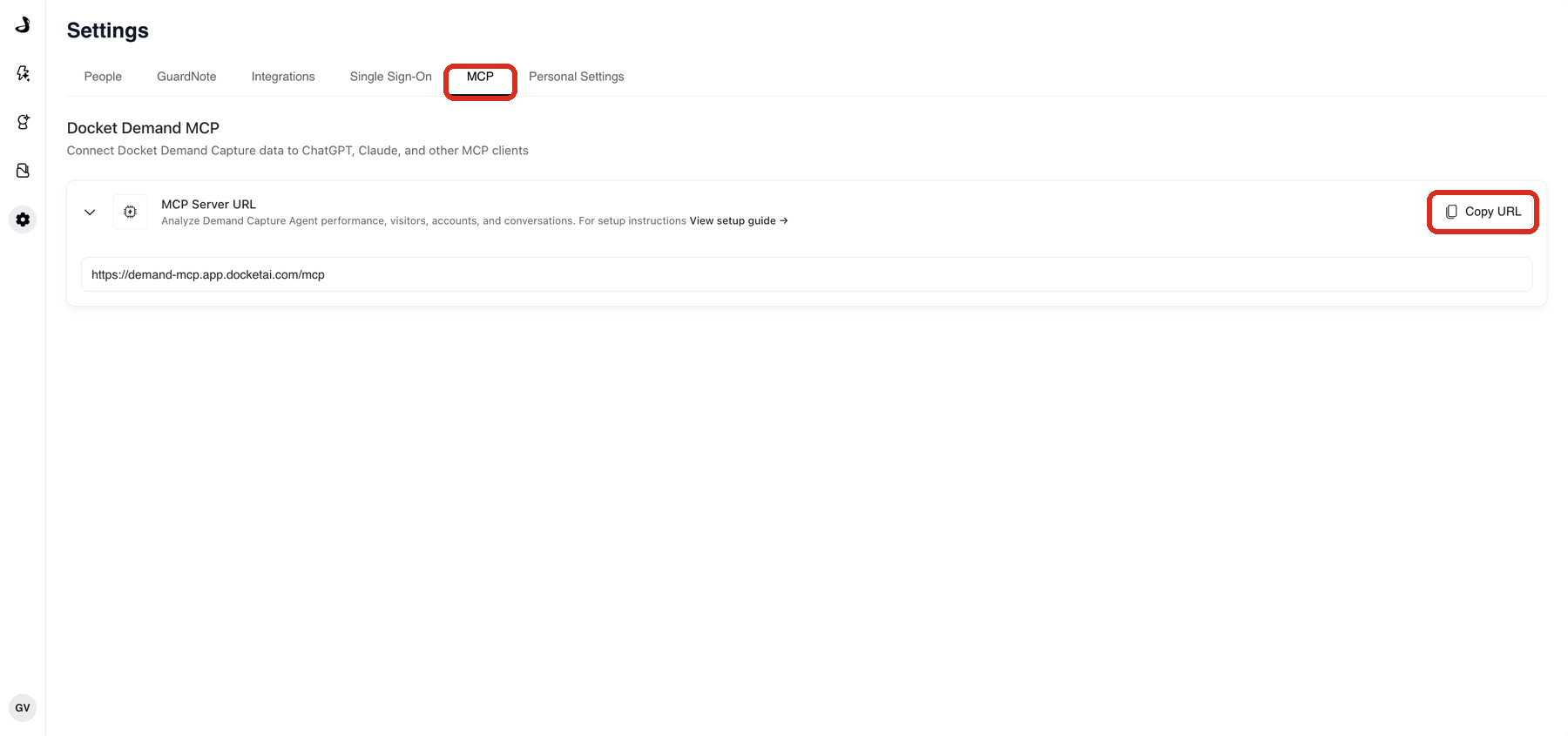
The production server URL is https://demand-mcp.app.docketai.com/mcp. Use Copy URL where you can, so you never paste an outdated endpoint.
How do I connect Docket Demand MCP to ChatGPT?
ChatGPT calls custom MCP connections apps.
Open ChatGPT in a web browser.
Go to Settings then Apps, and open Advanced Settings.
Enable Developer mode if your client requires it.
Select Create, and enter
Docket Demand MCPas the name.Paste the MCP Server URL you copied from Docket.
Select OAuth as the authentication method and accept the acknowledgement ChatGPT shows.
Select Scan Tools and complete the Docket authorization flow.
Wait for the tool scan to succeed, then select Create.
Your ChatGPT plan, workspace role, and administrator settings decide whether you can create a custom app. See the OpenAI developer mode documentation for current requirements.
To use the connection, start a chat and add Docket Demand MCP from the Apps menu.
How do I connect Docket Demand MCP to Claude?
Claude calls remote MCP connections custom connectors. The steps differ slightly depending on your plan.
On an individual Claude plan
Go to Customize then Connectors.
Select + then Add custom connector.
Enter
Docket Demand MCPas the connector name and paste the MCP Server URL.Select Add, then select Connect, and complete the Docket authorization flow.
On Claude Team or Enterprise
An organization owner adds the connector once, and then each person connects their own Docket account.
As an organization owner, go to Organization settings then Connectors and select Add.
Choose Custom then Web.
Enter
Docket Demand MCPas the connector name, paste the MCP Server URL, and select Add.Each user then goes to Customize then Connectors, finds Docket Demand MCP, selects Connect, and completes the Docket authorization flow.
See the Claude remote MCP connector guide for current plan and administrator requirements.
To use the connection, select + then Connectors and enable Docket Demand MCP.
How do I connect another MCP client?
Enter these values wherever the client asks for a custom MCP server, then complete the Docket authorization flow when prompted.
Setting | Value |
|---|---|
Name | Docket Demand MCP |
Server URL |
|
Connection type | Remote MCP or Streamable HTTP |
Authentication | OAuth |
The client has to support remote MCP servers and OAuth. Labels vary between clients, so check that client's documentation for its custom connector setup.
What can I ask once it is connected?
Ask in plain language, and narrow the request with a date range, an agent, a visitor, or an account where it helps.
"Compare our Website Agent performance for the last 30 days with the previous 30 days."
"How many qualified visitors were captured in the last 30 days? Group them by account."
"Summarize conversations from the past seven days and group the common pain points."
"Which conversations resulted in booked meetings this month?"
"Show the recent conversations and next steps for this visitor."
What can I change in a Marketing Agent from my AI client?
As a Docket Admin, you can create and set up Marketing Agents from the same chat you already use to ask about them. There is nothing new to connect: describe the change, and the assistant makes it in Docket for you.
Area | What you can ask for |
|---|---|
Agents | Create a draft agent from a starter template, clone an agent and leave out the parts you choose, rename it, pause it, turn it back on, or archive it. |
Behaviour | Change what the agent says and does by describing the change. Edits save as a draft, publish only when you say so, and you can put an earlier version back live. |
Settings | Voice-and-text or text-only, the persona name, greeting and avatar, human handoff and the Slack or Microsoft Teams channel that receives it, which kinds of email the agent accepts, and the context variables your website passes to the agent, including mapping them to Docket fields. |
Meetings and CTAs | Meeting booking, routing rules, meeting details and reminders. Add, change, remove, or switch off CTAs. |
Knowledge and media | Add web pages, sitemaps, files or text to your knowledge sources, rename them, change their visibility, resync or delete them, choose which sources an agent uses, and add or remove slides and videos. |
Post-call analysis | Add, edit, switch off or remove analysis fields, and read what visitors answered for them. |
Widget and deployment | How the widget looks (mode, theme, colours, text and position), the domains it is allowed on, and the widget script, standalone link and iframe code. |
How do I change an agent from ChatGPT or Claude?
Ask for the change in a chat where Docket Demand MCP is turned on, then check the assistant's summary.
Name the agent and say what you want in plain words. For example, "On the pricing page agent, add a CTA for enterprise pricing" or "Create a demo-booking agent for our pricing page".
Answer the assistant's questions. For a new agent it asks what the agent is for and uses your answer to write the agent's first prompt. For a behaviour change it may ask what you mean before it edits the draft.
Read the summary of what changed. You can also ask the assistant to show what a change will do before it saves anything.
For a behaviour change, tell the assistant to publish when you are happy with the draft. Settings changes are saved to the agent as soon as the assistant confirms them.
A few things worth knowing before you start:
A new or cloned agent starts as a draft. Ask the assistant to enable it, or enable it in Docket, when it is ready for your website.
Cloning copies meeting booking together with Agent CTAs, so a clone made without CTAs has no meeting booking either. This matches cloning in Docket.
Archiving is final, so the assistant shows what will happen and asks you to type the agent's name to confirm.
If a teammate changes the same settings in Docket while you are working, the assistant reads them again before saving, so nothing is overwritten by accident.
Changes made this way show in Docket like any other. Open the agent to check them, or talk to it as a visitor would.
What still needs the Docket dashboard?
Everything not listed above. Today that means CRM sync setup (the objects, events and field mapping an agent sends to your CRM; a clone keeps the source agent's sync), work hours, post-call actions and alerts, widget behaviour (which pages it appears on and when), consent management, the FAQ Agent, the Demo tab, and Email to Web Admin.
Troubleshooting Docket Demand MCP
I cannot add the connector
Check your client plan, workspace role, and administrator settings. Many clients restrict custom connectors, so ask your workspace administrator to enable them.
The client cannot connect or scan tools
Copy the MCP Server URL from Docket again.
Confirm the complete URL ends with
/mcp.Remove any stray spaces from the URL.
Confirm the client supports remote MCP servers and OAuth.
Retry the Docket authorization flow.
Authentication does not complete
Confirm you selected the correct Docket workspace.
Allow the authorization window to open.
Disconnect and reconnect Docket Demand MCP in the client's connector settings.
The connection returns no results
Confirm you authorized the workspace you meant to.
Add a date range or another filter to the request.
Confirm the Website Agent, visitor, or account you asked about exists in Docket.
Frequently asked questions
Can Docket Demand MCP change anything in Docket?
Yes, if you are a Docket Admin. You can create, clone, change, pause and archive Marketing Agents, and manage knowledge sources, from your AI client. Other roles can read but not change anything. A few settings are still made in Docket only; see "What still needs the Docket dashboard?".
Whose data does the connection see?
The workspace and permissions of the Docket user who authorized it. Two teammates connecting the same MCP server can see different results if their Docket permissions differ. The same applies to changes: an Admin can change agents from their client, and a teammate with a read-only role cannot.
Can other people in my workspace use my connection?
No. Each person authorizes their own connection, even where an administrator added the connector for the organization.
Does the MCP connection give access to transcripts?
Only where your own Docket permissions already allow it. Transcripts and recordings follow the same access rules as the Docket interface.
How do I stop the connection?
Disconnect Docket Demand MCP in your client's connector settings. That removes the client's access without changing anything in Docket.
Related articles
For more help, contact Docket Support.