Connect Outreach to Docket Marketing Agents
Last updated: October 21, 2026
Connect Outreach to your Docket Marketing Agent to know which prospect clicked the link in your sequence email. It greets them by name, uses their Outreach details in the conversation, and adds a note about it to their Outreach prospect.
How does the Outreach integration work
The integration ties each visit to the right prospect with a Docket UID, an ID that Docket stores on every Outreach prospect.
Docket writes a Docket UID to each prospect, in a prospect field you choose.
You add that field to the links in your sequence emails, so every prospect gets their own link.
When a prospect opens their link, the agent already knows their name, title, email and company, plus their account's industry and website. It greets them by name and can book a meeting without asking for their email.
When the conversation ends, Docket adds a note to the prospect in Outreach. It can also fill prospect fields you choose.
Docket never creates prospects in Outreach and never changes a prospect's sequences.
What do I need before connecting Outreach
Have these ready before you start:
The Admin role in Docket, which every workspace integration needs.
An Outreach admin account to connect with.
An empty prospect custom field in Outreach to hold the Docket UID. Docket replaces anything already in it.
A page where your Marketing Agent runs. This is where your sequence links will point: a page on your website with the agent installed, or the agent's standalone page.
Post-Call Analysis fields, only if you want Docket to fill Outreach prospect fields. See Creating Post-Call Analysis Fields.
Which Outreach account should connect to Docket
Use an Outreach admin account that can see every prospect your agents should recognize. You connect once for the whole Docket workspace, so your reps don't need to connect anything again.
The account you pick decides three things:
What Docket can see. Outreach applies this account's permissions to everything Docket reads and writes. It needs to see your prospects and be allowed to edit the Docket UID field.
Who the notes come from. Outreach shows each Docket note as added by this account.
Which account gets connected. If your browser is already signed in to Outreach, Docket connects that account, so check who is signed in before you start.
How do I set up the Docket UID field in Outreach
Pick an empty prospect custom field and label it Docket UID, so your team can see what the field holds and knows to leave it alone. An Outreach admin does this in the field settings.
In Outreach, open Administration (gear icon). Under Records, select Prospect.
Open the Fields configuration tab and select Add Configuration.
In Field, choose an empty custom field. Type Docket UID in Label, set Field type to Text field, and select Add. Note the field number, such as Custom field 1, because you need it in steps 8 and 12. Docket shows that field as custom1.
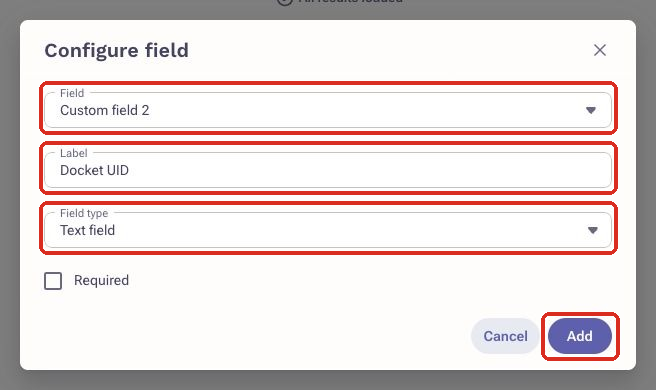
Outreach describes these settings in How To Add a Custom Field in Outreach.
How do I connect Outreach to Docket
Connect Outreach from the Integrations tab in Docket Settings, then tell Docket which field holds the Docket UID.
In Docket, open Settings and select the Integrations tab.
On the Outreach card, select Connect.
Sign in to Outreach with the admin account you chose, review the access Docket asks for, and select Authorize.
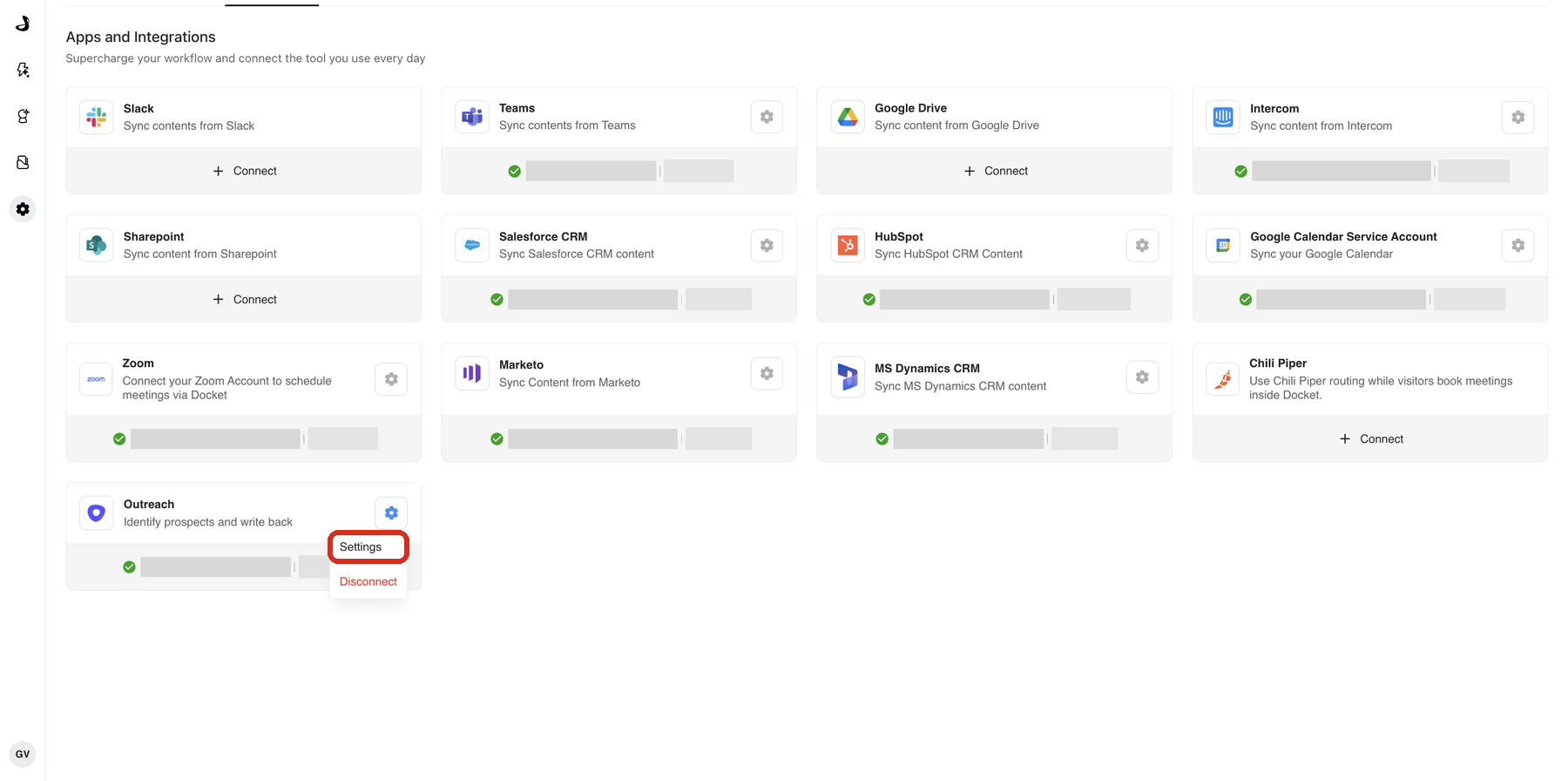
When the Outreach card shows it is connected, select the settings icon on the card, then select Settings.
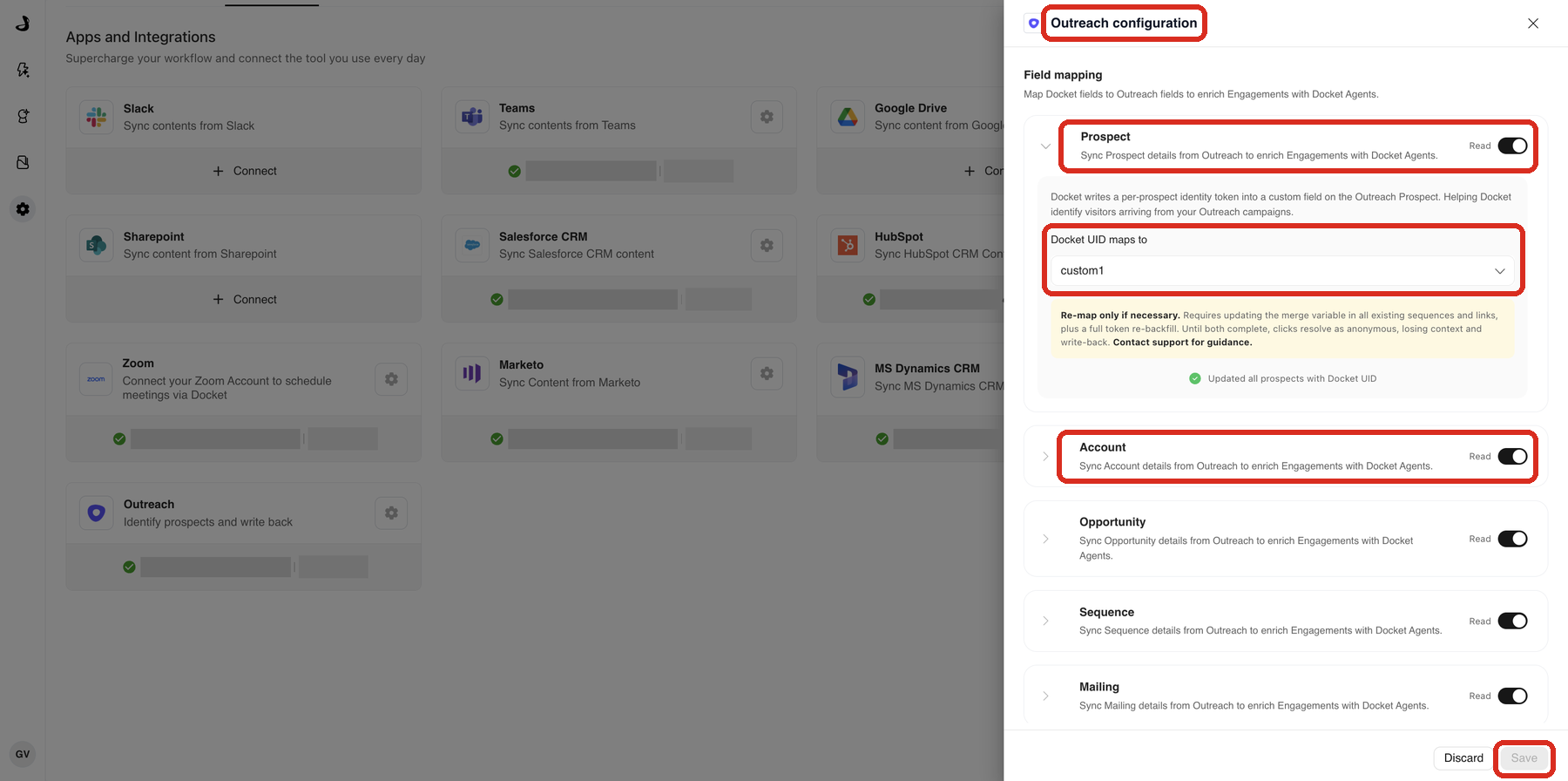
In Outreach configuration, under Prospect, check that Read is on. In Docket UID maps to, choose the field you labeled in step 3.
Turn on Read for Account, so the agent can use the company name, industry and website, then select Save.
How long does it take for every prospect to get a Docket UID
For a large Outreach database, the first run can take a few hours. Docket works through your prospects in the background. The Prospect section shows Updating all prospects with Docket UID while it runs, and Updated all prospects with Docket UID when it is done.
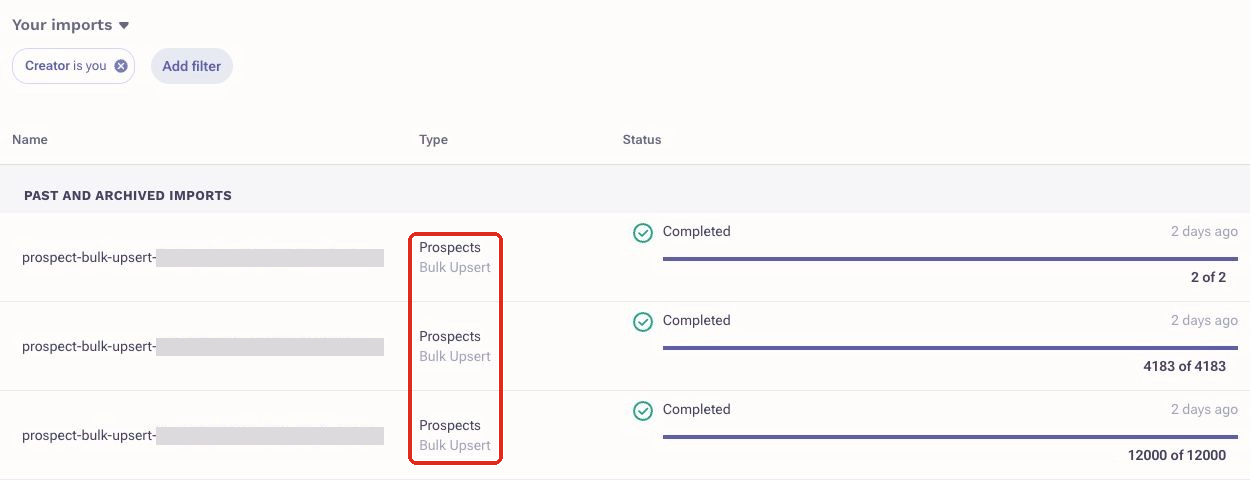
To follow along in Outreach, open the imports list under Administration. Docket's updates appear there as Prospects Bulk Upsert imports by the account that connected. After that, each new prospect gets a Docket UID within about a minute of being created.
How do I add the Docket link to Outreach sequence emails
Add the Docket UID to the link in each sequence template with an Outreach variable. Outreach fills in each prospect's own value when it sends the email, so you build the link only once.
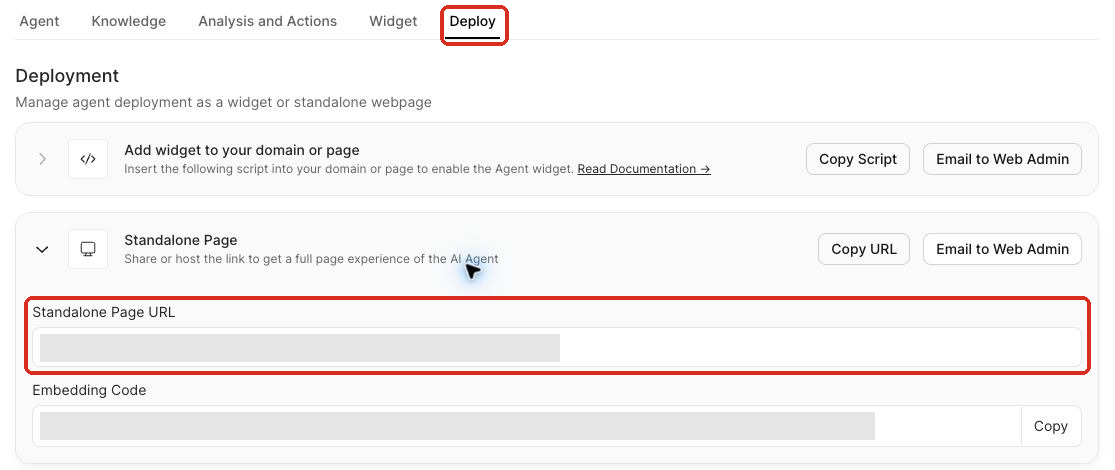
Copy the address of the page where prospects should land: a page on your website with your Marketing Agent installed, or the Standalone Page URL on the agent's Deploy tab.
In Outreach, open the template for the sequence step and select the link icon in the editor toolbar.
In The URL link, paste the address and add
?docket_uid=followed by the variable for your field. For Custom field 1, the link looks likehttps://www.example.com/demo?docket_uid={{custom1}}. If the address already has a?, add&docket_uid={{custom1}}instead. Type the variable by hand, because the Outreach variable button can't add variables to a link address. Then select Add link.
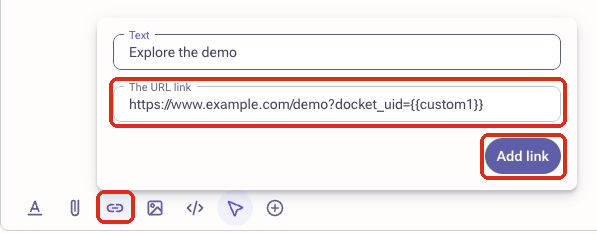
The Docket UID belongs to the prospect, not to a sequence, so the same link works in every sequence and step. Outreach covers variables in links in Can I use Outreach Variables in a Hyperlink?
How do I turn on Outreach sync for a Marketing Agent
Once Outreach is connected, every agent recognizes prospects from their links. Turning on Sync to Outreach for an agent also lets it write notes and prospect fields back to Outreach.
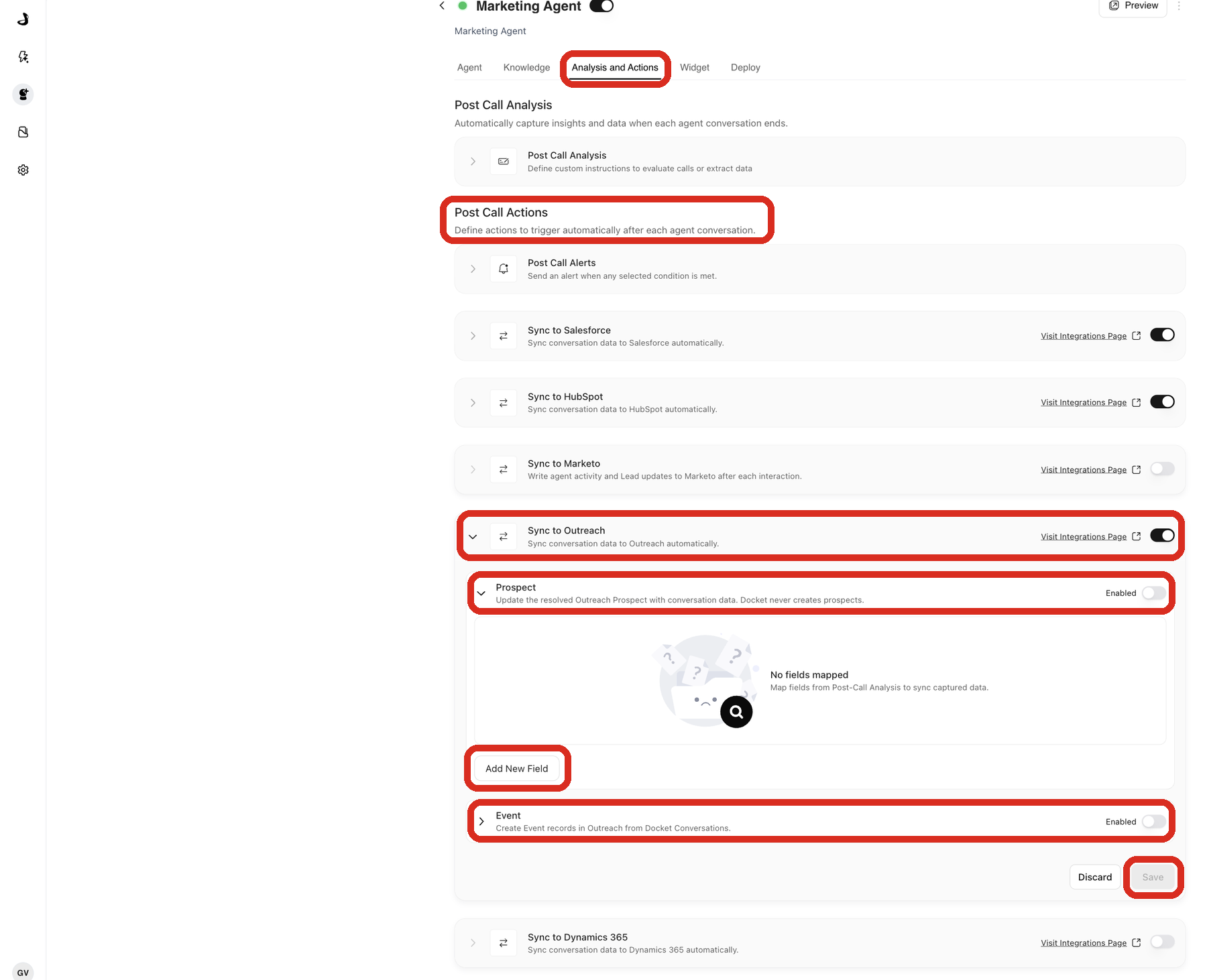
Open Marketing Agent Configuration and select the agent.
Open the Analysis and Actions tab.
Under Post Call Actions, turn on Sync to Outreach, then expand it.
To fill Outreach prospect fields as well, turn on Prospect and select Add New Field. Choose a Post-Call Analysis field under Select Docket field and the Outreach field it fills under Select field. Fill if empty writes only to an empty field, and Overwrite replaces what is there.
Turn on Event, so Docket adds a note to the prospect after each conversation, then select Save.
How do I check that the Outreach integration works
Try it with one test prospect before the link goes into live sequences.
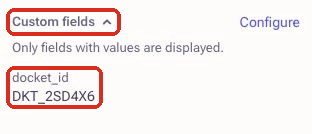
In Outreach, open the test prospect. Under Custom fields, copy the value of your Docket UID field.
Open your agent page with
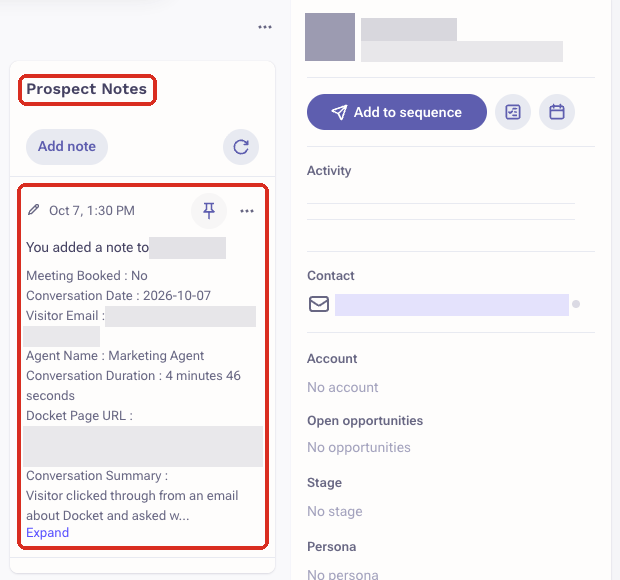
?docket_uid=and that value added to the end of the address, and chat briefly. The agent should greet the prospect by name.After the conversation ends, open the prospect in Outreach and look for the Docket note in the Prospect Notes tile. It can take a few minutes to appear.
What does the Docket note in Outreach include
Each note covers one conversation: whether a meeting was booked, the date and duration, the visitor's email, the agent's name, a summary, and a link to the full conversation in Docket. Times are in UTC.
Docket pins the note and adds a new one for every conversation, so a prospect who visits twice has two notes. Reloading the agent page also starts a new conversation.
What does the Docket Engagement tile show in Outreach
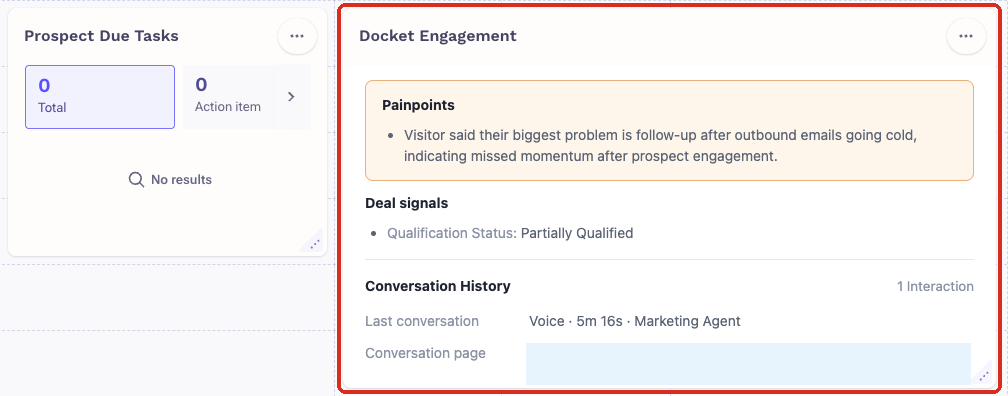
The Docket Engagement tile gives reps a summary of a prospect's Docket activity on the prospect page. It shows pain points, deal signals such as qualification status, and how many conversations the prospect has had. It also links to the last conversation and shows any upcoming meeting.
Meeting times appear in the viewer's local time, and the tile updates when you reload the page. Each Outreach user places tiles on their own prospect layout from Edit on the prospect page. Outreach explains how in Customizing Outreach Sales Intelligence Tiles.
How does Docket know which prospect is visiting
Docket goes by the Docket UID in the link first. If a prospect forwards their link and a colleague chats using their own email, the note still goes to the original prospect. The note records the email the colleague gave.
No Docket UID in the link: after the conversation, Docket looks for a prospect with the visitor's email and adds the note there.
No Docket UID and no matching email: nothing is written to Outreach.
Same browser: Docket remembers a returning visitor even without the link. Chats from that browser before they opened their link can appear in their history, and a visit from another device starts a separate history.
What happens when I disconnect Outreach from Docket
Docket stops recognizing prospects and stops writing to Outreach. Docket UIDs and notes already in Outreach stay where they are.
To disconnect, select the settings icon on the Outreach card, select Disconnect, and choose Keep Data or Delete Data. Keep in mind:
New prospects don't get a Docket UID while Outreach is disconnected. Reconnecting fills them in.
Reconnecting starts with fresh settings. Choose the Docket UID field and turn on Sync to Outreach for each agent again. If you pick the same field as before, your existing links keep working.
Disconnecting while Docket is still filling in Docket UIDs stops that work.
Troubleshooting the Outreach integration
Problem | What to check |
|---|---|
Outreach shows Missing Template Variable on a sequence step | The prospect has no Docket UID yet, usually because Docket is still working through your prospects. Wait for Updated all prospects with Docket UID. Prospects created while Outreach was disconnected get one after you reconnect. Also check that the variable in the link uses the field shown in Docket UID maps to. |
The agent doesn't recognize a prospect who used their link | Check that the link includes |
No Docket note appears in Outreach | Check that Sync to Outreach and Event are both on for that agent. Event switches off whenever Docket UID maps to changes. A visitor without a Docket UID gets a note only when their email matches a prospect. |
A mapped prospect field didn't change | Fill if empty never replaces an existing value, and Docket never clears a field when the conversation had nothing for it. If a value doesn't suit the field type, such as text in a date field, Outreach rejects that one field and Docket still writes the rest. |
Docket notes show the wrong person as author | Disconnect, then connect again with the Outreach account you want as the author. Pick the same Docket UID field, and turn Sync to Outreach back on for each agent. |
Frequently asked questions
Does the agent use opportunity, sequence or email details from Outreach?
No. When their Read setting is on, Docket stores Opportunity, Sequence and Mailing details, but the agent uses only prospect and account details in conversations.
What if someone edits or clears a prospect's Docket UID in Outreach?
Docket puts the correct value back within seconds. Changing other prospect details, even the email address, keeps the same Docket UID.
Can I change which Outreach field holds the Docket UID?
Yes, but talk to Docket Support first. Until you update the variable in every sequence and Docket fills in the new field, visitors who use older links aren't recognized. The old values stay in the old field, and Event switches off for each agent, so turn it back on.
Do opted-out Outreach prospects get a Docket UID?
Yes. Docket gives every prospect a Docket UID, including opted-out prospects, and writes back their conversations like anyone else's.
Can I use Sync to Outreach together with Salesforce or HubSpot sync?
Yes. Each sync runs on its own after the conversation, so a problem with one doesn't stop the others.