Managing People and Team Access
Last updated: September 22, 2026
The People tab is where you see everyone in your Docket workspace, what each of them can do, how many seats you are using, and where you invite new teammates.
Access in Docket is set by role. A role decides what someone can change, so it is worth matching the role to what the person actually does rather than giving everyone Admin.
Open Settings, then the People tab. You need the Admin role to change anything here.
What does the People tab show?
A row for every person in the workspace, with their email address and role, plus your seat usage.
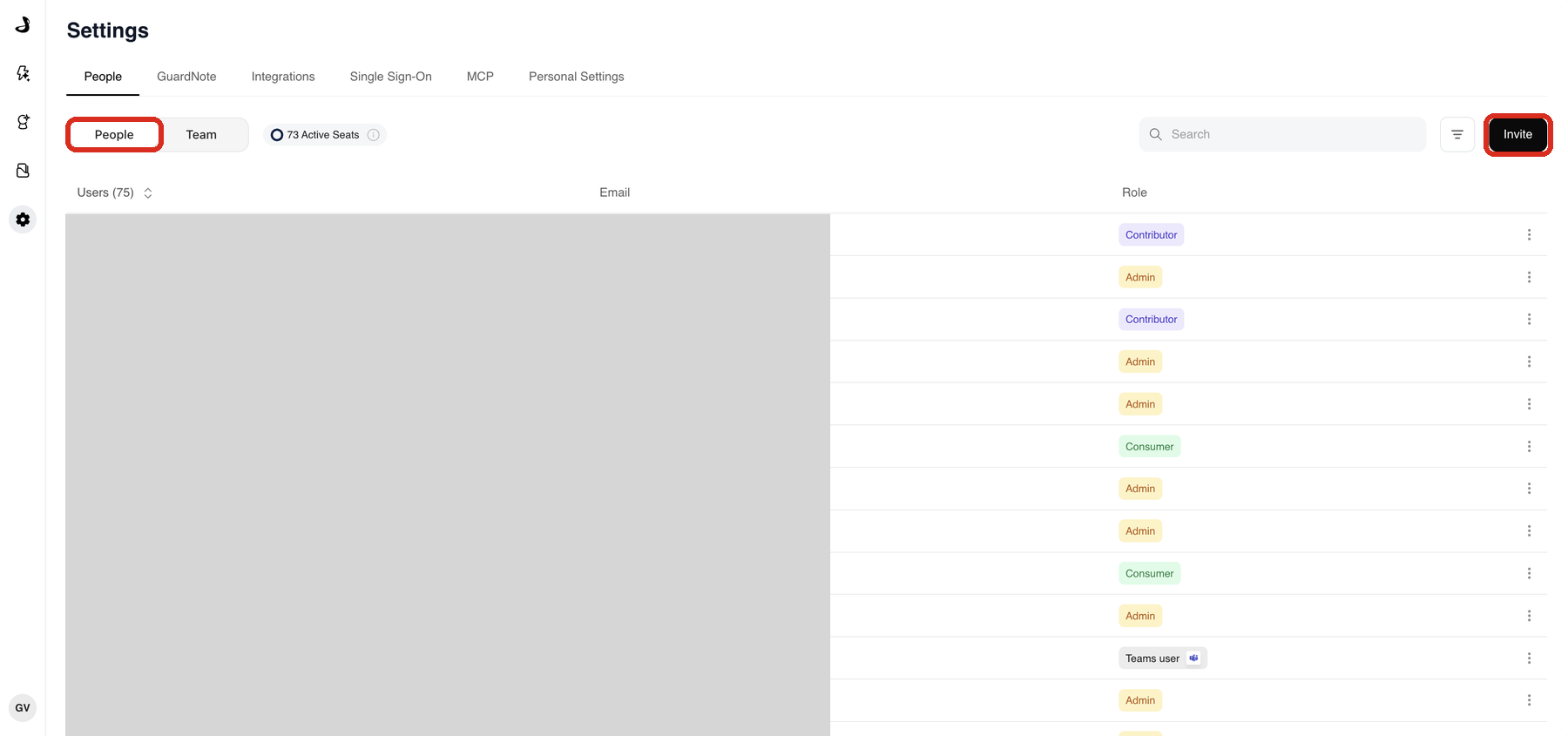
People and Team switch between the list of individuals and your teams.
Active Seats shows how many seats are in use.
Users counts everyone in the list, and the column sorts.
Search finds a person by name or email.
The menu at the end of each row holds the actions for that person.
Invite adds a new teammate.
What can each role do?
Docket uses four roles.
Role | What it is for |
|---|---|
Admin | Full workspace administration, including integrations, single sign-on, people and roles. |
Contributor | Builds and configures agents and content, without workspace administration. |
Consumer | Uses Docket rather than configuring it. |
Teams user | Someone who reaches Docket through the Microsoft Teams app rather than the web app. |
Give Admin only to the people who own the workspace itself. Connecting a CRM or changing single sign-on affects every agent and everyone's access, so a smaller Admin group is easier to keep track of.
How do I invite a teammate?
Open Settings, then the People tab.
Select Invite.
Enter the person's work email address and choose the role they need.
Send the invitation.
Each person who joins takes a seat, so check your Active Seats count before inviting a large group.
How do I change or remove someone's access?
Find the person using Search.
Open the menu at the end of their row.
Choose the action you need.
A role change takes effect on the person's next session, so ask them to sign out and back in if they do not see it straight away. Where your workspace uses single sign-on, removing someone from Docket does not remove them from your identity provider, so do both.
Frequently asked questions
How many seats am I using?
The Active Seats count sits at the top of the People tab, next to the People and Team switch. The Users heading counts everyone in the list, which can be higher than the active seat count.
Someone did not receive their invitation. What should I check?
Confirm the email address on the row, then ask them to check filtered or quarantined mail. Invitations to work addresses are sometimes held by the recipient's mail security.
A teammate's role changed but they still see the old permissions. Why?
Their session is still using the previous role. Ask them to sign out and back in.
We use single sign-on. Does removing someone from Docket cut off their access?
Not on its own. Remove them in Docket and revoke their access in your identity provider, otherwise an account that can still authenticate may keep working. See Configuring Single Sign-On for Docket.
What is a Teams user?
Someone who uses Docket through the Microsoft Teams app rather than signing in to the web app. They appear in the same list with the Teams user role.
Who can invite people?
Only someone with the Admin role.