Configuring Single Sign-On for Docket
Last updated: September 22, 2026
Single sign-on lets your team reach Docket through the identity provider you already use, so access follows the accounts your IT team already manages.
Docket supports SAML single sign-on. You create an application for Docket in your identity provider, paste three values from it into Docket, and test with one person before you roll it out.
Single sign-on is not enabled on every plan. If the Single Sign-On tab is missing from your Settings, ask your Docket account team whether it is included in yours.
What do I need before setting up single sign-on?
Have these ready before you start:
The Admin role in Docket.
Administrator access in your identity provider, so you can create and assign an application.
A second Docket administrator session you keep signed in throughout, so you always have a way back in.
One test user you can assign first, before anyone else.
Which values does Docket need from my identity provider?
Three, and they all go on the Single Sign-On tab in Settings.
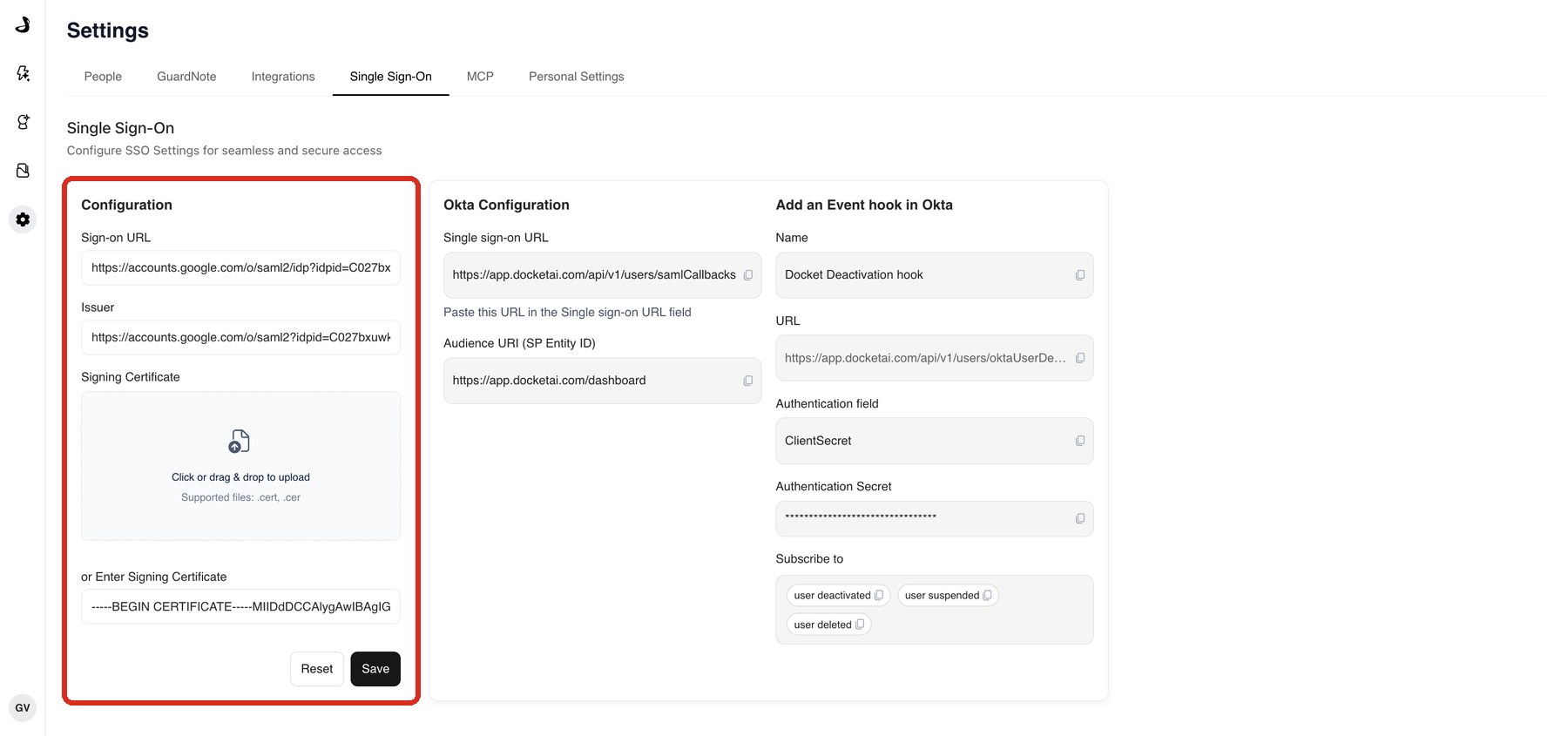
Field | What to paste |
|---|---|
Sign-on URL | The SAML sign-on endpoint from your identity provider's Docket application. |
Issuer | The identity provider's issuer or entity ID for that application. |
Signing Certificate | The application's signing certificate. Upload a |
Select Save when all three are in place. Reset clears the form without changing your live configuration.
Which values does my identity provider need from Docket?
Two, and Docket shows both on the same tab.
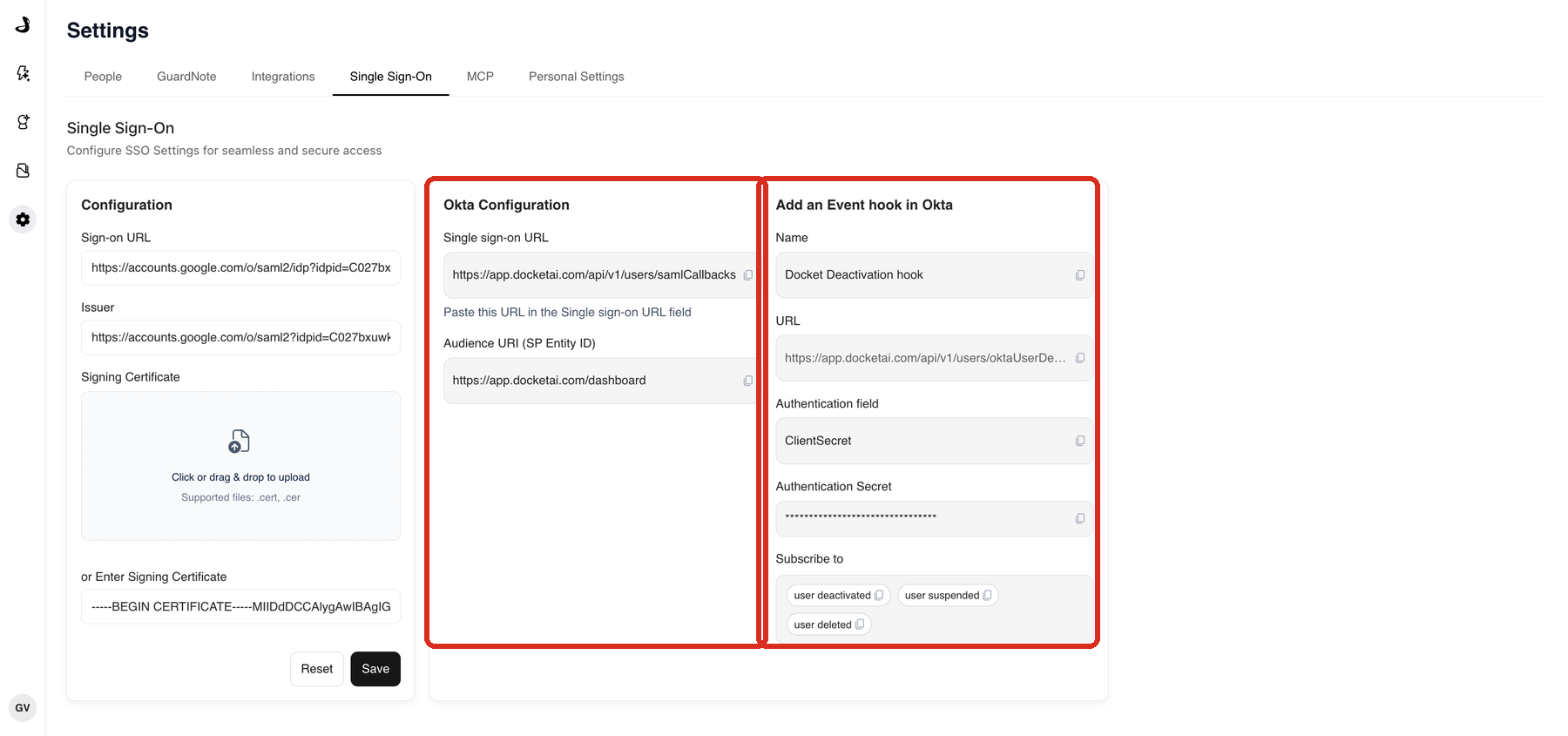
Value | What it is |
|---|---|
Single sign-on URL |
|
Audience URI (SP Entity ID) |
|
Your identity provider may label these differently. The single sign-on URL is often called the ACS URL or reply URL, and the Audience URI is often called the entity ID or audience restriction.
How do I set up single sign-on safely?
Roll it out to one person first. A misconfigured identity provider can lock out a whole workspace, and a single assigned test user keeps that risk small.
Create a SAML application for Docket in your identity provider.
Enter Docket's single sign-on URL and Audience URI in that application.
Assign one test user to the application, and nobody else yet.
Copy the identity provider's Sign-on URL, Issuer, and signing certificate into Docket's Single Sign-On tab.
Select Save.
Keep your existing Docket administrator session open in one browser.
In a separate private browser window, sign in as the test user through Sign in with SAML SSO.
Confirm the test user reaches the right workspace with the name and email you expect.
Assign the rest of your users only after that works.
Setting up SAML SSO with Okta for Docket covers the Okta-specific steps, including the optional deactivation hook.
Troubleshooting single sign-on
What you are seeing | What to check |
|---|---|
The identity provider rejects the request | Recheck the single sign-on URL and Audience URI in the application, and remove any trailing spaces introduced when pasting. |
Docket rejects the assertion | Confirm the Issuer and signing certificate in Docket match the application, and that the certificate has not expired. |
The user is not authorized | Confirm they are assigned to the Docket application in your identity provider and are using the email address Docket knows them by. |
The certificate is rejected | Confirm the file is |
A removed user can still sign in | Removing someone from your identity provider does not remove their Docket account. Remove them on the People tab as well. |
Frequently asked questions
Does single sign-on replace password sign-in for everyone?
Not on its own. Removing someone's access in your identity provider does not delete their Docket account, so remove people on the People tab too. See Managing People and Team Access.
Which identity providers does Docket work with?
Docket uses standard SAML, and the Settings tab includes setup guidance for Okta. If you use a different provider, check with your Docket account team before you plan the rollout.
How do users sign in once single sign-on is on?
From the Docket sign-in page, using Sign in with SAML SSO rather than an email and password.
What happens if I misconfigure it?
Keep a second administrator session signed in while you test, and you can correct the configuration from there. This is why the rollout starts with one assigned test user.
Where is the Single Sign-On tab?
In Settings, between Integrations and MCP. If it is not there, single sign-on is not enabled for your workspace.