Embedding a Standalone Agent with an iframe
Last updated: September 29, 2026
Place the Docket agent inside a page you already have by pasting the iframe snippet that Docket generates for you.
Choose this over sharing the standalone page link when visitors should stay on your own page, and over the website widget when the agent should sit in a fixed area of the layout rather than overlay it.
What do I need before I embed the agent?
You need the generated Embedding Code from the agent's Deploy tab and the ability to edit the HTML of the page that will hold it.
You can edit the HTML of the destination page.
The destination page allows embedded content.
The destination page is served over HTTPS if the agent uses voice.
You know which container the iframe will sit in, and how tall that area should be.
You know whether any IP Access Rule should keep a network out, because those rules only restrict access.
How do I get the iframe code for my Docket agent?
Docket generates the iframe for you in the Standalone Page section of the agent's Deploy tab, so copy it from there instead of writing one by hand.
Log in to Docket at app.docketai.com.
Click Marketing Agent Configuration in the left sidebar.
Select the agent you want to embed.
Open the Deploy tab.
Find Standalone Page under the Deployment heading.
Click the arrow at the left of the Standalone Page row to expand the section.
Click Copy beside Embedding Code.
Paste the snippet into your page where the agent should appear.
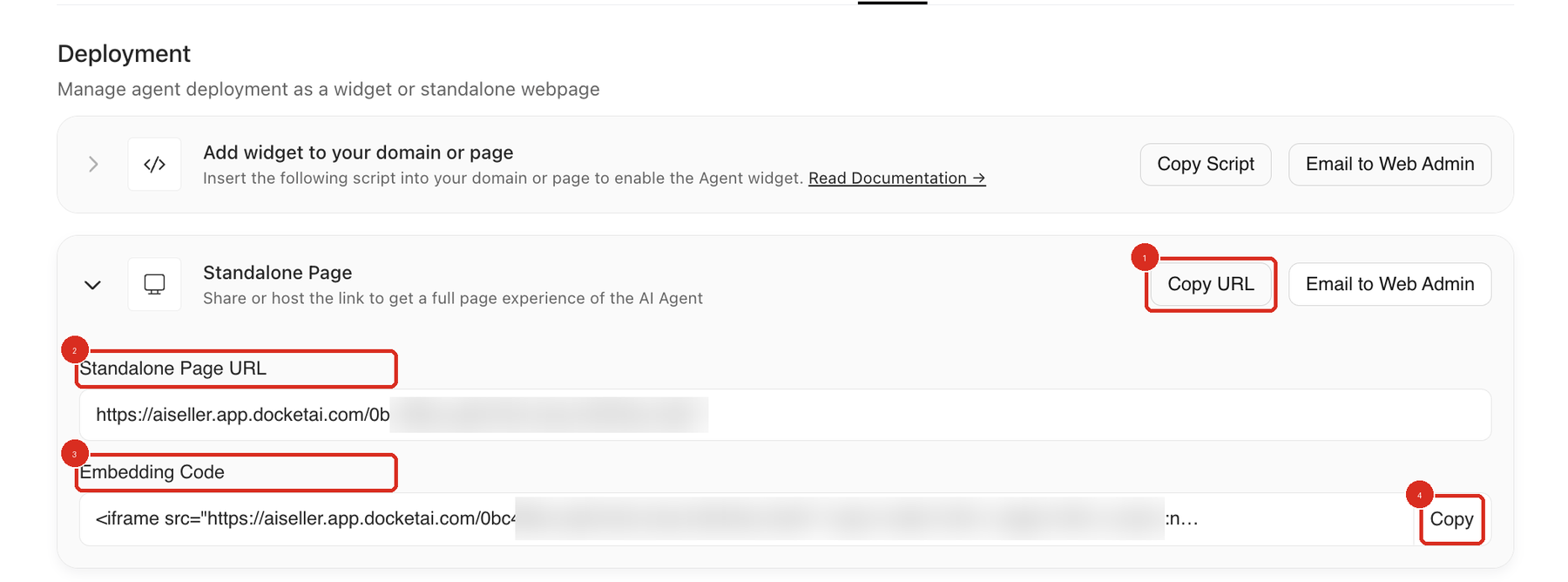
Standalone Page is collapsed when you open the Deploy tab. Embedding Code and its Copy button (callouts 3 and 4) only appear once you expand the section.
The snippet you copy has this shape, with your own page id filled in:
<iframe src="https://aiseller.app.docketai.com/YOUR-PAGE-ID/" style="width:100%; height:100%; border:none;" loading="lazy" allow="microphone" allowfullscreen> </iframe>The id in the src is a standalone page id, not the agent id. That is why the code has to be copied rather than assembled from an agent id.
Two parts of the snippet are worth knowing before you paste it:
height:100%needs a container that has a height of its own, or the iframe collapses.allow="microphone"andallowfullscreenare already there, so leave them in place.
Why is nothing showing where I pasted the iframe?
The generated code uses height:100%, so the iframe collapses to zero height when its parent container has no height of its own, and the visitor sees nothing at all.
This is the most common reason an embed appears not to work. The code is on the page and the agent is fine, but the space it was given is zero pixels tall.
Fix it in one of two ways:
Give the parent container an explicit height in your own CSS, so
height:100%has something to fill.Replace
height:100%in the copied snippet with a fixed height, such as720px.
<iframe src="https://aiseller.app.docketai.com/YOUR-PAGE-ID/" style="width:100%; height:720px; border:none;" loading="lazy" allow="microphone" allowfullscreen> </iframe>Change only the height. Leaving the rest of the generated snippet intact keeps the correct page id and the permission attributes.
Does voice work inside the iframe?
Yes. The generated code already includes allow="microphone" and allowfullscreen, so voice works when the parent page is served over HTTPS and both attributes are left in place.
Removing allow="microphone" stops the microphone working inside the iframe. If a tool or CMS strips attributes when you paste HTML, check the published page source and confirm both attributes survived.
The visitor still gets the browser's own microphone prompt the first time. For which agents use voice at all, see Understanding Agent Modes: Voice & Text vs Text Only.
Should I add a title attribute to the iframe?
Yes. The generated code has no title attribute, and adding one is good practice for screen readers.
Screen readers use the title to announce the frame, so without one the visitor hears an unnamed frame on your page.
Add it alongside the other attributes, for example title="Docket Marketing Agent".
How do I check the embed before it goes live?
Load the parent page in a private browser window and confirm the agent is visible, correctly sized, and able to hold a conversation.
Paste the snippet into a staging copy of the page if you have one.
Open that page in a private browser window.
Confirm the agent is visible and the iframe is as tall as you expect.
Check the page again at a mobile width.
Complete a short text interaction with the agent.
Test microphone access if the agent uses Voice & Text mode.
Confirm the iframe appears only on the pages you intended.
Publish the page.
Why isn't my embedded agent working?
Check the height of the container first, then the attributes in the pasted snippet, then the agent's IP Access Rules.
Problem | What to check |
|---|---|
Nothing appears where the iframe was pasted | The container has no height, so |
The iframe is the right size but blank | Confirm the generated code was pasted complete, then review the parent page's Content Security Policy. |
Microphone does not work | Confirm the parent page uses HTTPS and that |
A visitor gets an HTTP 403 | An IP Access Rule is blocking them. Compare their IP address, range, ASN, or country code against the rules on the Deploy tab. |
Wrong agent appears | Copy the Embedding Code again from the intended agent's Deploy tab. |
A screen reader announces an unnamed frame | Add a |
Rules on the Deploy tab restrict access only, so never add your own network there. See Setting Up IP Access Rules for Agent Security.
Frequently asked questions
Can I write the iframe myself instead of copying the generated code?
Copy the generated code. The src contains a standalone page id rather than the agent id, so the URL cannot be built from something you already know.
Does the parent page have to use HTTPS?
Yes, if the agent uses voice. The microphone works inside the iframe when the parent page is served over HTTPS and the permission attributes are intact.
What breaks if I remove allow="microphone" or allowfullscreen?
Removing allow="microphone" breaks the microphone inside the iframe. Leave both attributes exactly as generated, and re-copy the snippet if you are unsure what was changed.
Can I change the width and height in the copied code?
Yes. The snippet is HTML on your own page, so you can set a fixed height such as 720px and adjust the width. Keep the src and the permission attributes unchanged.
Which agent does the embedded iframe load?
The agent whose Deploy tab you copied the code from. Each snippet points at one standalone page, so copy a fresh one if you need a different agent on the page.