Connecting Outlook Calendar for Marketing Agent Meetings
Last updated: September 23, 2026
If your reps live in Outlook, your Docket Marketing Agent can book meetings straight onto their real calendars. It checks when each rep is genuinely free in Outlook, offers a visitor only those times, and writes the meeting onto that rep's own calendar.
Routing does not change at all. Your agent still picks the same rep, in the same way, for the same reasons. The only thing that changes is the calendar it books on.
What do you need before you connect Outlook Calendar?
Outlook Calendar booking works when each rep has a Microsoft work account with an Exchange Online mailbox behind it. In practice that means four things.
A Microsoft work account for each rep. This is the account their company email runs on. Personal addresses like outlook.com or hotmail.com are a different kind of Microsoft account and are not used here.
An Exchange Online mailbox on that account. If your reps already send and receive company email through Microsoft, they almost certainly have one. The Business, Enterprise, and Exchange Online plans all include it.
Mailboxes that have moved to the cloud. Reps whose mailbox still sits on an on-premises Exchange server carry on with your current setup, and they can connect once their mailbox moves across.
A license for whichever conferencing tool you use. Microsoft Teams is the default, and each rep needs a license that lets them organize Teams meetings, which most Microsoft 365 plans including Teams already cover. You can use Zoom instead, in which case connect Zoom before you point the agent at it.
Reps connect their own calendars, and Microsoft lets people approve this kind of access for themselves.
How do you connect Outlook Calendar to your Docket Marketing Agent?
Connecting Outlook Calendar takes three steps, and the order matters. Each rep connects their calendar, each rep sets their hours, and then you switch the agent over. Outlook Calendar only appears as a choice on the agent once a rep has connected, which is why the agent comes last.
Connect your Outlook calendar in Personal Settings
Every rep does this once, for their own calendar, and it takes about a minute.
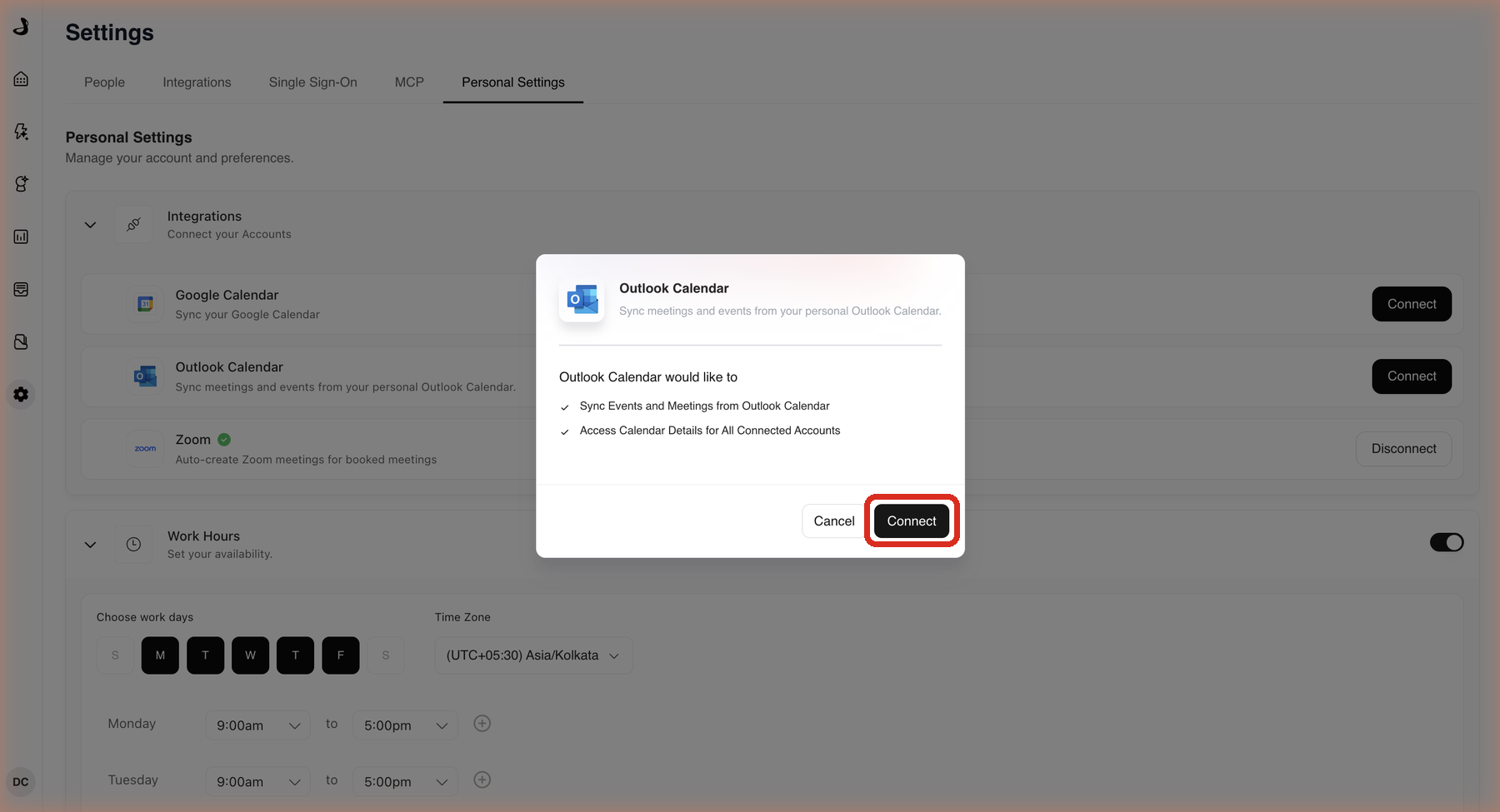
Open Settings.
Select Personal Settings.
Under Integrations, find Outlook Calendar.
Select Connect.
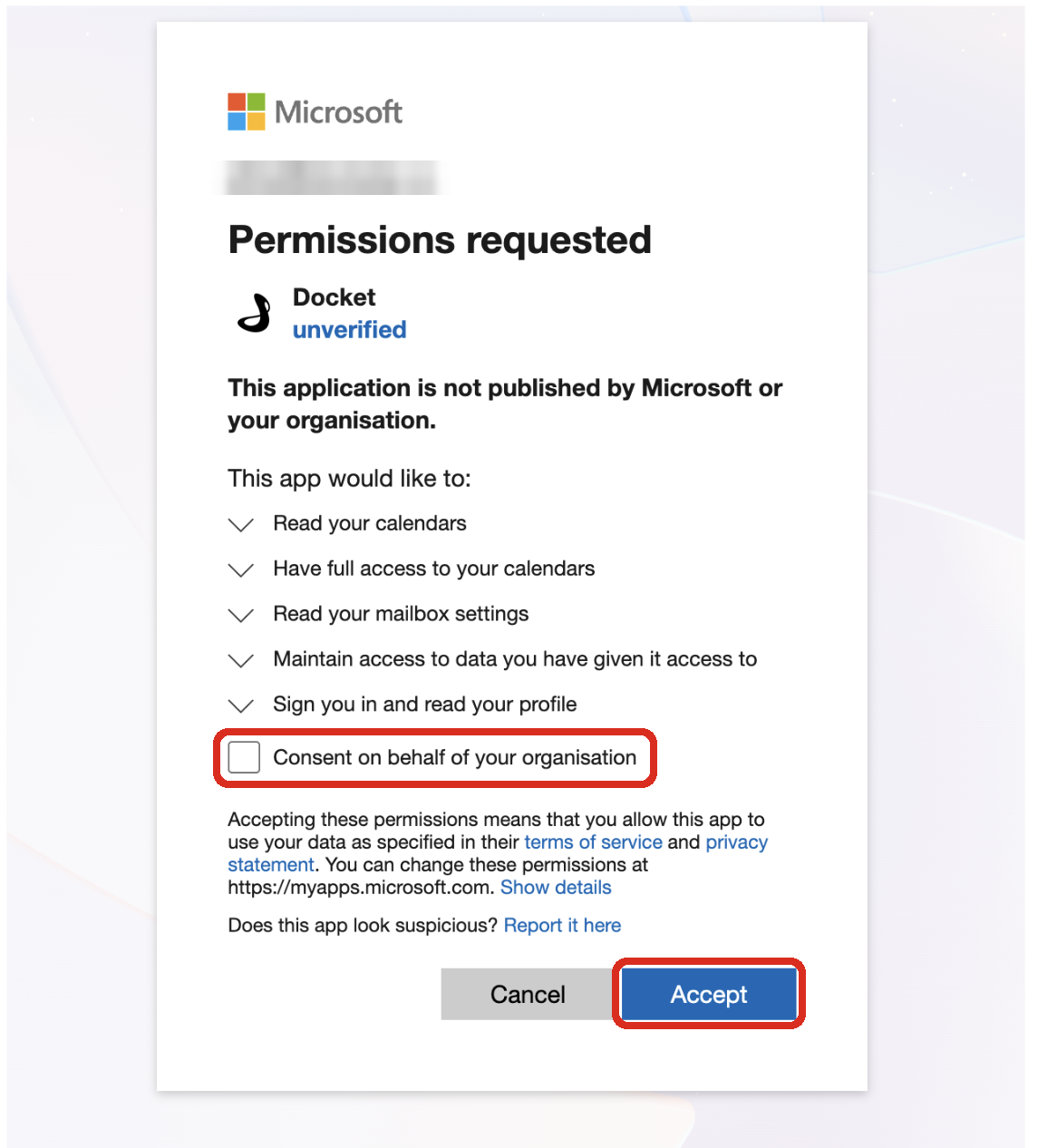
Sign in with your Microsoft work account. Microsoft will show you what is being asked for, which is permission to see and manage your calendar. Tick Consent on behalf of your organisation, then select Accept to carry on.
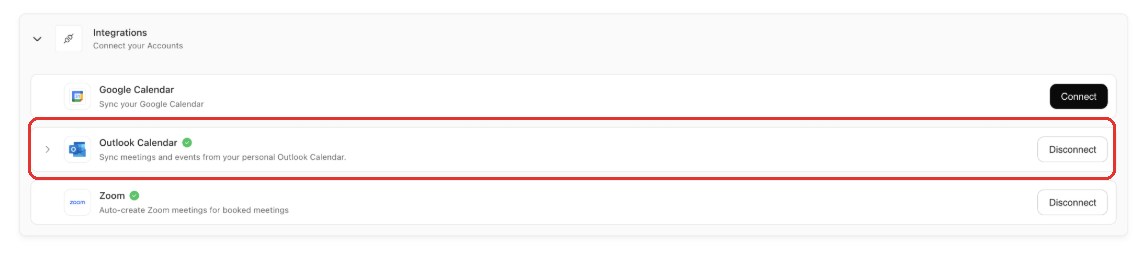
Check that Outlook Calendar now shows as connected with a green tick.
Set your work hours and time zone
Your work hours decide which times a visitor sees, so they are worth a moment's care. If you do not set any, you are treated as available 24/7.
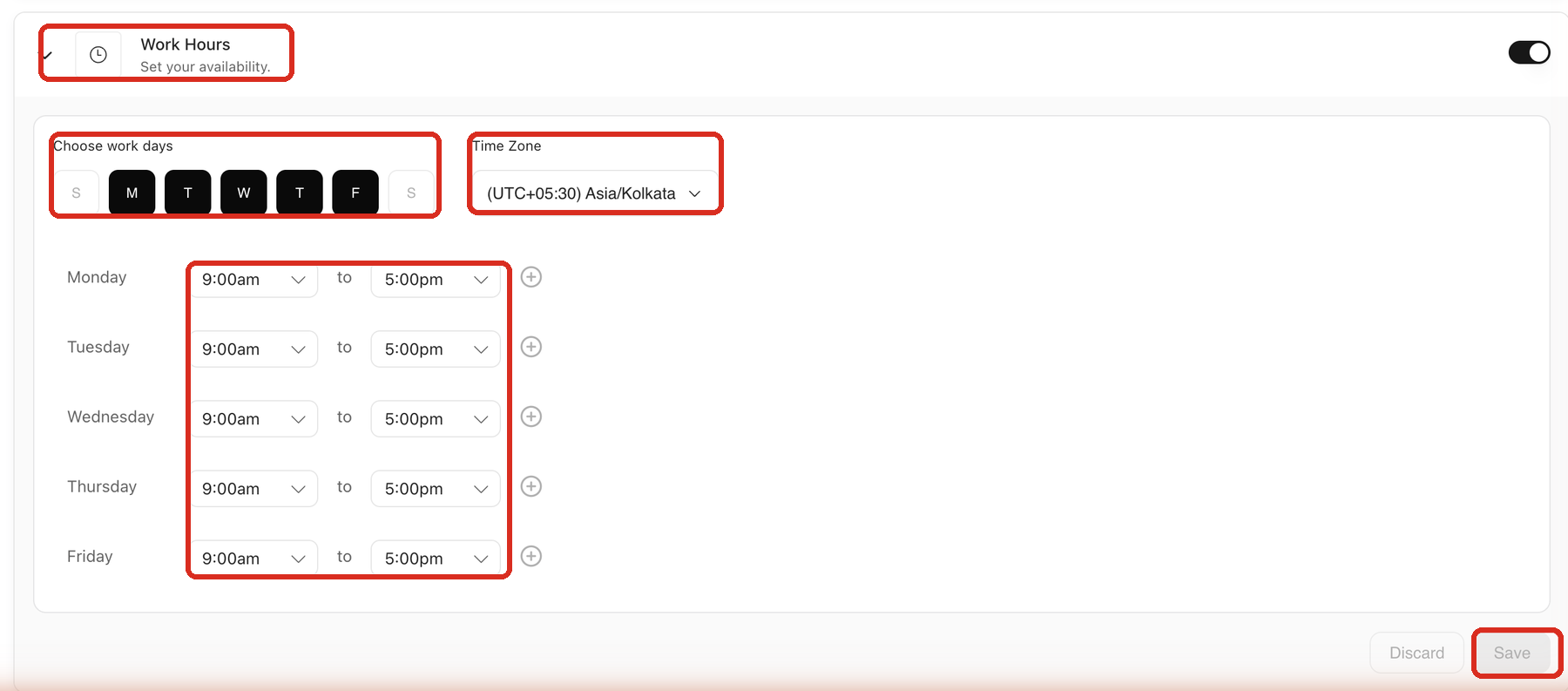
Stay on Personal Settings and open Work Hours.
Under Choose work days, pick the days you take meetings.
Set your Time Zone. Visitors see your times converted from this, so it needs to be the zone you actually work in.
Set a start and end time for each day you picked.
Select Save.
Choose Outlook Calendar in your agent's meeting booking settings
Now point the Docket Marketing Agent at Outlook. This part is done once per agent, by whoever manages it.
Open the agent that books meetings.
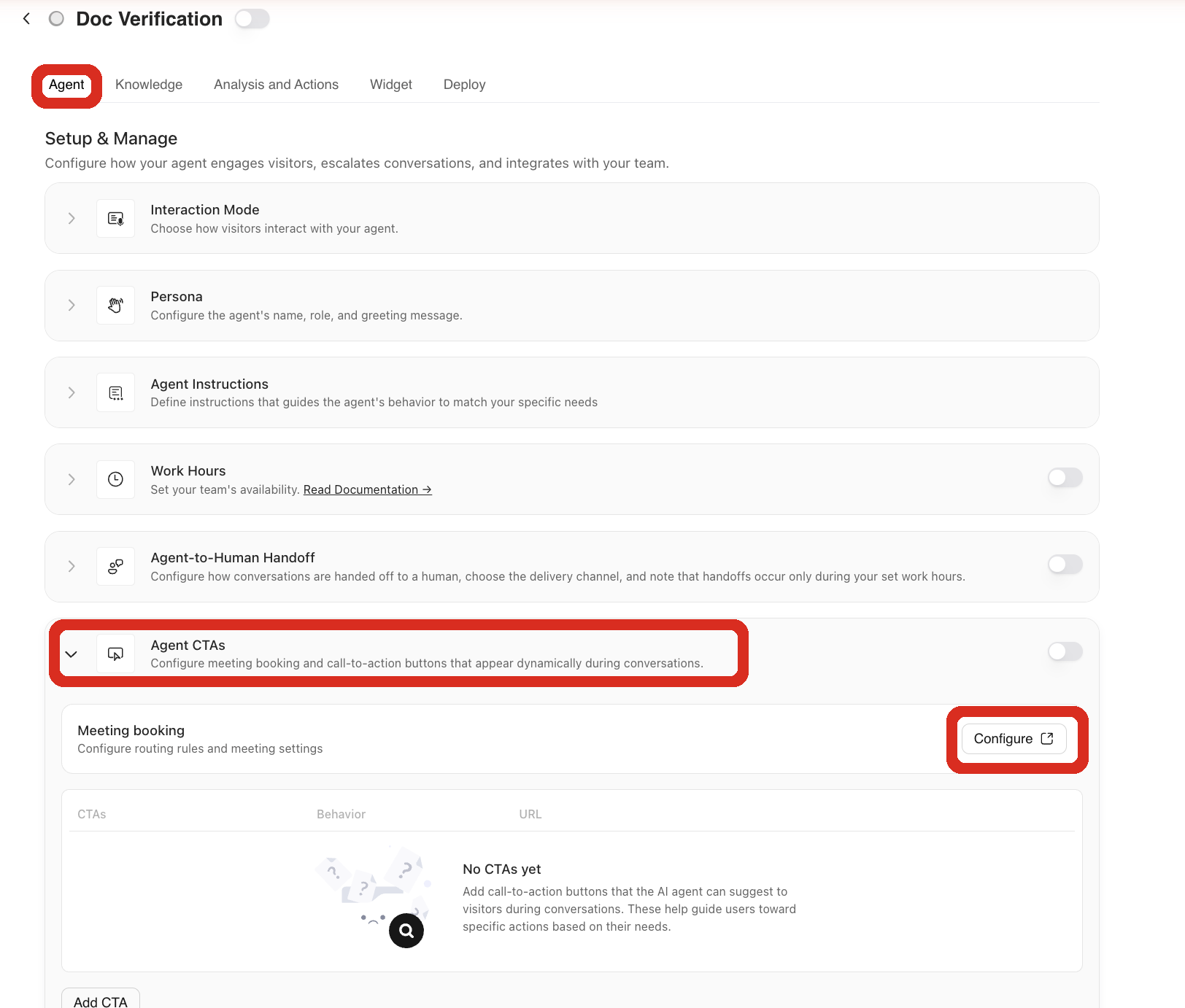
On the Agent tab, expand Agent CTAs.
Next to Meeting booking, select Configure.
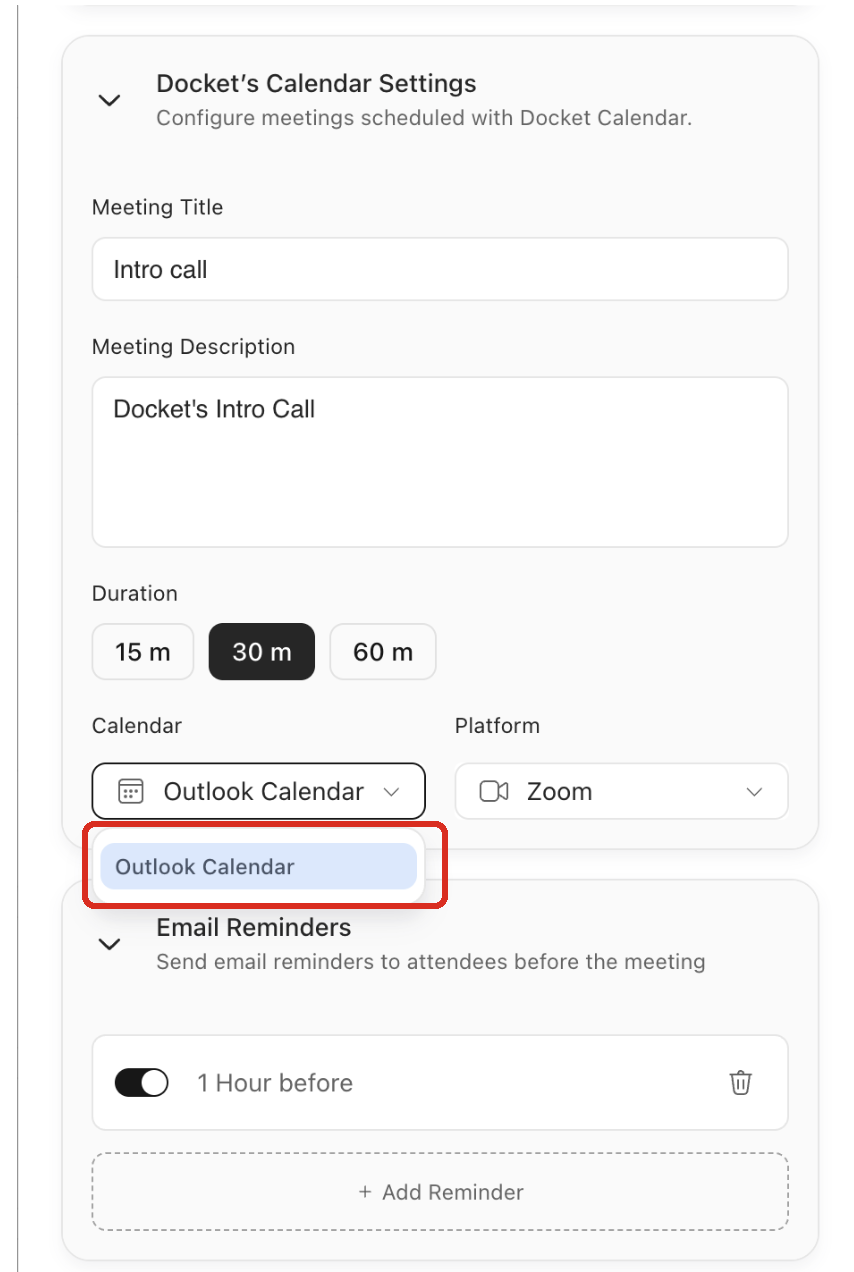
Under Docket's Calendar Settings, set Calendar to Outlook Calendar.
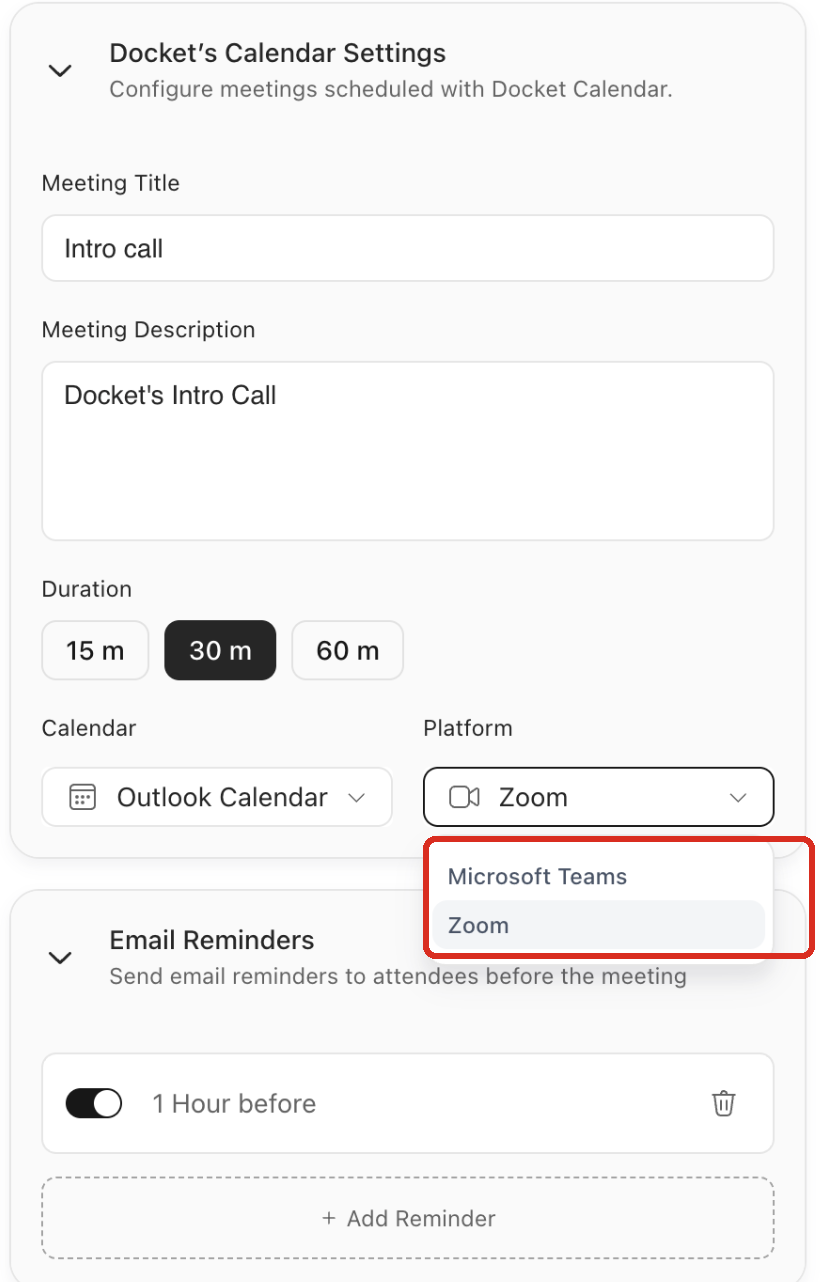
Set Platform. Microsoft Teams is the default, and you can choose Zoom instead when Zoom is connected.
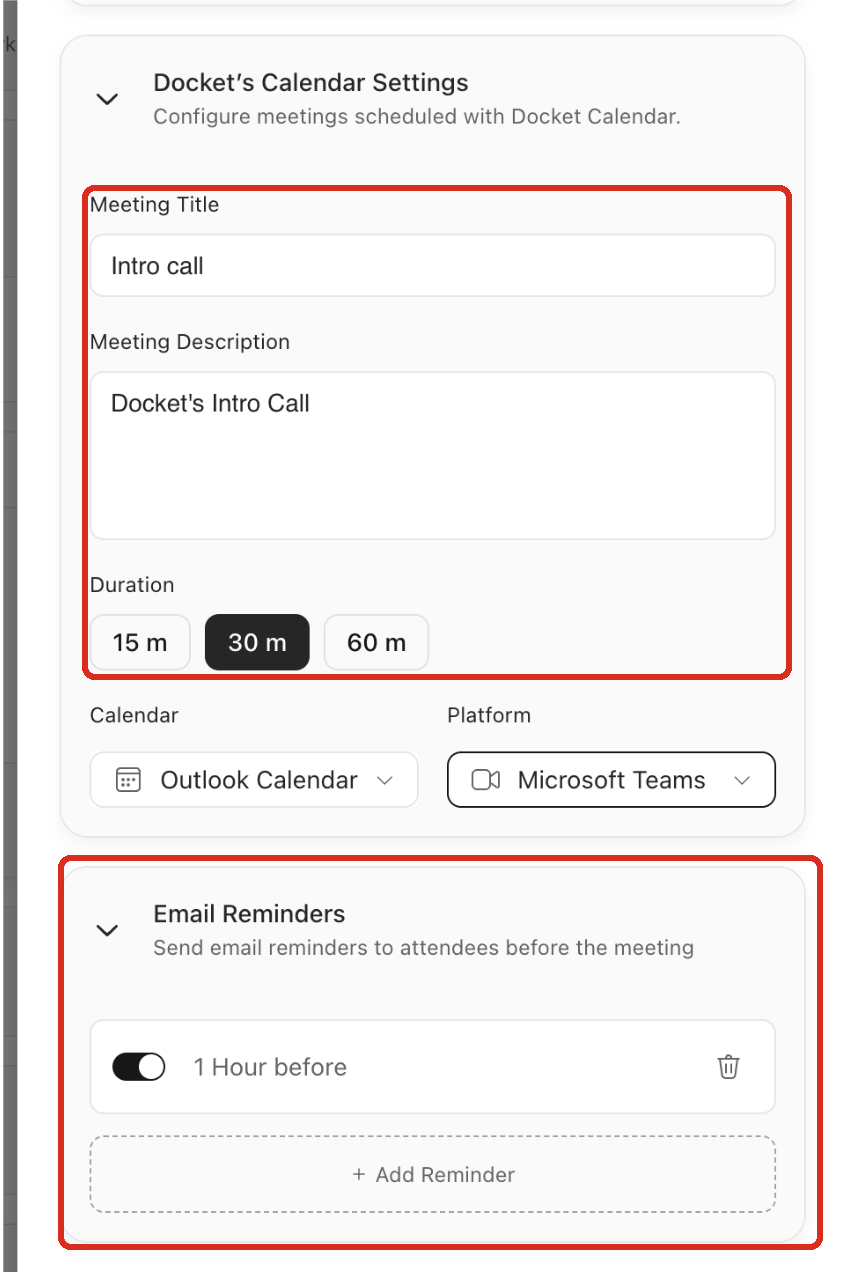
While you are here, check Meeting Title, Meeting Description, Duration, and Email Reminders, since these carry across from your previous setup.
Select Save.
Which meeting platform should you use with Outlook Calendar?
Outlook Calendar works with Microsoft Teams and Zoom. Teams is the default, and it is the natural fit for a Microsoft team because the meeting is created as part of the calendar event rather than as a link attached to it.
Platform | How it works on Outlook | What it needs |
|---|---|---|
Microsoft Teams | Created as part of the calendar event itself | A rep licensed to organize Teams meetings |
Zoom | The join link is added to the event | Zoom connected in your workspace |
Zoom becomes selectable once Zoom is connected, so if it is missing from the list, connect it first and then reopen the meeting booking settings. Zoom is connected in two places: on the Zoom card in Settings then Integrations for the whole workspace, and under Settings then Personal Settings for one person’s own Zoom account.
How do you check that Outlook Calendar booking is working?
Book a real meeting against a test email address before you let visitors near it.
Open Preview for the agent.
Start a conversation that should offer a meeting.
Pick a time when a connected rep should be free.
Finish the booking using a test email address.
Check that the meeting lands on that rep's Outlook calendar at the right time, with a working join link.
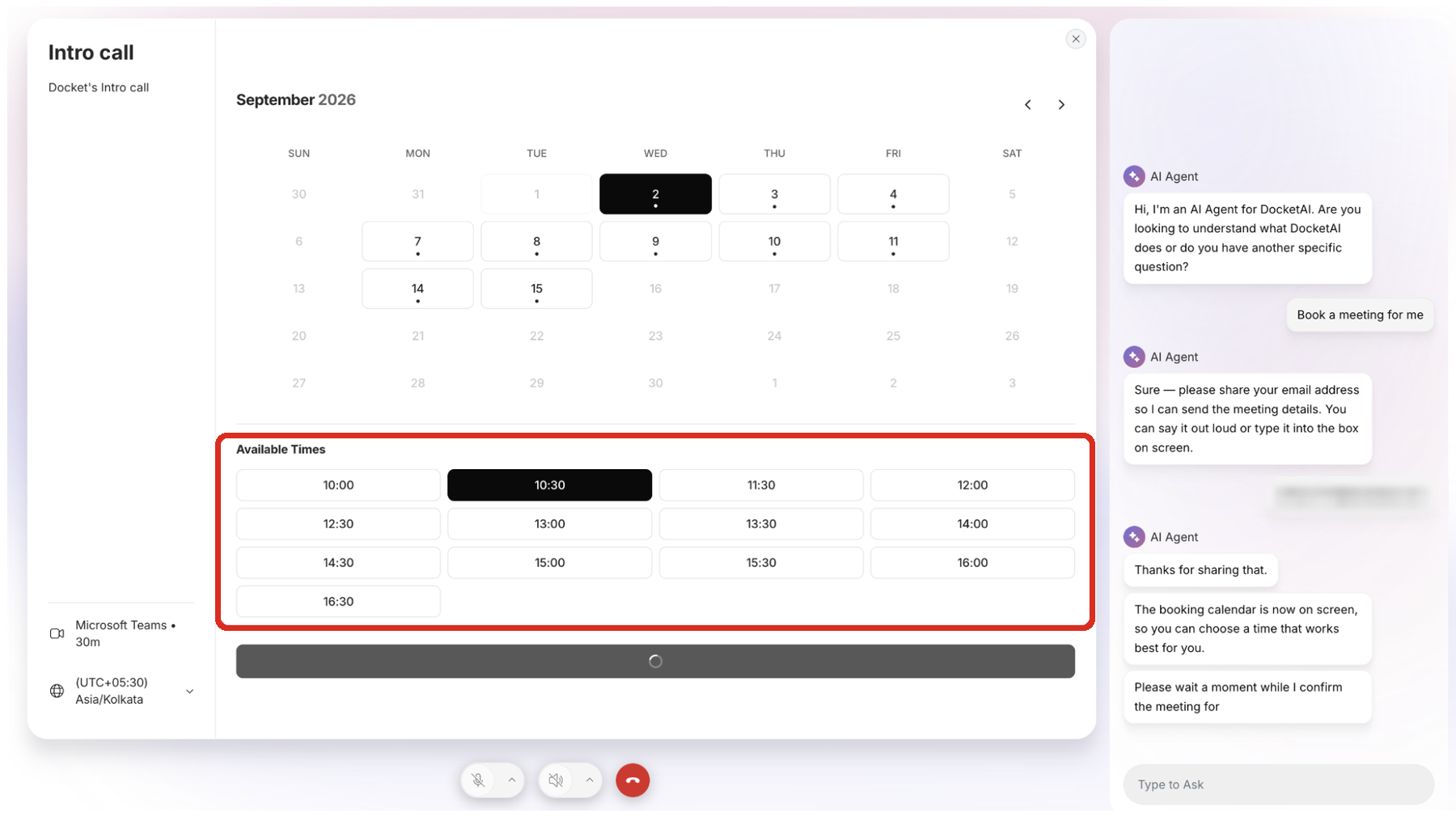
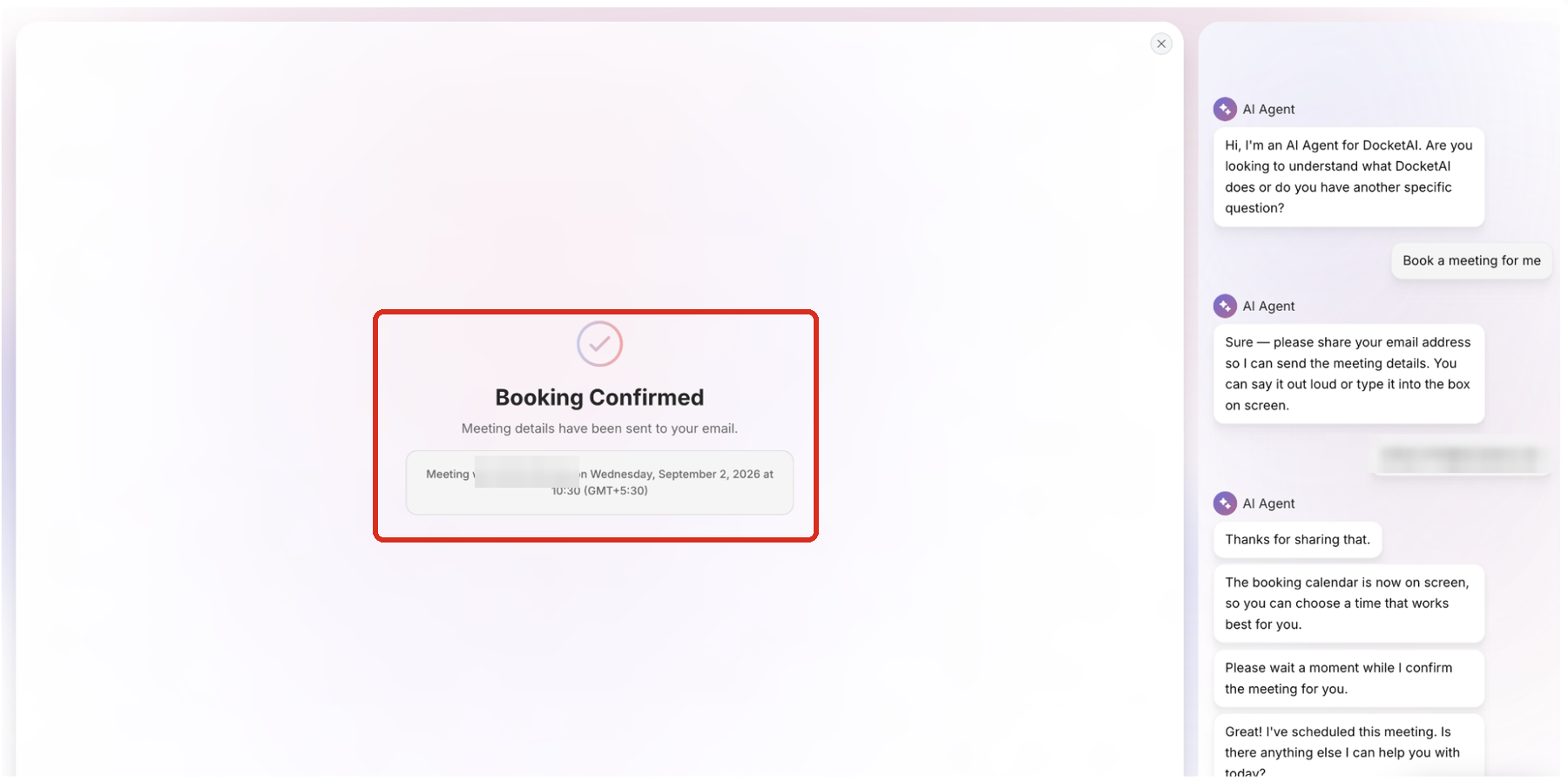
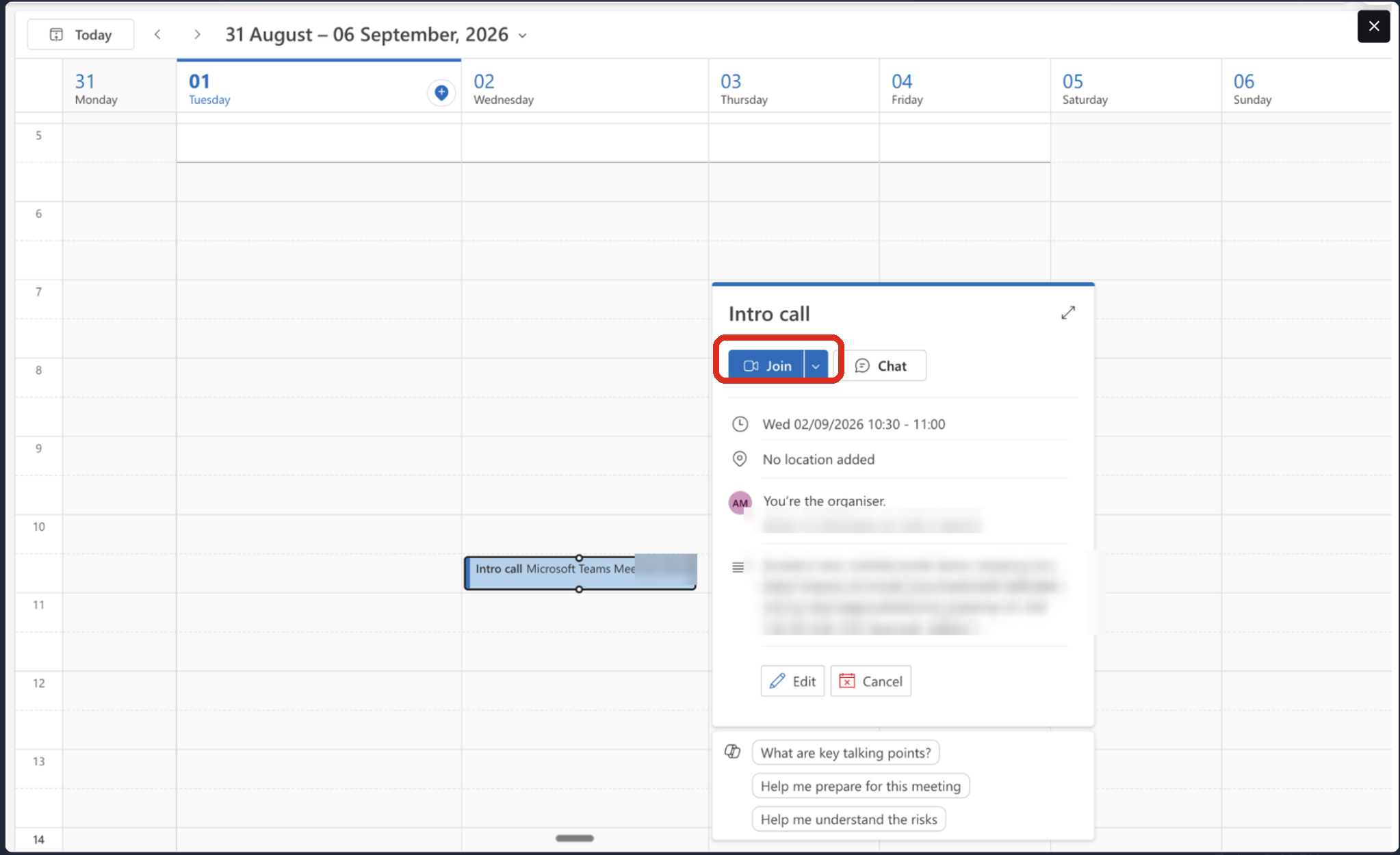
For a second check, block out an hour in Outlook directly and confirm that time stops being offered.
How does the Docket Marketing Agent decide which times to offer?
A time is offered only when the rep is free in Outlook and that time also falls inside their work hours. A rep who has not set any work hours is treated as available 24/7, so setting them is what keeps bookings inside sensible hours. The Docket Marketing Agent looks 14 days ahead and shows everything in the rep's own time zone. Anything a rep books directly in Outlook drops out of the offered times, so the two never drift apart.
Reps who have not connected their calendar are not offered at all. That is worth knowing when you roll this out, because the more of your routed reps who connect, the more choice a visitor gets.
What happens if a rep moves or cancels the meeting in Outlook?
The Docket Marketing Agent follows the calendar, so reps can move or cancel in Outlook exactly as they always have. There is nothing extra for them to learn, and the change comes through within 15 minutes.
If they move it, the booking shifts to the new time and the reminder emails move with it.
If they delete it, the booking is cancelled and its reminders are dropped.
Either way, your CRM keeps up. The meeting record in Salesforce or HubSpot updates to match.
What are the current limits of Outlook Calendar booking?
This first release covers reps who connect their own calendar. Four things are worth knowing about before you plan your rollout.
Connecting a whole organization at once. Every rep connects individually for now, so plan a little time for the rollout.
Shared mailboxes and meeting rooms. Connecting needs a person to sign in, and Microsoft keeps sign-in switched off on those accounts. If you need one bookable now, an administrator can convert it into a regular licensed mailbox and it will connect like any rep.
Mixing calendars on a single agent. One agent books on either Google Calendar or Outlook Calendar. If your team is split across both, they will need separate agents.
Rescheduling from the chat. Visitors cannot move a booking themselves. Reps reschedule in Outlook and the booking follows.
Troubleshooting Outlook Calendar booking
What you are seeing | What to do |
|---|---|
"no active Exchange Online mailbox found" when connecting | No mailbox could be found on the account that signed in. Usually it is a personal Microsoft account rather than the work one, an account without an Exchange Online license, or a mailbox still on an on-premises server. Microsoft 365 F1 and Microsoft 365 Apps for business do not include a mailbox. Microsoft does not say which case applies, so your Microsoft administrator is the quickest way to confirm the license and where the mailbox lives. |
Microsoft asks for admin approval when you connect | Your organization has turned off self-service approval for new apps. Select Request approval on the Approval required screen, and Microsoft will email you once your admin has decided. |
Outlook Calendar is missing from the Calendar list | No rep has connected an Outlook calendar yet. Connect one first, then reopen the agent's meeting booking settings and it will be there. |
A rep is never offered as a host | Check that they show as connected, and that they are included in the routing for this agent. Missing work hours will not cause this, because a rep with none set is treated as available 24/7. |
No times appear at all | Check that at least one routed rep has connected their Outlook calendar. |
A rep who was working now shows as disconnected | Their Microsoft access was withdrawn or has expired. They can reconnect from Personal Settings, and their existing bookings are untouched. |
The invitation has the wrong join link, or none at all | Check the Platform set on the agent, and confirm the matching tool is connected. |
Times appear in an unexpected time zone | Times follow the rep's time zone, not the visitor's. Check it in their Personal Settings. |
Frequently asked questions
Does connecting Outlook Calendar give the Docket Marketing Agent access to our whole Microsoft 365 tenant?
No. Each rep connects their own calendar, and that connection covers only them. There is no organization-wide connection in this release.
Do we need a separate Microsoft Teams integration to book Teams meetings?
No, and there is no second sign-in either. If the Outlook calendar a rep connects is linked to a Teams account, the Docket Marketing Agent picks that up on its own and books the meeting on Teams.
Can a rep disconnect Outlook Calendar without losing their existing bookings?
Yes, and their existing bookings stay untouched. They can disconnect in Personal Settings, or remove access from their Microsoft My Apps page using Manage your application and then Revoke Permissions. Either way they stop being offered for new meetings, and they can reconnect whenever they are ready.
Do attendees get reminder emails?
Yes. Reminders are set per agent under Email Reminders in the meeting booking settings, and they follow the meeting: if a rep moves it in Outlook, the reminders move with it, and if the meeting is cancelled they are dropped.
Do Outlook Calendar bookings sync to Salesforce and HubSpot?
Yes, and any later change to the meeting updates the same record.
What happens if two visitors pick the same Outlook Calendar time slot?
Only one of them gets it. The Docket Marketing Agent rechecks the calendar in the moment before it writes the meeting, so if a slot has just gone, the second visitor is offered fresh times instead of a double booking.