Connecting Google Calendar for Meeting Routing
Last updated: September 22, 2026
Connect Google Calendar so a Marketing Agent can see when your team is genuinely free and book meetings straight onto their calendars.
Docket offers two ways to connect Google Calendar, and choosing the right one early saves rework. A workspace service account covers everyone at once and is set up by a Google Workspace administrator. A personal connection covers one person, and each rep connects their own.
Routing does not change either way. Your agent still picks the same host for the same reasons. The connection only decides whose availability Docket can see.
Which Google Calendar connection should I use?
Connection | Where it is set up | Use it when |
|---|---|---|
Google Calendar Service Account | Settings then Integrations, by a Docket Admin using a Google Workspace admin account | You want every routed host covered without asking each one to connect. |
Google Calendar (personal) | Settings then Personal Settings, by each person | You want only specific people bookable, or your Google administrator would rather not grant workspace-wide access. |
Teams often start with the service account and are asked by security to narrow it later, so it is worth asking that question before you connect.
What do I need before connecting Google Calendar?
Have these ready before you start:
The Admin role in Docket, for the workspace service account connection.
A Google Workspace administrator account for your domain, which is what the service account connection authenticates with.
Google Meet available to the people who will host, if meetings should carry a Meet link.
Each host's primary work email address. Google's availability lookup does not resolve alias addresses such as
name+tag@example.com.
How do I connect the Google Calendar Service Account?
This covers the whole workspace and is done once.
In Docket, open Settings and select the Integrations tab.
Find Google Calendar Service Account and select Connect.
Enter your Google Workspace administrator email when prompted, and complete the connection.
Confirm the card shows as connected.
A typo in the administrator email surfaces as a credential error rather than a "user not found" message, so check that address first if the connection is refused.
How does each person connect their own Google Calendar?
Every person who should be bookable does this once, for themselves.
Open Settings and select Personal Settings.
Under Integrations, find Google Calendar and select Connect.
Sign in with the Google account whose calendar should be used.
Set your availability under Work Hours on the same page.
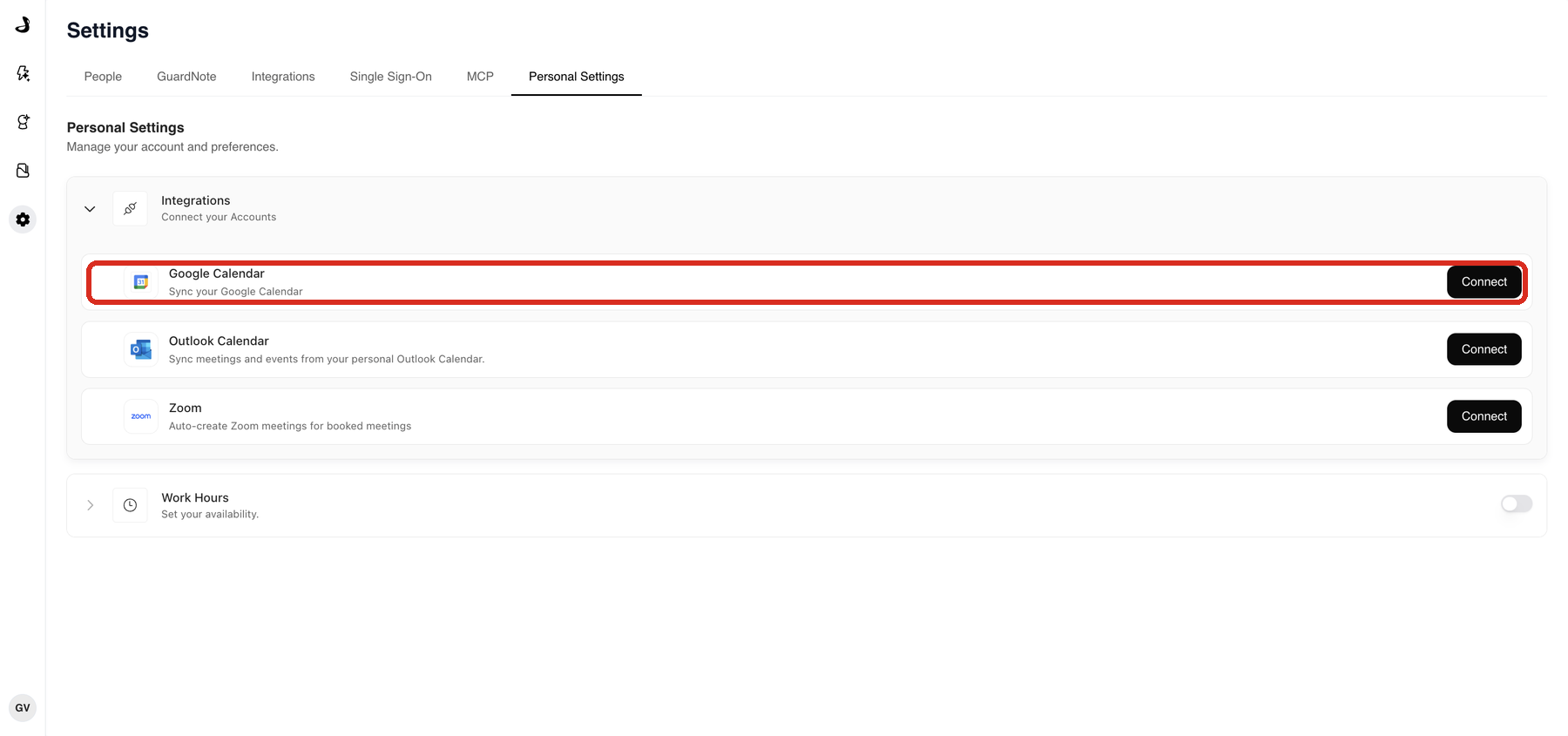
A person who has not connected is never offered to a visitor, so the more of your routed hosts who connect, the more choice a visitor gets.
How do I point an agent at Google Calendar?
Open the agent that books meetings and select the Agent tab.
Expand Agent CTAs.
Next to Meeting booking, select Configure.
Under Docket's Calendar Settings, set Calendar to Google Calendar.
Set Platform to the conferencing tool the meeting should use.
Check Meeting Title, Meeting Description, Duration, and Email Reminders.
Select Save.
The Calendar and Platform lists only offer providers somebody has already connected, which is why the connection step comes first.
How do I check that booking works?
Select Preview at the top right of the agent page.
Start a conversation that should offer a meeting.
Pick a time when a connected host should be free.
Finish the booking with a test email address.
Confirm the meeting lands on that host's Google Calendar at the right time, with a working join link.
For a second check, block an hour directly in Google Calendar and confirm that time stops being offered.
Troubleshooting Google Calendar booking
What you are seeing | What to check |
|---|---|
No times are offered at all | Confirm at least one routed host has a connected calendar, and that their work hours cover the times you expect. |
Booking fails when the meeting is created | Confirm Google Meet is available to that host. Where Meet is switched off for an organizational unit, or the Workspace edition does not include it, Google refuses to create the event. |
One host is never offered | Confirm they show as connected and are included in this agent's routing. Check their address is their primary work email, because Google's availability lookup does not resolve alias addresses. |
Availability looks right but the event is not created | The connected administrator account may be able to read calendars without being able to create events on them. Ask your Google administrator to confirm both. |
Times appear in an unexpected time zone | Times follow the host's time zone, not the visitor's. Check it in their Personal Settings. |
The connection is refused with a credential error | Check the Google Workspace administrator email for a typo. |
Frequently asked questions
Can I limit Google Calendar booking to certain people?
Yes. Use the personal Google Calendar connection in Personal Settings instead of the workspace service account, and only the people who connect become bookable.
Does the service account give Docket access to every calendar in our domain?
It authenticates with a Google Workspace administrator account so Docket can check availability across your domain. Where that is broader than your security team wants, use per-person connections instead.
How far ahead does the agent offer times?
Fourteen days.
Why is a host with a free calendar never offered?
Most often because the address Docket holds for them is an alias rather than their primary work email. Google's availability lookup returns nothing for an alias.
Can one agent use both Google Calendar and Outlook Calendar?
No. An agent books on one or the other. Teams split across both need separate agents. See Connecting Outlook Calendar for Marketing Agent Meetings.
Do visitors get a Google Meet link automatically?
Only when the agent's Platform is set to a Google Meet booking and Meet is available to the host. To use Zoom instead, see Connecting Zoom for Scheduled Meetings.