Connecting SharePoint to Docket
Last updated: September 23, 2026
Connect SharePoint so your Marketing Agents can answer from the documents your team already keeps there, without anyone re-uploading them.
Docket ingests the SharePoint content you point it at and adds it to your knowledge library. From there you choose, agent by agent, which sources each one is allowed to use.
Connecting takes three stages: connect SharePoint once for the workspace, let the initial ingestion finish, then select the content on the agents that should use it.
What do I need before connecting SharePoint?
Have these ready before you start:
The Admin role in Docket, which is what lets you manage workspace integrations.
A Microsoft account that can authorize access to the SharePoint sites you want ingested, in the right Microsoft 365 tenant.
A decision on which sites and libraries Docket should read. Connect what your agents genuinely need rather than everything, so answers stay accurate.
How do I connect SharePoint to Docket?
In Docket, open Settings and select the Integrations tab.
Find the Sharepoint card and select Connect.
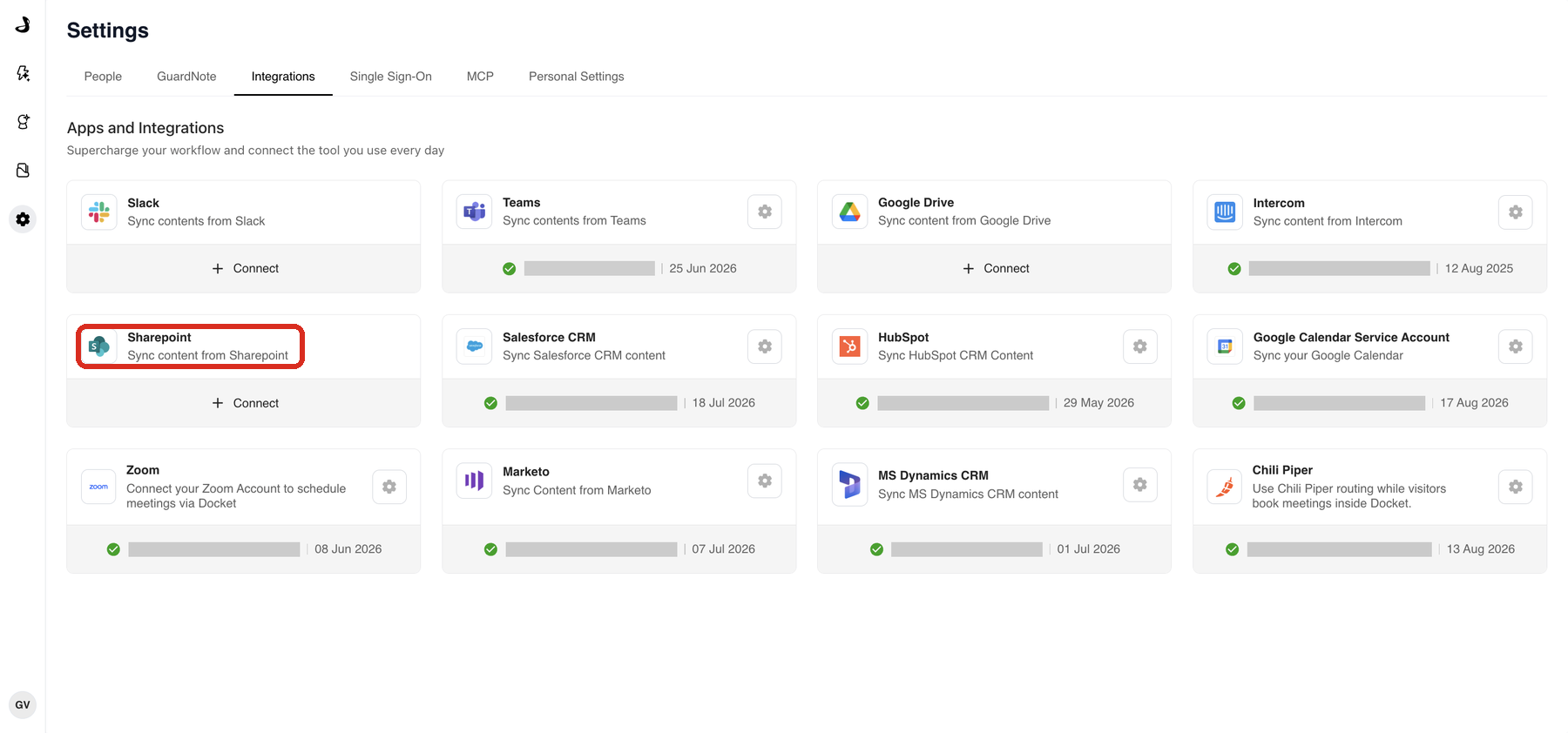
Sign in with Microsoft and approve the access Docket requests.
Choose the sites or libraries Docket should ingest, if the connector asks for a scope.
Return to Integrations and confirm the Sharepoint card shows as connected.
Ingestion starts after the connection succeeds. Large libraries take a while, so check back rather than waiting on the page.
Where does my SharePoint content appear?
Under Knowledge Sources, on the Other Integrations tab. Each ingested item shows SharePoint in its Sources column, so you can tell what came from SharePoint and what was uploaded or crawled.
You connect a source in Settings and review what it brought in under Knowledge Sources. Managing Global Knowledge Sources covers that page in full.
How do I let an agent use my SharePoint content?
Connecting SharePoint makes the content available to the workspace. Each agent still chooses what it uses.
Open the agent and select the Knowledge tab.
Under Knowledge Base, select Sources.
Select the SharePoint content this agent should answer from.
Save the agent.
Pick sources that match what the agent is for. Selecting Knowledge Sources for an Agent goes into this.
How do I check that it worked?
Open Knowledge Sources and select Other Integrations.
Confirm a document you expect from SharePoint is listed, with SharePoint in its Sources column.
Open the agent and select Preview.
Ask a question whose answer only exists in that document.
Confirm the agent answers from it.
Troubleshooting the SharePoint integration
What you are seeing | What to check |
|---|---|
Authorization fails | Confirm you have the Admin role in Docket, and that you signed in to the Microsoft 365 tenant holding the sites you want. |
Expected documents are missing | Confirm the content sits inside the scope you selected and that the connected account can open it. Allow the initial ingestion to finish first. |
A document is there but the agent does not use it | Confirm the source is selected on that agent's Knowledge tab. Connecting SharePoint alone does not give an agent access. |
An updated document still gives the old answer | Docket re-syncs on a schedule rather than instantly. Allow the sync window before re-testing. |
The card shows connected but nothing was ingested | Reopen the card and confirm a site or library scope is selected. |
Frequently asked questions
Does connecting SharePoint give Docket access to every site?
Docket reads the sites and libraries you authorize and select. Choose what your agents actually need rather than the whole tenant.
Do my agents automatically use SharePoint content once it is connected?
No. Connecting adds the content to your knowledge library. Each agent then selects the sources it uses on its own Knowledge tab.
How quickly do SharePoint changes reach Docket?
Docket re-syncs on a schedule, so an edit is not reflected instantly. Allow the sync window before testing a change.
What happens if I disconnect SharePoint?
Sync stops immediately. Disconnecting while holding the data keeps what Docket already ingested, and a permanent delete removes the ingested content along with the configuration.
Who can connect SharePoint?
Anyone with the Admin role in Docket.